
Use the Teachable integration to enroll customers in a Teachable course when they buy a product. Cart creates a sale in your Teachable school, and the customer gets access to the Teachable product.
Teachable is available in PublishPress Cart Pro.
Before you start #
You need:
- A Teachable school.
- The email address and password that you use to log in to Teachable.
- A Teachable plan that allows integrations. Check your plan in Teachable.
- The ID of the Teachable product that you want to sell.
Cart can only enroll customers in Teachable. It cannot remove customers from a Teachable course.
Step 1: Find your Teachable product ID #
- Log in to Teachable.
- Open the course, then open its Pricing tab.
- Copy the product ID of the pricing plan.
The product ID is a number.
Step 2: Connect Teachable to Cart #
- In WordPress, go to Cart → Settings → Integrations.
- On the Teachable card, click Configure.
- In Email, enter the email address that you use to log in to Teachable.
- In Password, enter your Teachable password.
- In Base URL of your school, enter the URL of your school, for example
https://teachable-school-domain.com. Do not put a slash at the end. - Click Save changes.
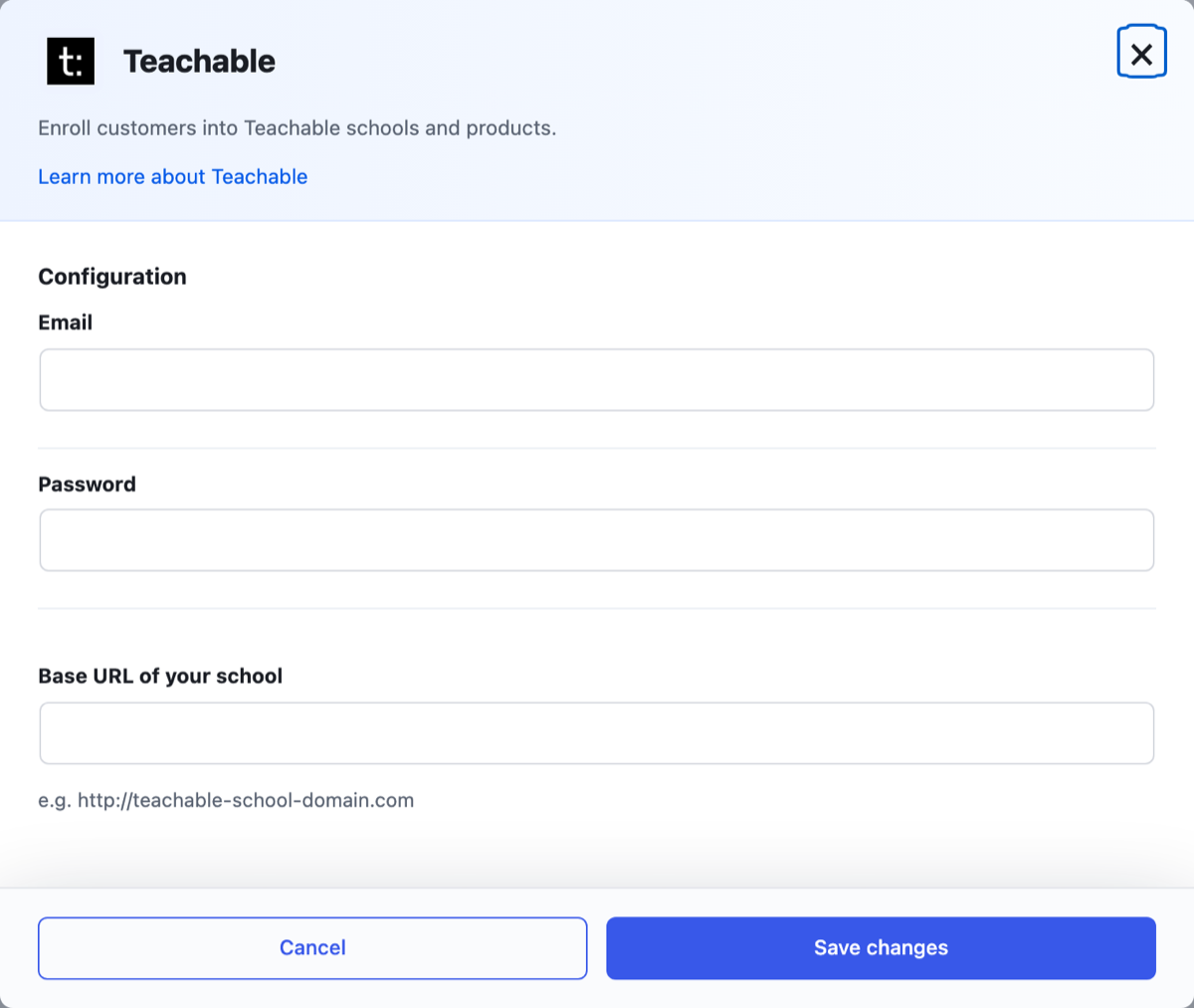
Teachable shows in the product Service list only after you save all three fields.
Step 3: Add the integration to a product #
- Go to Cart → Products and open a product.
- Open the Integrations tab.
- Click + Add integration.
- In Service, select Teachable.
- In Trigger, select the event that runs the integration, for example Product purchased.
- In Product ID, enter the Teachable product ID from Step 1.
- Click Publish or Update.
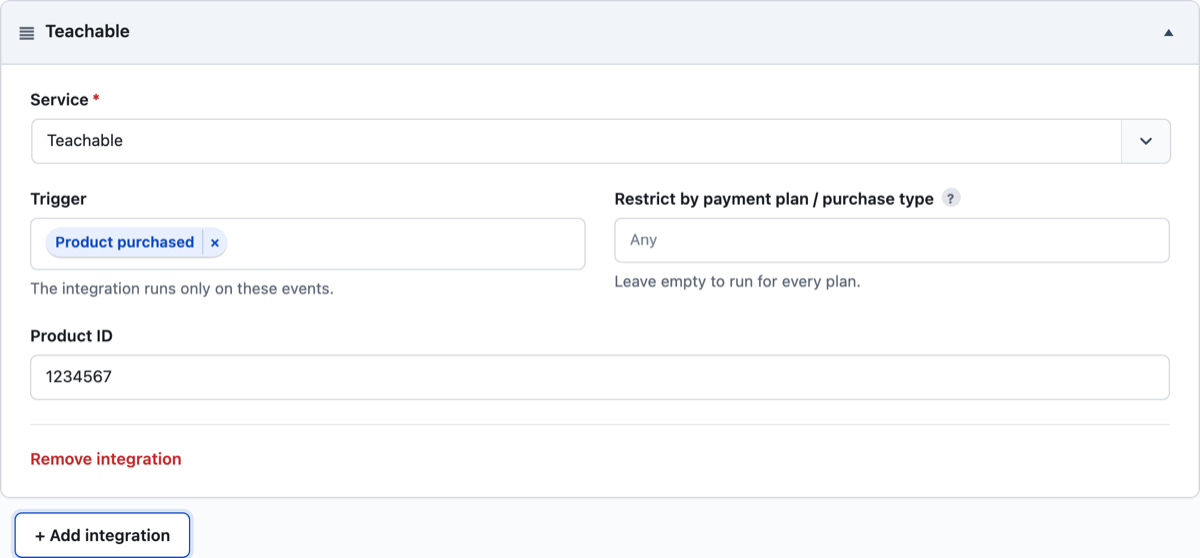
For the full list of triggers and the Restrict by payment plan / purchase type field, see Integrations Overview.
What Cart sends to Teachable #
When the trigger runs, Cart creates a sale in your Teachable school with:
| Teachable field | Value from the order |
|---|---|
name | Customer first name and last name |
email | Customer email |
product_id | The Product ID from the integration |
src | The title of your WordPress site |
Teachable returns the ID of the student. Cart saves this student ID on the order and adds it to the order notes.
Do not use refund or cancel triggers #
The Teachable integration has no remove action. Cart enrolls the customer for every trigger that you select.
Do not select triggers such as Product refunded or Subscription canceled for Teachable. Cart enrolls the customer again on these events.
To remove a customer from a course, remove the student in Teachable.
Teachable does not show in the Service list #
Cart adds Teachable to the Service list only when Email, Password, and Base URL of your school all have a value.
Go to Cart → Settings → Integrations, open the Teachable card, and fill in all three fields.
The order notes show an error #
Open the order in Cart → Orders and read the Order Notes box.
- “Teachable enroll error: …” Teachable did not accept the sale. The text after the colon is the error from Teachable. Check the Product ID, and check your email and password.
- “Student ID: 0 added to Teachable course.” Cart did not get a student ID from Teachable. The enrollment probably failed. Check that Base URL of your school is correct and has no slash at the end. Then check your email and password.
Check that it works #
- Buy the product with a test email address.
- Open the order in Cart → Orders. The Order Notes box shows a line that starts with “Student ID:” and ends with “added to Teachable course.”
- In Teachable, check that the test customer is a student in the course.