The PublishPress Permissions plugin makes it possible to control who can edit content with a specific taxonomy term attached. For example, you can create a tag called “Admin Editing Only” and make sure that only people in the “Administrator” role can edit posts with that tag.
Editing permissions for individual terms #
These steps will show you how to control editing access for posts with a single term.
- Install the PublishPress Permissions plugin.
- Go to Posts > Categories.
- Open the category that you want to control editing access for.
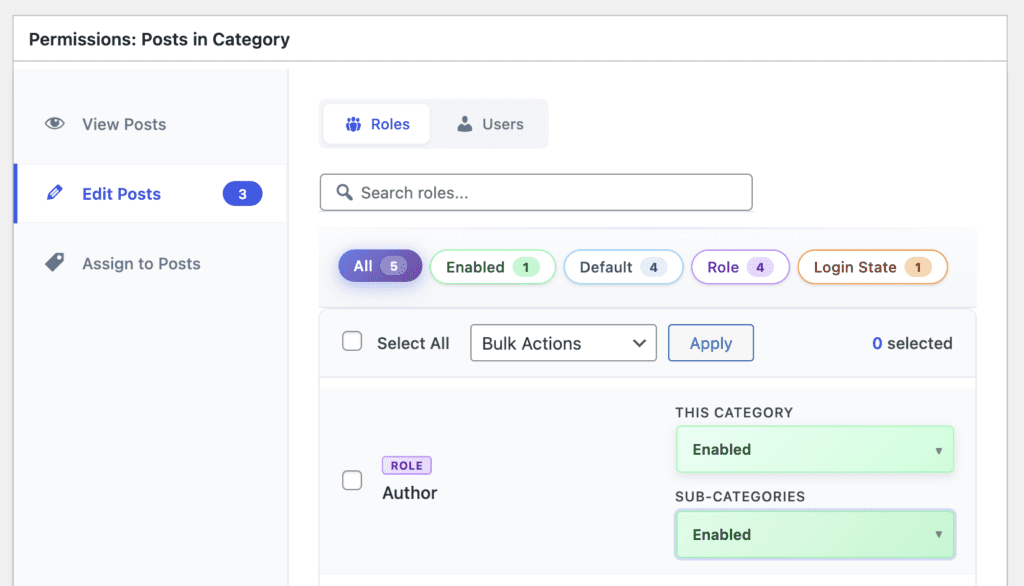
- Find the “Permissions: Posts in Category” box.
- Click the “View Posts” tab.
- This feature allows you to choose “Enabled” or “Blocked” for any user role or login state.
- Enabled: Anyone in this user role can edit posts with this Category.
- Blocked: Anyone in this user role can NOT edit posts with this Category.
Editing permissions for multiple terms #
It’s also possible to control viewing permissions for multiple terms and the posts they’re associated with. With these steps below, you can control editing access for all the terms that you select.
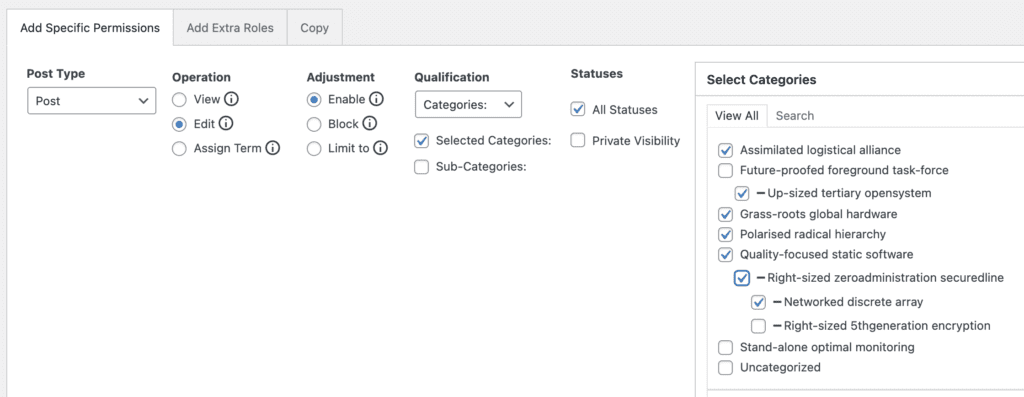
- Go to “Permissions” in your WordPress admin menu.
- Choose the user role that you want to control editing access for.
- Post Type: Choose the post type that you want to control editing access for.
- Operation: Select “Edit”.
- Adjustment: Select “Enable” or “Block”.
- Qualification: Choose the taxonomy.
- Select Categories: Choose the terms you want to control editing access for.
- Click “Add Selected Permissions”.
- Click “Save Permissions”.
Block users from editing posts with any category #
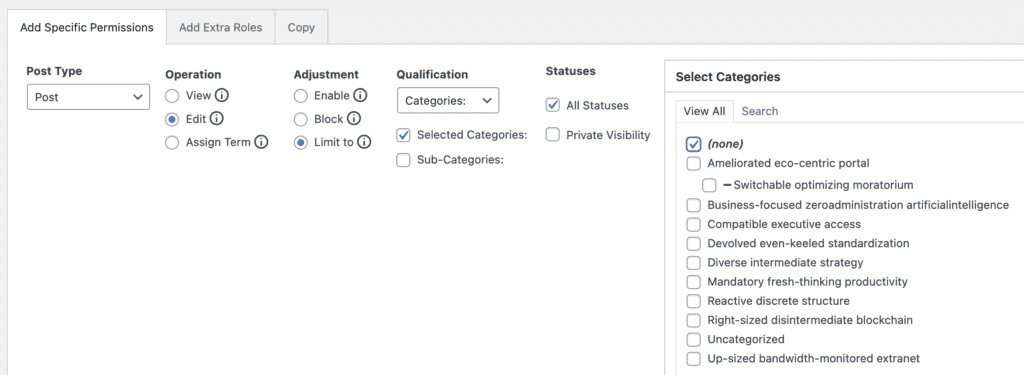
The steps above allow you to enable or block access to posts with specific terms. You can also use the “Limit to” feature to control access to ALL your terms. In the screenshot below we’ve made two different choices:
- Adjustment: Limit to
- Select Categories: None
Following these steps allows you to automatically block editing access to posts with ANY category. This means you won’t to remember to block access to new categories when they are added.