
An upsell path is a sequence of one-click offers shown after a customer completes checkout. Because their payment method is already saved, they can accept each offer with a single click, no re-entering card details. Each upsell can also have a downsell: a fallback offer shown only if the upsell is declined.
A path supports up to 5 steps, each with an upsell and an optional downsell, so you can build funnels like: purchase > upsell 1 > (downsell 1 if declined) > upsell 2 > confirmation page.
How the flow works #
- The customer completes checkout for a product assigned to a path.
- Instead of the showing normal confirmation page, they’re redirected to the page you chose for the first offer.
- On that page, an accept link charges them instantly and moves to the next step; a decline link either shows the downsell or moves on.
- When the path ends, the customer lands on the product’s normal confirmation.
Creating an upsell path #
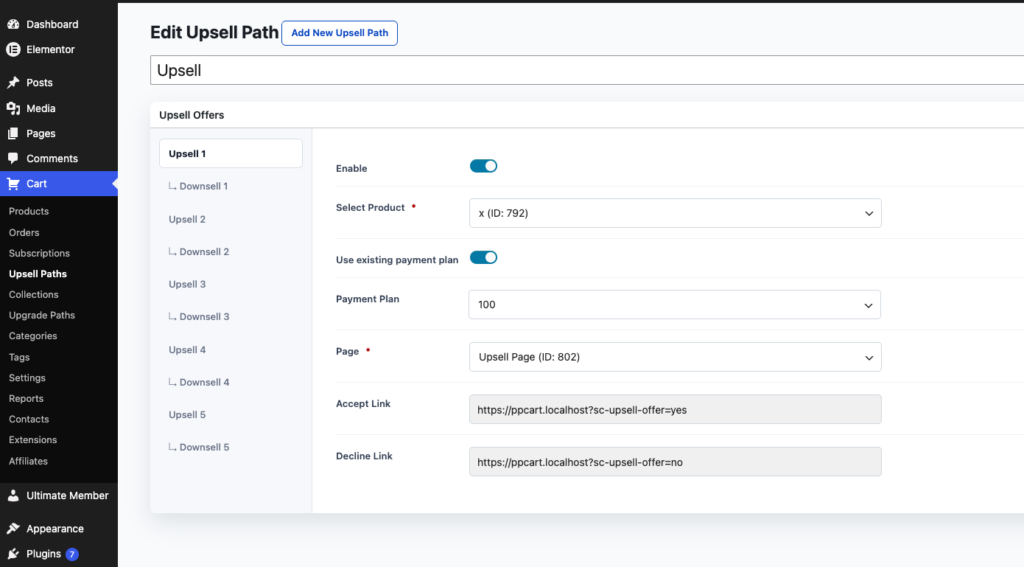
- Go to PublishPress Cart > Upsell Paths and click Add New.
- Give the path a title (internal only).
- In the Upsell Offers box, configure the steps. The tabs are labeled Upsell 1 through Upsell 5, each with a matching ↳ Downsell tab.
Building the offer page #
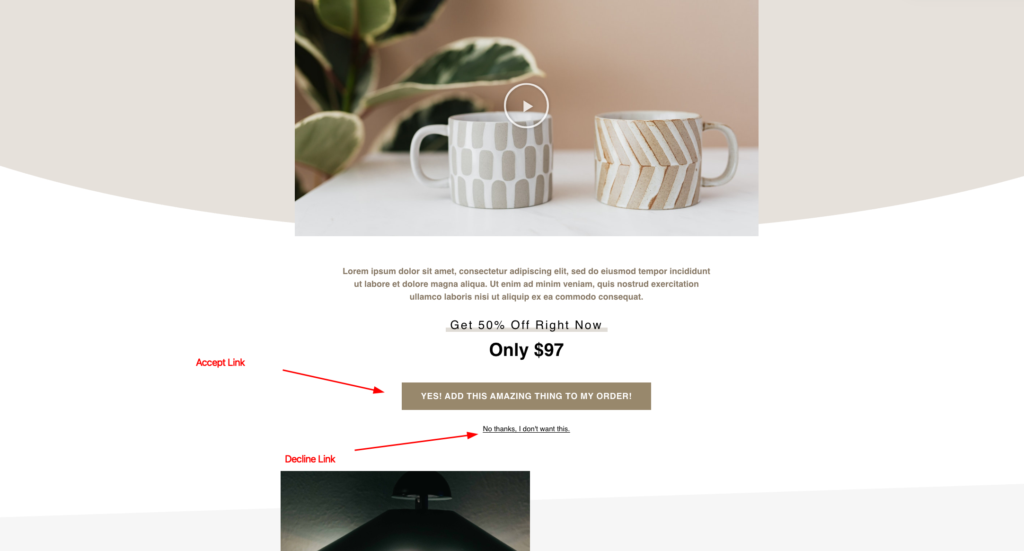
The offer page is a normal WordPress page you design however you like, headline, video, bullet points. The only requirement is two links/buttons using the URLs shown in the offer’s settings:
- Accept Link:
https://yoursite.com?sc-upsell-offer=yes— charges the customer’s saved payment method for this offer and continues the path. - Decline Link:
https://yoursite.com?sc-upsell-offer=no— skips the charge; if the step has an enabled downsell, the customer is redirected to the downsell page next, otherwise the path continues.
Make the accept button prominent, and keep the decline link visible but modest (“No thanks, I’ll pass”).
Assigning a product to a path #
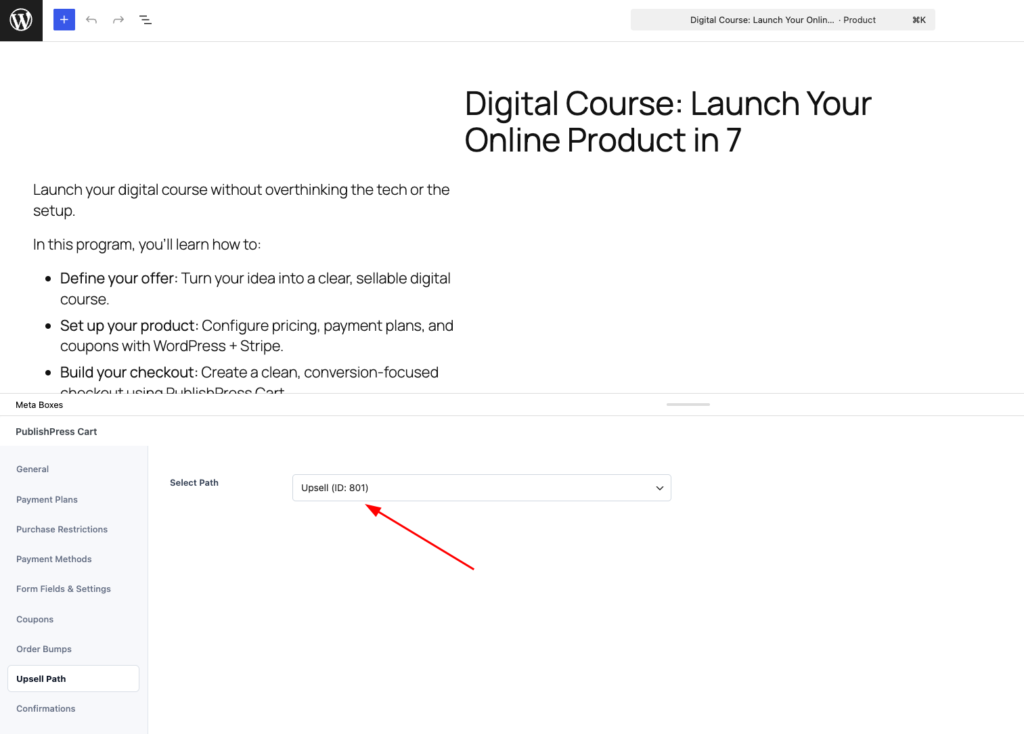
The path itself doesn’t list which products use it, that’s set on the product:
- Edit the product that should trigger the funnel.
- Open its Upsell Path tab.
- Choose the path under Select Path and update.
If you haven’t created any paths yet, this tab shows “You haven’t created any upsell paths yet!” with a link to create one.
Things to know #
- One-click charges require a gateway with saved payment methods. With Stripe, the classic card form and the embedded Payment Element both support one-click upsells; the Stripe-hosted checkout page does not, customers checking out through the hosted page skip the upsell path.
- Upsell purchases are recorded as separate child orders linked to the original order, so refunds and reporting stay clean per offer.
- In Confirmation Settings and per-product Integrations, you can target customers based on which upsell or downsell they accepted.
- Track conversions per step using the offer pages’ analytics, or the Tracking fields for upsell purchases.