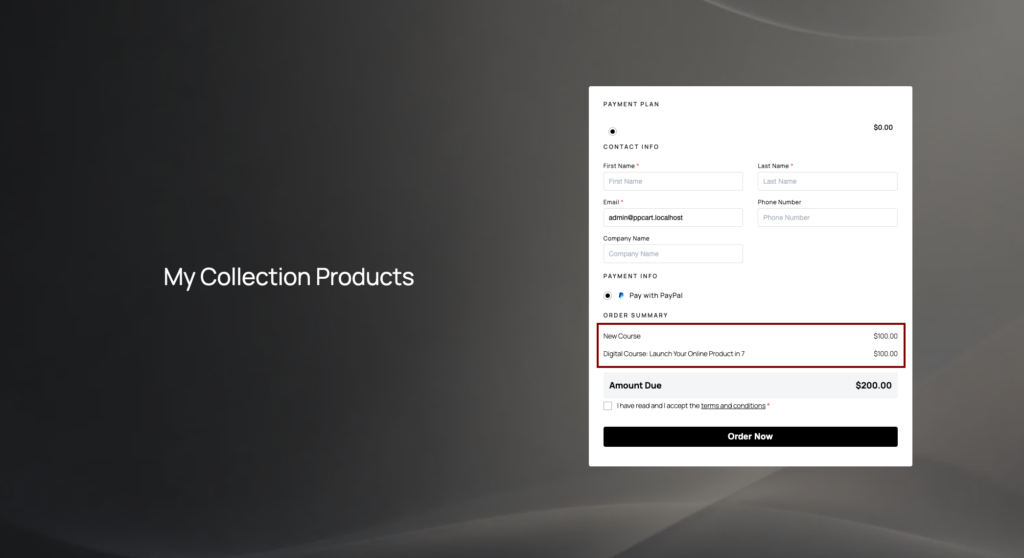
In PublishPress Cart, we have a feature called “Collections”. Collection are multiple products combined into 1, and users can purchase that 1 collection product and they will get multiple products that you added there.
Here are steps to add a collection:
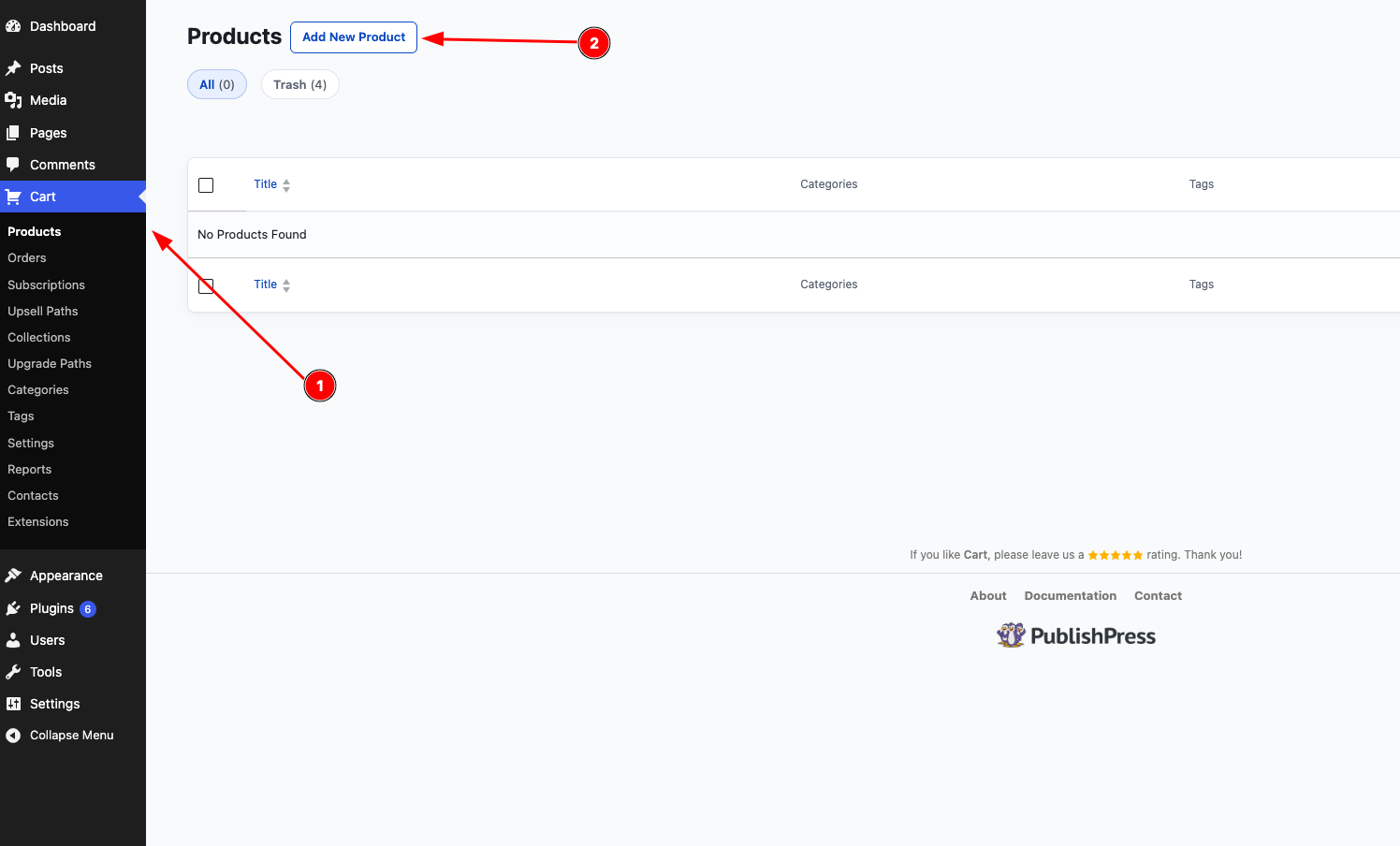
- Go to WP-admin > Cart > Collections:
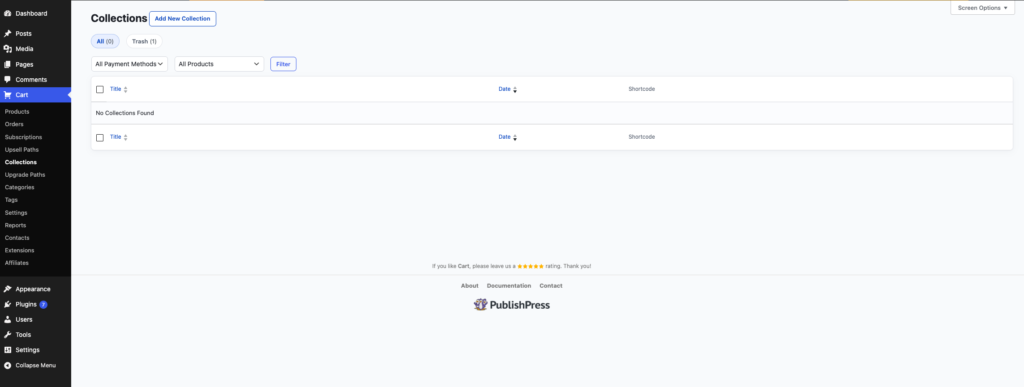
- Click “Add New Collection“:
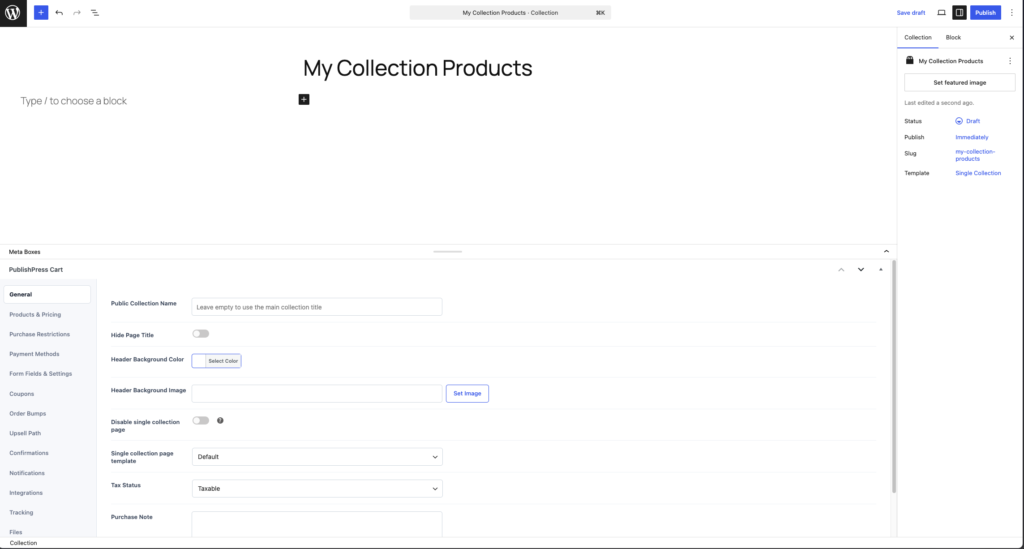
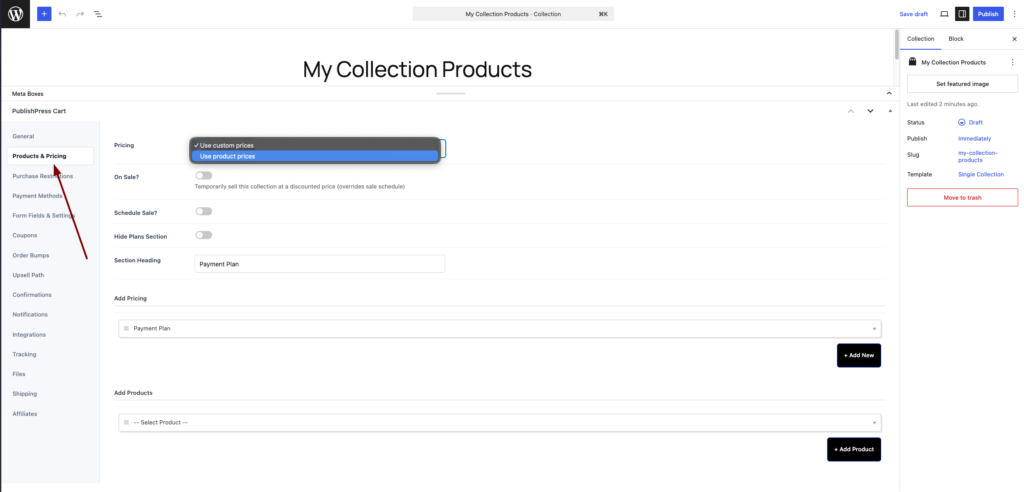
- On this screen, you get the sam exact configuration when you create new product, the only differences are instead of “Payment Plan”, you got the “Products & Pricing”. In this tab, you can choose between using custom pricing or use product pricing:
- If you choose custom prices, you will have the option to set the payment plan:
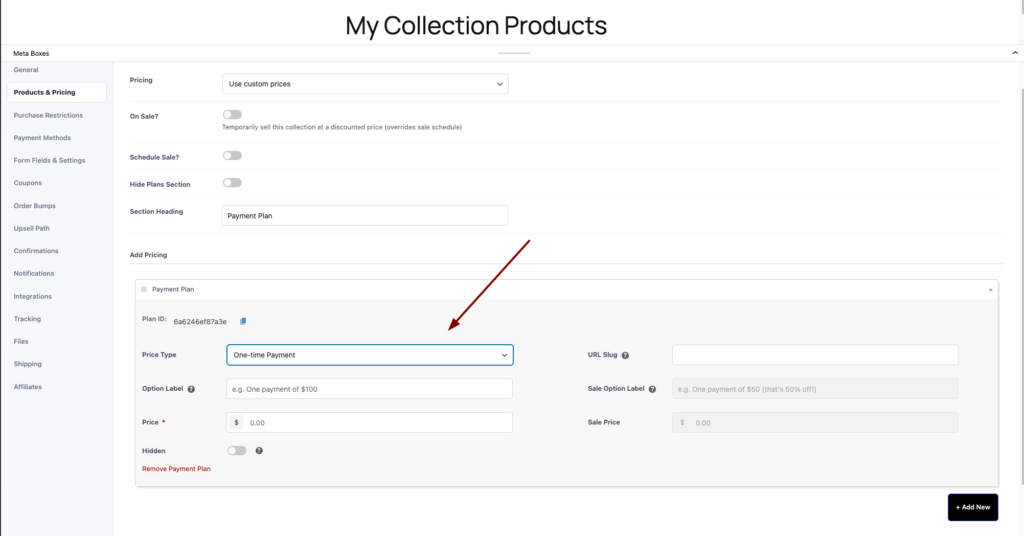
- This payment plan will be overwriting the actual product pricing. You can set the pricing to be one time, or recurring as a subscription.
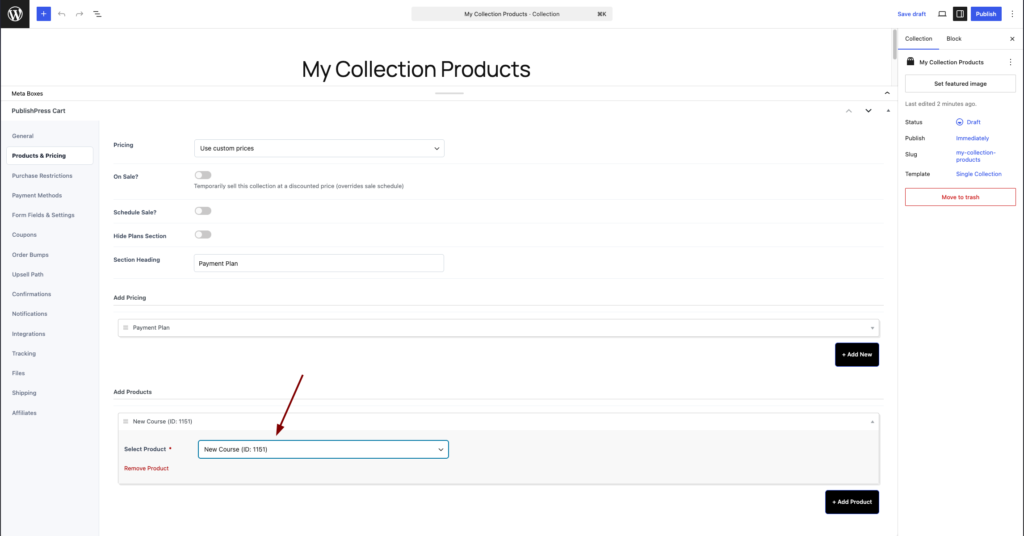
- After you setup the pricing, make sure to input your product in the add product section:
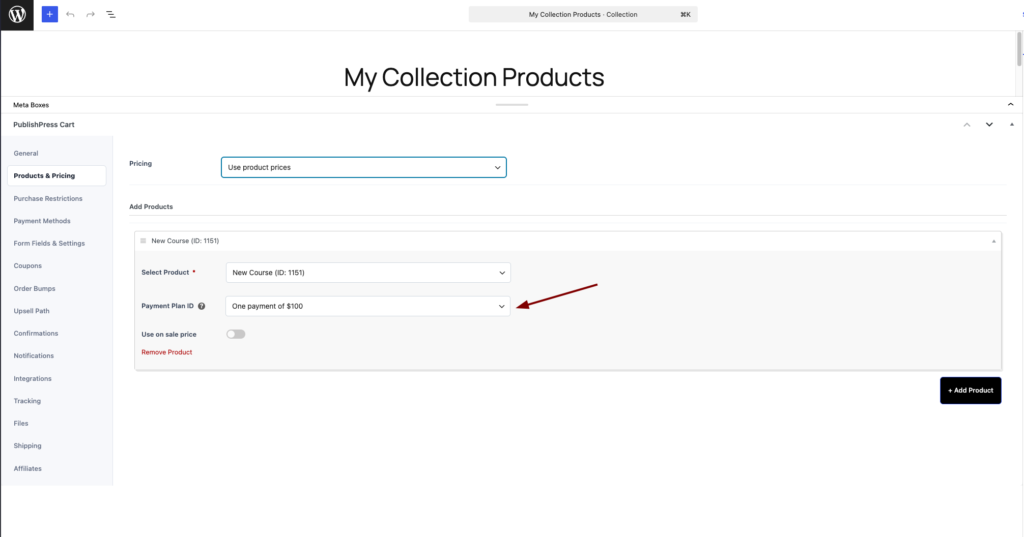
- If you choose product prices, you will only ended up with add product section, with the payment plan selection that pulling from the product:
- You can add another product by click the “Add Product” in the bottom right:
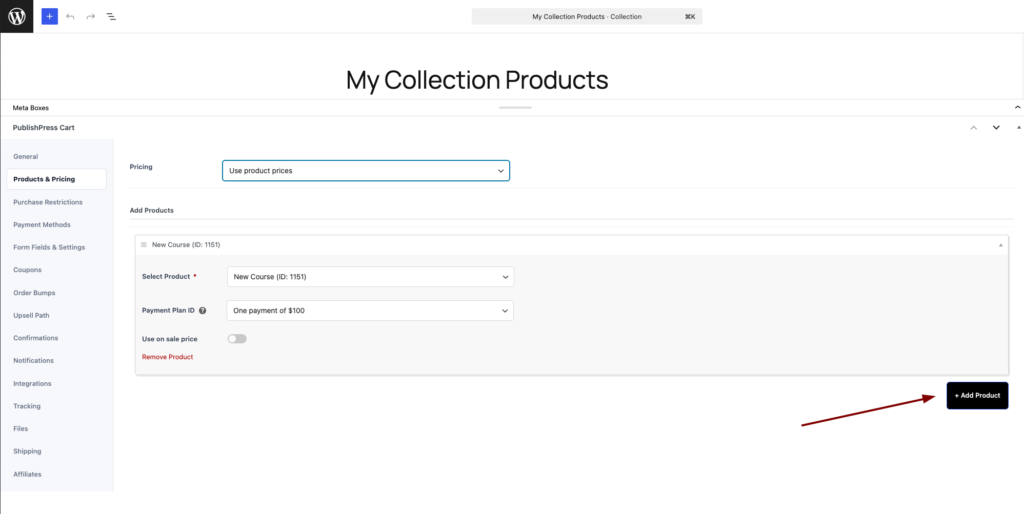
- After you click the button, it should show another product added at the bottom of first product:
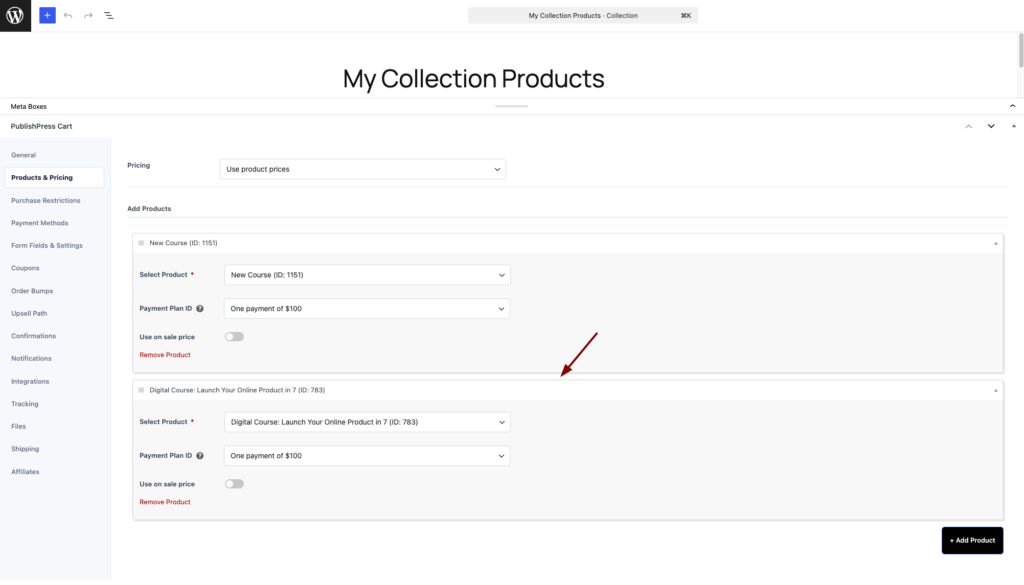
- After you done configuring your collection, you could save and publish it.
- This is how it looks on the frontend after published: