
Do you use Tutor LMS? The Tutor LMS integration allows you to automatically enroll or cancel new subscribers in a course. You can integrate your account with PublishPress Cart by installing the Tutor LMS plugin on your WordPress site.
How To Integrate Tutor LMS With PublishPress Cart #
Get started by installing and activating the Tutor LMS plugin on your WordPress site. Then configure the settings in the Tutor LMS plugin on your WordPress site.

Now you can set up a Tutor LMS integration by going to a PublishPress Cart product and selecting “Tutor LMS” from the services menu in the Integrations tab. From here you’ll see a list of the courses you previously created in Tutor LMS. Choose the course you would like to link to this product.
In the example below the following will occur from the settings chosen. When a product is purchased with any payment plan a new subscriber is added to a course in Tutor LMS.
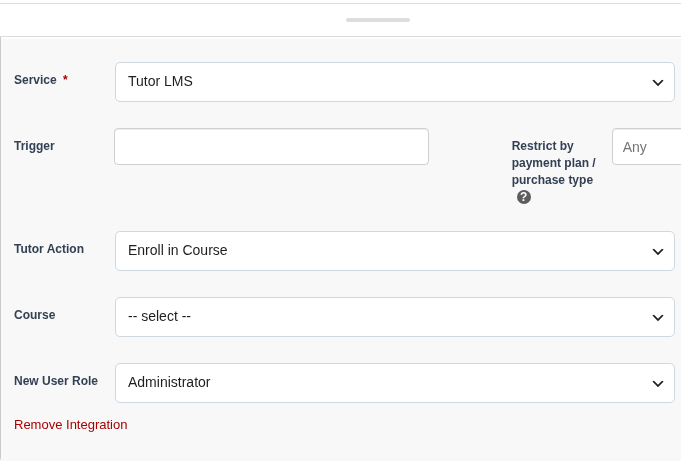
You have the option to automatically send the new user their login details via email. If you don’t have custom password and username fields set up in the Form Fields tab, a password will be auto-generated and the customer’s email address will be used for their username.
Once you have finished filling out all the settings needed for your product, complete the order form by selecting Publish or Update.
How to Enable Tutor LMS Monetization #
On the PublishPress Cart Pro version, we have direct integration with Tutor LMS monetization, which means you could select PublishPress Cart directly in the monetization setting.
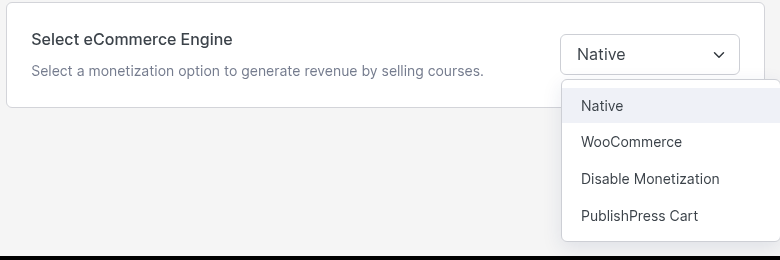
Then on the course, you could select the matched PublishPress Cart product.
After you did that, when your customer purchases a course through Tutor LMS, it will be redirected to the PublishPress Cart product.