
Control Your Admin Menus in the Free Version of PublishPress Capabilities
The WordPress admin menu fills up fast. Every plugin you install adds another link, and before long your editors, authors and clients see a long sidebar of tools they’ll never use, and some they shouldn’t touch.
That’s why we’re glad to announce that Admin Menus, previously a Pro feature, is now included in the free version of the Capabilities plugin!
With Admin Menus, you can rename, reorder and restrict the links in the WordPress admin menu. You choose what each user role sees, so everyone gets a dashboard that fits their job.
You can rename menu items so they make sense to your team, reorder them so the most important tools are at the top, and decide which user roles can see each item. The result is a cleaner, simpler dashboard for editors, authors, clients, and anyone else who logs in to your site.
Table of Contents
Why customize the WordPress admin menu?
A cleaner admin menu isn’t only about looks. The feature helps in practical ways:
- Less confusion for users. Authors and clients can find the tools they need without scrolling past plugin settings.
- Fewer mistakes. If someone can’t see a settings page, they can’t change it by accident.
- Clearer names. Plugin menu names often don’t mean much to your team. You can rename them to match how your organization works.
- A more professional handover. Agencies can give clients a tidy, branded dashboard instead of a cluttered one.
Introduction to the Admin Menus feature
How to reorder Admin Menu links
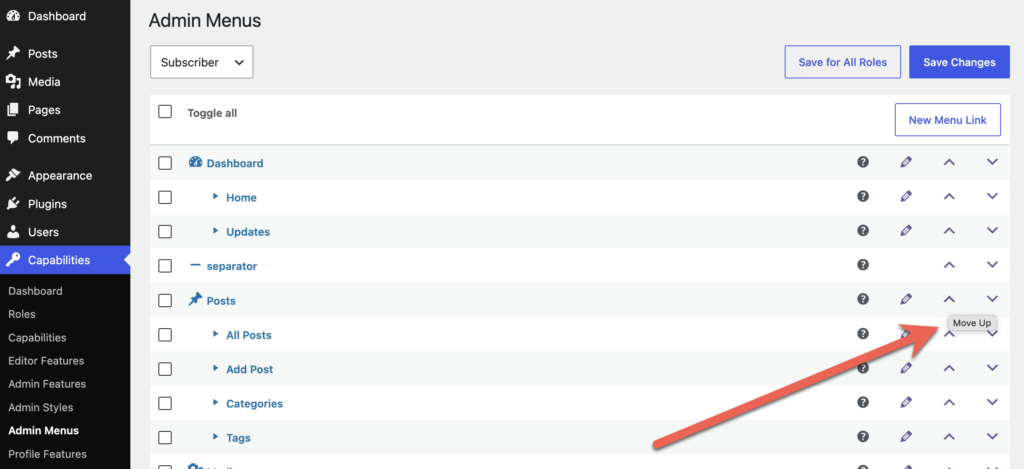
You can move any link in the admin menu. Drag it to a new spot, or use the up and down arrows to move it one step at a time. Put the tools your team uses most at the top, and move the rest out of the way.
In this screenshot, I’m clicking on the “Move up” arrow next to the “Posts” link.
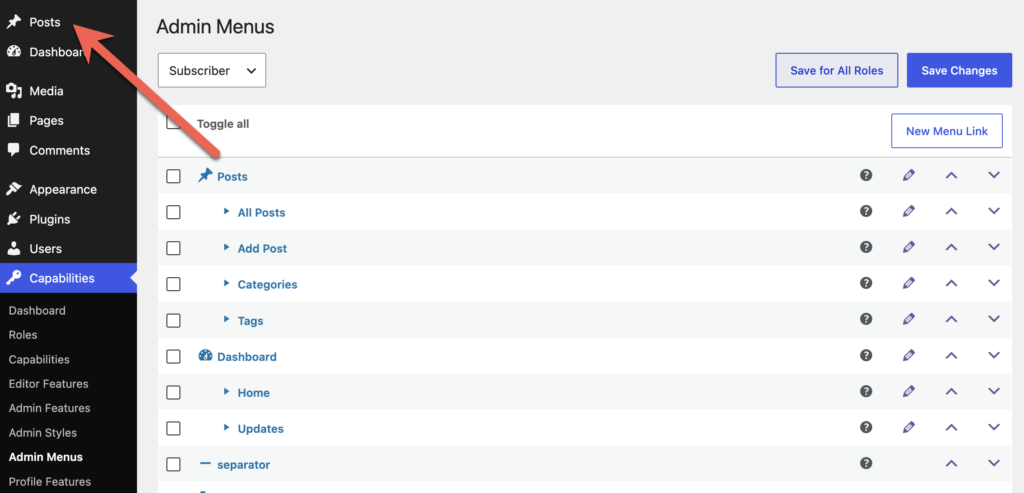
You can see the result in this next screenshot. The “Posts” link in the admin menu is now above the “Your Dashboard” link.
How to rename Admin Menu links
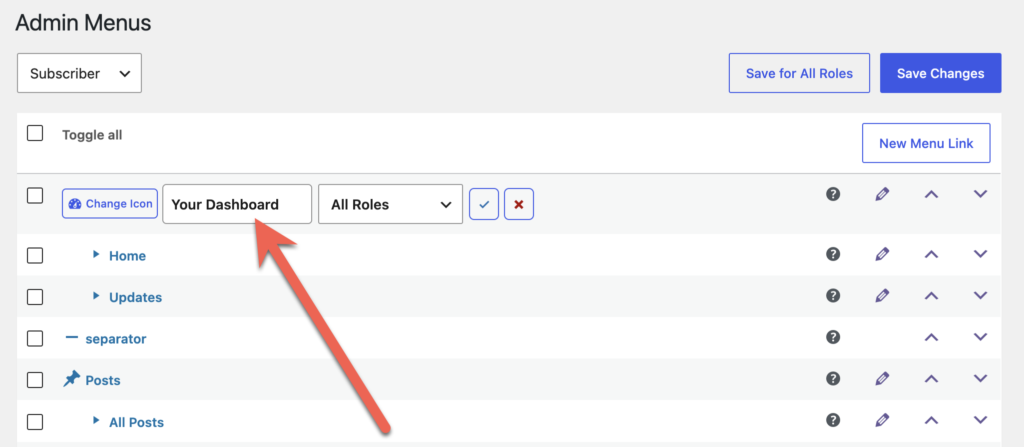
You can click the pencil icon next to any menu link to give it a new name. For example, you could rename a plugin’s menu to something your team recognizes right away.
In the screenshot below, I’m changing “Dashboard” to “Your Dashboard”.
If you click on the “Change Icon” you can also change the icon for this menu link. Clear names and icons make the dashboard much easier to scan.
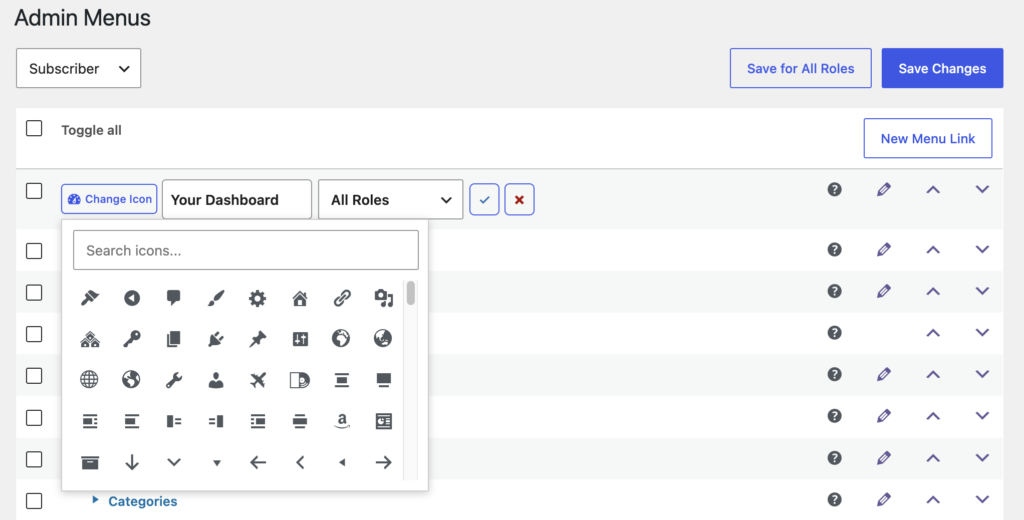
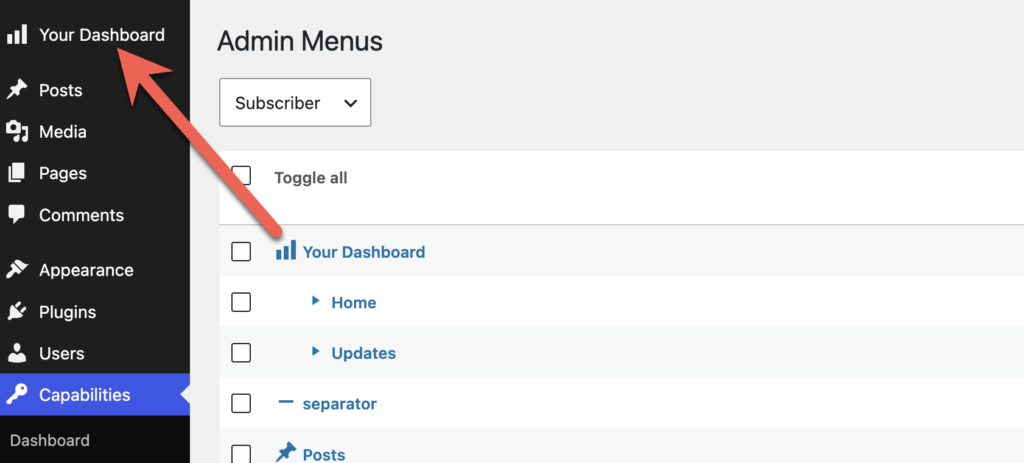
In this next screenshot, you can see that the “Dashboard” link is now called “Your Dashboard” and has a new icon.
How to control access to Admin Menu links
The Admin Menus feature also lets you hide menu links from specific roles. Choose the user role you want to change, then check the boxes next to the menu links that role shouldn’t see.
For example, you might hide plugin settings, tools and profile options from the Author role, so authors only see what they need to write and manage their own posts.
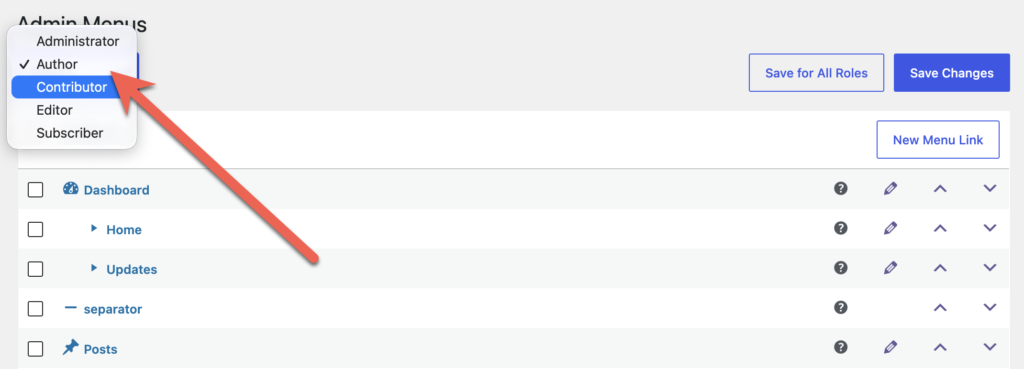
In the top-left corner of this screen, choose the role that you want to edit.
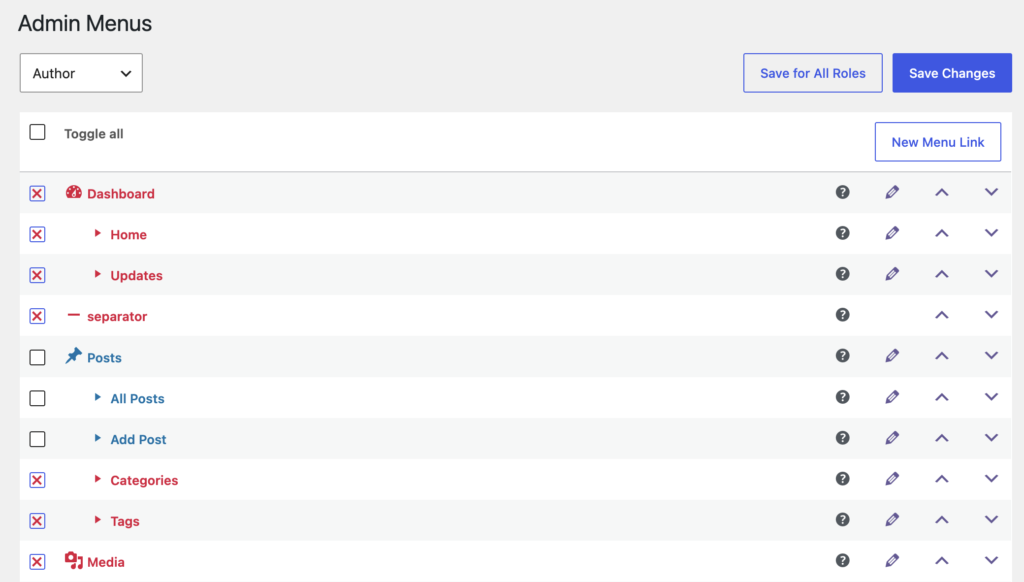
Scroll down and you can see checkboxes for all the menu items. In the image below, users in the “Author” role will not be able see or use any of the menu links marked with a red X.
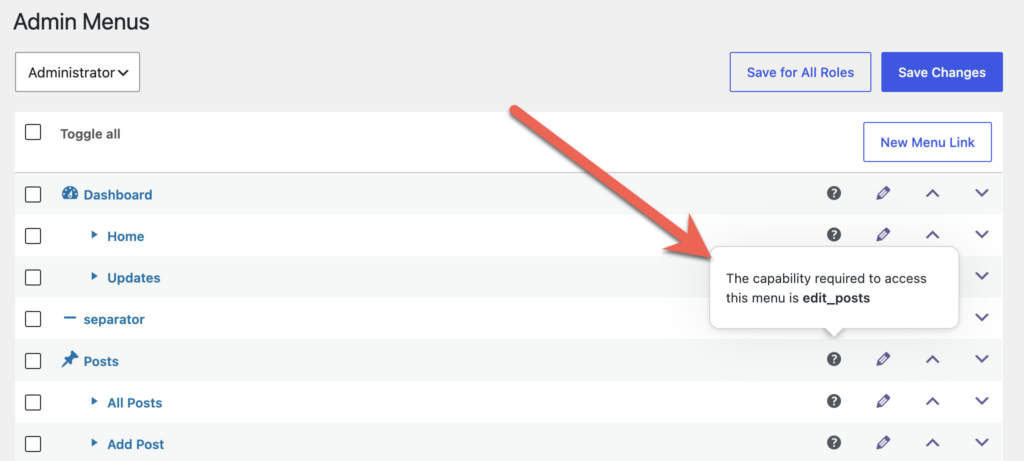
The Admin Menus screen also allows you to see what WordPress capability is controlling access to each menu link. Every WordPress admin menu link is tied to a capability.
Hover over the question mark icon and you’ll see a tooltip with details. These capabilities can be given to users via the Capabilities screen.
This is useful when you want to give a role access to a screen instead of hiding it. Find the capability in Admin Menus, then grant it to the role in the main Capabilities screen.
Get the Admin Menus feature for free
Yes, Admin Menus is available now in the free version of PublishPress Capabilities! In the Pro version of the plugin, you can add new links to your admin menu.
Admin Menus is just one part of PublishPress Capabilities. The plugin gives you complete control over who can do what on your WordPress site. You can create and edit user roles, fine-tune every capability, hide features in the post editor and dashboard, and back up your role settings so you can restore them anytime.
Whether you run a multi-author blog, a membership site or a client project, PublishPress Capabilities helps you give each user exactly the access they need, and nothing more.

Control your WordPress users
PublishPress Capabilities enables you to customize what users see in every area of WordPress from editing posts and pages to admin menus, profile pages.
