
Use the Cancel Subscription integration to cancel a customer’s existing subscription when an event occurs on a different product. For example, when a customer buys an upgrade, Cart cancels the subscription to the old plan.
Cancel Subscription is available in PublishPress Cart Free and Pro.
How Cart finds the subscription #
Cancel Subscription does not cancel the order that runs it. Cart looks for a different subscription. The subscription must match all of these:
- Same customer. The subscription has the same WordPress user account or the same email address as the order that ran the trigger.
- Same product. The subscription is for the product in Select Product.
- Same plan. The subscription uses the plan in Select Plan.
- Status. The subscription status is Active, Trialing, or Completed.
If more than one subscription matches, Cart cancels the most recent one. Cart cancels one subscription each time the integration runs.
Example: cancel the old plan on upgrade #
You sell two products:
- Basic Membership, with a monthly Subscription plan.
- Premium Membership.
A Basic member buys Premium. You want Cart to stop the Basic subscription. On the Premium Membership product, add a Cancel Subscription integration:
| Field | Value |
|---|---|
| Service | Cancel Subscription |
| Trigger | Product purchased |
| Select Product | Basic Membership |
| Select Plan | The monthly Basic plan |
| Cancel | Immediately |
When the customer pays for Premium, Cart finds the Basic subscription of that customer and cancels it.
Before you start #
You need:
- A product with a plan whose Price type is Subscription. This is the subscription that Cart cancels.
- Customers who use the same email address or WordPress account for the old subscription and the new purchase.
- A payment gateway that can cancel subscriptions, for example Stripe or PayPal.
Cancel Subscription has no settings in Cart → Settings → Integrations. You set it up on each product.
Select Product lists only published products that have a payment plan. The list is empty on a new product that you have not saved yet. Save the product as a draft first, then add the integration.
Add the integration to a product #
- Go to Cart → Products and open the product that starts the cancel, for example the upgrade product.
- Open the Integrations tab.
- Click + Add integration.
- In Service, select Cancel Subscription.
- In Trigger, select the event that runs the integration, for example Product purchased.
- Optional: in Restrict by payment plan / purchase type, select the plans that run the integration.
- In Select Product, select the product of the subscription to cancel.
- In Select Plan, select the plan of the subscription to cancel. The list shows only the Subscription plans of that product.
- In Cancel, select when the subscription ends. See the next section.
- Click Publish or Update.
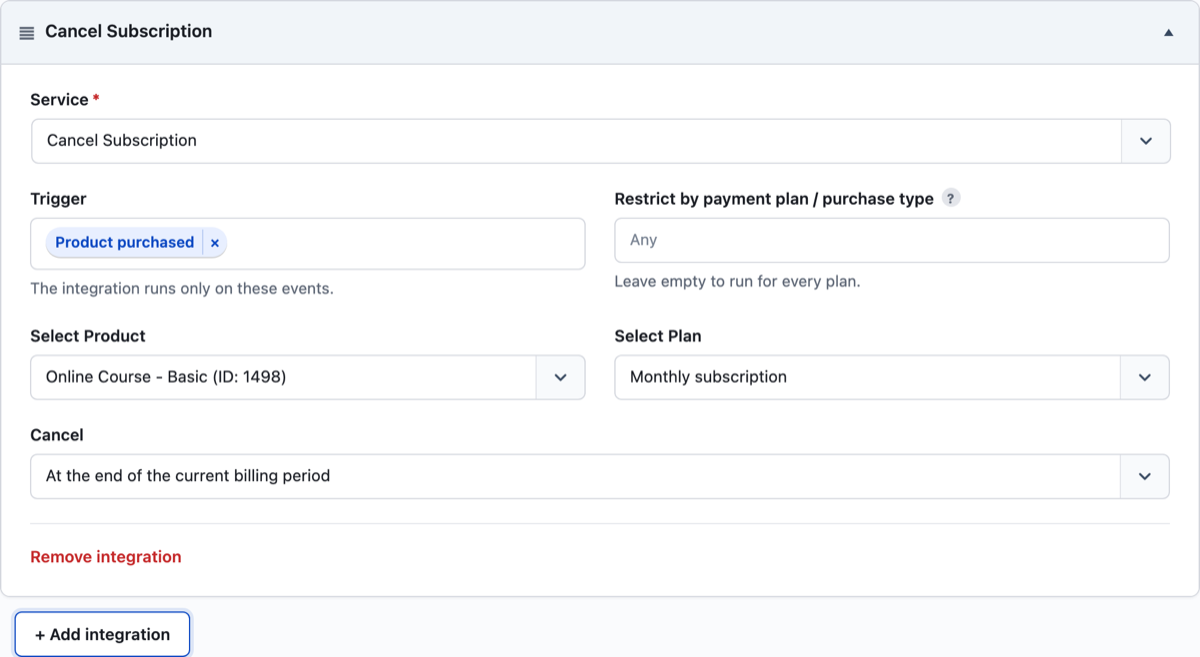
For the full list of triggers and the Restrict by payment plan / purchase type field, see Integrations Overview.
Choose when the subscription ends #
| Cancel option | What happens |
|---|---|
| Immediately | Cart cancels the subscription at the payment gateway now. The subscription status changes to Canceled. |
| At the end of the current billing period | The subscription stays active until the next bill date. Then it ends. The customer pays no more renewals. |
Cart does not refund a payment when it cancels a subscription. To refund the old order too, add a Refund Order integration. Refund Order needs PublishPress Cart Pro.
Cart cancels once for each order #
After a successful cancel, Cart saves a record on the order that ran the trigger. If the same order runs the trigger again, for example after you change the order status, Cart does not cancel again for the same product and plan.
If the cancel fails, Cart tries again the next time the trigger runs.
Do not select the product that the customer buys #
Cart cancels the most recent subscription that matches. If Select Product and Select Plan are the product and plan that the customer buys, Cart can cancel the new subscription. Select a different product or plan.
The order notes show an error #
Cart writes each step to the Order Notes box of the order that ran the trigger.
| Order note | What to do |
|---|---|
| “No active subscriptions found for product ID: … and plan ID=…” | Cart found no subscription that matches. Check that the customer used the same email address or account. Check Select Product and Select Plan. Check that the subscription is Active or Trialing. |
| “Error canceling subscription ID: …! Message: …” | The payment gateway did not cancel the subscription. Read the message. |
For Stripe, Cart uses the keys of the current Stripe mode. Cart cannot cancel a subscription that you made in Test mode while Stripe uses Live mode.
Check that it works #
- Buy the subscription product with a test email address.
- Buy the product that has the integration. Use the same email address.
- Open the new order in Cart → Orders. The Order Notes box shows “Subscription cancel integration called by product ID: …” and “Subscription ID: … has been canceled”.
- Go to Cart → Subscriptions and open the old subscription. If you selected Immediately, the status is Canceled.