
Use the Kajabi integration to give customers access to a Kajabi offer when they buy a product. Cart sends the customer details to the webhook URL of the offer in Kajabi. Kajabi then grants the offer to the customer.
Kajabi is available in PublishPress Cart Pro.
Before you start #
You need:
- A Kajabi account.
- A Kajabi offer for each product that you sell.
- The webhook activation URL of each offer.
You do not need an API key. Each product integration uses the URL of one offer.
Step 1: Get the offer URL from Kajabi #
- Log in to Kajabi.
- Go to Sales → Offers.
- Open the offer that you want to give.
- Open More → Webhooks.
- Copy the activation URL.
Step 2: Turn on Kajabi in Cart #
- In WordPress, go to Cart → Settings → Integrations.
- On the Kajabi card, click Configure.
- Turn on Enable Kajabi.
- Click Save changes.
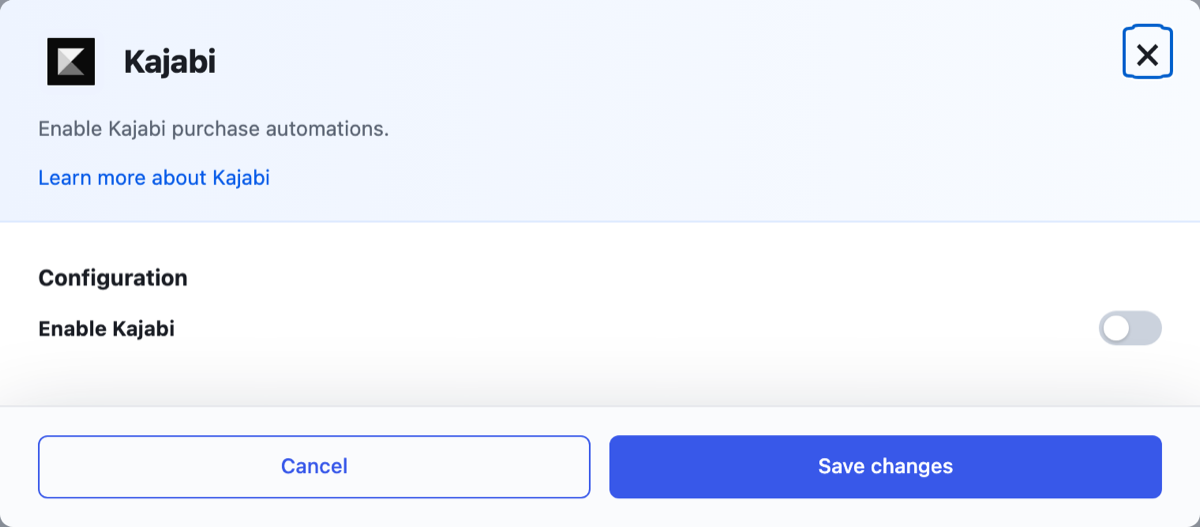
Kajabi shows in the product Service list only when Enable Kajabi is on. If you turn it off, Cart stops all Kajabi integrations on all products.
Step 3: Add the integration to a product #
- Go to Cart → Products and open a product.
- Open the Integrations tab.
- Click + Add integration.
- In Service, select Kajabi.
- In Trigger, select the event that runs the integration, for example Product purchased.
- In Webhook URL, paste the activation URL from Kajabi.
- Optional: turn on Kajabi Confirmation Email.
- Click Publish or Update.
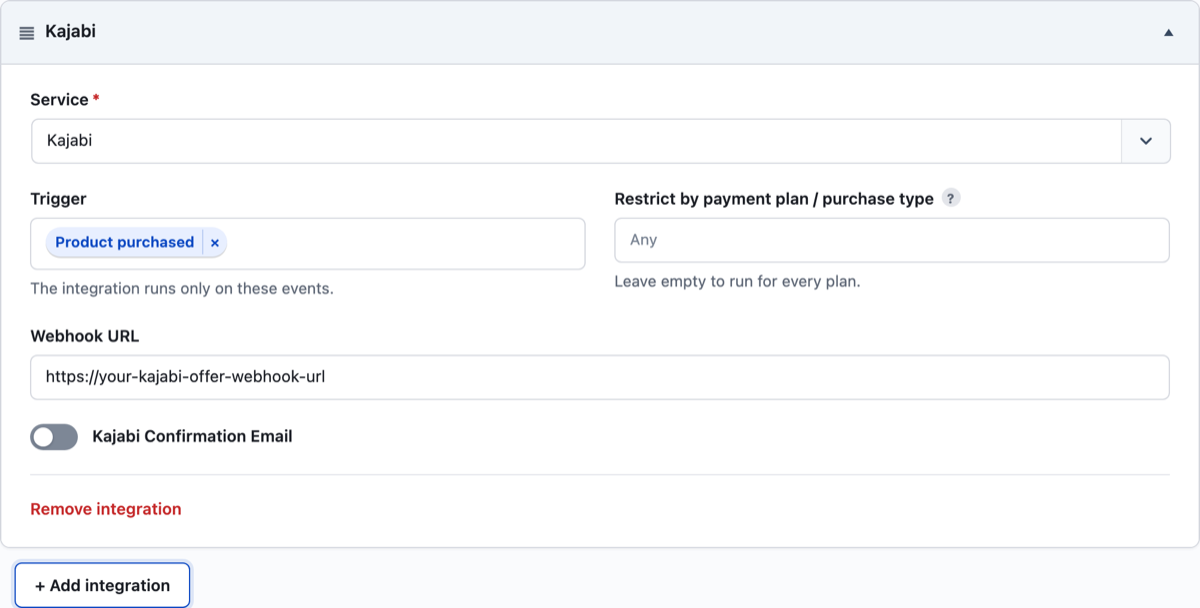
For the full list of triggers and the Restrict by payment plan / purchase type field, see Integrations Overview.
What Cart sends to Kajabi #
Cart sends a POST request with a JSON body to the Webhook URL:
| Kajabi field | Value from the order |
|---|---|
email | Customer email |
name | Customer first name and last name |
external_user_id | Customer email |
When Kajabi Confirmation Email is on, Cart adds ?send_offer_grant_email=true to the URL. This tells Kajabi to send its offer email to the customer.
Cart does not remove access #
The integration has no remove action. Cart sends the same request each time a selected trigger occurs. This is also true for Product refunded and Subscription canceled.
Select only triggers for a purchase, for example Product purchased. To remove access to an offer, do it in Kajabi.
The order notes show an error #
Cart writes the result of each request in the Order Notes box. The note starts with “Kajabi webhook response:”. Then it shows the reply from Kajabi, or the error message when the request fails.
If you see an error:
- Check that Webhook URL has the full activation URL of the offer.
- Check that the offer exists in Kajabi.
- Buy the product again with a test email address.
Check that it works #
- Buy the product with a test email address.
- Open the order in Cart → Orders. The Order Notes box shows a line that starts with “Kajabi webhook response:”.
- In Kajabi, check that the test email has access to the offer.