
Use the Heartbeat integration to add customers to your Heartbeat community when they buy a product. You can also invite customers, remove them from the community, or remove them from a group.
Heartbeat is available in PublishPress Cart Pro.
Before you start #
You need:
- A Heartbeat community.
- A Heartbeat API key.
- The roles, groups, or invitation codes that you want to use. Create them in Heartbeat first.
Step 1: Get your Heartbeat API key #
- Log in to Heartbeat.
- Go to Admin Settings → API Keys.
- Create a new API key.
- Copy the key.
Step 2: Connect Heartbeat to Cart #
- In WordPress, go to Cart → Settings → Integrations.
- On the Heartbeat card, click Configure.
- In API Key, paste the key.
- Click Save changes.
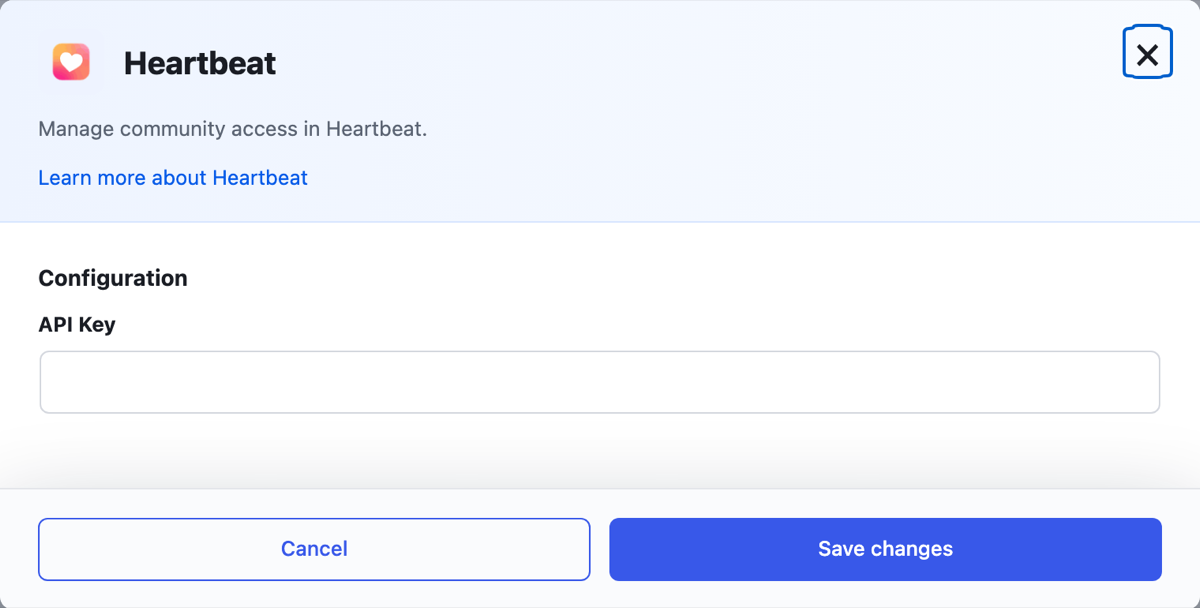
Heartbeat shows in the product Service list after you save the API Key.
Step 3: Add the integration to a product #
- Go to Cart → Products and open a product.
- Open the Integrations tab.
- Click + Add integration.
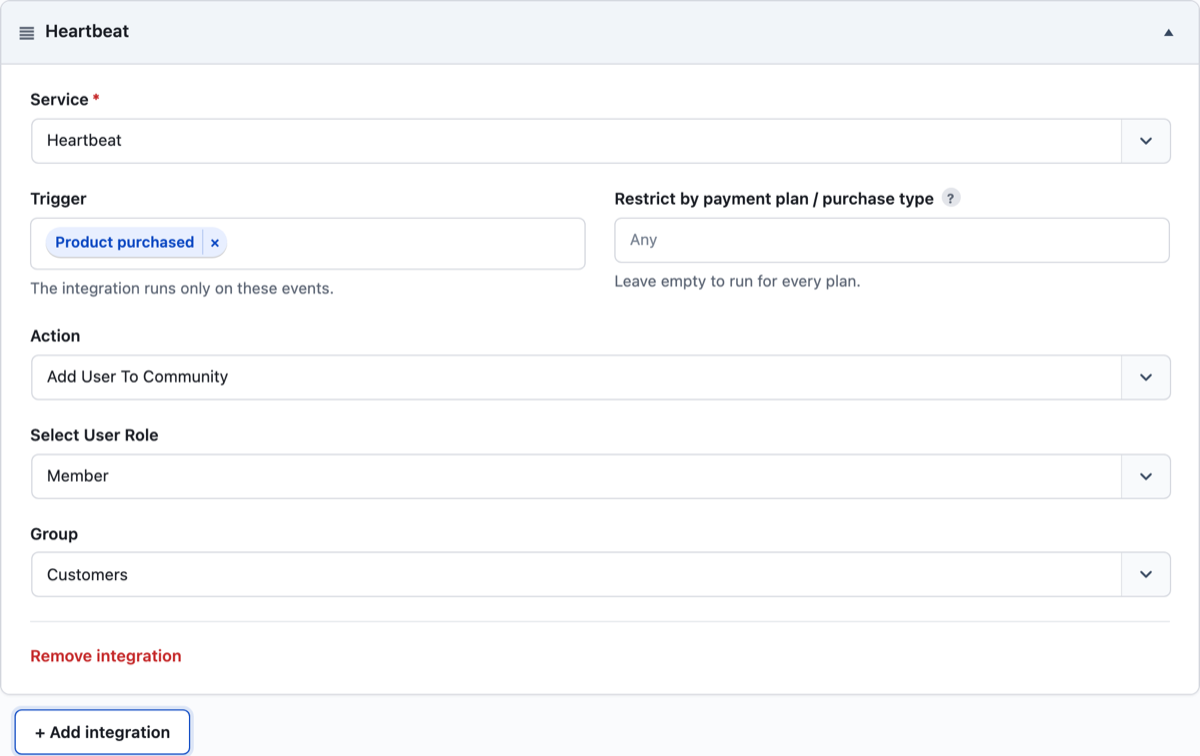
- In Service, select Heartbeat.
- In Trigger, select the event that runs the integration, for example Product purchased.
- In Action, select what Cart does in Heartbeat. The table below shows the fields for each action.
- Fill in the fields for the action.
- Click Publish or Update.
| Action | Fields to fill in |
|---|---|
| Add User To Community | Select User Role and Group |
| Invite User To Community | Select Invitation Code |
| Remove User From Community | No other fields |
| Remove User From Group | Group |
For the full list of triggers and the Restrict by payment plan / purchase type field, see Integrations Overview.
Cart loads your roles, groups, and invitation codes from Heartbeat when it shows the product Integrations tab. If you add one in Heartbeat, reload the product page to see it.
What each action does #
For each action, Cart first checks if Heartbeat has a user with the customer email.
Add User To Community #
If the customer is not in Heartbeat, Cart creates the user with:
- The customer email.
- The customer first name and last name.
- The role from Select User Role.
- The group from Group.
The order notes show “User added to Heartbeat Community”. If the integration has no role, Cart does not create the user. The order notes show “Unable to add user to Heartbeat Community, role not found”.
If the customer is already in Heartbeat, Cart does not change the role. Cart adds the user to the selected Group only. The order notes show “User already added to Heartbeat Community”, then “User added to Heartbeat group”.
Invite User To Community #
Cart adds the customer email to the selected invitation in Heartbeat. Cart asks Heartbeat to send the invitation email to the customer. Cart sends the invitation even when the customer is already in Heartbeat.
The order notes show “User invited to Heartbeat”. If the integration has no invitation code, the order notes show “No invite code selected”.
Remove User From Community #
If the customer is in Heartbeat, Cart deletes the user from the community. The order notes show “User deleted from Heartbeat Community”.
If the customer is not in Heartbeat, Cart does nothing and writes no note.
Remove User From Group #
If the customer is in Heartbeat, Cart removes the user from the selected Group. The order notes show “User has been removed from Heartbeat group”.
If the customer is not in Heartbeat, or Group is empty, Cart does nothing and writes no note.
Roles, groups, or invitation codes do not show #
- Go to Cart → Settings → Integrations and open the Heartbeat card.
- Check that the API Key is correct.
- Check that the roles, groups, or invitation codes exist in Heartbeat.
- Reload the product page.
The order notes show an error #
When Heartbeat does not accept a request, Cart writes the error from Heartbeat in the Order Notes box. The note has this form: the error type, a dash, then the error message.
If a remove action writes no note, Heartbeat has no user with the customer email. For Remove User From Group, also check that Group has a value.
Check that it works #
- Buy the product with a test email address.
- Open the order in Cart → Orders. The Order Notes box shows a line for the action, for example “User added to Heartbeat Community”.
- In Heartbeat, find the test user in the community or group.