
GamiPress adds gamification to WordPress. Users earn points, badges, ranks and achievements for things they do on your site. With the PublishPress Cart integration, you can also award points when a customer buys a product or renews a subscription.
GamiPress is a gamification plugin for WordPress. It gives users points, badges and ranks for what they do on your site.
This integration requires PublishPress Cart Pro.
Points can be awarded for signing up, logging in, daily visits, writing posts, leaving comments, writing reviews, or completing lessons and quizzes in a learning management system.
Before you start #
You need:
- PublishPress Cart Pro installed and active.
- The GamiPress plugin installed and active.
- At least one product in Cart to test with.
Create a point type #
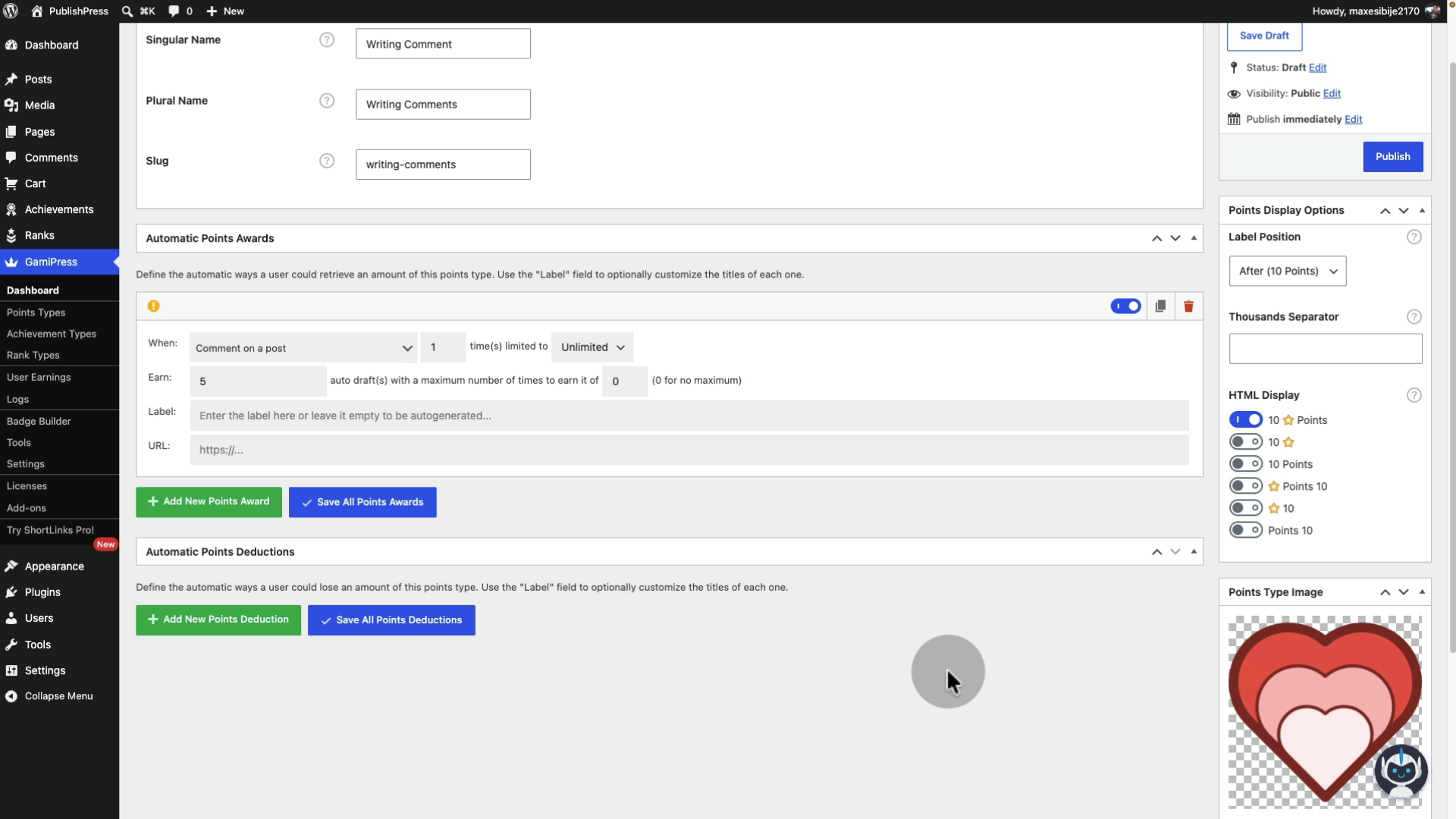
A point type is a currency that users earn, such as “Writing Comments” or “Product Purchases”. Each point type has its own awards. This example awards points for comments, so you can see how GamiPress works before connecting it to Cart.
- In WordPress, go to GamiPress → Points Types.
- Click Add New Points Type.
- Enter a name, such as
Writing Comments. - Under Points Awards, click Add New Points Award.
- Choose the activity Comment on a post.
- Set the number of points for each comment. In this example, it’s 5.
- Optional: in the right sidebar, choose an image to represent the point type.
- Click Publish.
Test the points #
- Open a post on your site and leave a comment.
- In WordPress, go to GamiPress → User Earnings.
- Check that the user has received the points for the comment.

Award points for Cart purchases #
With PublishPress Cart active, GamiPress adds Cart activities to the points award list.
- Go to GamiPress → Points Types.
- Click Add New Points Type.
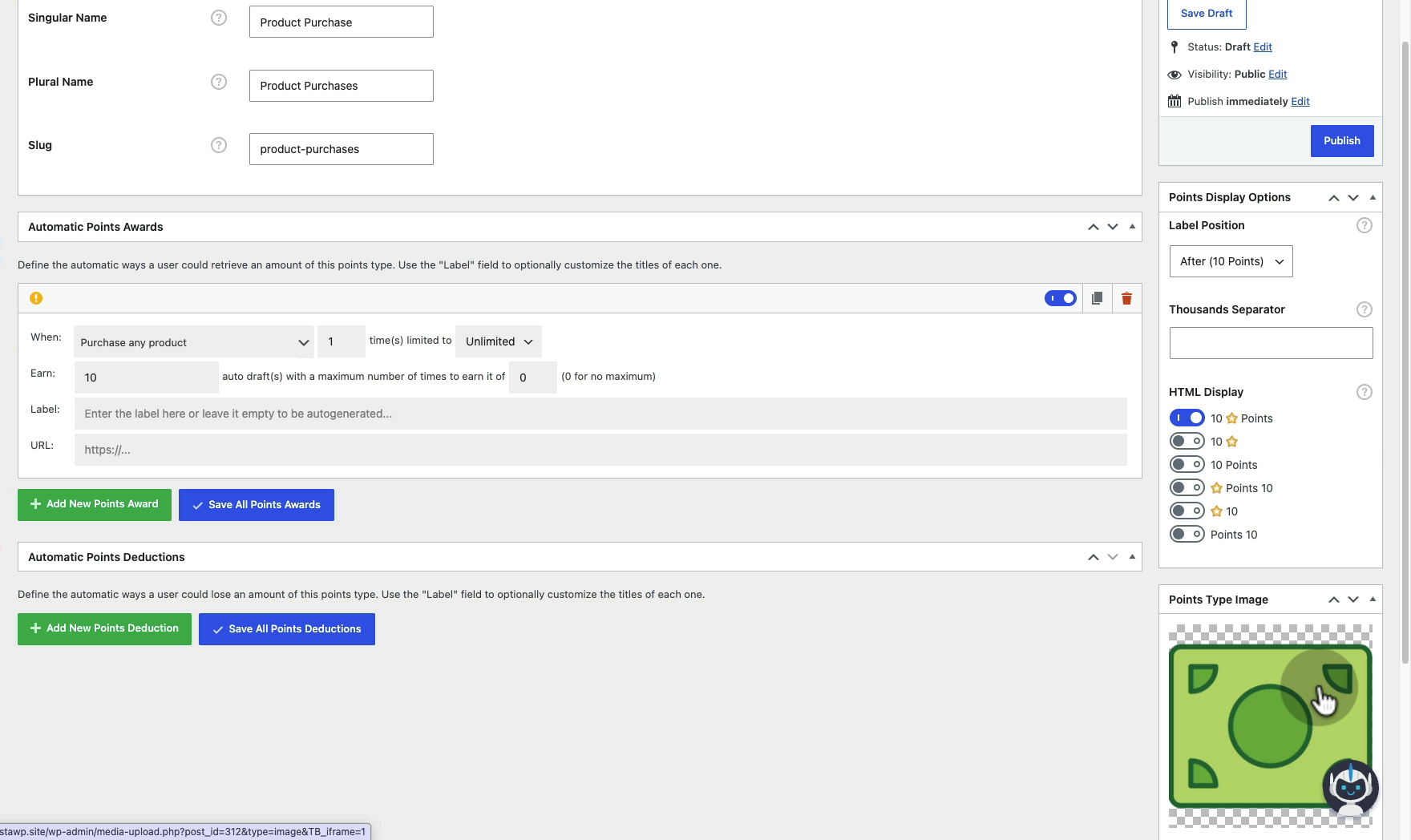
- Enter a name, such as
Product Purchase, and a plural name, such asProduct Purchases. - Click Add New Points Award.
- Choose one of the Cart activities, listed below.
- Purchase a product: points for any product.
- Purchase a specific product: points for one product only.
- Renew a subscription: points when a subscription renews.
- Enter the number of points. In this example, it’s 10.
- Optional: in the right sidebar, choose an image to represent the point type.
- Click Publish.
Test a purchase #
- On the front of your site, open a product and place an order. Use a test name and email.
- Wait for the order confirmation.
- In WordPress, go to GamiPress → User Earnings.
- Check that the customer has received the points for the purchase.
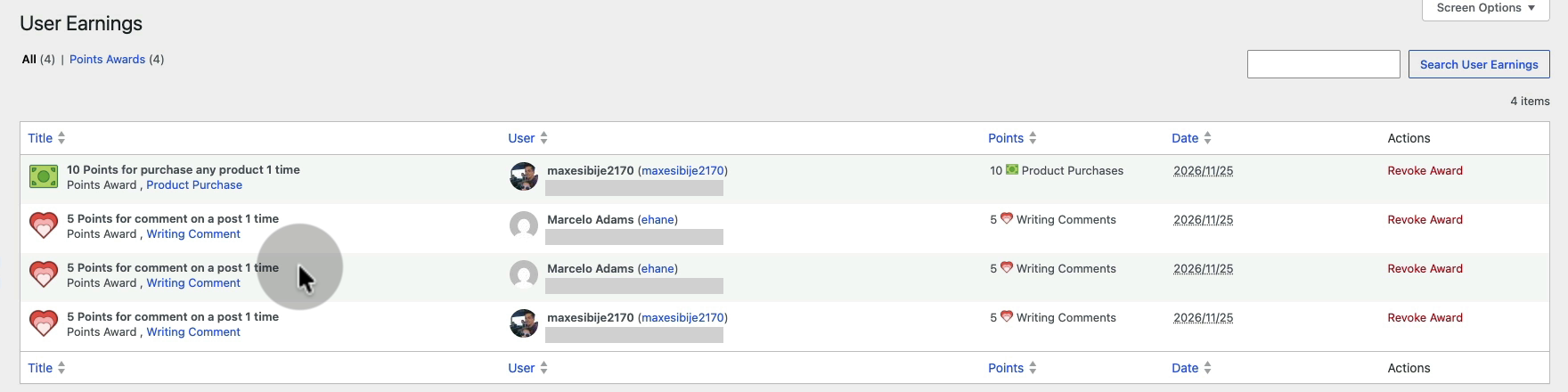
The points appear right after checkout.
Show points on the front of your site #
Points work best when users can see them. GamiPress includes blocks you can add to any page.
- Edit a page, such as a “Points Dashboard” page.
- Add a GamiPress block, such as the user points block.
- In the block’s right sidebar, use the toggle to show points for all users. This turns the block into a front-end leaderboard.
- Click Update.
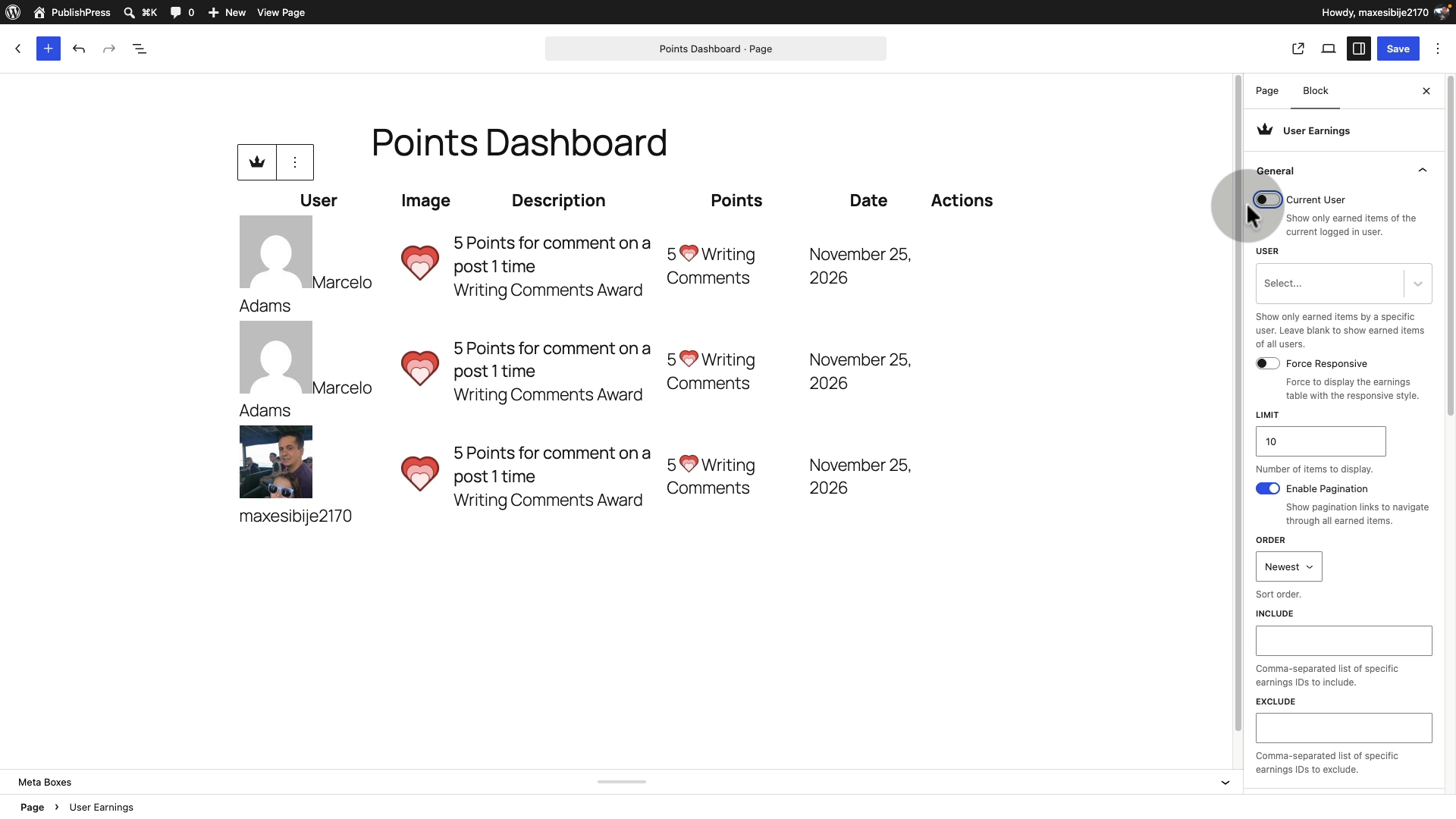
Users can see who is the most active commenter, poster or buyer. Points add up over time, so competition builds engagement.