
Wishlist Member is available as a plugin based integration with PublishPress Cart. The Wishlist Member integration allows you to set up triggers in the PublishPress Cart order form to add or remove members when a purchase is made.
If you haven’t used Wishlist Member before, it’s an easy to use membership software that helps you build a membership site on WordPress. For more information visit the Wishlist Member website.
How to Set Up the Wishlist Member Integration #
Get started by installing and activating the Wishlist Member plugin on your WordPress site.
Then, go to the Cart menu and select Products. Choose add a new product or edit an existing one. In the product settings menu, select Integrations and Add New. Then, select Wishlist Member from the list of integrations in the Service dropdown menu.
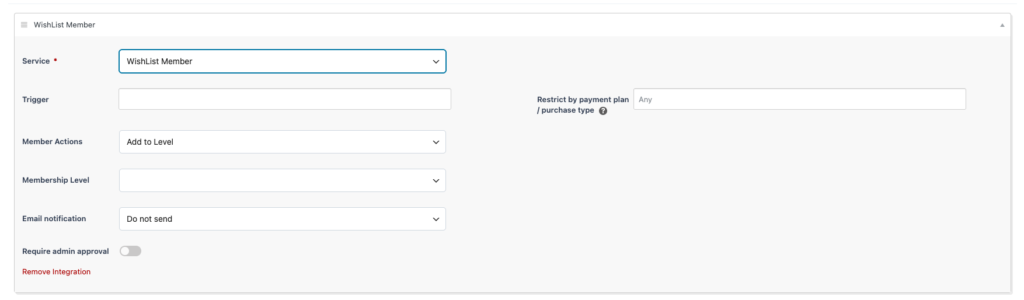
From here you can toggle the settings to suit your membership program. Start by choosing one of the 5 trigger options.
- Product Purchased
- Product Refunded
- Subscription Completed
- Subscription Canceled
- Lead Captured (2-step form only)
Next, select how you want this trigger to affect the member’s level. You can choose to add a member to a level or remove a member. Underneath the member actions, select Membership Level. Here you will see a list of all the memberships you previously created in Wishlist Member. Select the membership level you created for this product.
The last 2 settings are optional. You can choose to send emails to new members when PublishPress Cart needs to register a new user. This will send the new member an email to alert them of their new account. To enable this feature, toggle on the Send new member email button.
The last feature in the form provides the option to require admin approval before a member is added to a level. Enable this feature by selecting the Require admin approval button.
Once you have finished filling out all the settings needed for your product, complete the order form by selecting Publish or Update.