
Do you use Kit for email marketing? You can integrate your Kit account with PublishPress Cart using your Kit API and Secret Key.
How To Integrate Kit With PublishPress Cart
Log in to your Kit account. In the bottom left corner, click Settings > Developers.
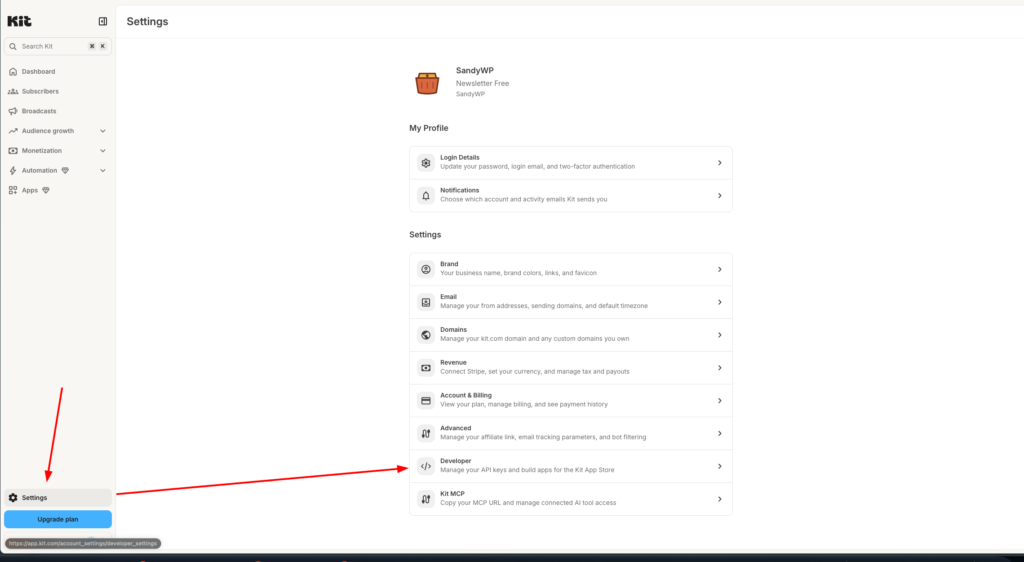
Copy over your Kit API. Then head over to your WordPress Dashboard, select PublishPress Cart > Settings > Integrations.
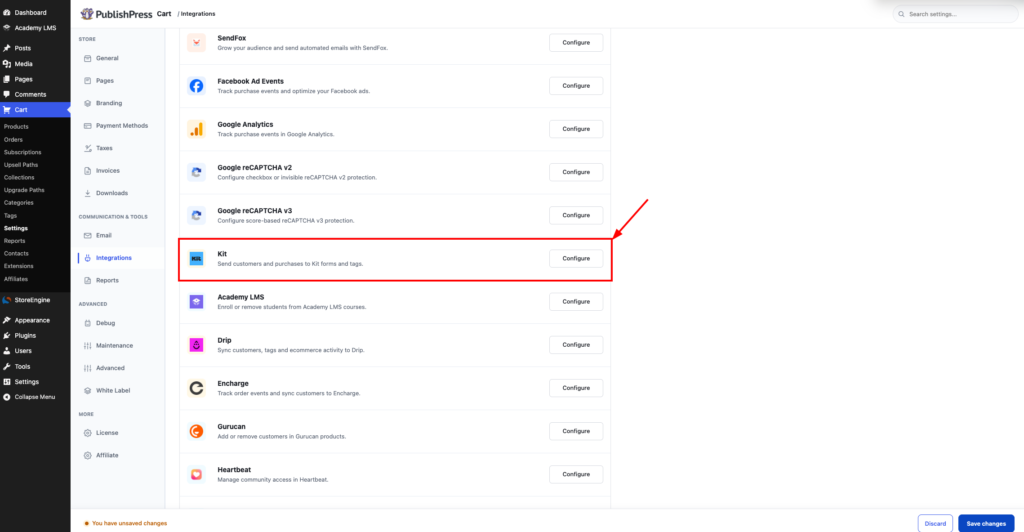
Paste your API key there and Save the Changes.
From here you can set up a Kit integration by going to a PublishPress Cart product and selecting “Kit” from the services menu in the Integrations tab. You’ll see a Kit Form dropdown with a list of all the forms you previously created in Kit. Choose the form you would like to link to this product.
If you have created Tags with this form, select the name from the Kit Tags dropdown.
Note: If your Kit Forms and Tags are not showing up in the dropdown, click the Renew Mailing Lists button to fetch your latest mailing list info.
In the example below the following will occur from the settings chosen. When a product is purchased with any payment plan a contact is added to the ‘Sign Up Form’ in Kit.
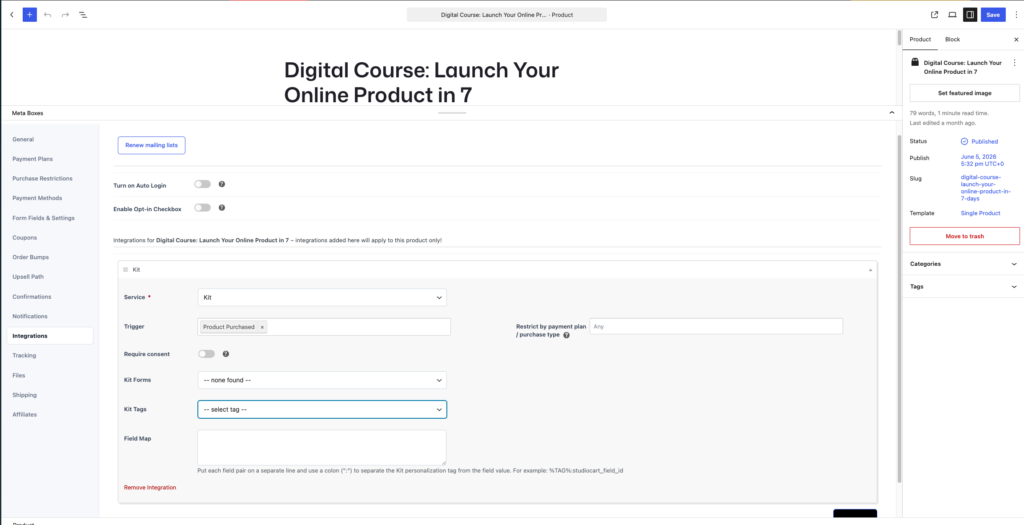
You have the option to enable Required Consent. If turned on, only customers who have given consent will be added to the list. Note, you will also need to turn on the Opt-in Checkbox in the Form Fields tab for this feature to work.
Once you have finished filling out all the settings needed for your product, complete the order form by selecting Publish or Update.