
The Admin Styles feature is in the PublishPress Capabilities plugin. This allows you to customize the WordPress admin area with your own branding. You can change the color scheme and visual features for the admin screens. It’s also possible to have different settings for different user roles.
Admin Color Scheme #
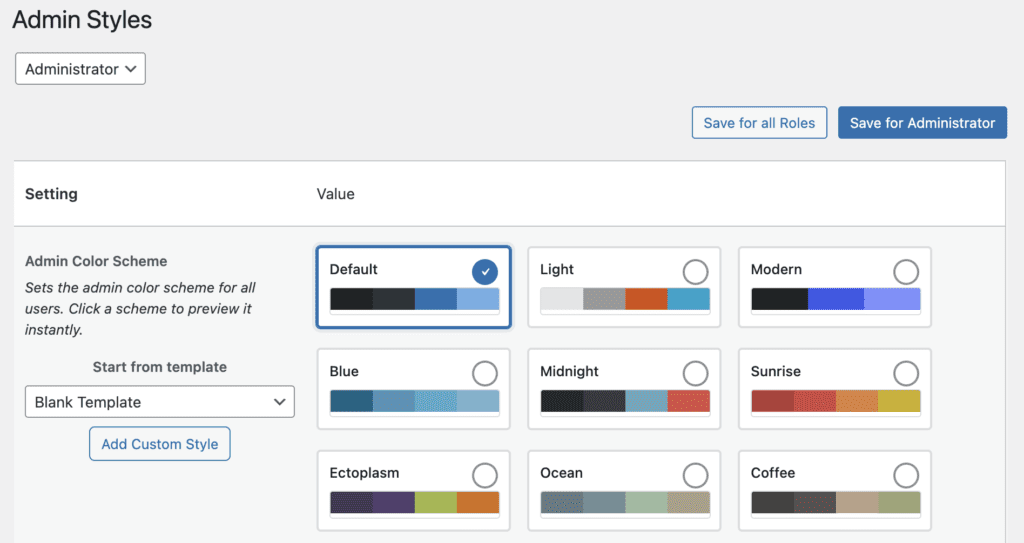
The Admin Color Scheme setting allows you to change the colors for your WordPress admin area. You can choose from several core WordPress options: Default, Light, Modern, Blue, Midnight, Sunrise, Ectoplasm, Ocean, Coffee. You can also click the “Add Custom Style” button which allow you to create your own color scheme.
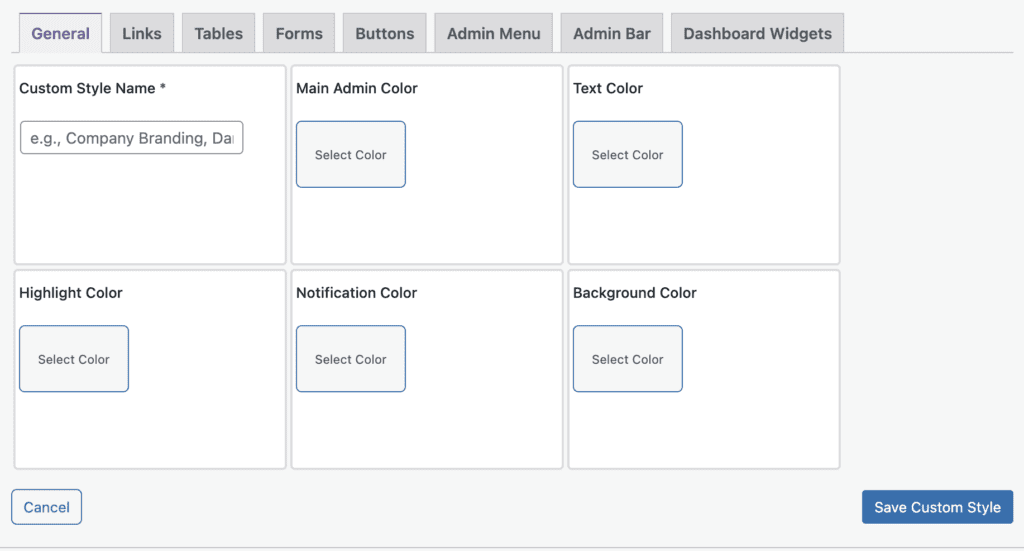
The Custom Style Editor enables you to choose many different colors for features in the WordPress admin area. This screenshot below shows the “Blank Template” option. To save your custom colors, make sure to enter a name into the “Custom Style Name” field.
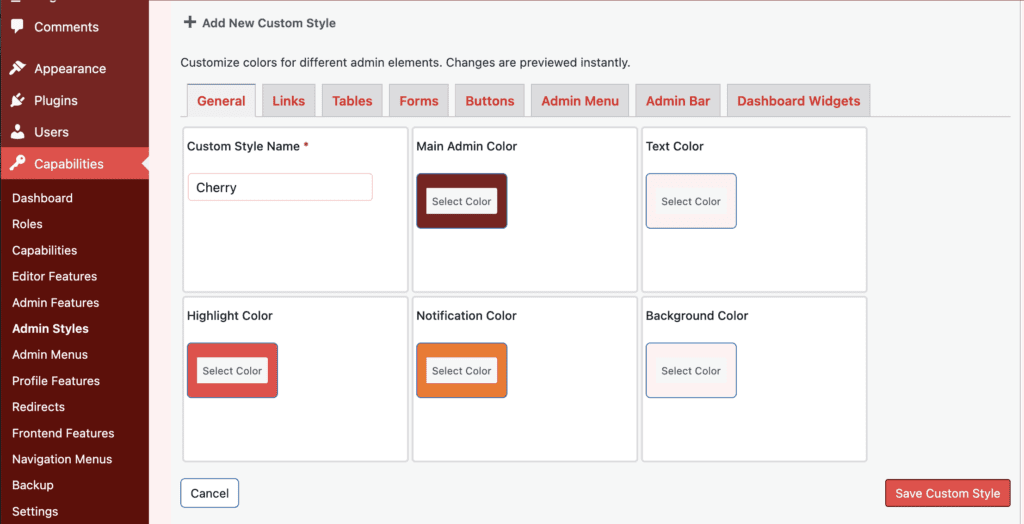
Alternatively, you can choose one of the pre-built custom styles that are provided with PublishPress Capabilities. This screenshot below shows the “Cherry” custom style.
Admin Logo and Favicon #
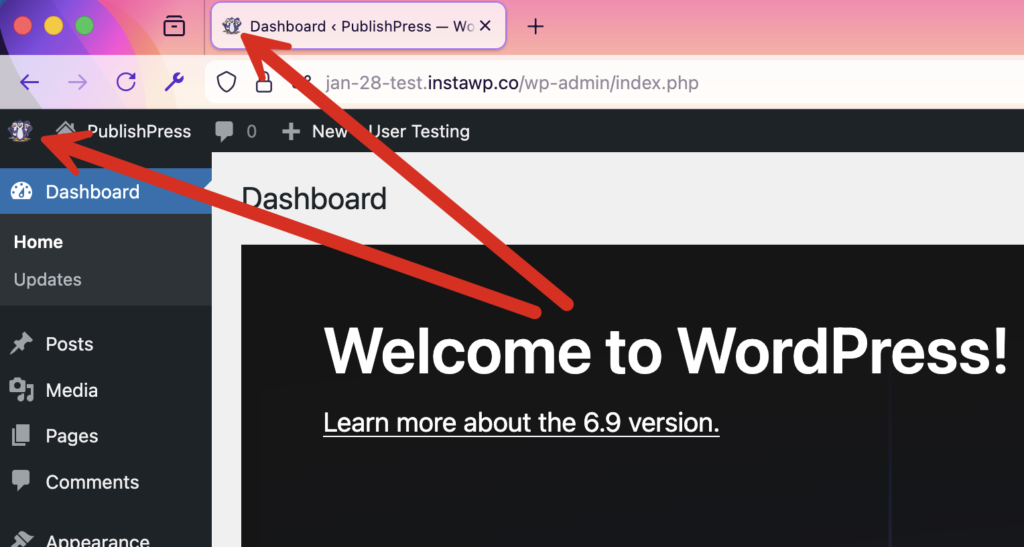
These two settings enable to replace the WordPress logo and favicon images for your admin area.
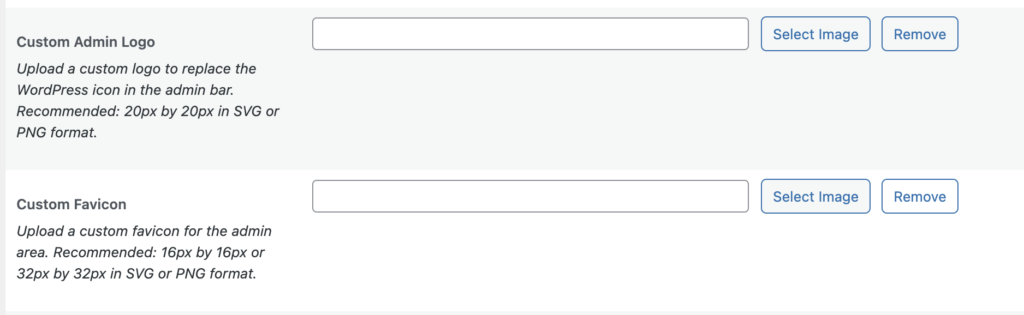
This next screenshot illustrates where the logo and favicon appear in your admin area.
Admin Font and Font Size #
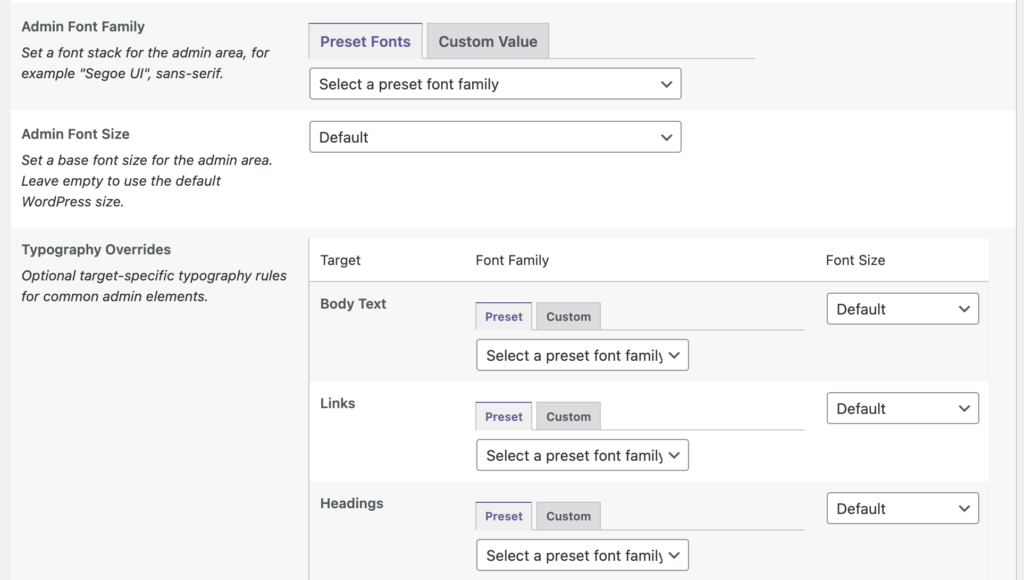
These settings allow you to select a different font and font size for the WordPress admin area. You can choose to customize the fonts for these areas of your site:
- Base font
- Body text
- Links
- Headings
- Admin Menu
- Admin Bar
- Form Fields
- Buttons
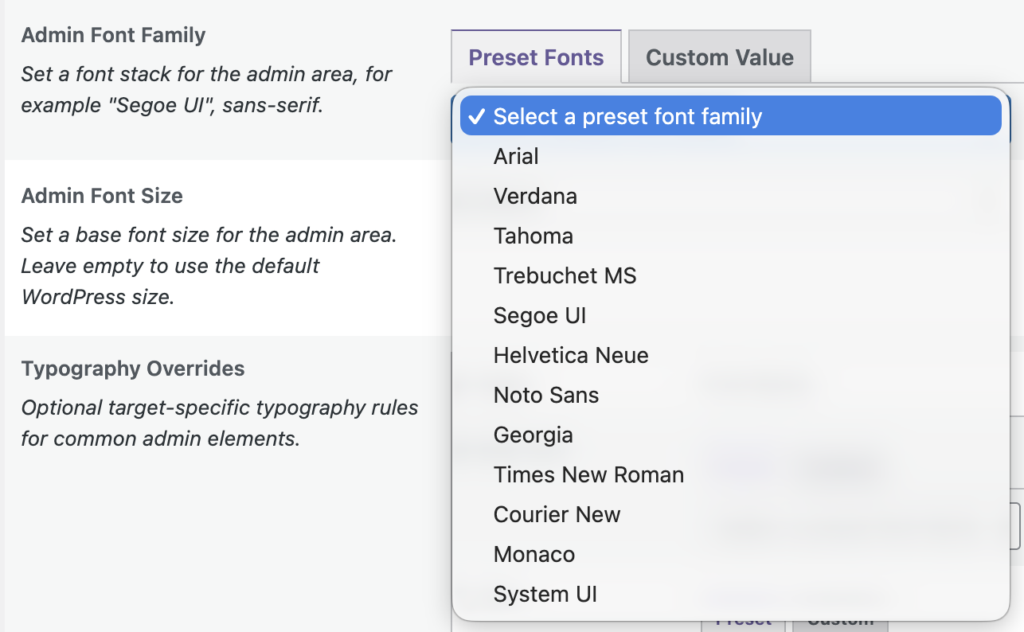
PublishPress Capabilities provides a range of fonts to choose from including Arial, Verdana, Tahoma, Trebuchet MS, Segoe UI, Helvetica Neue, Noto Sans, Georgia, Times New Roman, Courier New, Monaco, System UI. You can also use the “Custom Value” tab to enter your own choice of font.
Admin Area Text #
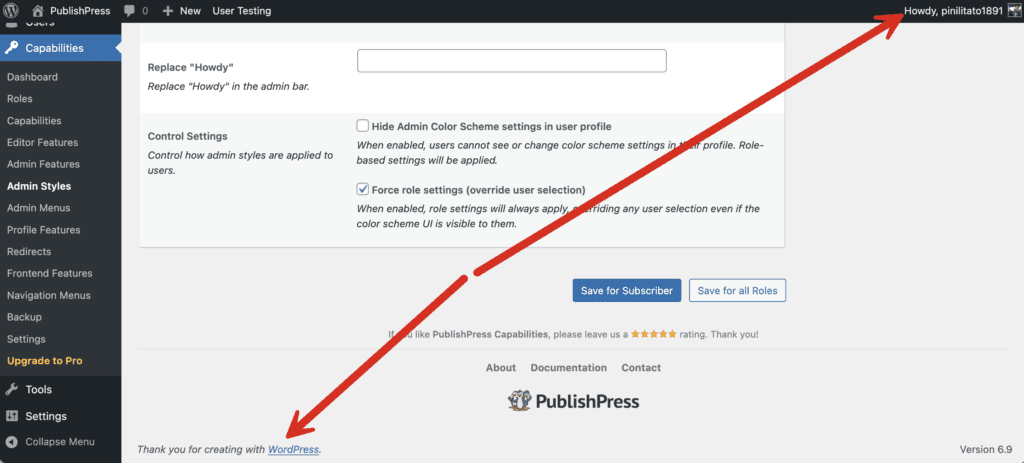
These two settings enable to replace the default WordPress text for your admin area. You can replace “Thanks for creating with WordPress” and “Howdy”.
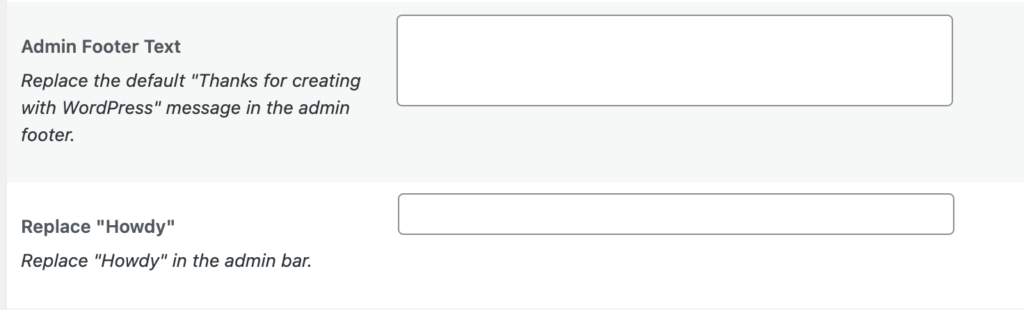
This next screenshot illustrates where these two text elements appear in your admin area.
Admin Styles Settings for Users #
The final settings on the Admin Styles screen allow you to override any choices made by individual users. The first setting who remove the admin color options from user profiles. The second setting will allow those options to remain visible, but they will be overridden by any choices on the Admin Styles screen.
