Table of Contents
The Block Controls feature is part of the PublishPress Blocks plugin. One option in this feature is called “Presets”. Using “Presets” you can provide users with pre-defined settings for Block Controls.
Understanding Presets #
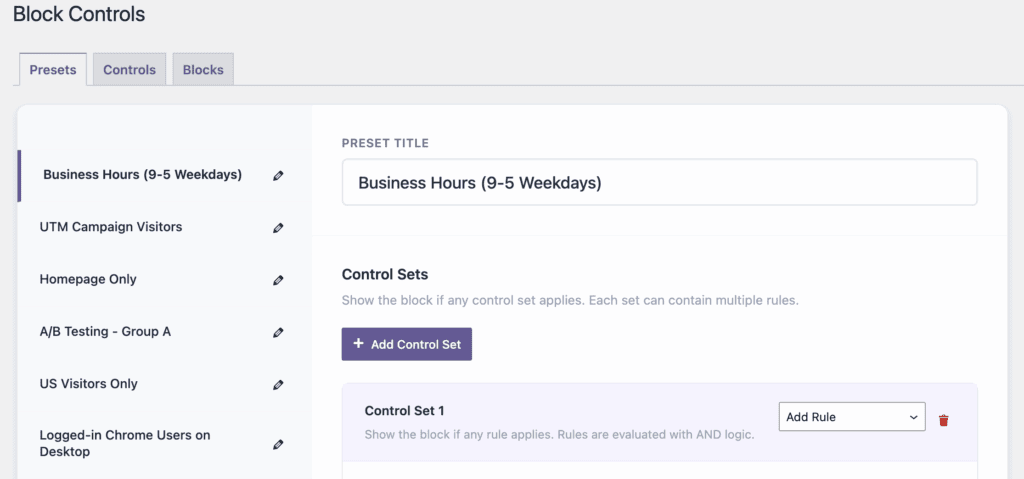
There are sample presets available to show how this option works. Go to the “Block Controls” screen and you’ll see the option to create sample presets. These include the following:
- Business Hours (9-5 Weekdays): Only show the block between 9am and 5pm, from Monday to Friday.
- UTM Campaign Visitors: Only show the block to users who come to the site from a URL tagged with specific Google Analytics parameters.
- Homepage Only: Only show the block on the site’s homepage.
- A/B Testing – Group A: Only show the block if a testing-specific cookie is set in the user’s browser.
- US Visitors Only: Only show the block if a location-specific cookie is set in the user’s browser.
- Logged-in Chrome Users on Desktop: Only show the block to registered users who are using Chrome on a desktop device.
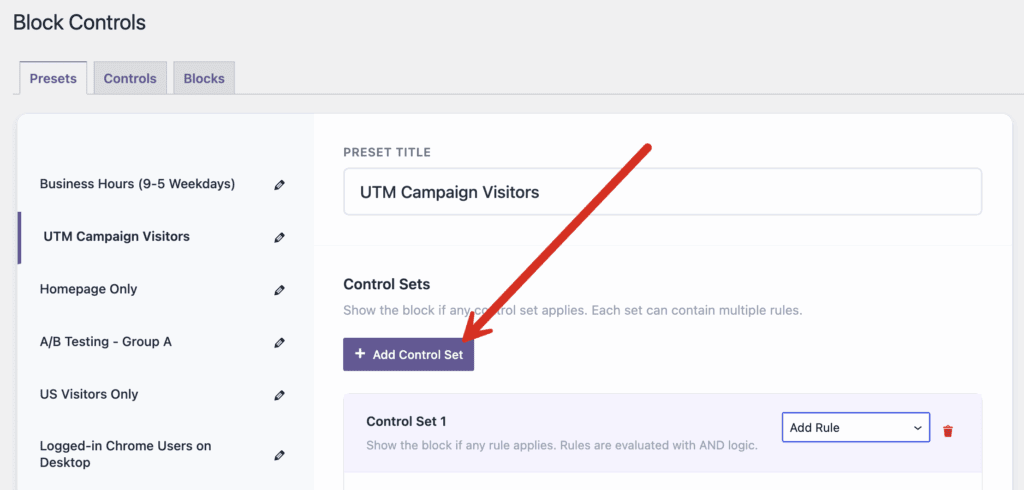
To decide when a block should be shown or hidden, you can add “Control Sets”. Click the “Add Control Set” button.
- The block will be shown or hidden if any Control Set applies.
- Each Control Set can contain multiple rules.
- The block will be shown or hidden if any rule applies.
Using Presets #
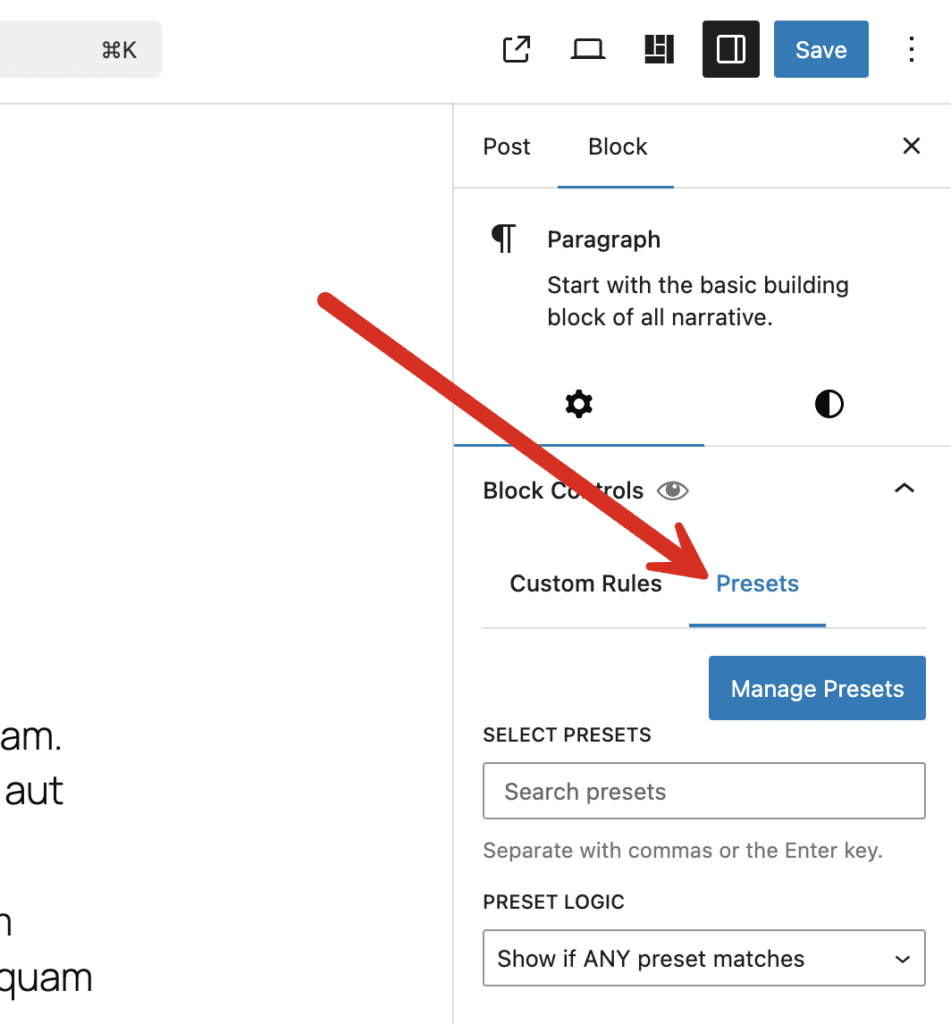
Presets can be added to individual blocks using the “Presets” tab on each individual block. In the screenshot below you can see the available settings:
- Manage Presets: This will open the main “Presets” screen inside a modal window.
- Select Presets: Choose the presets to apply to this block.
- Preset Logic: Choose either “Show if ANY preset matches” or “Show if ALL presets match”.