
You can connect PublishPress Cart to hundreds of apps by sending your order data to Pabbly Connect with a webhook. Once the order data reaches Pabbly Connect, you can pass it on to any other application in your workflow.
View Pabbly’s video library to see how applications can be integrated on Pabbly, or keep reading to learn how to use the PublishPress Cart webhook integration with Pabbly Connect.
Setting up a Pabbly Connect webhook will require a lot of going back and forth between your website and the Pabbly Connect website, so it would be a good idea to keep both sites open on separate tabs.
Create the workflow in Pabbly Connect #
- Login to your Pabbly Connect dashboard and click the Create Workflow button.
- In the Create Workflow modal that appears, enter a name for your new workflow and click the Create button.
- Under Choose a trigger, select Webhook.
- Check the Basic Authentication checkbox and enter
publishpress_cart_secretin the API Key field. In the Secret Key field, enter your API Key found in Cart > Settings > Advanced.

When you’re done, click the Copy button next to the Webhook URL and head back to your website to set up a webhook integration for your product.
Add the webhook integration to your product #
Go to your product’s Product Settings > Integrations tab and add a new integration. Select Webhook as the Service and POST as the Method. In the Webhook URL field, paste in the URL you copied from Pabbly Connect.
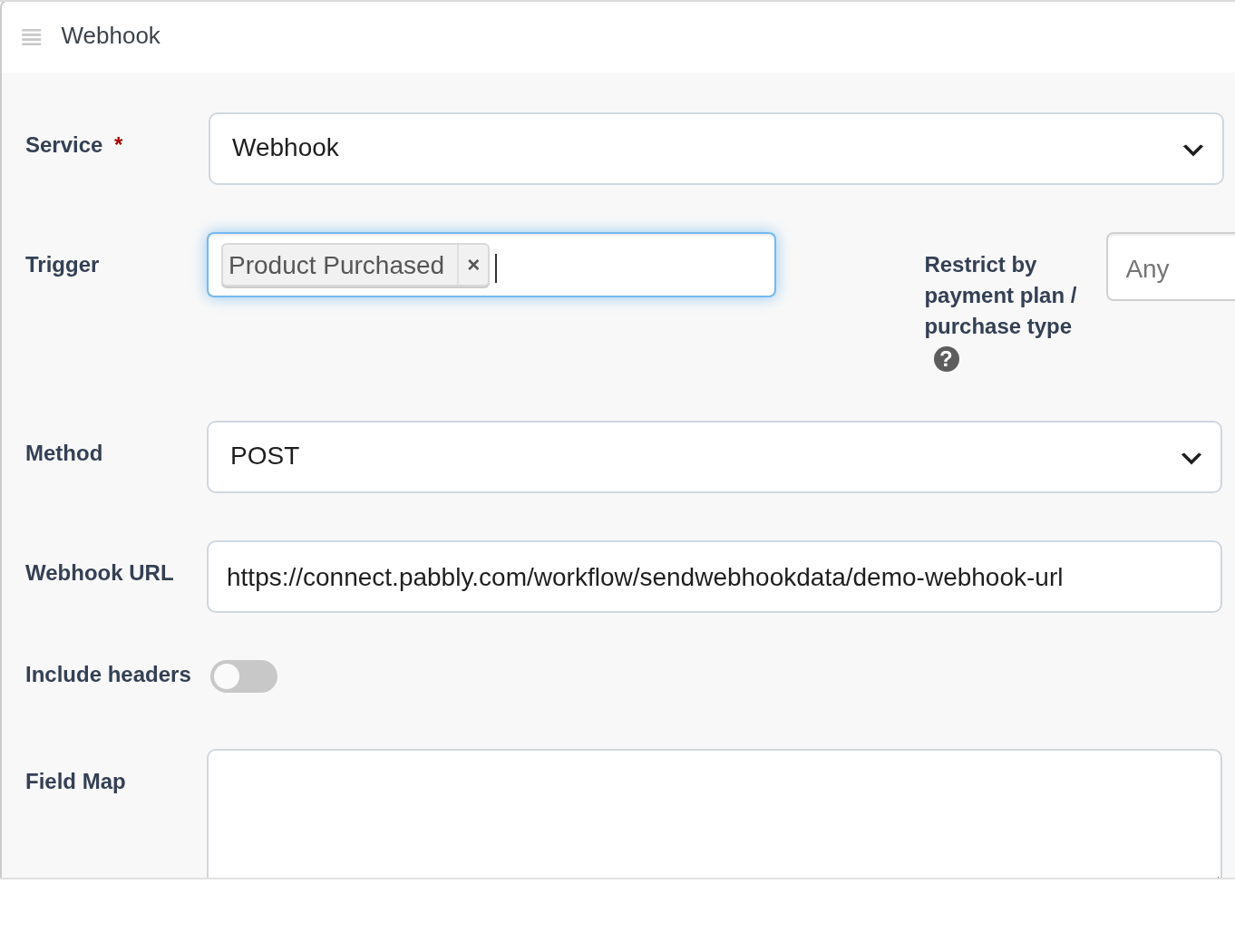
You can also review all of the available connections in Cart > Settings > Integrations.

Capture the webhook response #
Save your product, then go back to your workflow in Pabbly Connect and click Capture Webhook Response. When it’s ready, a spinner will appear inside the button.
Go back to your website and trigger your product integration (for example, place an order) then go back to Pabbly Connect. After a short moment, data about that order should appear. If everything looks ok, click the “+” sign underneath your order data to send the order data to another application using Pabbly.