Do you use WooCommerce to manage your store inventory? PublishPress Cart has the option to integrate with WooCommerce. What this means is, you can use the PublishPress Cart flow for checkout and the order information will automatically import to WooCommerce.
How to integrate WooCommerce with PublishPress Cart #
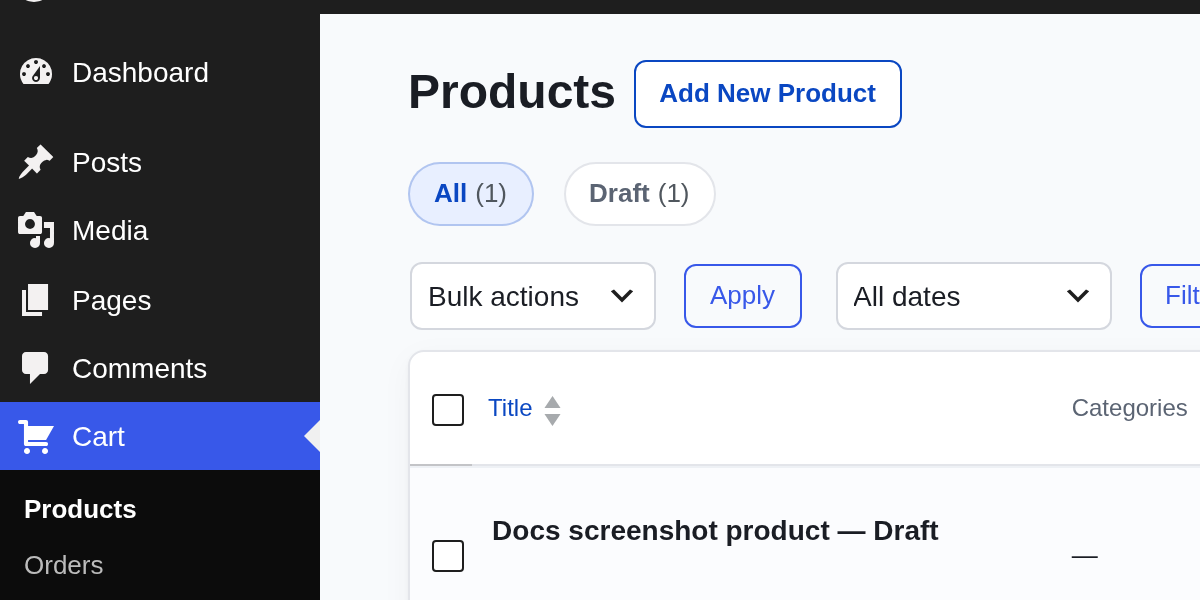
To get started, find Cart in your WordPress Dashboard. Select Products and add a new product or edit an existing one.
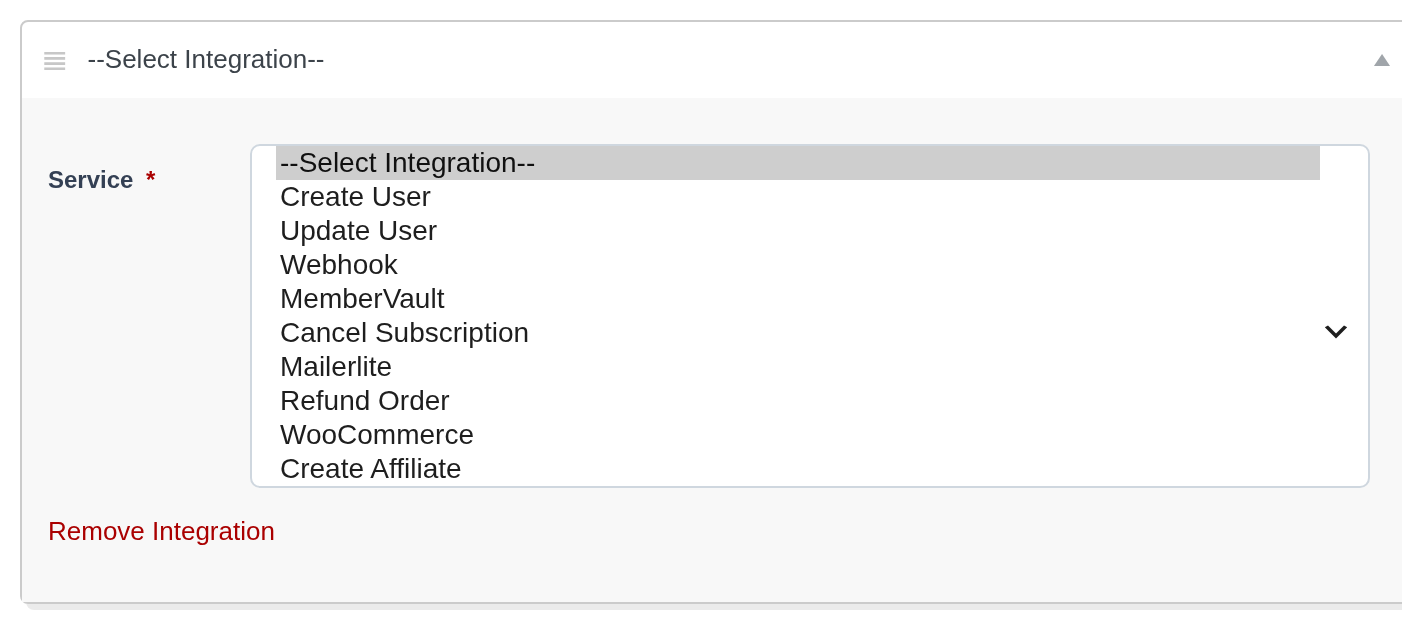
In the product settings menu, select Integrations. Then select + Add New and from the drop-down menu select WooCommerce.
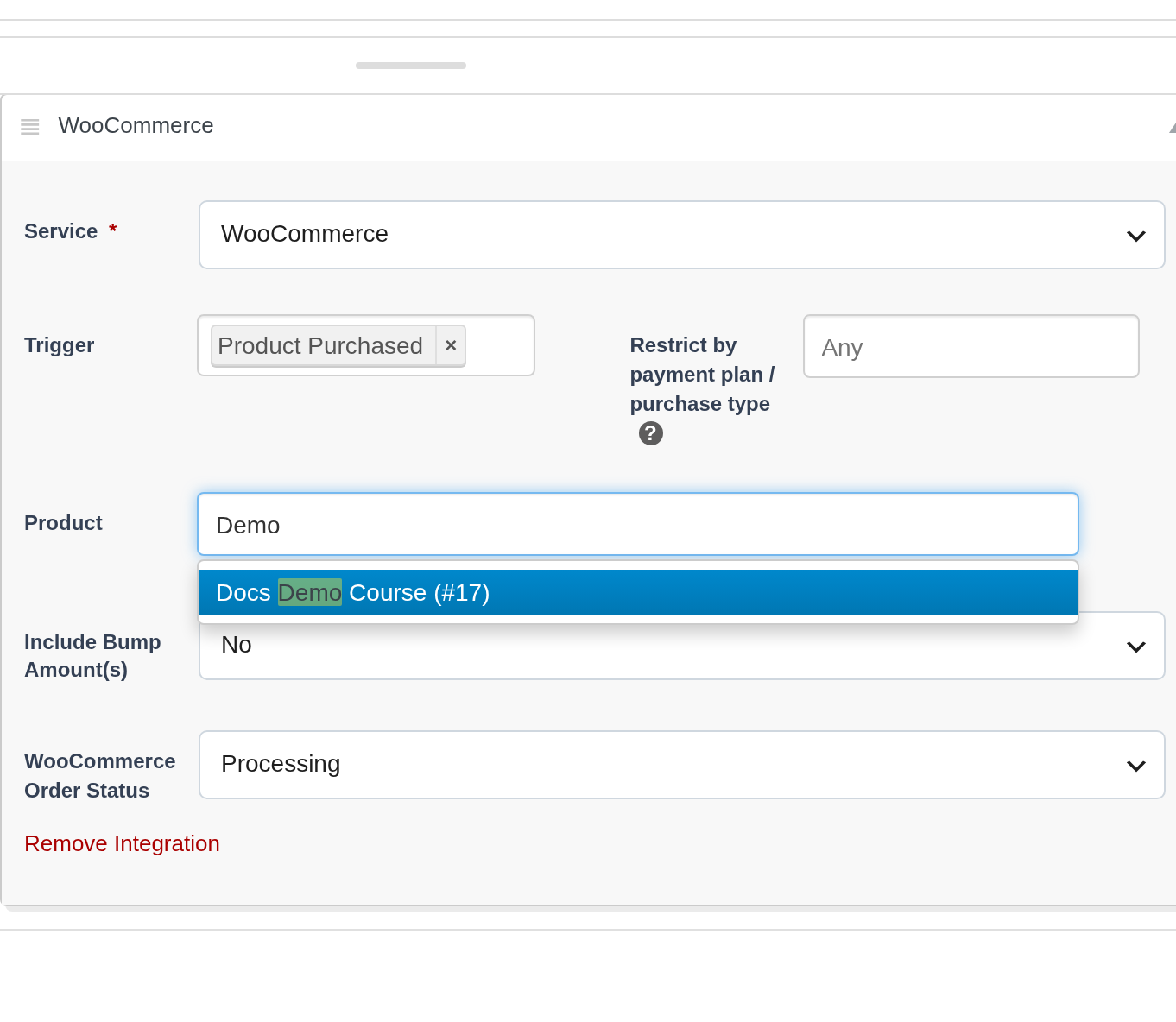
From here, choose your trigger settings and add the products you want the triggers to apply to. To add WooCommerce products, start typing the name in the product field box.
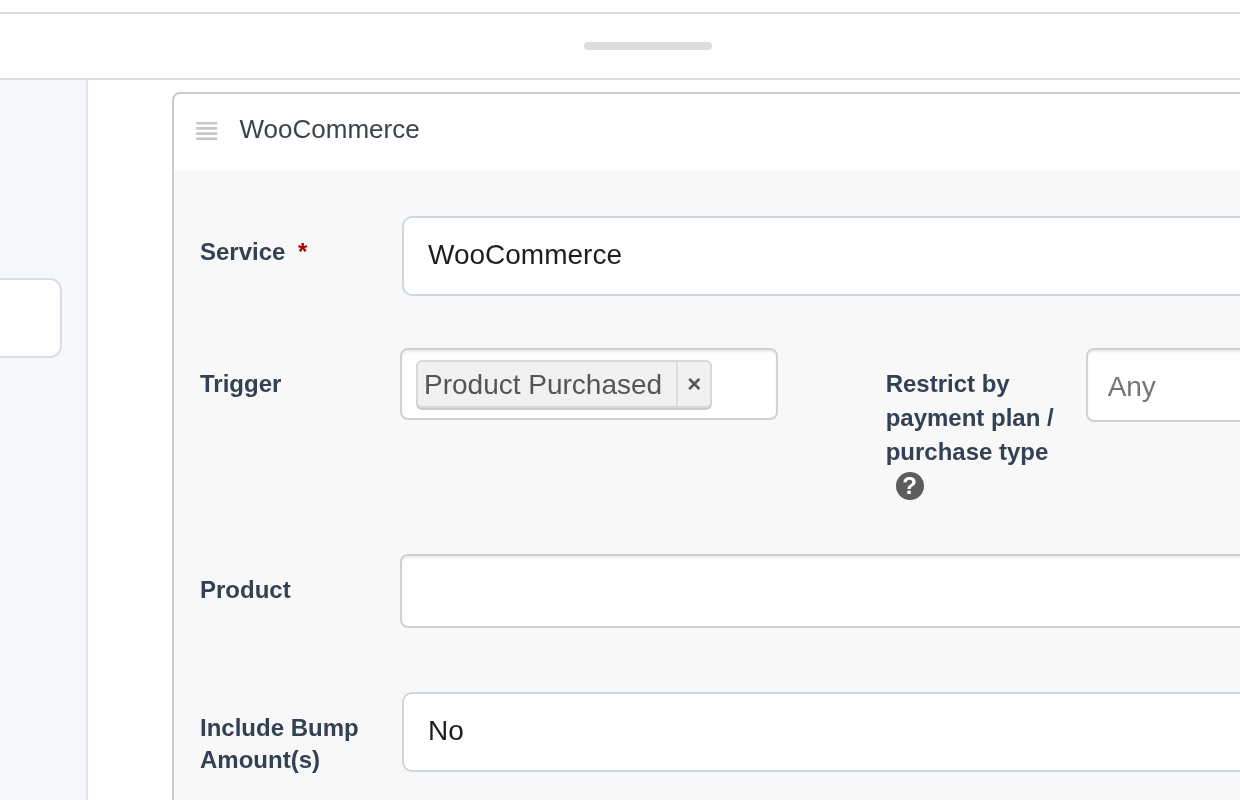
After you have typed a few letters, the WooCommerce products will appear. Click to select the product. Please note, you will need to search and select each product variation.
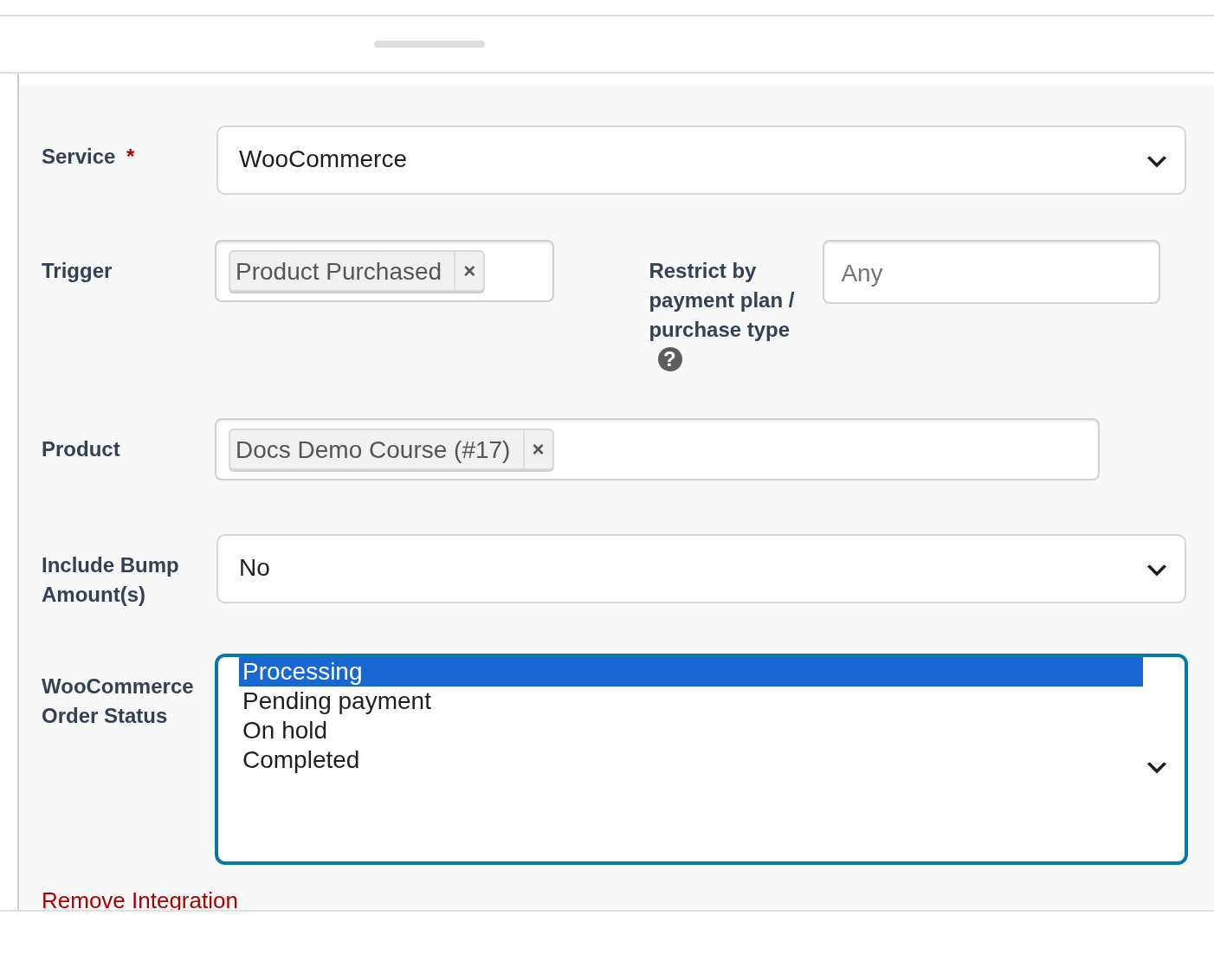
Now, select the WooCommerce Order status. In the drop down menu you will see 4 options:
- Processing — Payment received (paid) and stock has been reduced; order is awaiting fulfillment.
- Pending payment — Order received, no payment initiated. Awaiting payment (unpaid).
- On hold — Awaiting payment – stock is reduced, but you need to confirm payment.
- Completed — Order fulfilled and complete – requires no further action.
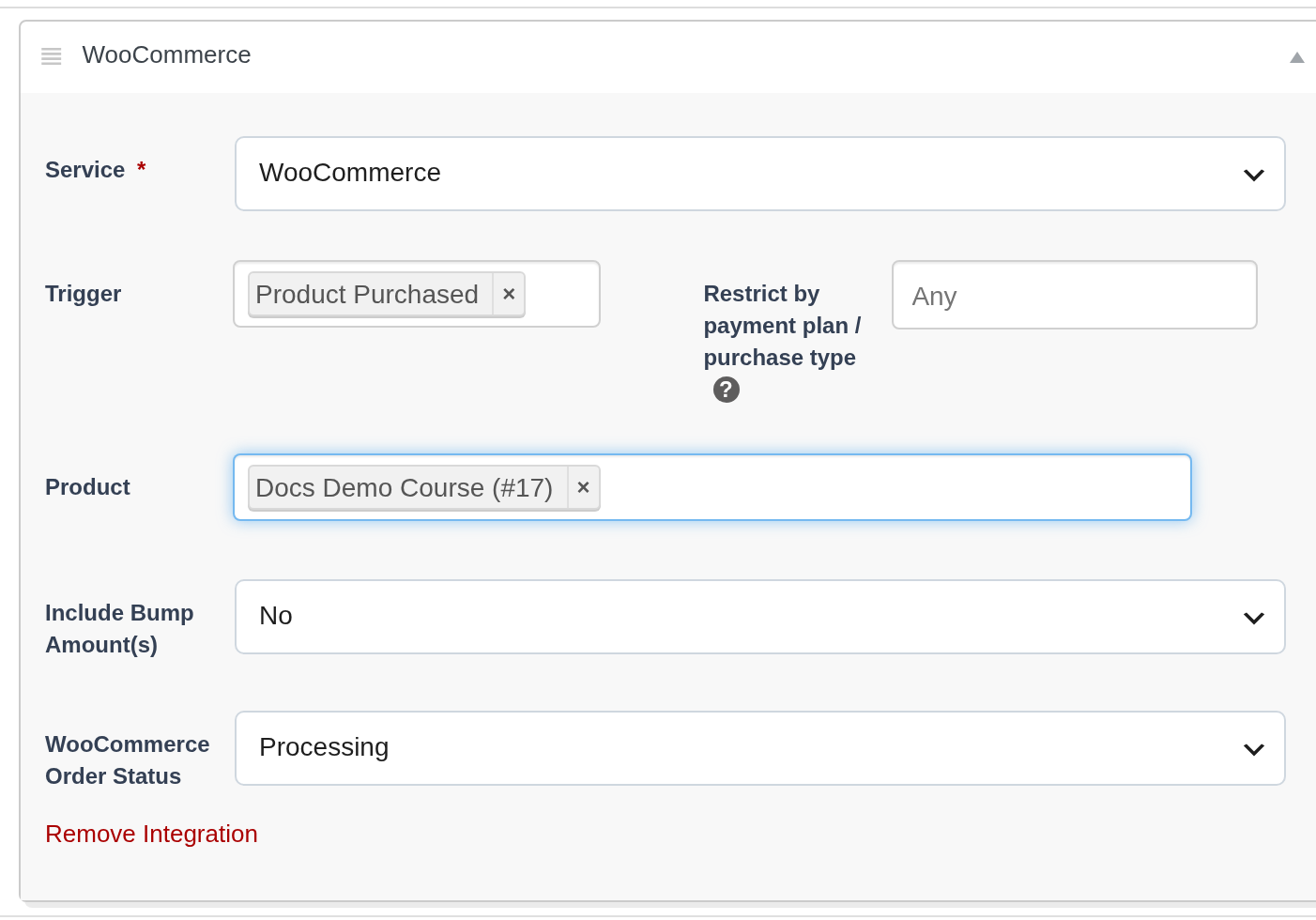
Finally, save your settings and add a new product by selecting Publish in the top right-hand corner of the page.
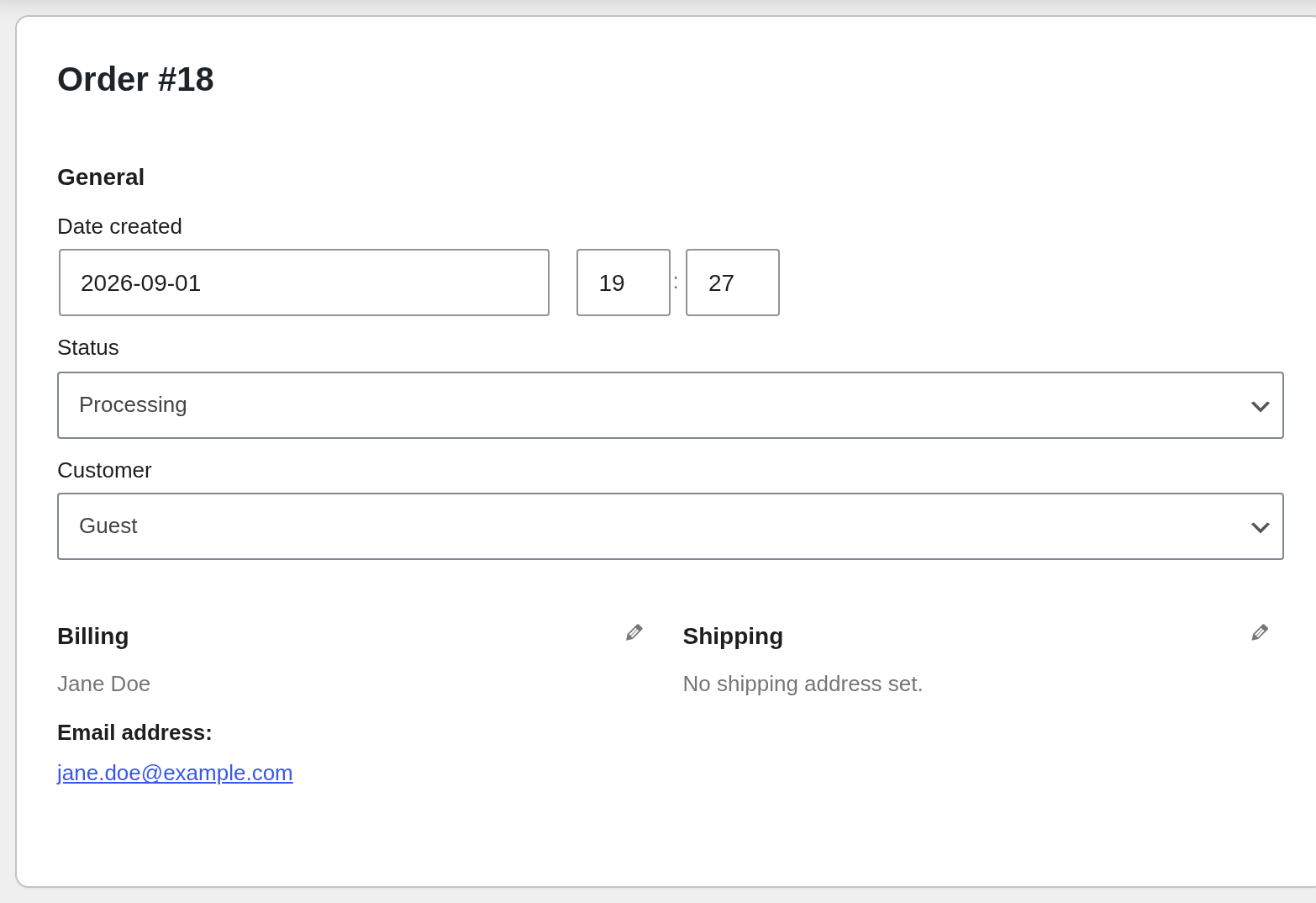
Once an order has been made the details will automatically update in WooCommerce. Here’s an example of what the order will look like in WooCommerce.