
This is a guide to the “New Revisions” feature in the PublishPress Revisions plugin.
The “New Revisions” feature enables you to control changes to your published content.
The “New Revisions” feature allows users to safely make changes to content. It provides a safe space for users to work on content updates. When users have finished making changes, they can ask for your approval. This is a great way to collaborate and avoid mistakes. You can choose to publish the changes immediately, or schedule them to go live later.
How to Create New Revisions #
- Go to the “Posts” or “Pages” link in your WordPress admin menu.
- Find a post that is marked as “Published”.
- Hover over the post or page that you want to update, and click the “Create Revision” link.
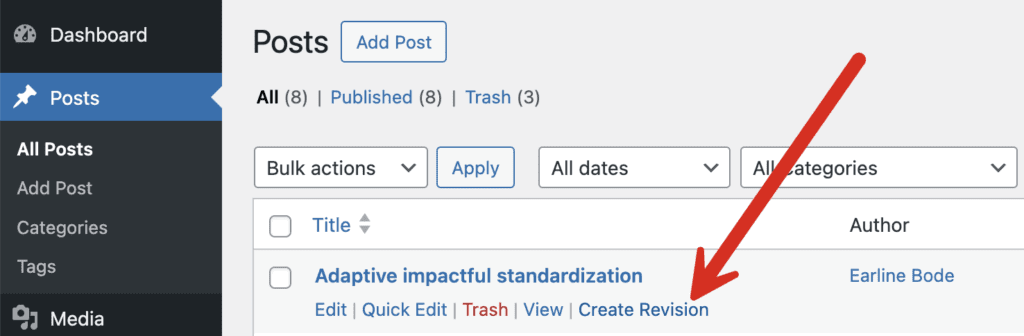
- You will now see a new copy of your post.
- Make a change to this copy of the published post. The change can be as simple as adding some text.
- Check the “Submit” button if you want to send the post for approval. If you have enough permissions, you can click “Approve” to automatically make your changes live on the site.

- You'll see a message that your revisions has been submitted. If you want, you can keep editing the revision. When you want to save new changes, click the purple “Update Revision” button.
How to View All New Revisions #
- Click “Revisions” then “New Revisions” in the WordPress admin menu.
- You'll be taken to the “New Revisions” screen. This is where all submitted revisions wait to be approved.
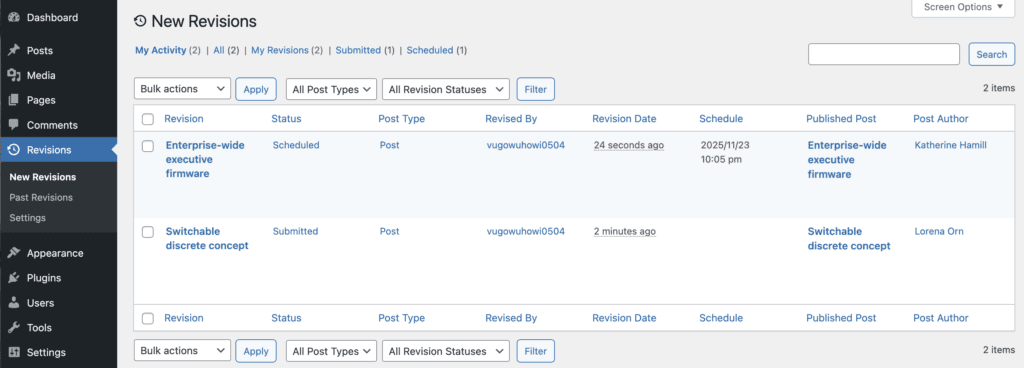
- Underneath each revision, you can choose from several options: “Edit”, “Copy”, “Delete”, “Preview” and “Compare”.

If you click “Preview”, you will go the front of the site where you have several options.
- View Queue: You'll go to the “New Revisions” screen.
- Compare: You'll go to the screen that compares old and new versions of the content.
- View Published Post: You'll see the version of this post that is currently live on the site.
- Edit: You can make more changes to the current revision.
- Publish now: You can make these new changes live on the site.

This next screenshot shows what you'll see if you click “Compare”. You'll see a side-by-side comparison of the new revision and the currently published post:
