This feature requires the Pro version of the PublishPress Future plugin.
The “On schedule” trigger is available in the Pro version of PublishPress Future. This allows you to trigger the a workflow at a specific time, or relative to another date. You can also use this trigger to repeat the workflow. PublishPress Future will automatically handle the scheduling: you do not need to create a cron job or make any other changes.
The options for this “On schedule” step are available in the right sidebar. There are two options:
- When to run.
- Repeating action.
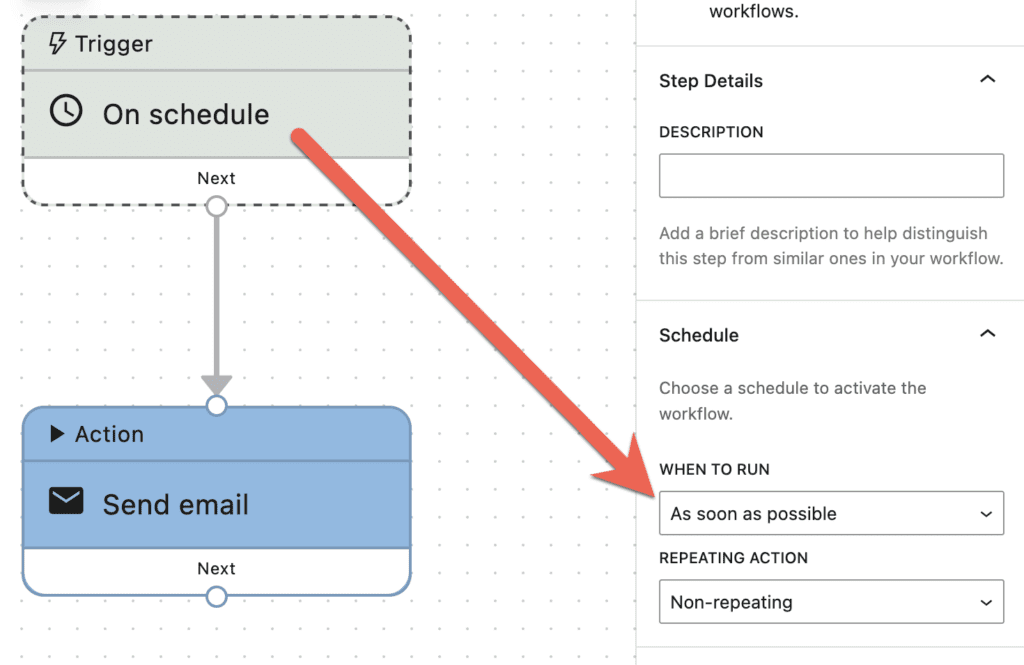
When to Run #
There are three options for when to run the workflow:
- As soon as possible
- On a specific date
- Relative to a specific date
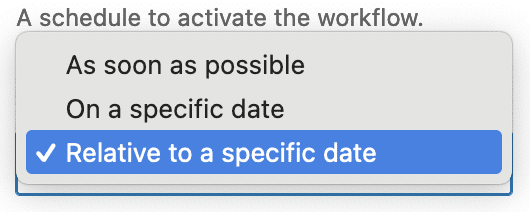
Both “On a specific date” and “Relative to a specific date” will provide several more options for the source of the data used in the trigger.
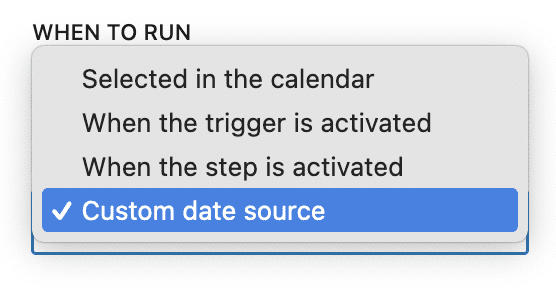
- Selected in the calendar
- When the trigger is activated
- When the step is activated
- Custom date source. This option allows you to use post meta and other WordPress data sources to choose a date.
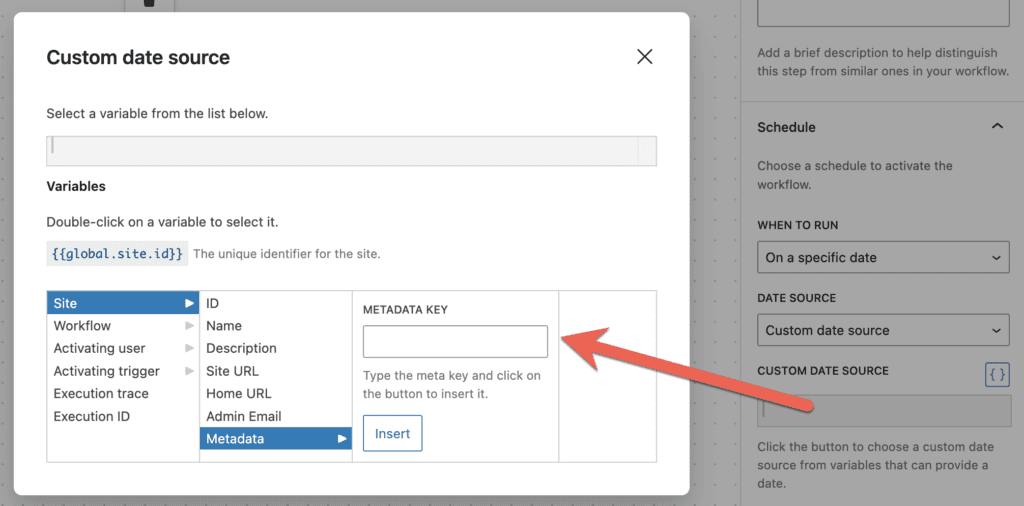
The “Custom date source” option enables you to open a modal window as in the screenshot below. You can use this customize the date that is used to schedule the workflow. Go to “Site” then “Metadata” and you can enter a date source in your WordPress database.
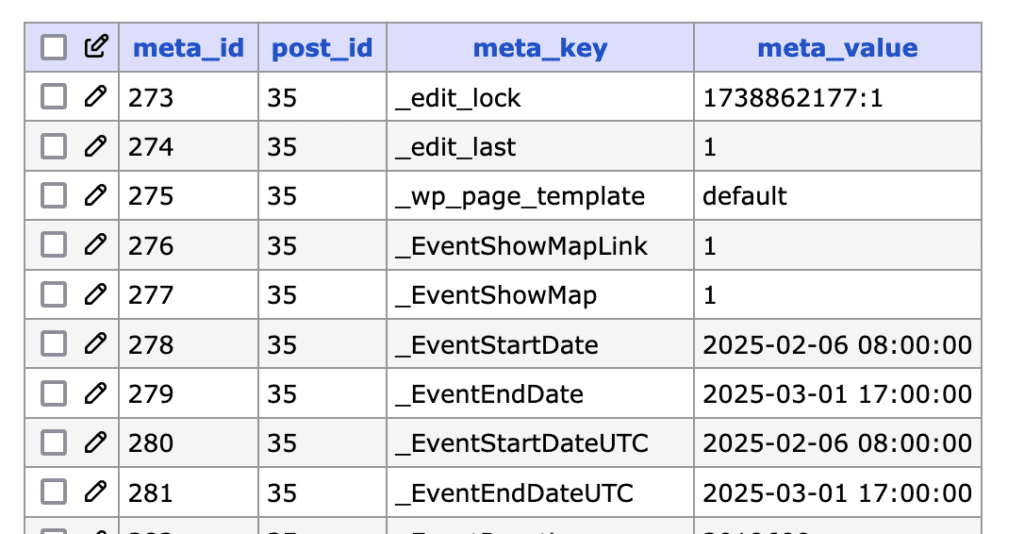
Let's see one example of this metadata in action for the “Custom date source” option. In this screenshot, we're using the popular plugin called “The Events Calendar”. There is a field in the _postmeta table called _EventEndDate. This stores the end date of events that are created with the plugin. We can use this date to trigger the workflow, so that the workflow starts when the event ends.
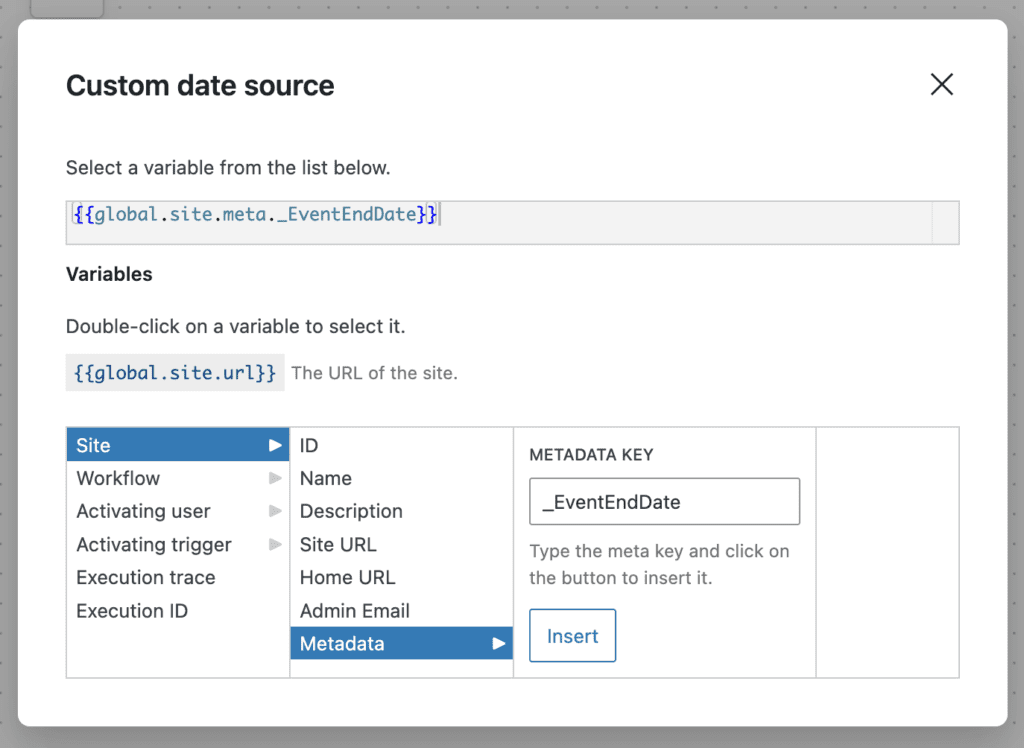
To use the end date field as a trigger, enter _EventEndDate into the “Metadata” field and click the “Insert” button.
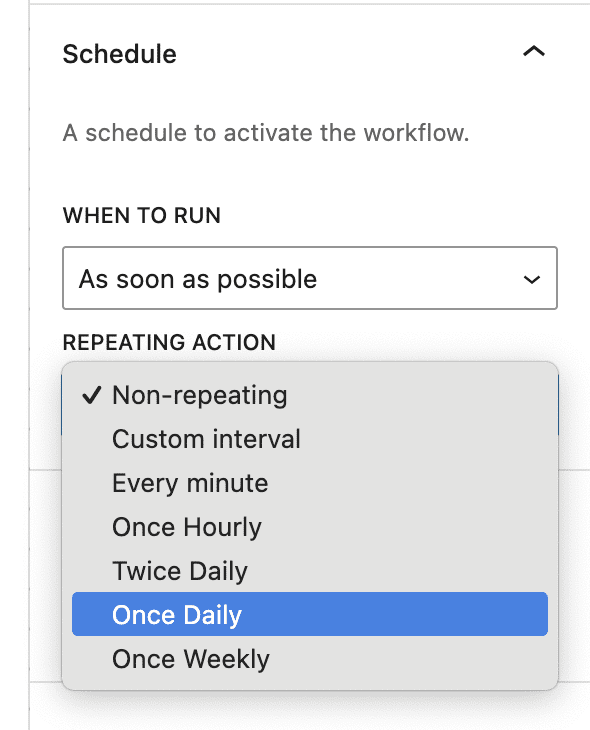
Repeating Action #
The “Repeating Action” allows you to choose if and when the workflow runs again. There are multiple default options and also a “Custom interval” option. For example, in the screenshot below, this workflow will repeat once every day.