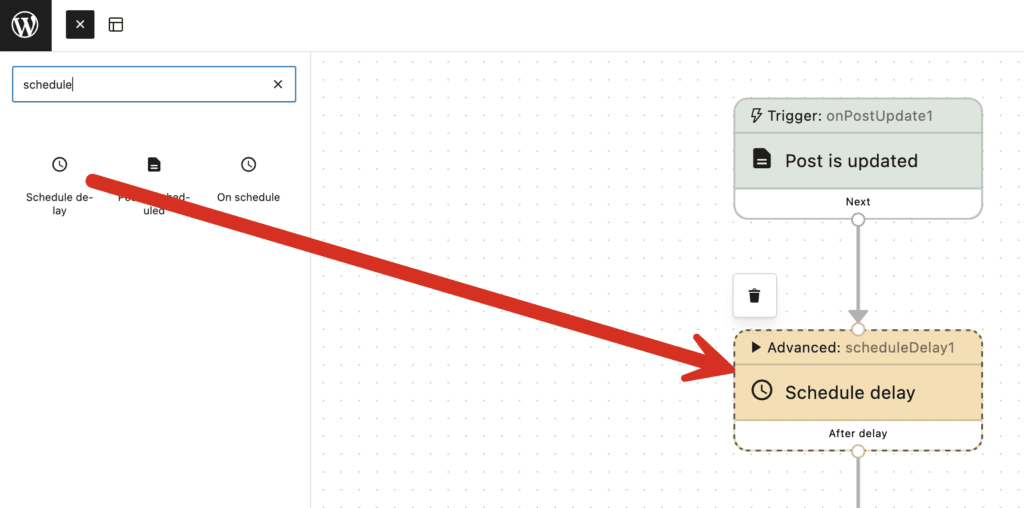
“Schedule delay” is one of the steps available in the “Action Workflows” feature of the PublishPress Future plugin. This step enables actions to be scheduled. You can choose when to run the next step. You can add a “Schedule delay” step from the “Advanced” tab of the “Action Workflows” area.
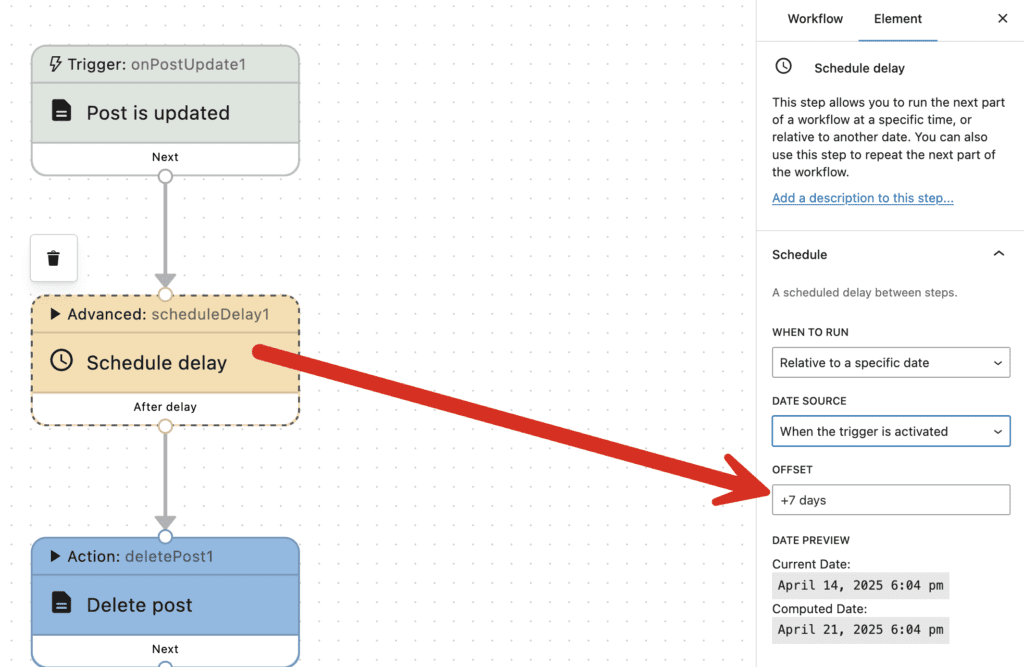
The settings for the Email step are available in the right sidebar:
- When to Run: There are three choices available.
- As soon as possible
- On a specific date
- Relative to a specific date
- Date Source: There are four choices available.
- Selected in the calendar
- When the trigger is activated
- When the step is activated
- Custom date source: this allows you to use a wide variety of sources to schedule your workflow.
- Offset: For information on formatting, see the PHP strtotime function. For example, you could enter “+1 month” or “+1 week 2 days 4 hours 2 seconds” or “next” Thursday. Please use only phrases in English.
This feature requires the Pro version of the PublishPress Future plugin.
- Repeating Action: This feature is available in PublishPress Future Pro. There are many choices available, including these:
- Non-repeating
- Custom interval
- Every 2 minutes
- Every minute
- Once hourly
- Twice Daily
- Once Daily
- Once Weekly
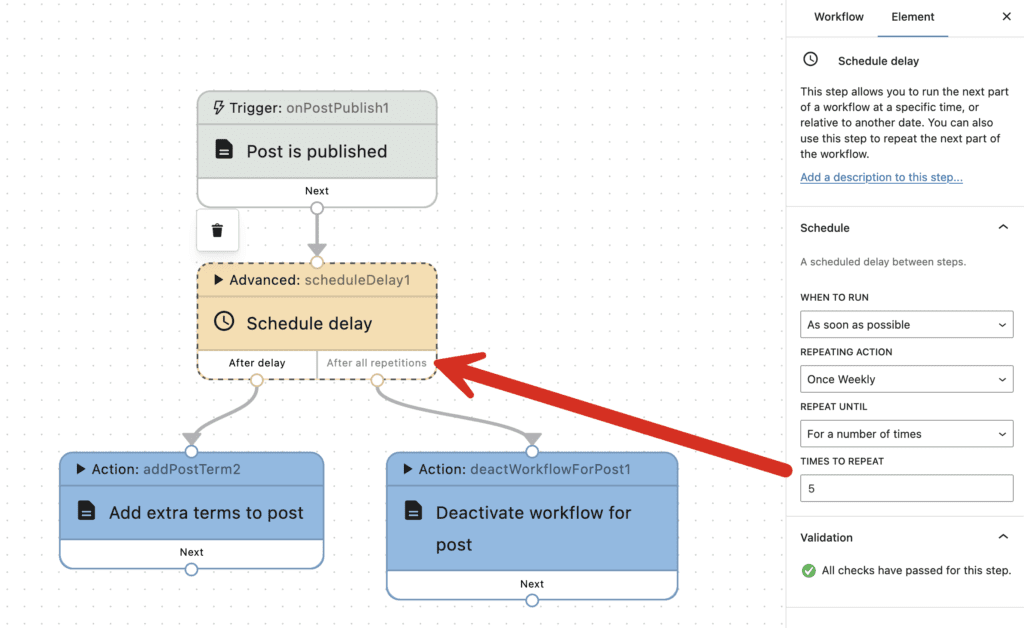
PublishPress Future Pro also gives you control over what happens at the end of repeating workflows. In the screenshot below, you can see that the workflow has been designed to repeat 5 times. In this version of PublishPress Future, you can choose what happens after all the repetitions have finished. You could decide to complete the workflow, or you could start a whole new part of the workflow.