
This feature requires the Pro version of the PublishPress Future plugin.
In the Pro version of the PublishPress Future plugin it is possible to schedule changes to your posts based on metadata. This makes it possible to integrate PublishPress Future with other plugins. For example, you can create a date field in the Advanced Custom Fields plugin and use that to control the date for Future Actions.
Where to Find Metadata Scheduling #
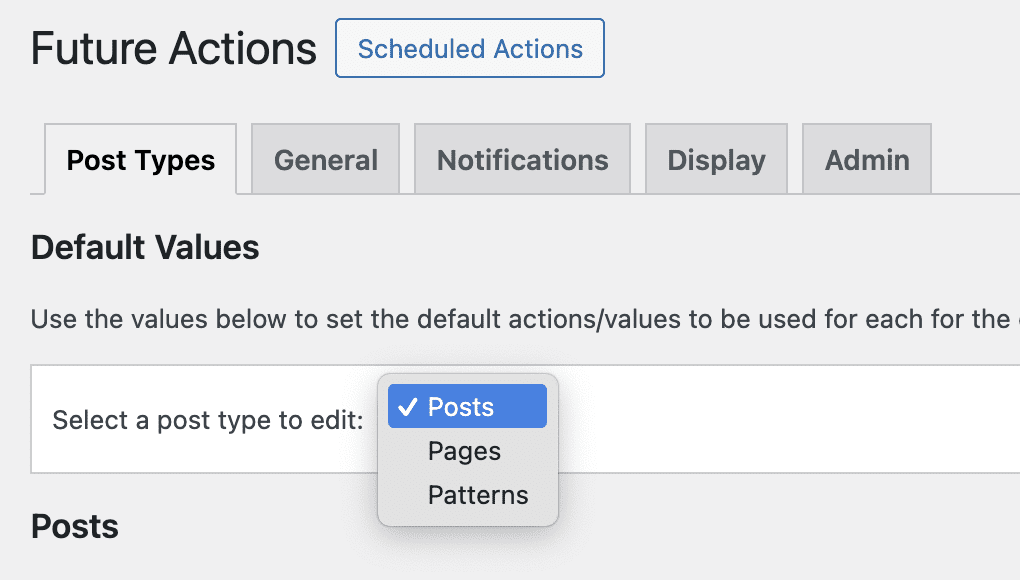
- In your WordPress admin menu, go to “Future Actions” and the “Post Types” tab.
- Use the “Select a post type to edit” option to choose the post type you want to use with Metadata Scheduling:
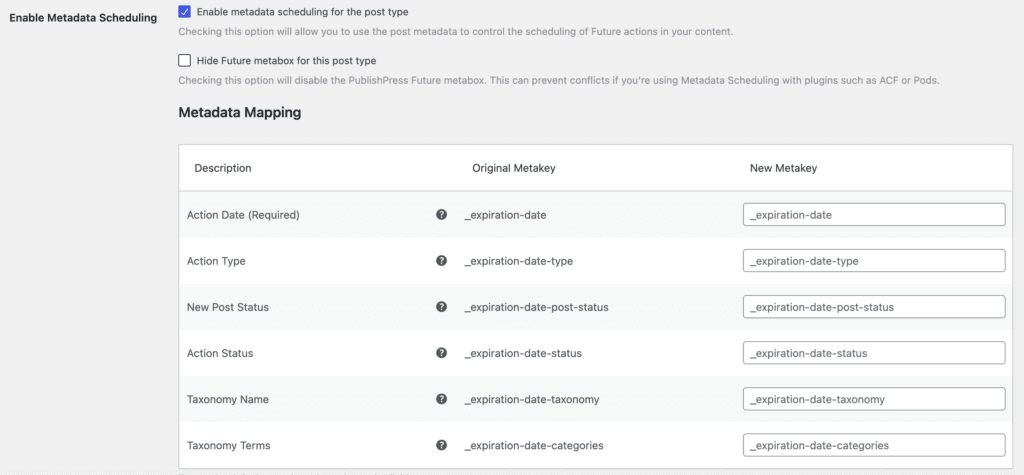
- Check the box for “Enable Metadata Scheduling”.
Types of Data in Metadata Scheduling #
When you are using an integration, there are types of data that you can update in PublishPress Future:
- Action Date: This field stores the scheduled date for the action.
- Action Type: This field stores the type of action that will be executed.
- New Post Status: The field stores the post status the post receives when Action Type is “change-status”.
- Action Status: This field specifies if the action should be enabled. Anything different from “saved” or 1 will mean that the action is disabled.
- Taxonomy Name: The taxonomy name for being used when selecting terms. Only required for taxonomy-related actions.
- Taxonomy Terms: A list of term's IDs for being used by the action. Only required for taxonomy-related actions.
If you've enabled this feature for a specific post type, you can optionally customize the metakey used for storing each Future action's data or stick with the default metakeys. Then every time the metadata is processed, the plugin will look for the specific metadata, and if the flag is not found, it will process the scheduling based on the metadata values.
| Name | Default Metakey | Data Format | Description |
|---|---|---|---|
| Action Date | _expiration-date | Unix timestamp or YYYY-mm-dd H:i:s | This field stores the scheduled date for the action. |
| Action Type | _expiration-date-type | It should contain a lowercase string, with no spaces or special chars. A value that is compatible with sanitize_key. | This field stores the type of action that will be executed. |
| New Post Status | _expiration-date-post-satus | It should contain a lowercase string, with no spaces or special chars. A value that is compatible with sanitize_key. | This field is used when Action Type is “change-status”, and stores the new status for the post. |
| Action Status | _expiration-date-status | “saved” or 1 | This field specifies if the action should be enabled or not. Anything different from “saved” or 1 will mean that the action is ignored. |
| Taxonomy Name | _expiration-date-taxonomy | It should contain a lowercase string, with no spaces or special chars. A value that is compatible with sanitize_key. | The taxonomy name for being used when selecting terms. Only required for taxonomy related actions. |
| Taxonomy Terms | _expiration-date-categories | A comma separated list of integer numbers. | A list of term's IDs for being used by the action. Only required for taxonomy related actions. |
Available Action Types #
| Action Name | Action Description |
|---|---|
| change-status | Change status to the value found on “New Post Status”. |
| draft | Change status to Draft (deprecated) |
| private | Change status to Private (deprecated) |
| trash | Change status to Trash (deprecated) |
| delete | Delete |
| stick | Stick |
| unstick | Unstick |
| category | Replace all categories |
| category-add | Add extra categories |
| category-remove | Remove selected categories |
| category-remove-all | Remove all categories |
| custom_status_[custom-status-name] | Change status to [custom-status-name] – Only on Pro, for statuses enabled for the post type. |