
This feature requires the Pro version of the PublishPress Capabilities plugin.
The Pro version of the PublishPress Capabilities plugin allows to hide any element inside the WordPress admin area. This is possible with the “Hide CSS Elements” feature.
If you can find the CSS class or ID, then you can hide that element using the “Hide CSS Elements” feature.
Let's show you some examples of what “Hide CSS Elements” can do.
Sample Uses for Hide CSS Elements #
- Go to “Capabilities” then “Admin Features” in your WordPress menu.
- Click the “Hide CSS Elements” tab.
- You can see at the examples that the plugin provides by default. These examples show you how to hide plugins or key links.
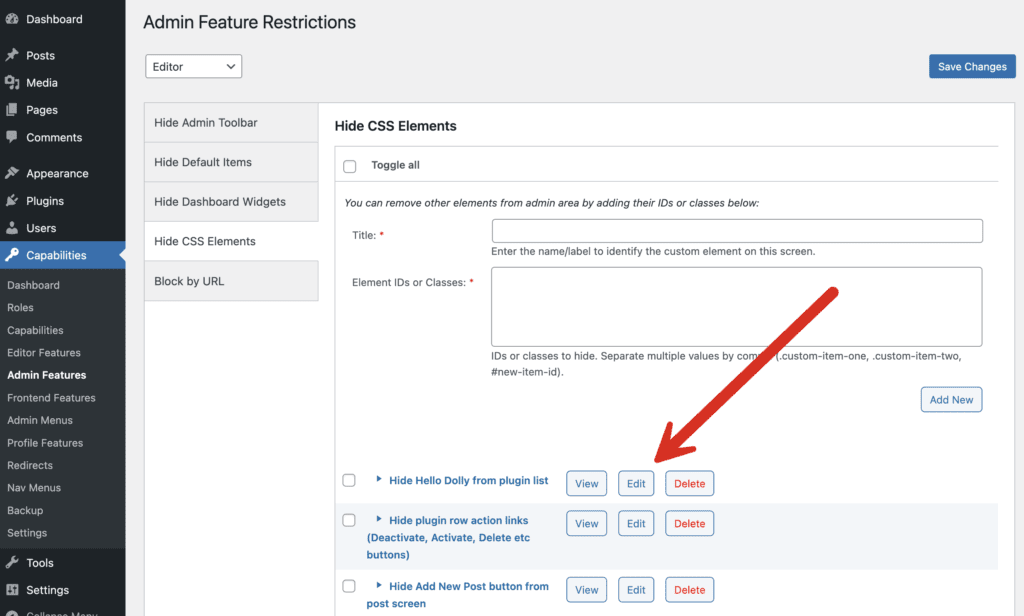
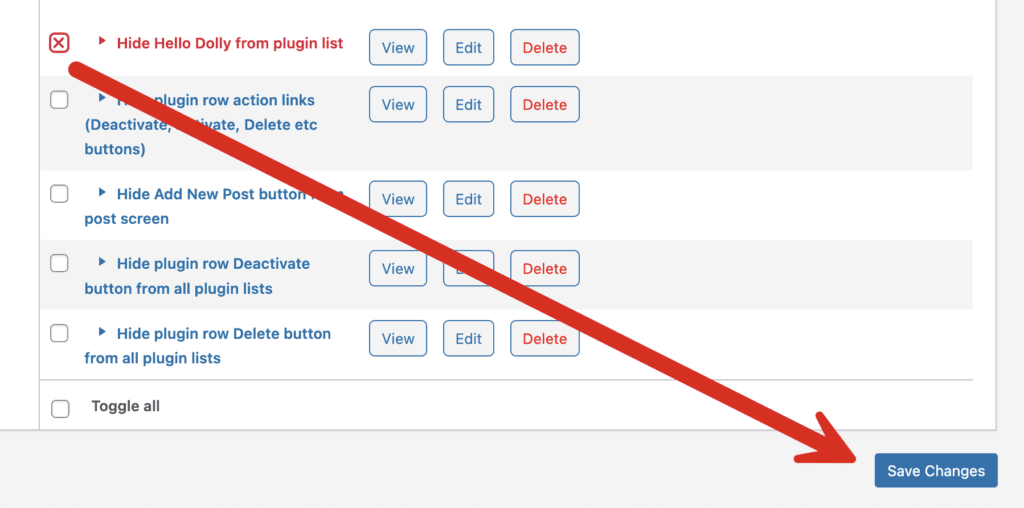
To enable any of these sample restrictions for a user role, click the box next to the item. Then click “Save Changes” as in this screenshot below:
Creating a New Item with Hide CSS Elements #
Let's also see an example of a new restriction with “Hide CSS Elements”. We will hide the search box on post screen. In the screenshot below, we're looking at the code for this search box. The code has a class of search-box.

- Go to “Capabilities” and then “Admin Features”.
- Click the “Hide CSS Elements” tab.
- Choose the user role for which you want to hide the search box.
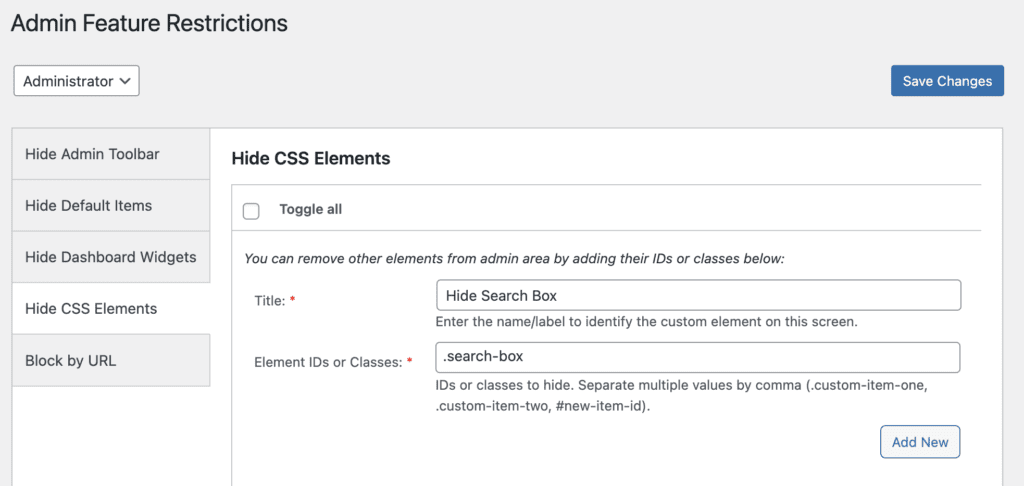
- Give a Label to this setting.
- Enter the class as
.search-box. This configuration is shown in the screenshot below. - Click “Add”.
- When a user in this role you selected now visits the Posts screen, the search box will be hidden for them, as in this screenshot below.
