
This feature requires the Pro version of the PublishPress Capabilities plugin.
The Pro version of the PublishPress Capabilities plugin allows to hide any element inside the WordPress post editor. If you can find the CSS class or ID, then you can hide that element.
Let's see an example of how this feature works. In the screenshot below, you can see two metaboxes:
- “Yoast SEO” from the Yoast SEO plugin.
- “Editorial Comments” from the PublishPress Planner plugin.

To hide one of these metaboxes, find the ID of this element. In this example, I'm using the “Inspector” tool in my browser. This image below shows that the ID is wpseo_meta.

- Go to “PublishPress”, then “Editor Features” in your WordPress admin menu.
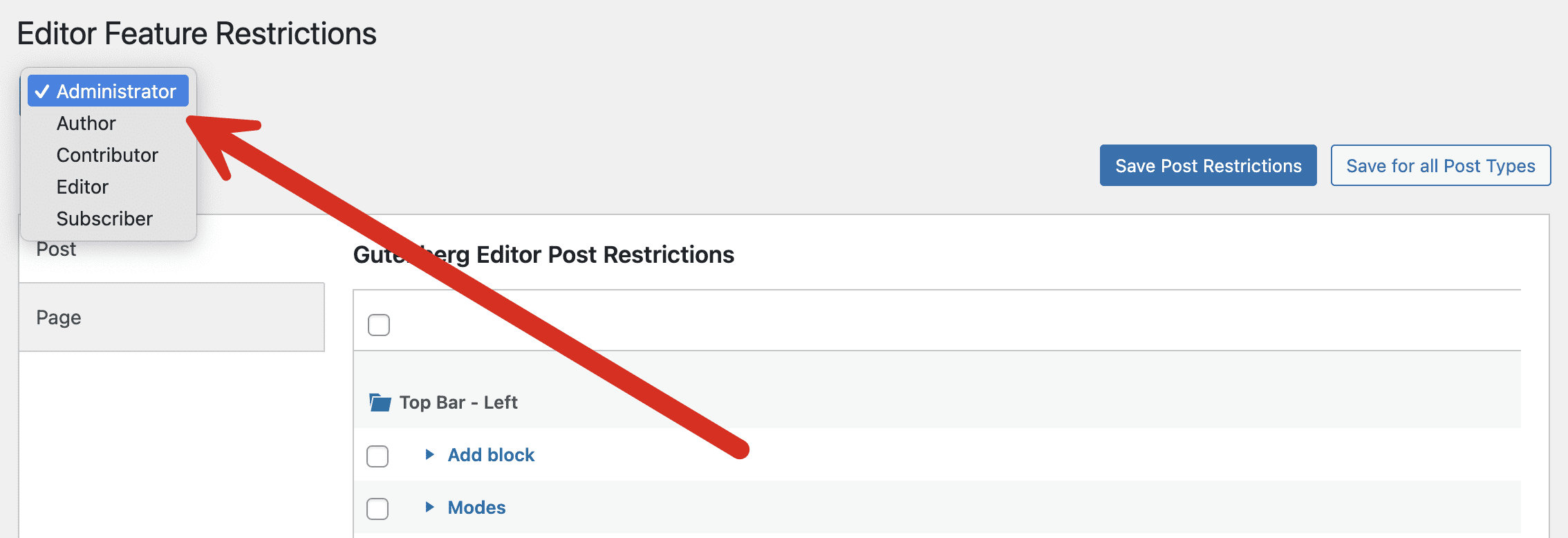
- In the top-left corner of the screen, Choose the user role you want to hide the element for, as in this next screenshot:
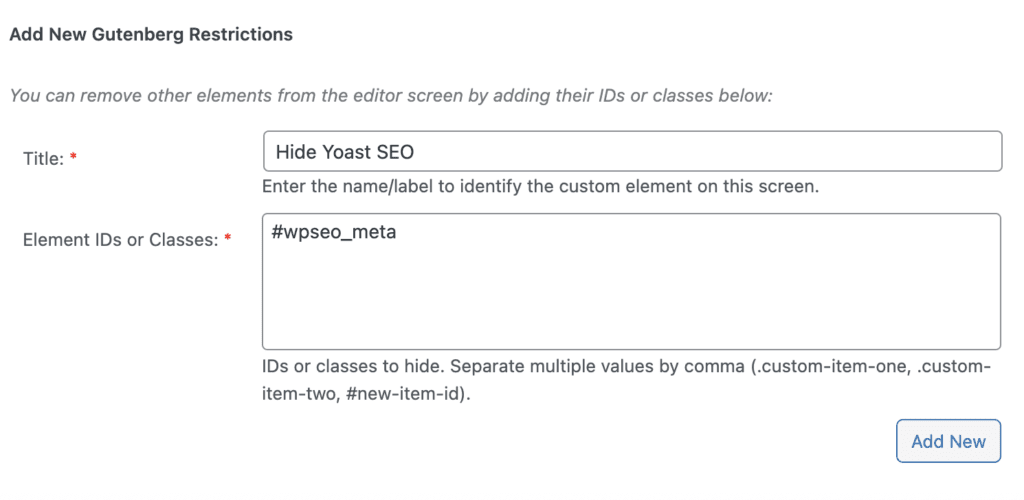
- Scroll down to the bottom of the screen and find the “Add New Gutenberg Restrictions” custom items area.
- In the “Label” box, enter a name for this restriction.
- In the “Element IDs or Classes” box, enter the ID or class.
- Click the “Add New” button.
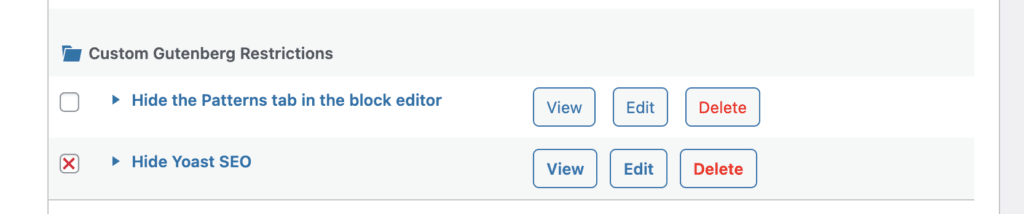
- Place a red X for any element you want to hide. In the image below, we are hiding both the Yoast SEO box.
- Click “Save Post Restrictions”.
- Visit the post editing screen as a user in the role you selected. You will no longer see the elements you selected.