The “Action Workflows” feature in PublishPress Future allows you to use data from the _postmeta table to enhance your workflows.
Steps That Accept Post Meta #
There are two triggers that allow you to use post meta to start your workflows:
- Post meta changed (Pro version): This trigger activates when a post meta field is changed. Scroll down for more details.
- On cron schedule (Pro version): This trigger allows to run the next part of a workflow at a specific time, or relative to another date. The date used for the schedule can be a “Custom date source” which allows you to choose a date stores in post meta.
There are several actions that allow you to use post meta to make changes to your WordPress site:
- Add post meta (Pro version): This step adds post meta to a post. Scroll down for more details.
- Delete post meta (Pro version): This step deletes post meta from a post. Scroll down for more details.
- Update post meta (Pro version): This step updates post meta for a post. Scroll down for more details.
- Conditional Split (Pro version): This step allows you to continue a workflow only if certain conditions are met. For example, the workflow can continue only if certain post meta exists. It is not required to have both a True and a False option. More details.
- Schedule: This step enables actions to be scheduled. You can choose when to run the next step. The date used for the schedule can be a “Custom date source” which allows you to choose a date stores in post meta. More details.
Using Post Meta in Steps #
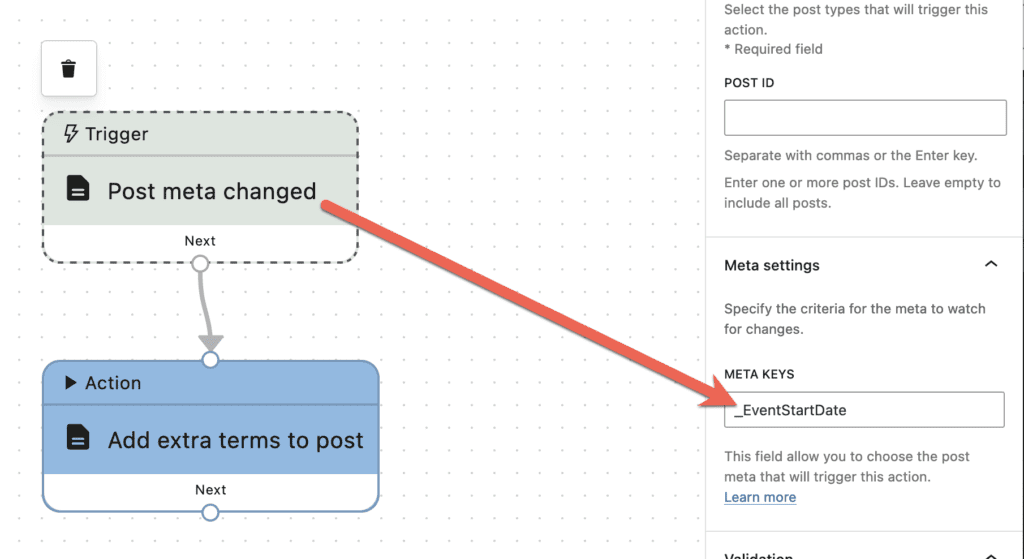
This guide will cover four steps: “Post meta changed”, “Add post meta”, “Delete post meta”, “Update post meta”. All four of these steps accept post meta. The field to enter the data is labelled “Meta Keys”, as shown in this screenshot.

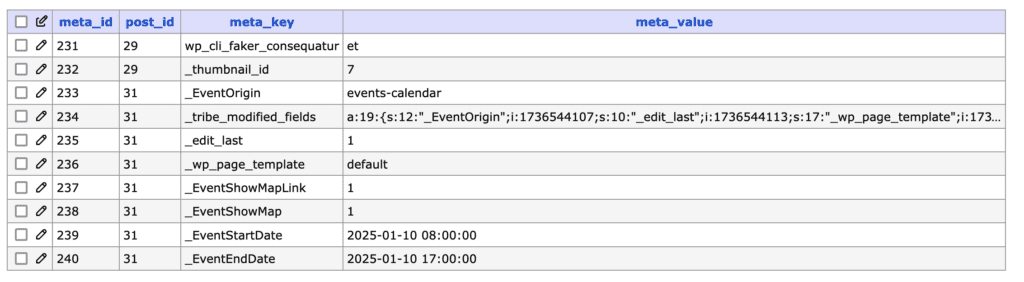
The data to enter in this field exists in the _postmeta field of your database, and in the meta_key column. This screenshot below shows the _postmeta table on a site with “The Events Calendar” plugin installed. For example, you can use the _EventStartDate column to create workflows based on the start date of events.
In the next screenshot, this workflow has the “Post meta changed” trigger. This trigger will activate when there are changes to the _EventStartDate column for an event.
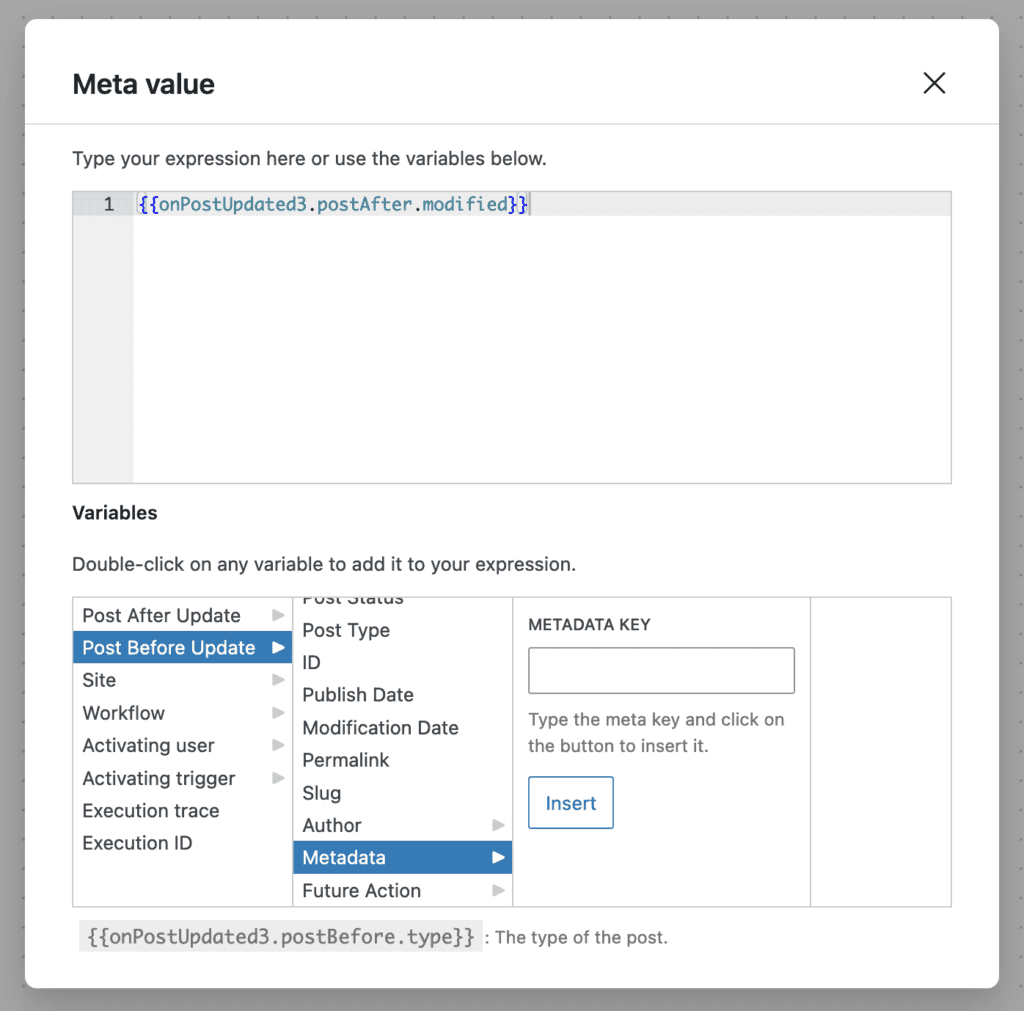
This next screenshot shows another possible workflow. In this example, the trigger is “Post is updated”. The next step is “Add post meta” and again the _EventStartDate field is used. There is another field called “Meta Value” that allows you to choose which data is added to that post meta field.

The “Meta Value” field allows you to choose from a wide range of data sources, including other post meta field. This screenshot below shows that you can use another post meta field to automatically update the _EventStartDate field.