The Action Workflows feature in PublishPress Future does support different date formats. The default date format is Y-m-d H:i:s.
In this documentation, I'll show you how the date formats work using example workflows. The date formatting used is taken from the official PHP date format.
Example Workflow: Publish Date #
In this first example, shown in the screenshot below, there's a workflow that will add the publishing date to the post title.
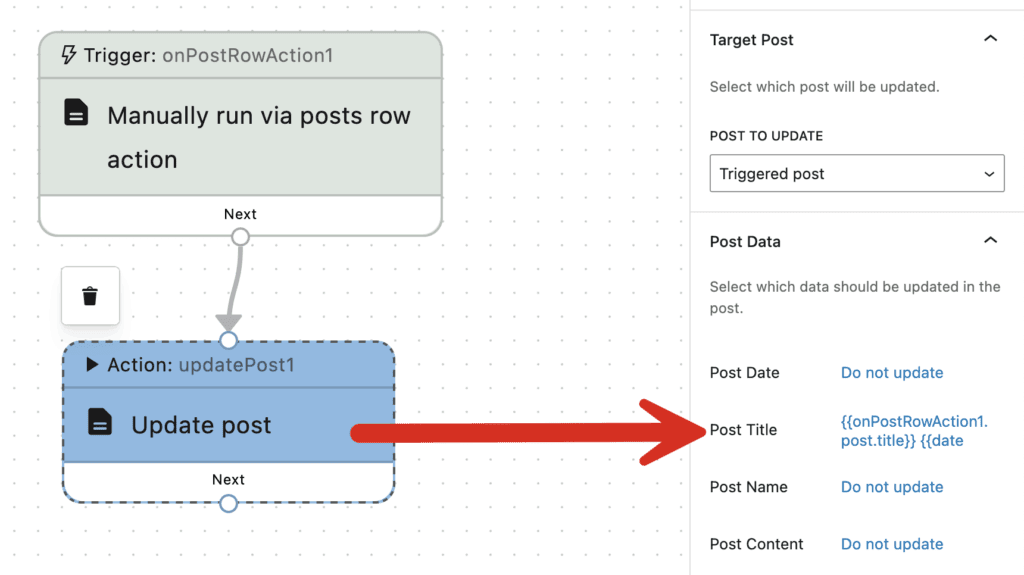
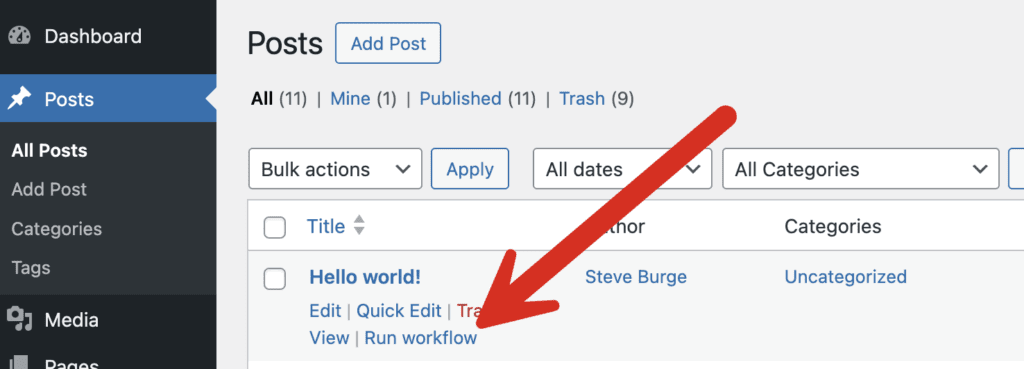
This workflow will add a “Run workflow” link under each post in the “Post” screen, as in this next screenshot.
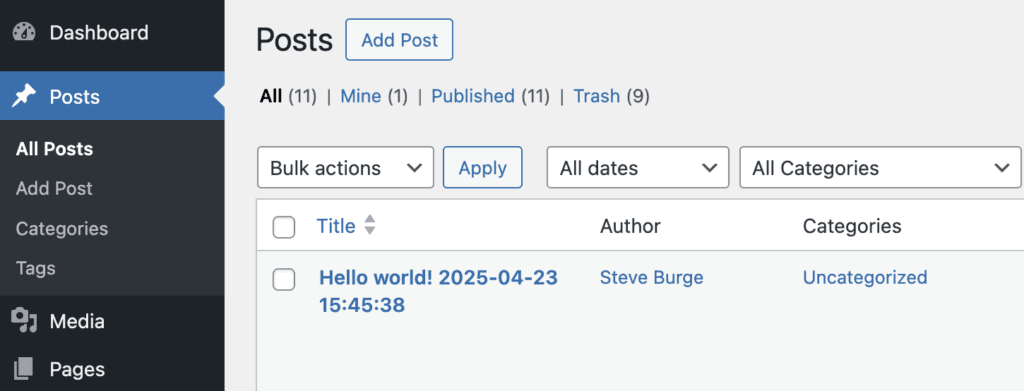
When you click the link, it will add the date to the post title as in this next screenshot. The date added to the title is using the Y-m-d H:i:s format.
In the “Update post” step of the workflow, I entered these two shortcodes to update the title. The second shortcode is in control of the Post Date.
{{onPostRowAction1.post.title}} {{onPostRowAction1.post.date}}
You can modify the post date shortcode to get different results. For example, you can modify the shortcode to only show the Year. There are two steps:
- Add
dateto the beginning of the shortcode to show you are modifying the date. - Add
output"Y"to the end of the shortcode to control the date format.
So here is the new shortcode I will use. In this example, the date format will be “Y” which only shows the year.
{{onPostRowAction1.post.title}} {{date onPostRowAction1.post.date output="Y"}}
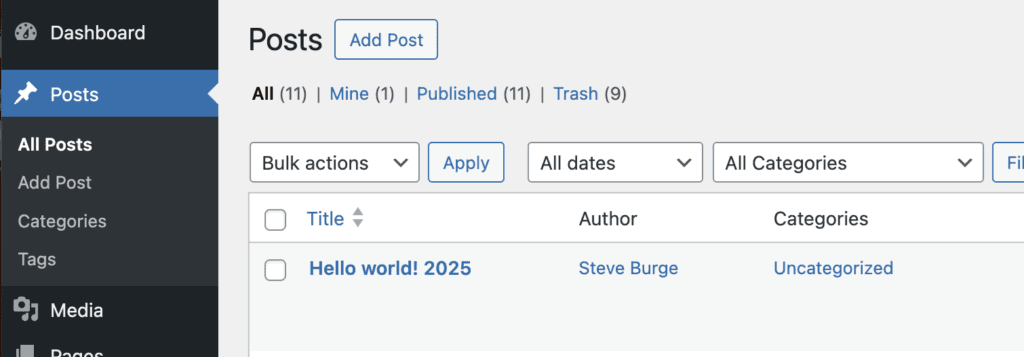
This next screenshot shows the end result of that new workflow. Instead of having the year, month, date and time, we now only have the year.
Example Workflow: Modified Date #
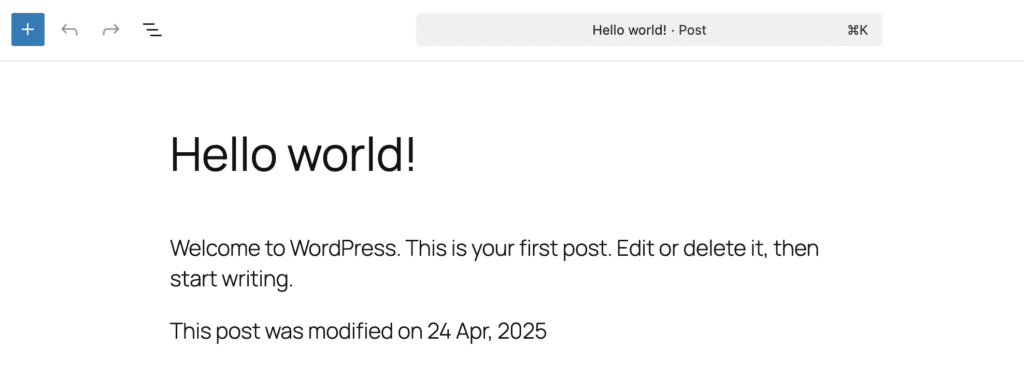
In this first example, shown in the screenshot below, there's a workflow that will add the modified date to the post content.
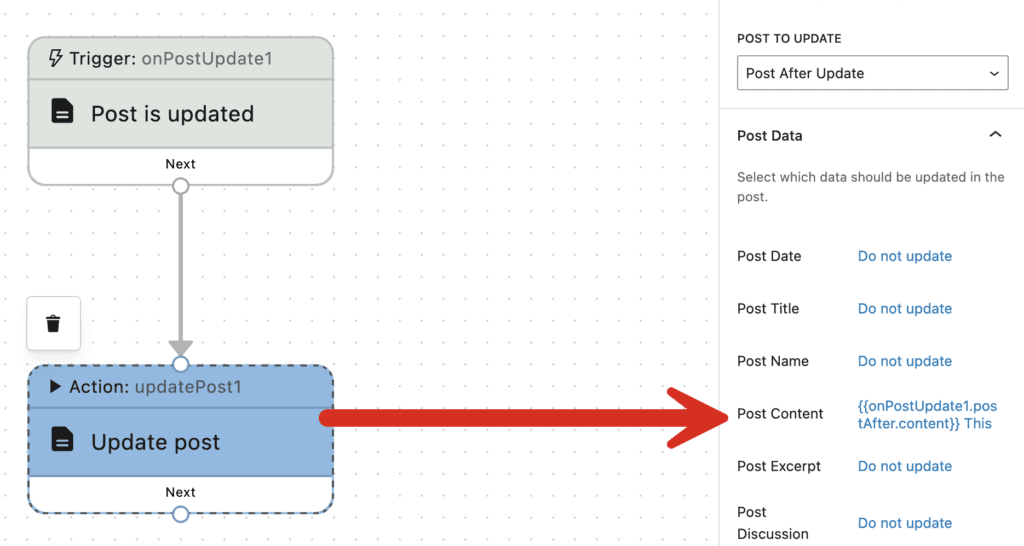
This workflow will add the modified date into the content for each post as in this next screenshot. The date added to the content is using the Y-m-d H:i:s format.
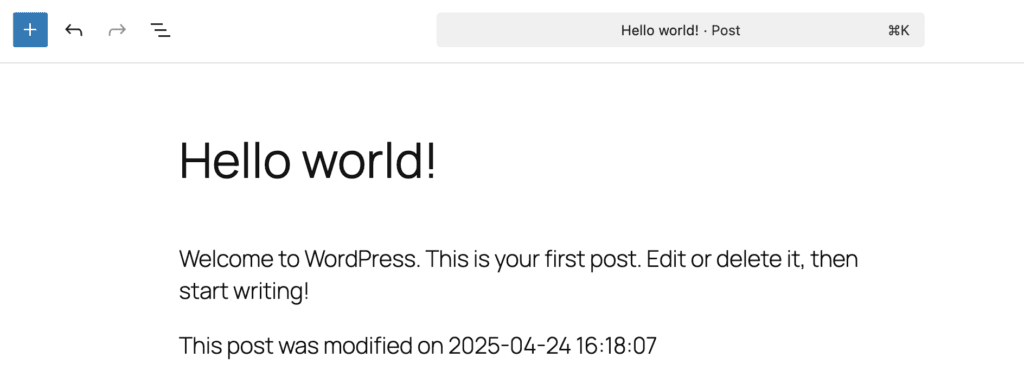
In the “Update post” step of the workflow, I entered these two shortcodes to update the title. The second shortcode is in control of the Modified Date.
{{onPostUpdate1.postAfter.content}} This post was modified on {{onPostUpdate1.postAfter.modified}}
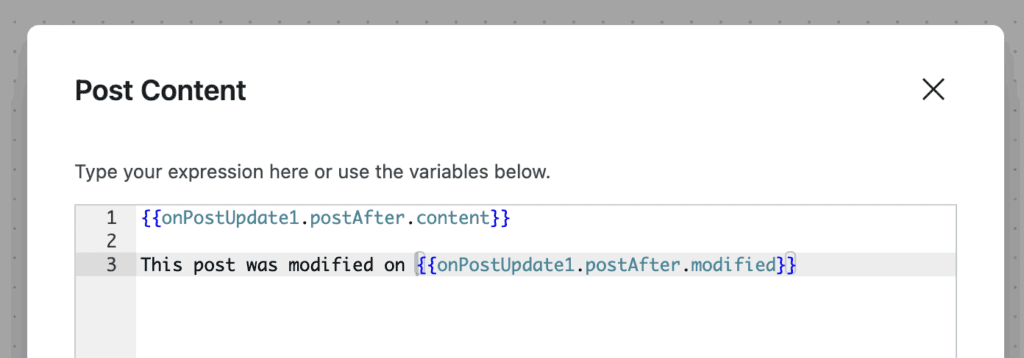
As before, you can modify the shortcode to a different date format. Again there are two steps:
- Add
dateto the beginning of the shortcode to show you are modifying the date. - Add
output"n M, Y"to the end of the shortcode to control the date format.
So here is the new shortcode I will use. In this example, the date format will be “j M, Y” which shows the date, month, and year.
{{onPostUpdate1.postAfter.content}} This post was modified on {{date onPostUpdate1.postAfter.modified output="j M, Y"}}
This next screenshot shows the end result of that updated workflow. Instead of having the year, month, date and time, we now only have the date, month and year in a new format.