Using the Content Calendar, you can easily see when content is planned, and when it was published. You can also drag-and-drop content to a new publication date.
How the Content Calendar Works #
The calendar gives you a powerful overview of your publishing schedule. By default, you see all the content you have planned for the next five weeks. If you need to drill down, you can filter the calendar by post status, categories, users or post types.
You can drag-and-drop your content to a new publication date.

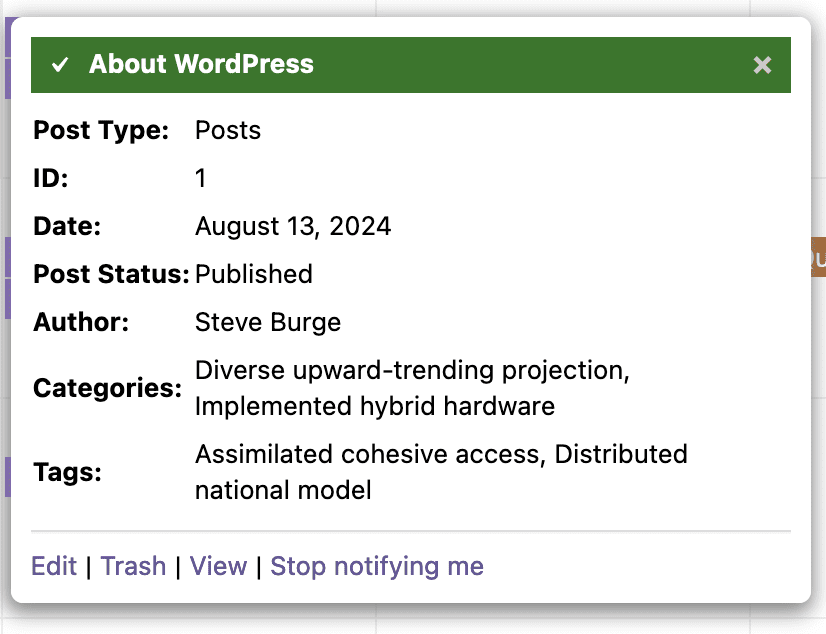
If you're using the free version of PublishPress Planner click on a content title, you'll see a pop-up with details about that content item. You can edit the content, trash it, view it, or use the “follow” feature in PublishPress Planner.
This feature requires the Pro version of the PublishPress Planner plugin.
If you're using the Pro version of PublishPress Planner, you'll see a much larger modal that allows you to edit many details of each post:

Create Content From the Calendar #
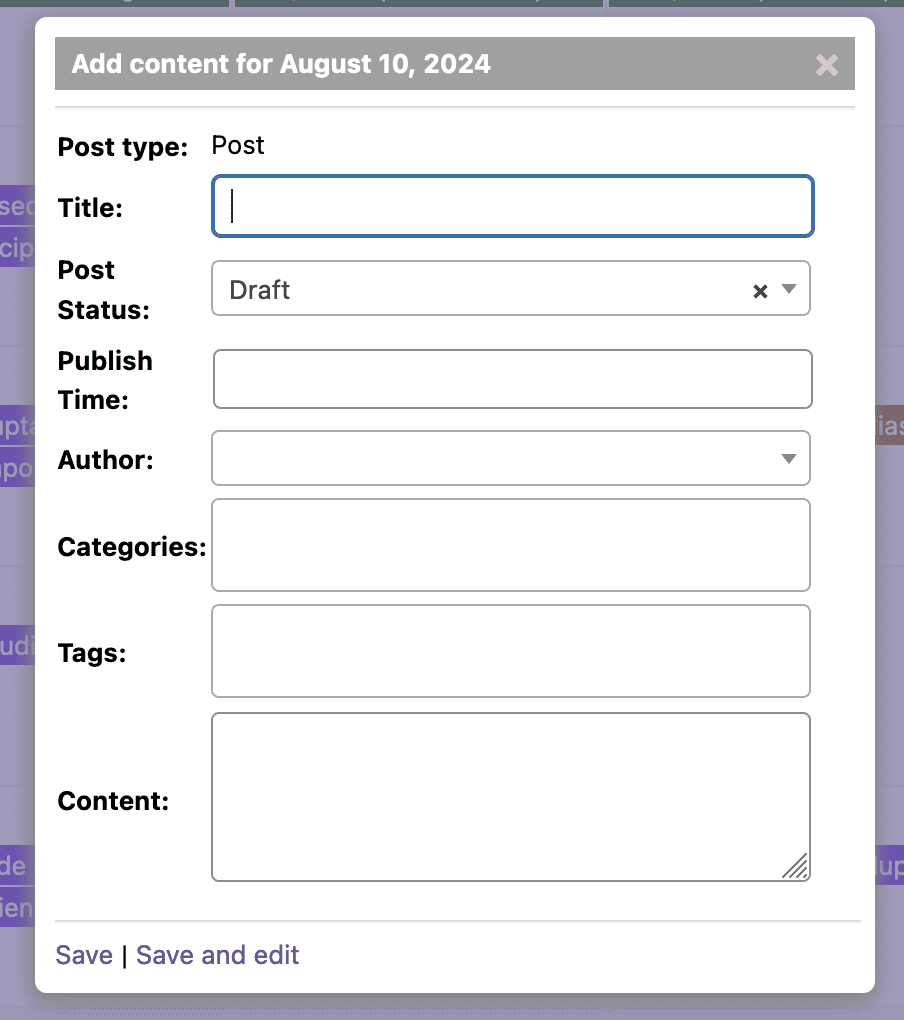
You can also create new content directly from the calendar. Simply click on any date in the calendar, and you'll see this pop-up:
The Content Calendar Settings #
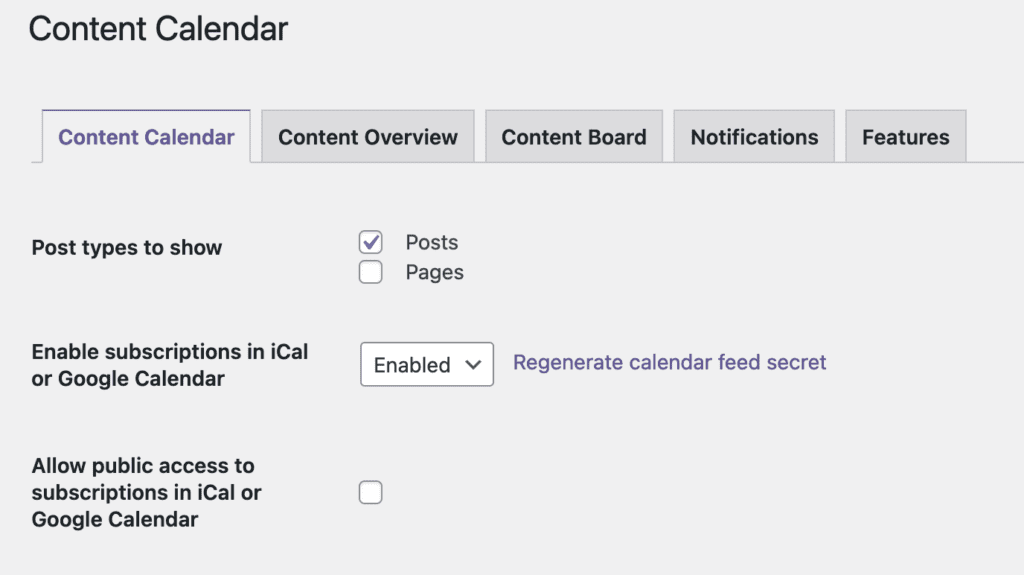
The image below shows some of the settings available for the PublishPress Planner calendar. As you can see, PublishPress Planner works with any post type in WordPress. In this image, the site is using the “Event Calendar” plugin, so it has two extra post types.