
This guide is an overview to the “Settings” screen inside the PublishPress Blocks plugin.
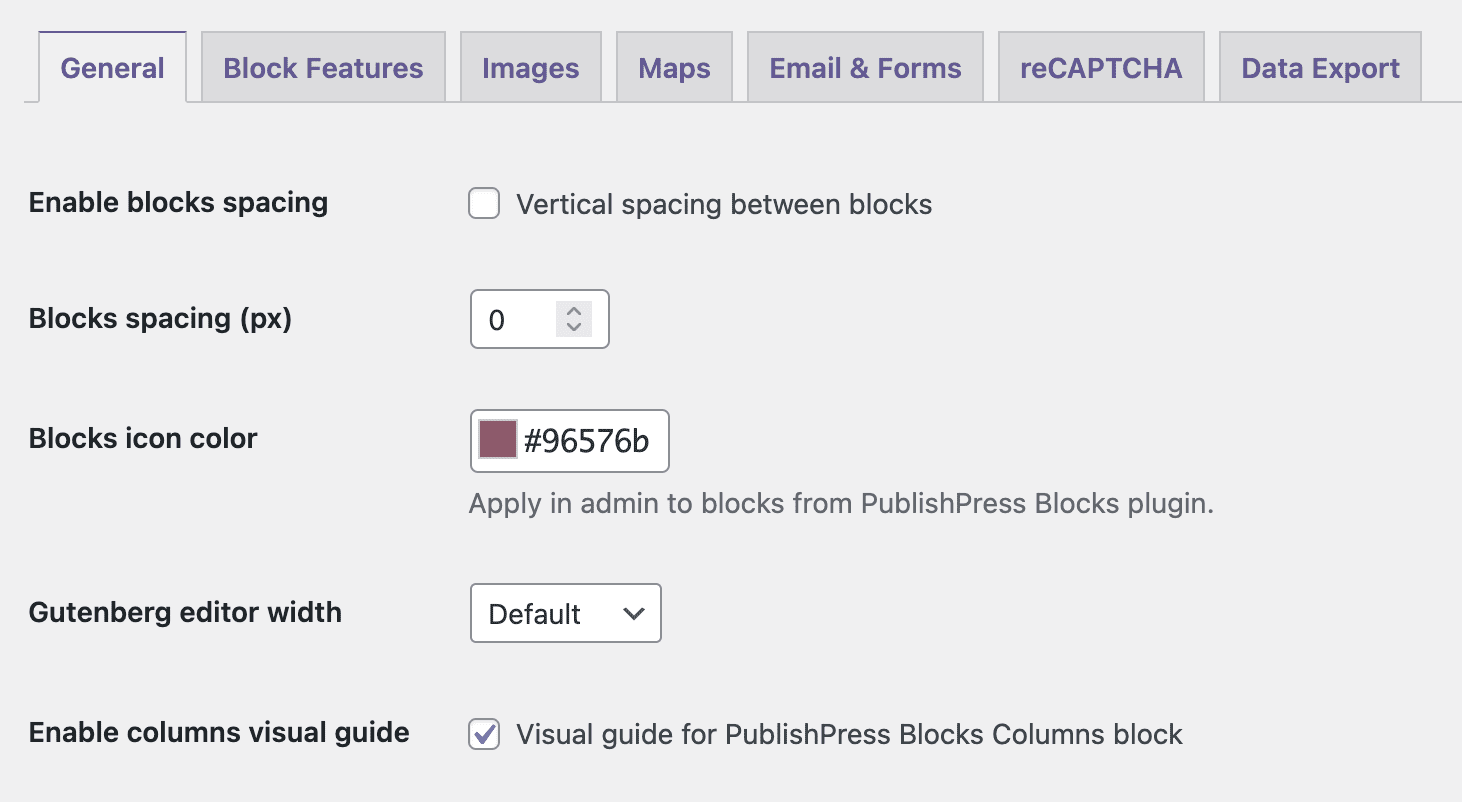
General #
- Enable blocks spacing. Vertical spacing between blocks. Click here for more details.
- Blocks spacing (px)
- Blocks icon color. Set the color for block icons in the admin. This only applies to blocks from PublishPress Blocks. Click here for more details.
- Gutenberg editor width. Define the admin Gutenberg editor width size. Click here for more details.
- Enable columns visual guide. Visual guide for PublishPress Blocks Columns block.
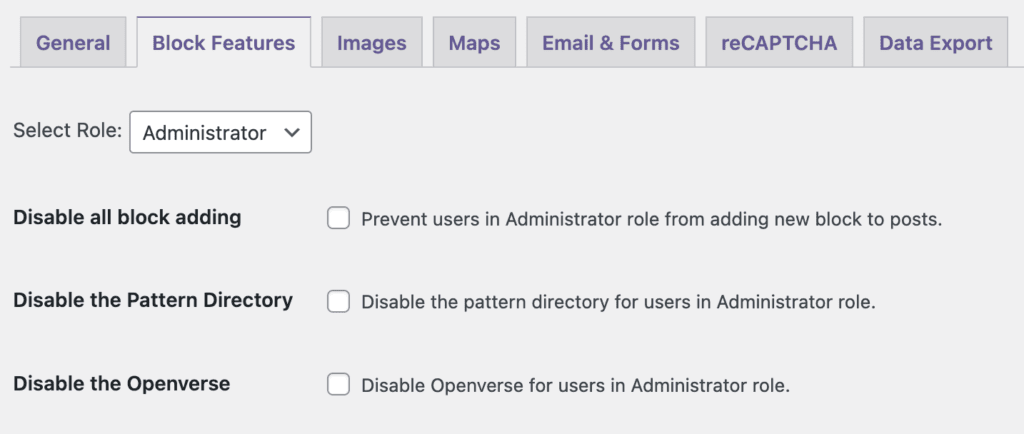
Block Features #
- Disable all block adding: Prevent users in the selected role from adding new block to posts.
- Disable the Pattern Directory: Disable the pattern directory for users in the selected role.
- Disable the Openverse: Disable Openverse for users in the selected role.
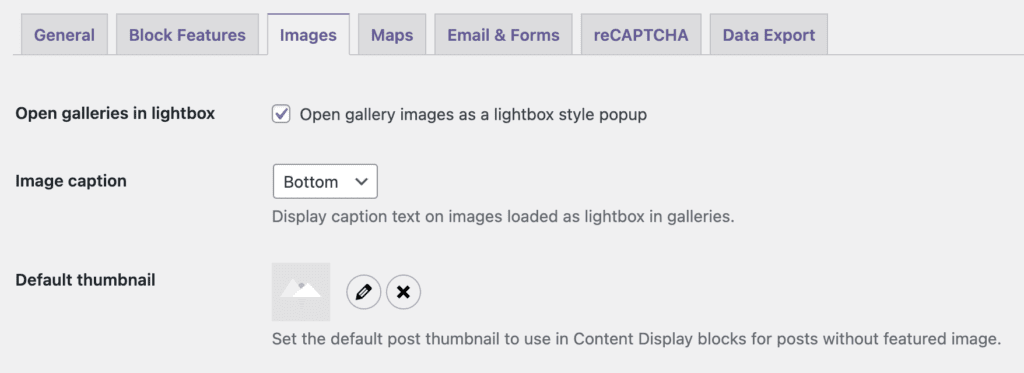
Images #
- Open galleries in lightbox. Open gallery images as a lightbox style popup. Click here for more details.
- Image caption. Display caption text on images loaded as lightbox in galleries. Click here for more details.
- Default thumbnail. Set the default post thumbnail to use in Content Display blocks for posts without featured image.
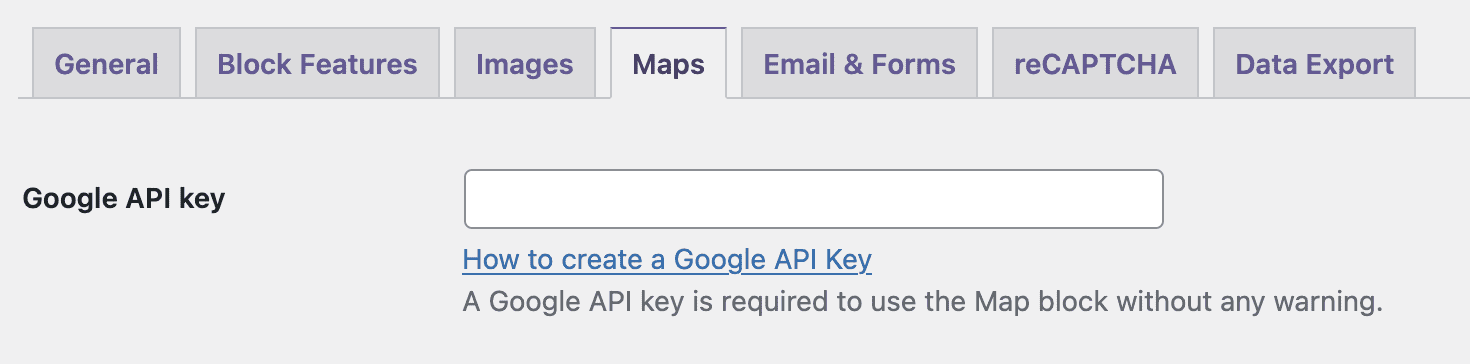
Maps #
Go to Blocks admin menu, then click “Maps” tab.
- Google API key. A Google API key is required to use the Map block without any warning.
Email & Forms #
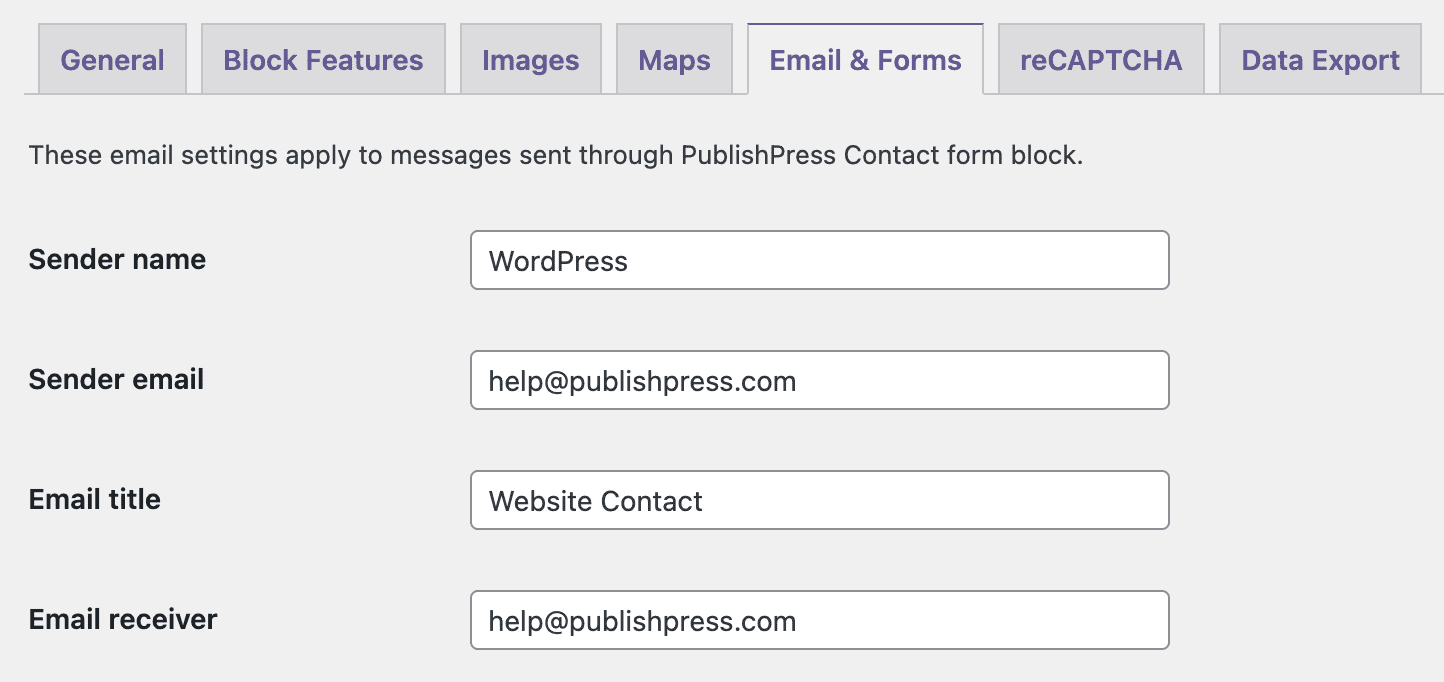
Go to Blocks admin menu, then click “Email & Forms” tab.
These email settings apply to messages sent through PublishPress Contact form block.
- Sender name.
- Sender email.
- Email title.
- Email receiver.
reCAPTCHA #
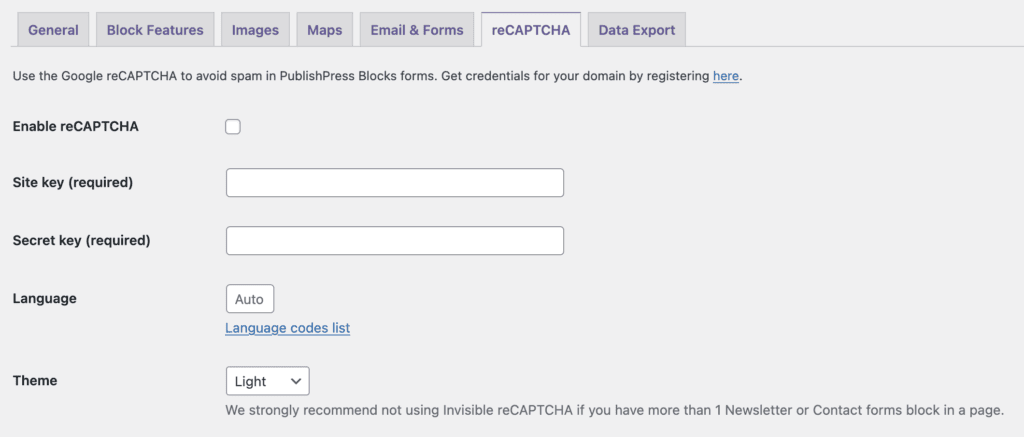
Go to Blocks admin menu, then click “reCAPTCHA” tab.
Use the Google reCAPTCHA to avoid spam in PublishPress Blocks forms. Get credentials for your domain by registering here – choose ReCaptcha V2
- Fill in the reCAPTCHA Site and reCAPTCHA Secret Key.
- Enable the reCAPTCHA option.
- Choose your reCAPTCHA Language.
- Choose your reCAPTCHA Theme.
Data Export #
Go to Blocks admin menu, then click “Data Export” tab.
Here you can download data stored through Contact and Newsletter form blocks in CSV and JSON format.
Settings through the Gutenberg editor #
You can also find Editor width and Columns visual guide settings at the top right corner of your Editor, next to the Settings icon. You can apply different configurations to individual posts and pages.
