The Content Overview Screen is available in the PublishPress Planner plugin. This screen gives you an overview of all the content on your site. You can choose the data to see for your posts. This data appears in columns.
Introducing Content Overview Columns #
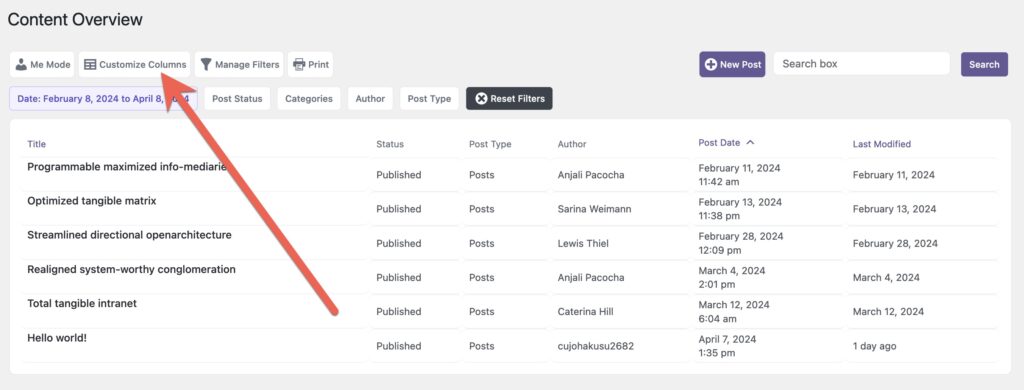
There are 6 default columns on this screen: Title, Status, Post Type, Author, Post Date, Last Modified. You can see those columns in this screenshot:

How to Add Columns #
It is possible to customize the columns on this screen. Click the “Customize Columns” button:
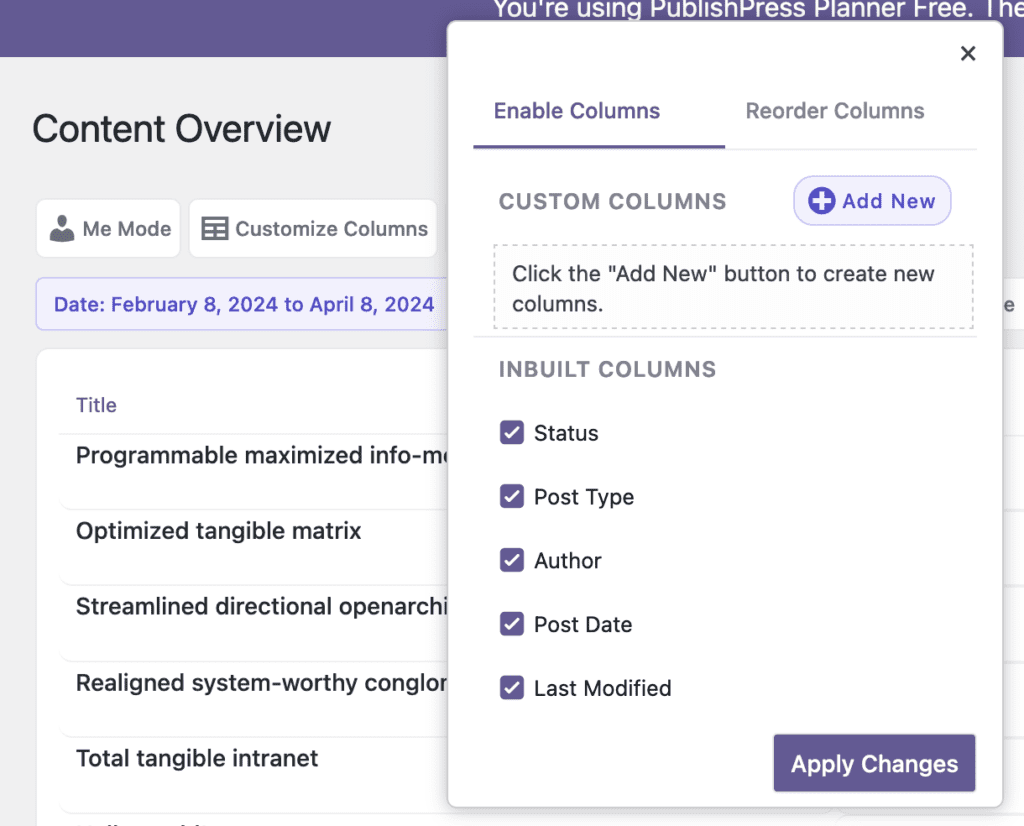
In the modal, you can check or uncheck the boxes for all the inbuilt columns.
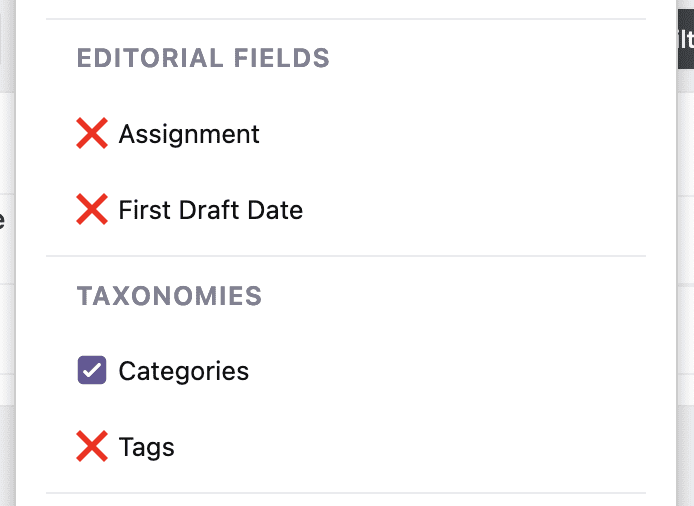
In this screenshot below, you can see columns for Editorial Fields and Taxonomies. If you click any of these elements, they will be added as new columns on your Content Overview screen.
How to Add Columns (Pro) #
This feature requires the Pro version of the PublishPress Planner plugin.
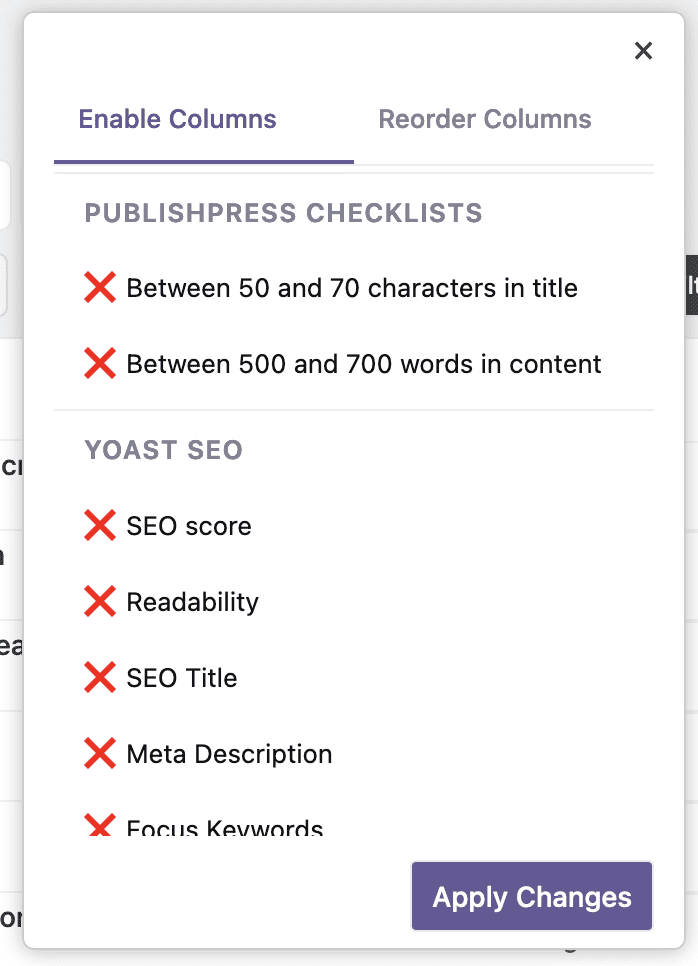
The Pro version of PublishPress Planner has integrations with plugins that include Yoast SEO and PublishPress Checklists. In the screenshot below, you can see that those options are ready to be checked.
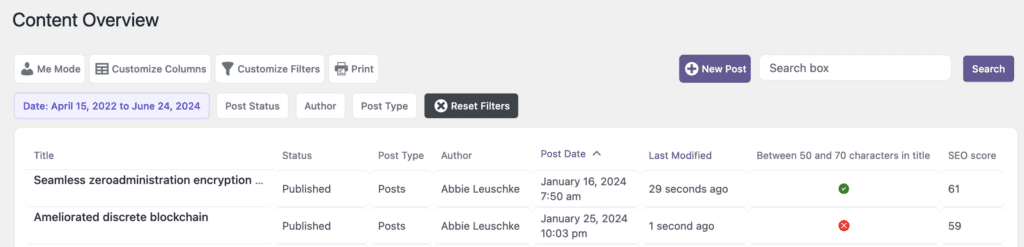
In this screenshot below, we've added one column from PublishPress Checklists and also the “SEO score” column from Yoast SEO.
How to Add Custom Columns #
The Content Overview screen allows you to add custom columns. These columns can use any metadata stored on your site by WordPress plugins.
- Click the “Customize Columns” button.
- Click the “Add New” button.

- Enter a “Column Title”.
- Click the “Select Metakey” option.
- In this screenshot below, we are selecting the “_yoast_wpseo_focuskw” option. This will show the keyword from the Yoast SEO plugin.
- Click “Add Column”.
- Click “Apply Changes”.

You will now see the “Yoast Keyword” column has been added to the screen, as in this screenshot below:

How to Reorder Columns #
It is possible to change the order of columns in the Content Overview screen
- Click “Customize Columns”.
- Click the “Reorder Columns” tab.
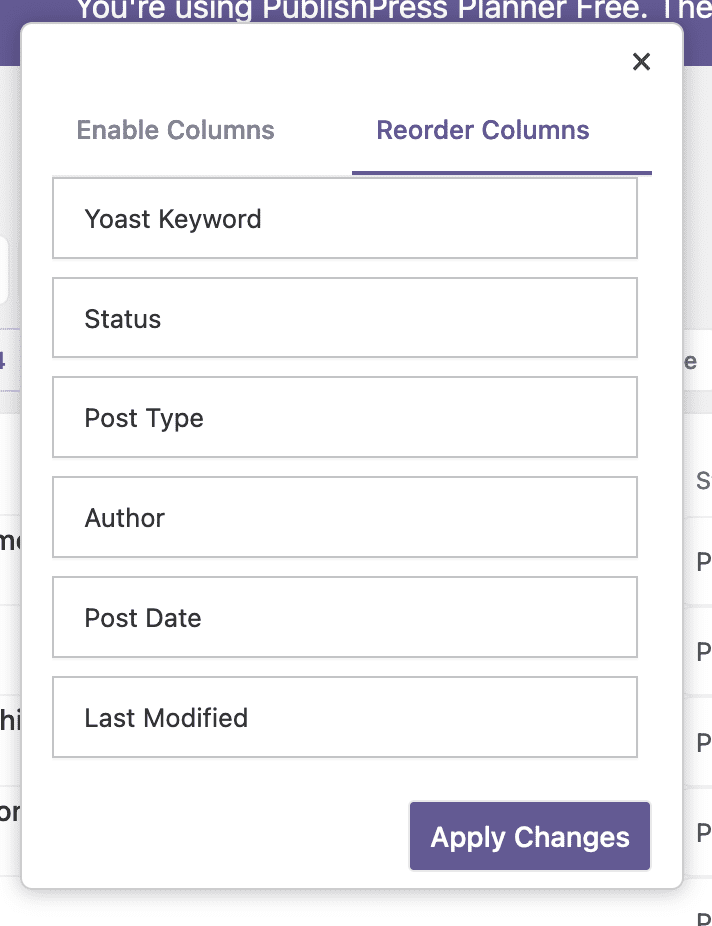
- You can drag-and-drop the columns into a new order.