
The “Action Workflows Engine” is the heart of the workflow system in PublishPress Future Pro. It's the component that manages the execution of the workflows, ensuring that each step is carried out in the correct order and under the right conditions.
Once the engine is initialized it starts setting up and listening to the events described as triggers on every published workflow in the site. When the configured trigger conditions happen the workflow is initiated. The engine then reads the steps tree, looking for the next steps connected to the activated trigger, and executes them in sequence.
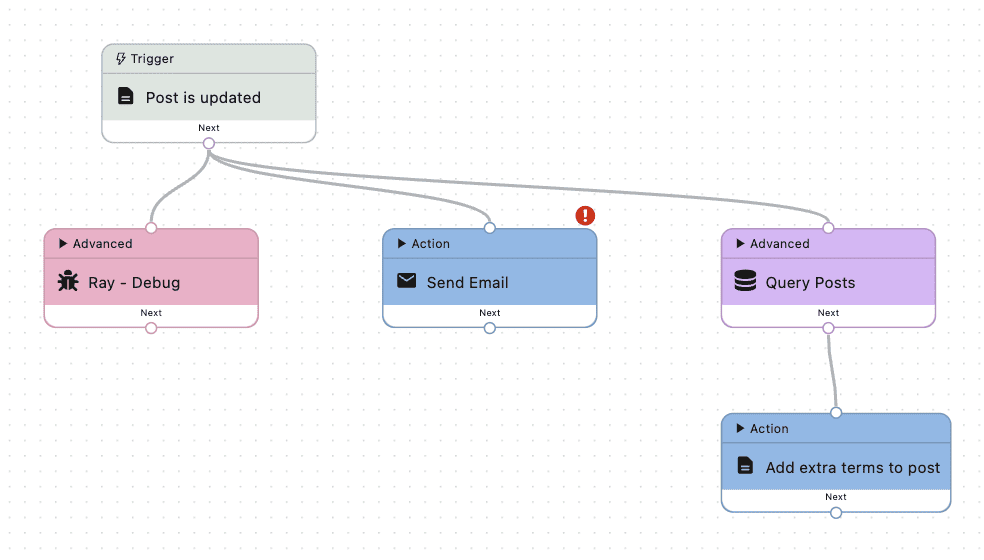
In case a step is directly connected through the same handle with different multiple steps, the execution is still in series, and not in parallel. The workflow engine does not execute tasks in parallel. In this case, those steps will be executed in the sequence they appear in the step tree. As you can see in the following example, all three steps: “Ray Debug”, “Send Email”, and “Query Posts” will be executed in sequence after all the decedent flow ends for each step. We can not know what will be executed first just looking to the diagram, but in case “Query Posts” is executed first, both “Ray Debug” and “Send Email” will run only after “Add extra terms to post” is complete.
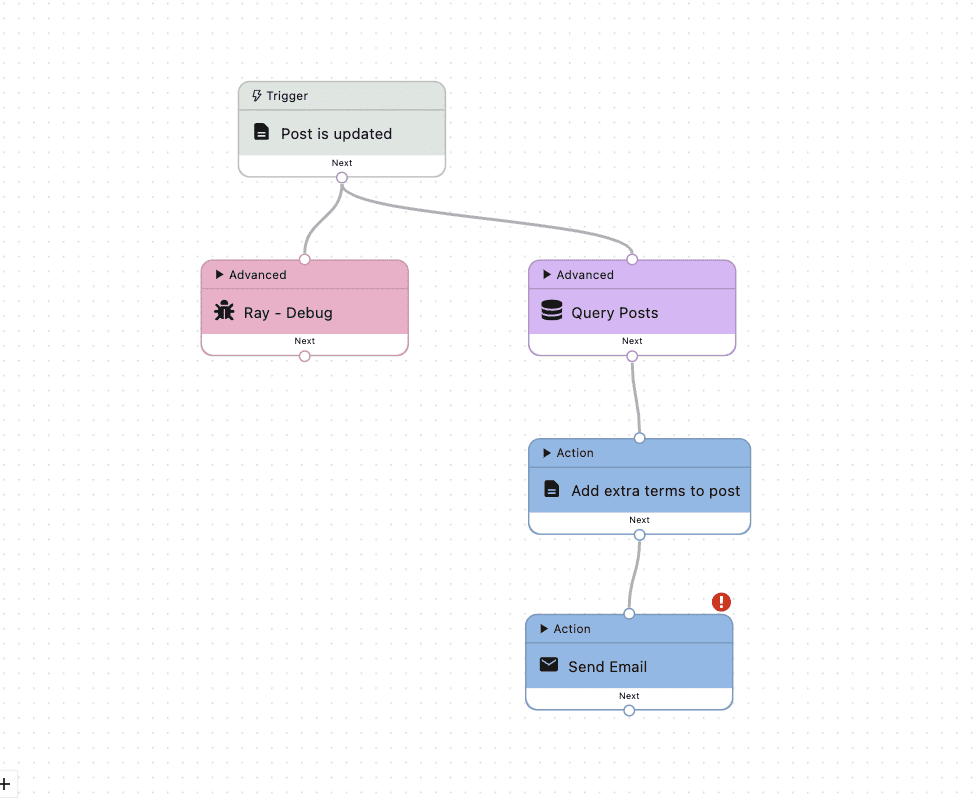
If you want to specify the correct order of execution of those steps, for example, you want to make sure the email is sent only after the terms are added to the post, you should connect the “Send Email” step to the output handle of “Add extra terms to post”:
Data Flow #
The workflow engine also handles data flow between steps. It ensures that the output data from one step is correctly passed as input to the next step. This allows for complex, dynamic processes to be automated, and data manipulated.
Within the workflow, data comes from two main sources: Global Variables and the Output of individual Steps. Global Variables are values that are accessible throughout the entire workflow, while Step Output refers to the specific data produced by each step as the workflow progresses.
Global Variables #
The workflow engine provides the following global variables:
- Workflow: This variable holds data related to the overall workflow, such as its ID, the workflow name, description and the last time it was modified.
- Current User: This variable contains information about the user who initiated the workflow. It will be empty when the workflow is initiated by a guest user. It includes the information about the user: ID, email, login name, display_name, list of user roles, list of capabilities, and the date it has registered.
- Site: This variable holds information about the current site: URL, home URL, admin's email, site name, and description.
- Trigger: This variable contains information about the trigger that initiated the workflow: step ID, name, label, date and time it was activated.
Global variables can be used on settings fields such as the subject and body text fields in the “Send email” step.
Step Input and Output #
For performing a specific task, workflow steps require certain data to work with, known as “input”, and produce results, known as “Output”.
Input #
Input refers to the data that a step requires to perform its operation. This data can come from two main sources:
- Global Variables
- Output of Previous Steps.
The results produced by a previous step in the workflow can be used as input for the next step. This allows for a dynamic flow of data through the workflow.
Output #
Output refers to the data that a step produces after performing its operation. This data is then available to be used as input for subsequent steps in the workflow.
The output of a step can vary widely depending on its function. For example, the output of a trigger that activates when a post is saved is the saved post itself.
Asynchronous Workflows #
By default, the workflow is executed synchronously, where the next step will be executed right after the previous step finishes executing, in the specific order. But you can control the timing of your workflow execution using the “Schedule” step. It is particularly useful for creating asynchronous workflows, where tasks don't need to be executed immediately one after the other.