PublishPress Statuses makes it possible to add permissions to custom statuses.
In this guide, we’ll walk you through some examples of how this works. These examples uses three plugins:
Allow Users to Edit Posts in One Status #
Let’s see an example of using custom capabilities for one user role and one status.
We’re going to give a user in the “Contributor” role access to posts in the “Assigned” status.
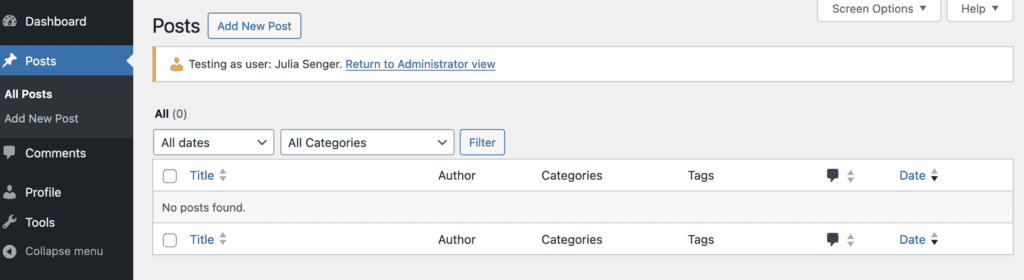
Normally, users in the “Contributor” role have very limited access to posts. In this screenshot, I’m using the User Testing feature to check on a Contributor ser. They can not access any posts in the WordPress admin area.
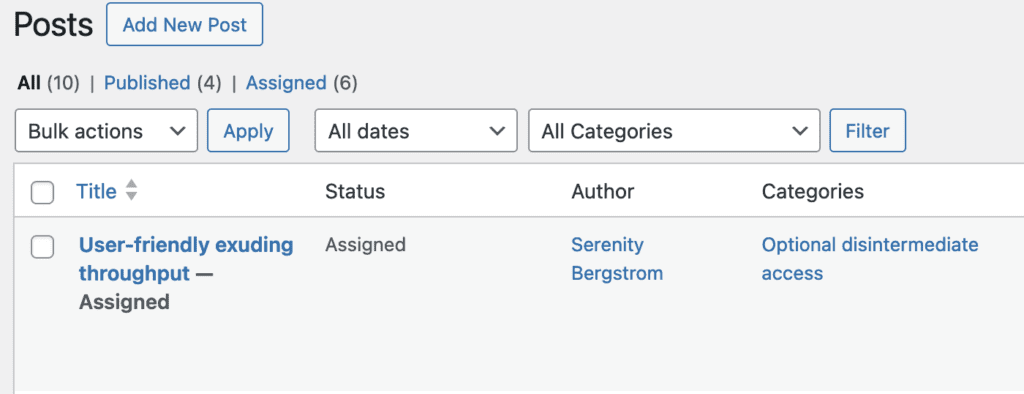
In this scenario, there are 10 posts on the site. 6 of these posts are in the “Assigned” status, and 4 are in the “Published” status. Those can be seen by anyone in the Administrator or Editor roles.
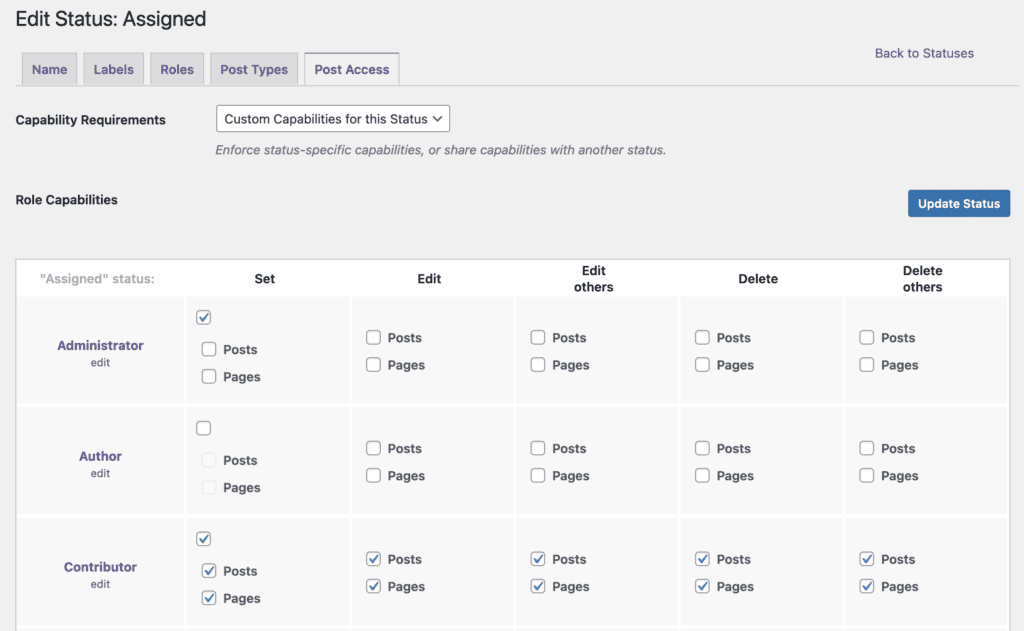
Inside the “Assigned” status and the “Post Access” tab, I will give the “Contributor” role full access to the “Assigned” status. In this screenshot below, you can see all the boxes are checked in the “Contributor” role.
Now when a user in the Contributor role logs in to the site, they will be able to see and edit all the posts in the “Assigned” status.

They will be able to create new posts and assign them either to the “Draft” or “Assigned” status, as in this next screenshot:

Prevent Users from Moving Posts Back in a Workflow #
In this example, we’re going to prevent a user from moving a post backwards in a workflow. Our goal is this:
- Someone in the “Author” role is able submit a post as a “Pitch”.
- Once a pitch has been approved, a user in the “Editor” role will mark it as “Assigned”.
- The author should not be allowed to then change it back to a “Pitch”.
Here’s how to set up a situation like this on your website:
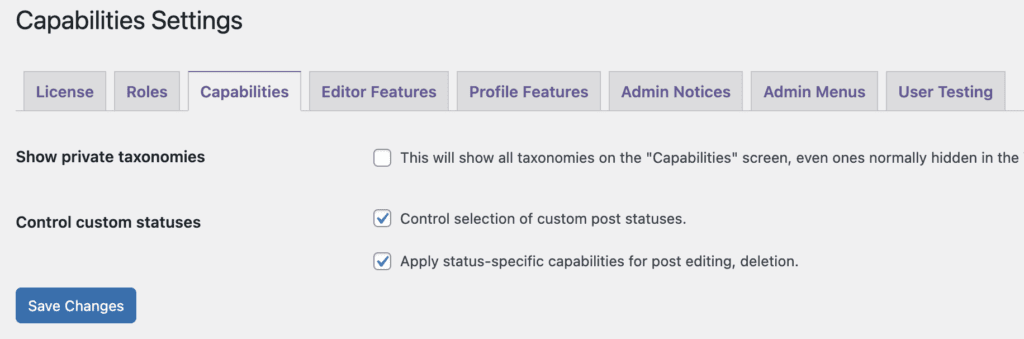
- Go to Capabilities > Settings > Capabilities.
- Enable the “Control selection of custom post statuses” option.
- Enable the “Apply status-specific capabilities for post editing” option.
- Go to Capabilities > Capabilities > Custom Statuses.
Please note: If the status you are using does not have checkboxes for “Edit” and “Edit Others” in its row, you will need to enable “Custom Capabilities” for that status.
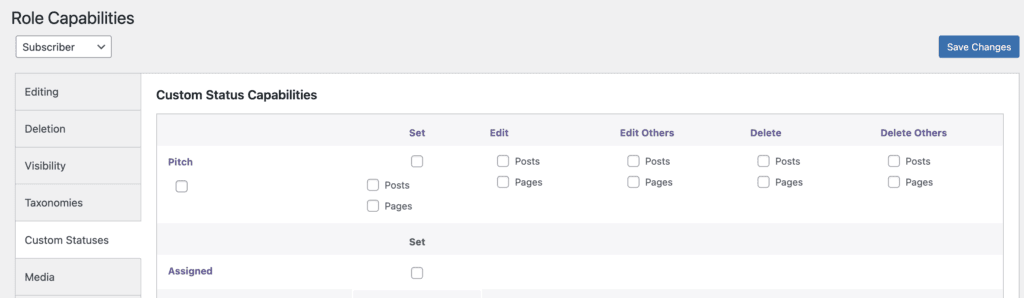
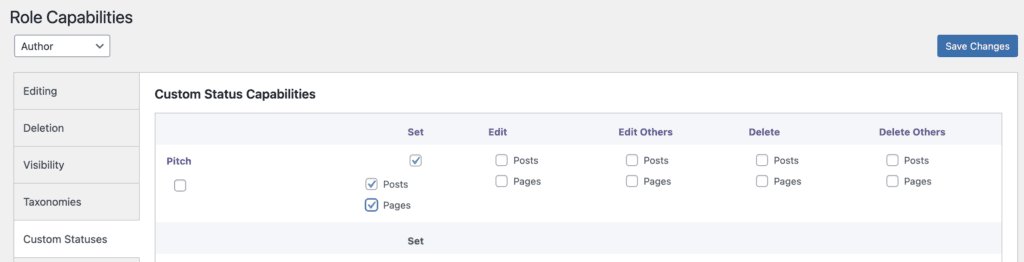
- On the Capabilities screen, choose the role you need to adjust access for. In the screenshot below, we gave selected “Author”.
- Assign the “Set” capability, but not the “Edit” or “Edit Others” capabilities: