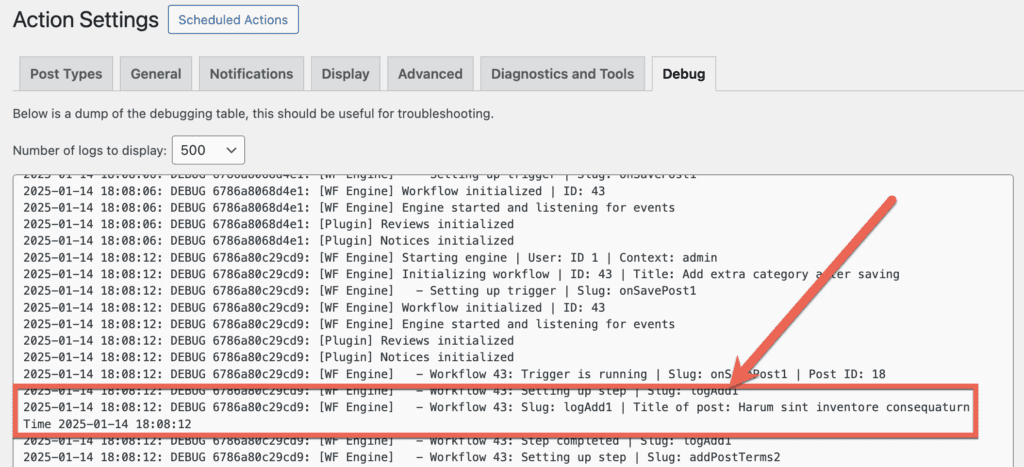
The “Send to debug log” step is helpful for debugging workflows. This step can transmit the workflow’s data to the debug log.
This step can be added anywhere in your workflow. In this example, the “Send to debug log” step is in the middle of the workflow, but it could be added in any position in this workflow.
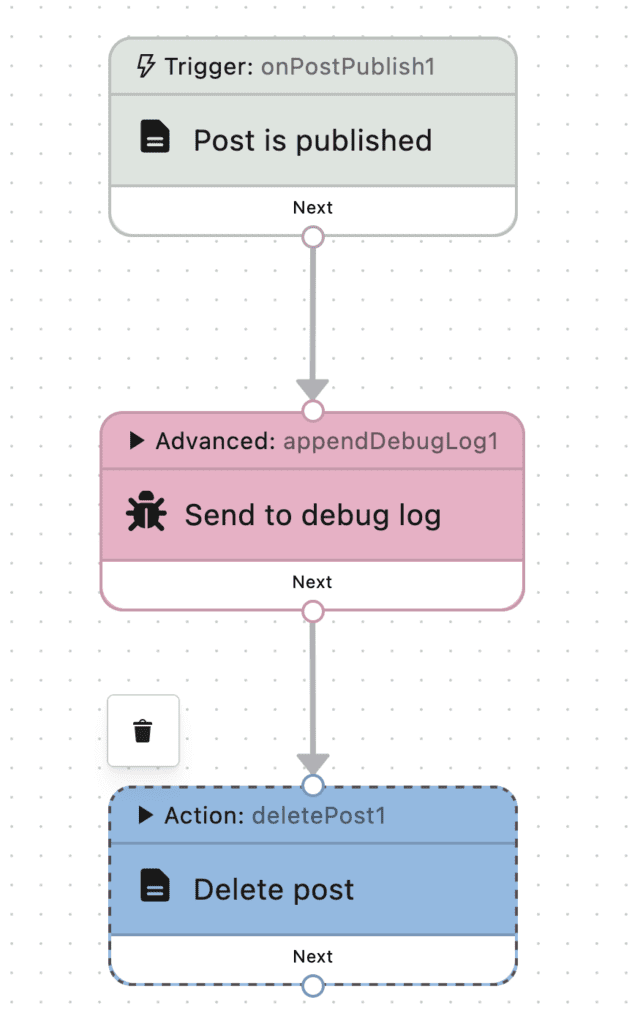
You can use the right sidebar to decide which data is sent to the debug log. There are two options here:
- Message: The data that will be sent to the debug log.
- Level: Choose to send debug data, or error reporting.
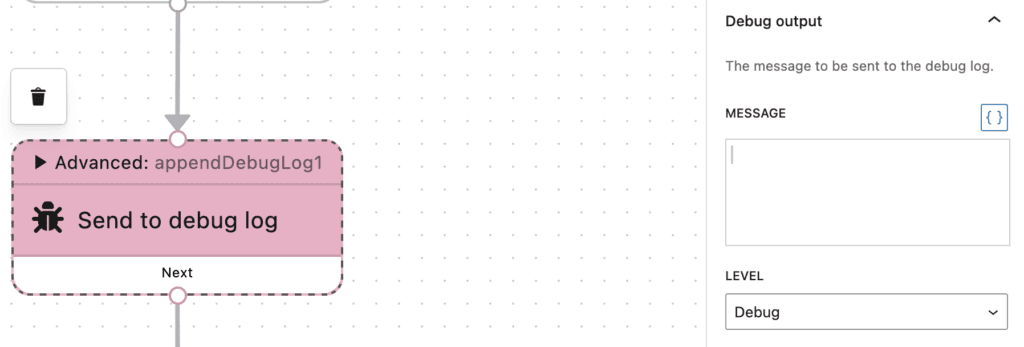
To customize the message sent to the debug log, click the {} brackets icon next to the “Message” field. You can customize the data using variables. In the example below, we added the title of the post, and the time when the trigger was activated.
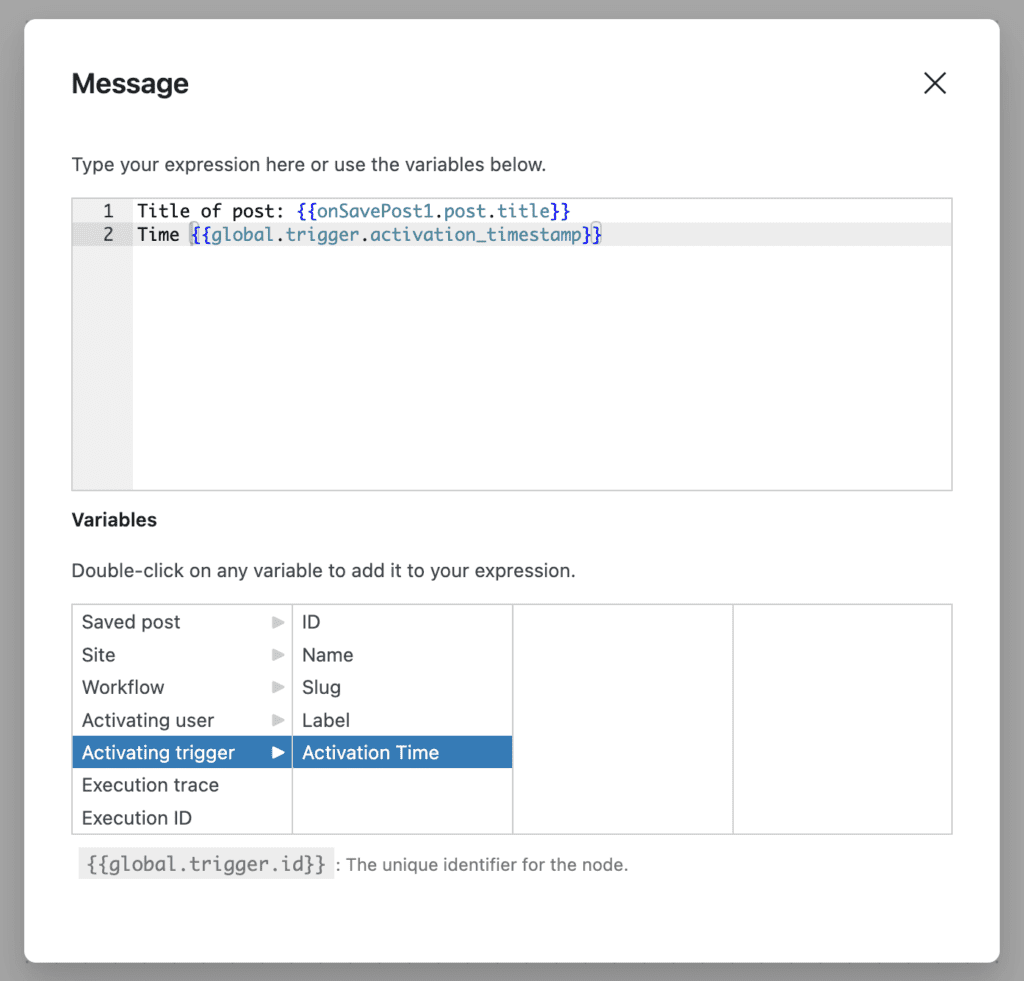
After this workflow runs, this data will now appear in the debug log.