This feature requires the Pro version of the PublishPress Future plugin.
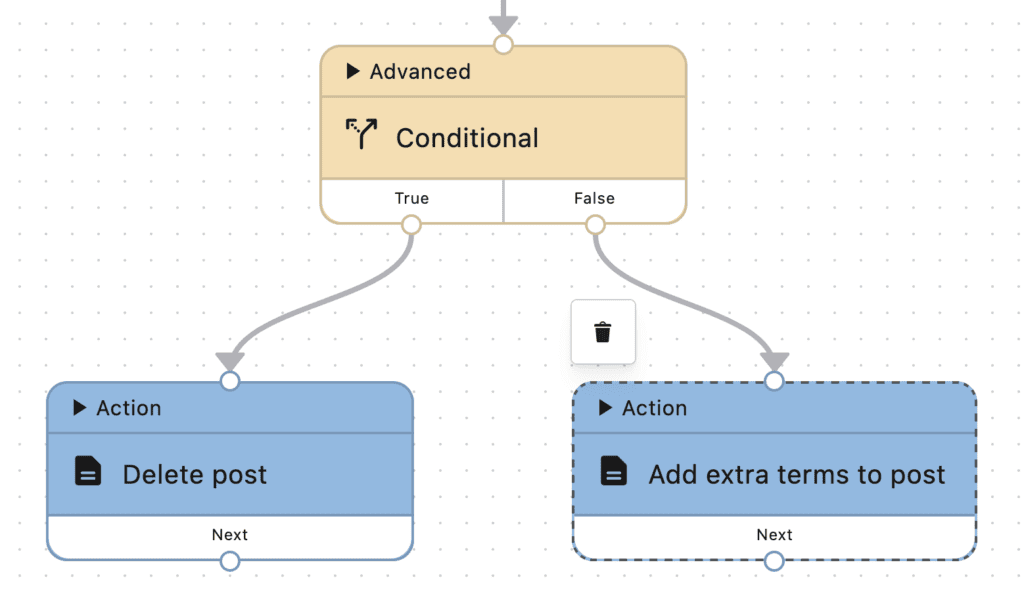
This “Conditional” action allows you to continue the workflow only if certain conditions are met. You do not need both a True and a False branch – only one is required.
To choose the conditional, add a “Conditional” step and then click the “Edit condition” button in the screenshot below.
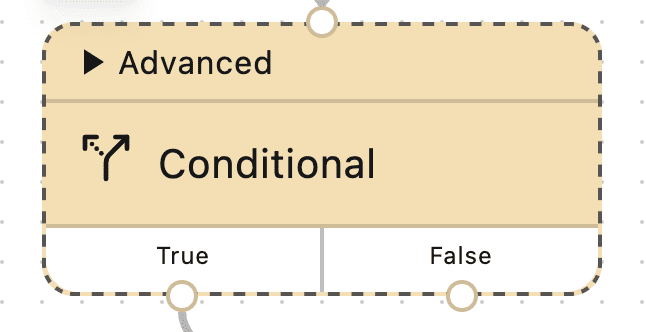
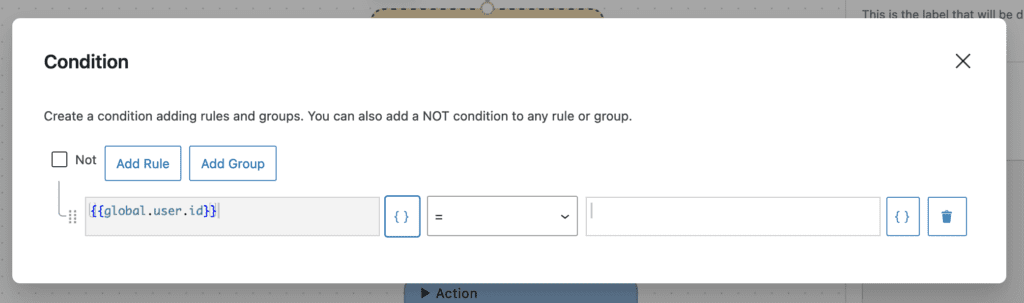
After clicking the “Edit condition” button, you will be able to browse site data and choose what conditional to use for the workflow. Click the brackets icon {} to see the variables that you can use.
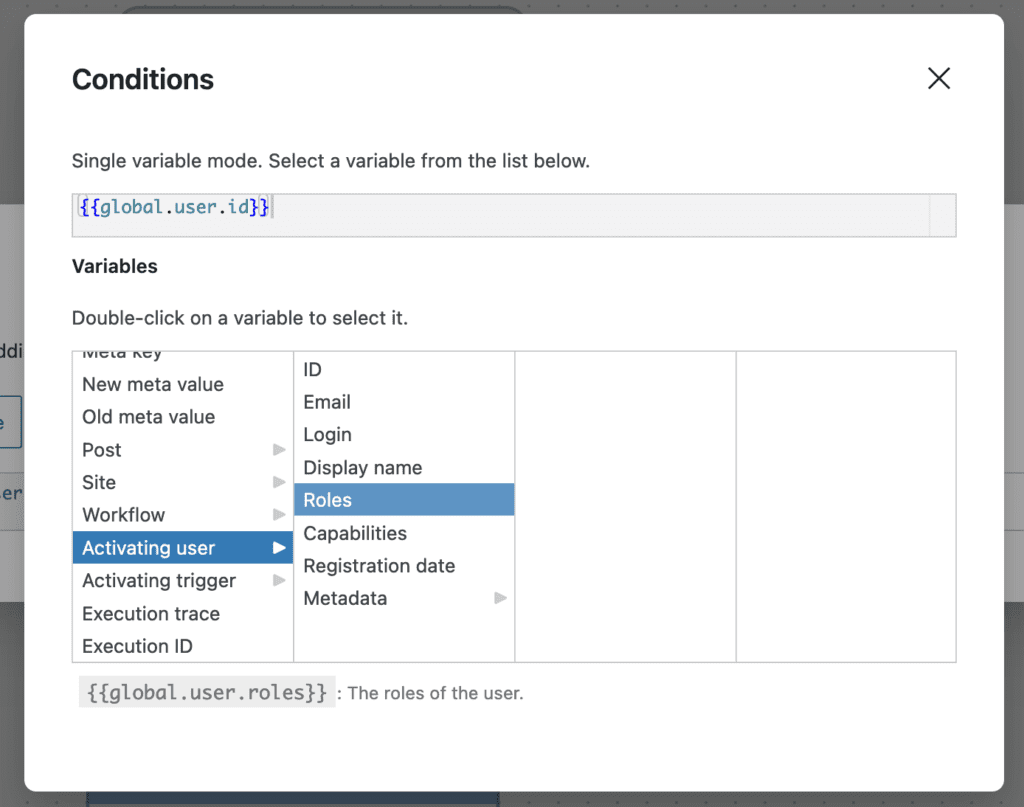
After clicking the brackets icon you will be able to browse the variables. In the screenshot below, I’ve navigated to the “Roles” option. I want to create a conditional that relies on the user role of the person activating the workflow.
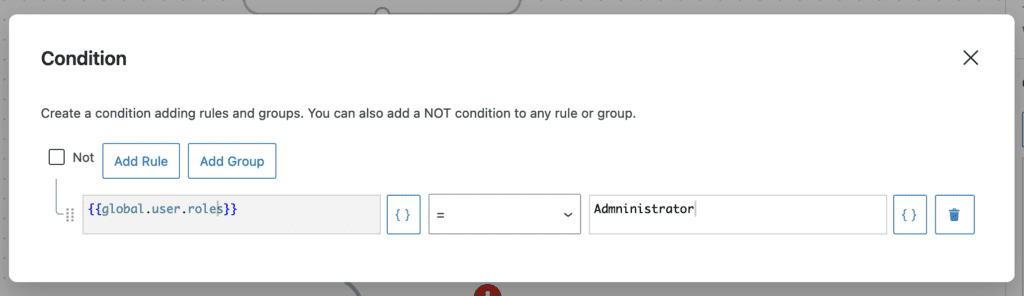
In this next screen, I’ve created a condition using the “Roles” option. In this conditional, the workflow will only run if the person activating the workflow is in the “Administrator” role.
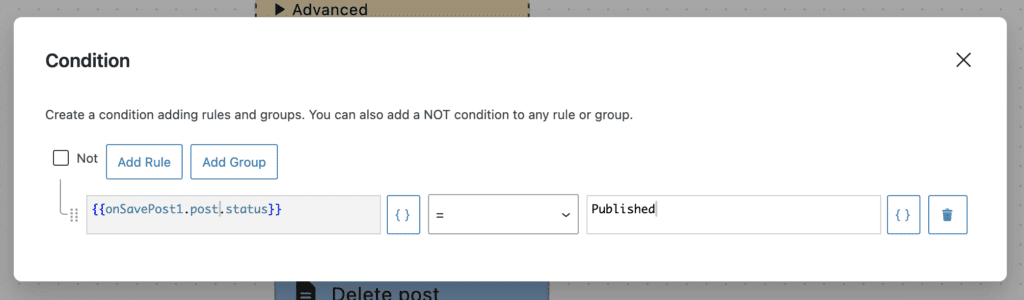
In this second example, I’ve created a condition using the “Post Status” option. In this conditional, the workflow will only run if the post involved in the workflow is in the “Published” status.
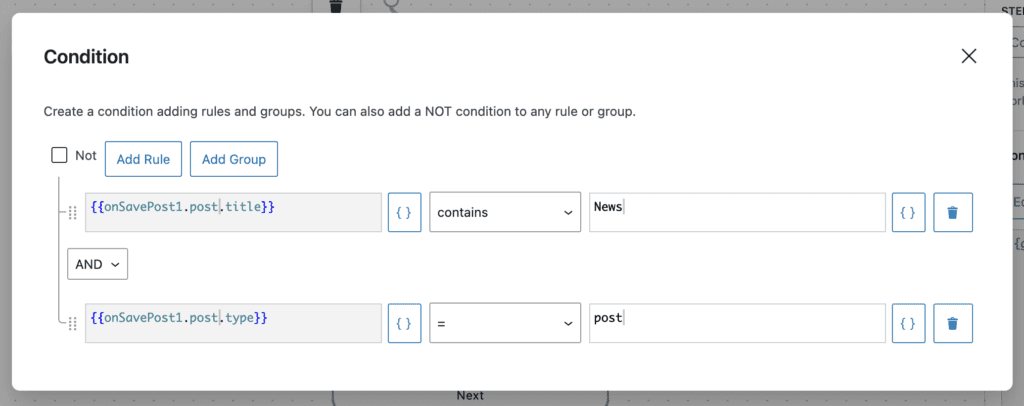
In this third example, I’ve created a condition using the “Post Title” and “Post Type” options. In this conditional, the workflow will only run if the post involved in the workflow has a title containing the word “News” and also is a “Post” (rather than Page, or other post type).
It is possible to have different results based on the outcome of this condition. In this screenshot below, if the conditional proves “True”, the next action will be “Delete post”. If the conditional proves “False”, the next action will be “Add extra terms to post”.