
WordPress User Roles and Capabilities in the Database
Several of our PublishPress plugins allow you to control what users can do on your WordPress site. These plugins allow you to change user permissions via the WordPress admin area.
However, there's a lot going on behind the scenes. PublishPress customers often have questions from users about WordPress permissions and where they are stored in the database. This post is an introduction to those database tables.
One thing to note: although most people refer to “user permissions” or perhaps “user access”, WordPress uses the word “capabilities”.
Table of Contents
WordPress user roles in the database
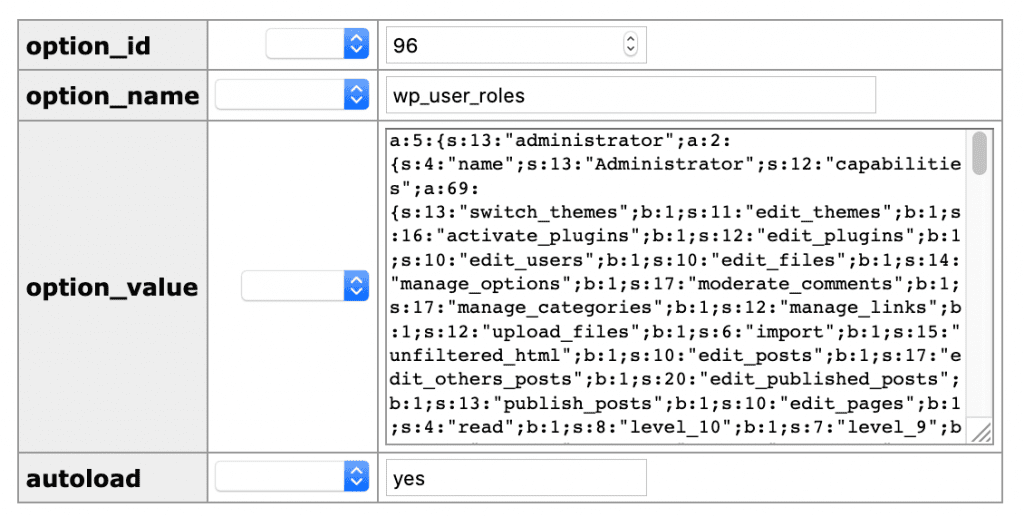
WordPress user roles are stored in the wp_options table. Look for the option called wp_user_roles:

All of the roles are stored in wp_user_roles, along with the capabilities for each role. All this data is stored in a single serialized array. This is not always very efficient and can cause problems on large sites.
The simplest entry is for the Subscriber role.
s:10:"subscriber";a:2:{s:4:"name";s:10:"Subscriber";s:12:"capabilities";a:2:{s:4:"read";b:1;s:7:"level_0";b:1;}}Other roles have more capabilities, so their entries are more detailed. For example, this is the entry for the Author role.
s:6:"author";a:2:{s:4:"name";s:6:"Author";s:12:"capabilities";a:10:{s:12:"upload_files";b:1;s:10:"edit_posts";b:1;s:20:"edit_published_posts";b:1;s:13:"publish_posts";b:1;s:4:"read";b:1;s:7:"level_2";b:1;s:7:"level_1";b:1;s:7:"level_0";b:1;s:12:"delete_posts";b:1;s:22:"delete_published_posts";b:1;}}The Administrator role is too long to list in this post.
The capabilities in this list are human-readable. You can see the upload_files and edit_posts entries alongside others. You'll also mention of a user role level which is set to 0 for a Subscriber and 10 for an Administrator.
It's worth noting that these lists can become long and messy. Many plugins will add new capabilities when you install them, but they rarely delete those capabilities when they are uninstalled.
Editing this data manually is difficult. We recommend using a plugin such as PublishPress Capabilities which provides a user-friendly interface for editing these settings. Any changes to user permissions are stored to the database, so it helps to have this rollback feature in case you make a mistake.
WordPress users in the database
Basic information about WordPress users is stored in the wp_users table. You can see two user entries in the image below.

The wp_users table only contains the core data about each individual user. Here is the full entry for the one of the two user entries:
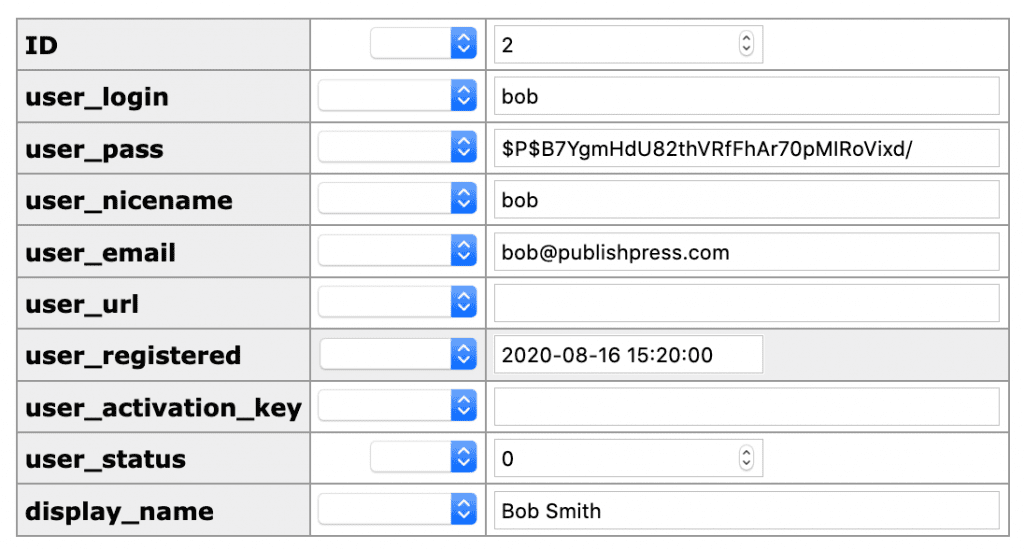
You'll notice that now roles or capabilities are defined here. For that, you'll need the wp_user_meta table. This table has multiple entries for each user. In the screenshot below, you can see that see that wp_user_meta is using the user_id of 2 for Bob Smith.
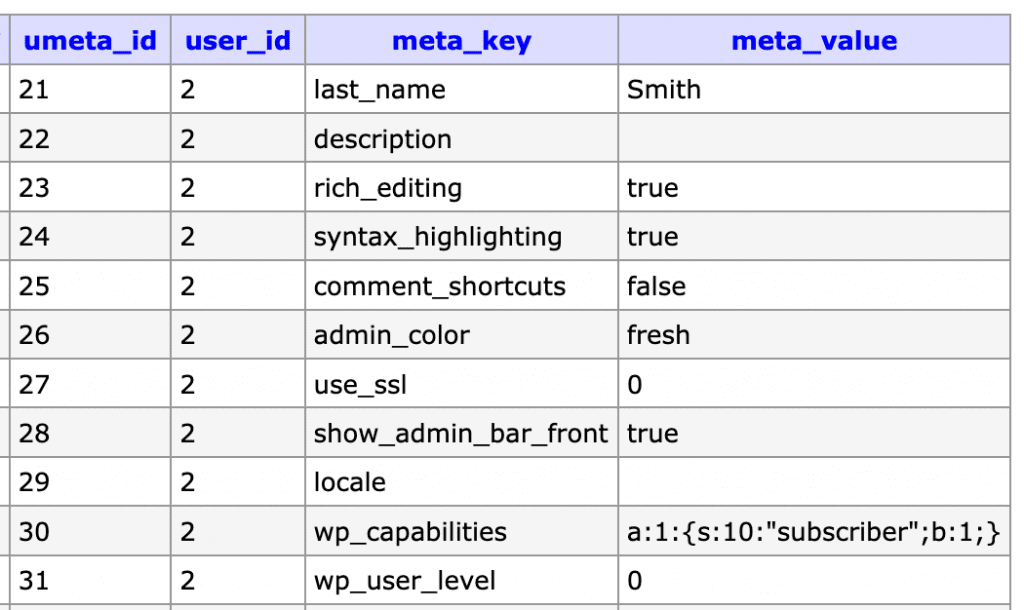
The wp_capabilities option contains the user role for each user.
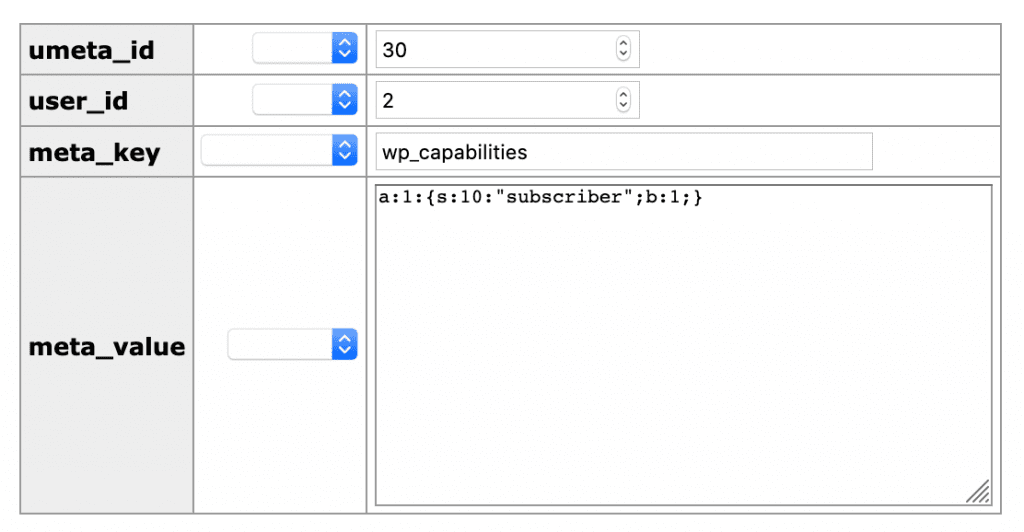
Here are some example values for wp_capabilities:
- Administrator:
a:1:{s:13:"administrator";b:1;} - Editor:
a:1:{s:6:"editor";b:1;} - Author:
a:1:{s:6:"author";b:1; - Subscriber:
a:1:{s:10:"subscriber";b:1;} - Revisor:
a:1:{s:7:"revisor";b:1;}(created by PublishPress Revisions) - Customer :
a:1:{s:8:"customer";b:1;}(created by WooCommerce)
This values can be extended by plugins that allow user to have multiple roles. This is a entry is for a WordPress user who also has a role with the bbPress plugin:
a:2:{s:13:"administrator";b:1;s:13:"bbp_keymaster";b:1;}Finally, I will note that this guide applies to almost all WordPress plugins but some plugins such as bbPress do take a different approach.
WooCommerce and PublishPress Summary
There's a lot more that can be said about WordPress role and capability data, but I wanted to create a fairly straightforward introduction for PublishPress users.
Please let us know in the comments if you have questions. I'll aim to answer them by expanding this post, or in follow-up tutorials.
WooCommerce and the PublishPress plugins are a powerful combination. You can configure the permissions on your eCommerce store to meet your exact needs.
Other examples include controlling who can manage WooCommerce coupons, creating users who can only manage WooCommerce orders, adding users who can only manage reports, and having users who can only edit products.
You can also use our plugins to clean up the WooCommerce admin screens.

The Best Plugin to Approve and Schedule Changes to Your WordPress Posts
PublishPress Revisions is the ultimate tool for making content changes in WordPress. This plugin offers a safe space for users to work on content updates.

The Best Plugin to Control Your WordPress Users
PublishPress Capabilities enables you to customize what users see in every area of WordPress from editing posts and pages to admin menus, profile pages.
