
Everything That’s New in the PublishPress Blocks Plugin
In the middle of 2025, I wrote a post saying that we have big, new plans for the PublishPress Blocks plugin.
Our goal with the plugin is to provide a complete set of management tools for blocks.
There are lots of different plugins that provide a few features for blocks. None of them are comprehensive. Many of them haven’t been updated in months.
I wrote that we’re going to change that with a one-stop solution for your blocks.
Several months on, and we’re making good on that promise. Here’s an overview of the many new, cool, and helpful improvements in the PublishPress Blocks plugin.
Table of Contents
Block Controls
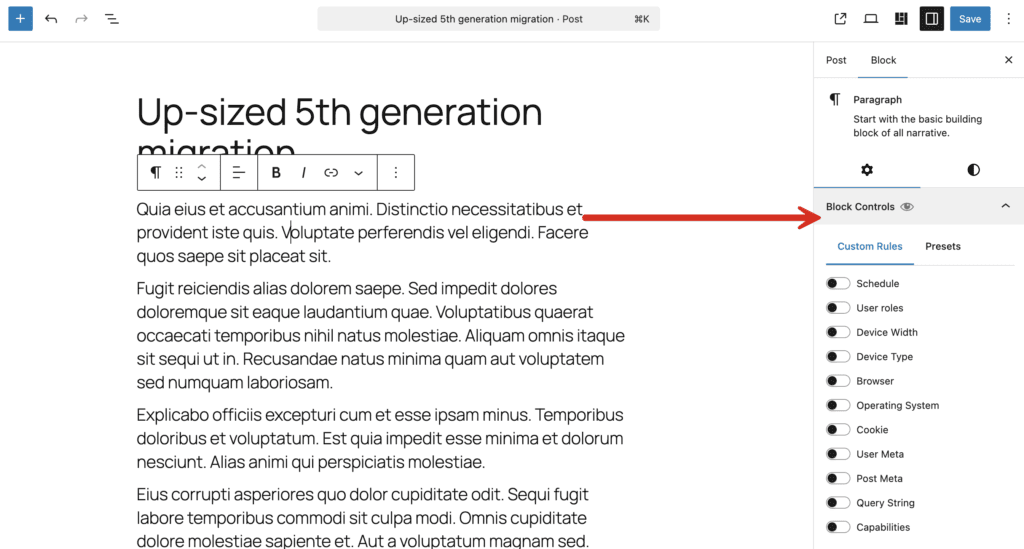
With the “Block Controls” feature, you can control which blocks are visible on your website and who is able see them. This feature works with any block, including blocks from third party plugins. This screenshot below shows the Block Controls feature inside a post editing screen:
This next screenshot below shows the Block Controls feature inside the Full-Site editing screen. This is going to be very helpful when you’re building site designs with the new Full-Site Editor in WordPress.
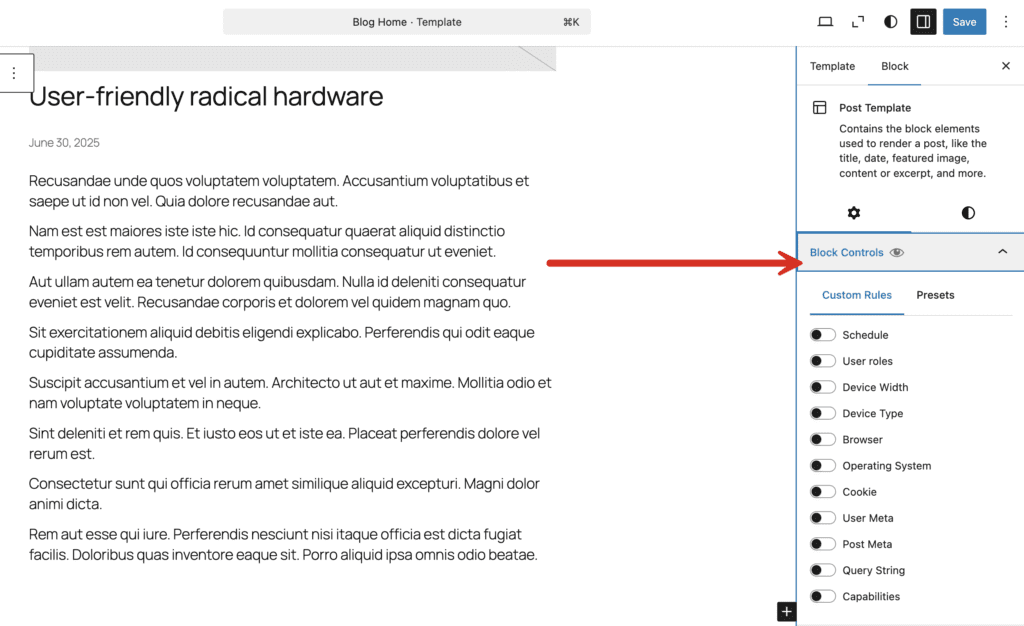
Here are the currently available “Block Controls”:
- Schedule: schedule when to start showing and/or stop showing a block.
- User roles: choose which users can see your blocks.
- Device Width: show and hide blocks on specific device sizes.
- Device Type: Select what type of device this block will be visible on.
- Browser: Choose which browsers can see this block.
- Operating System: Choose which operating systems can see this block.
- Cookie: Show or hide the block based on cookie values.
- User Meta: Show or hide the block based on user meta values.
- Post Meta: Show or hide the block based on post meta values.
- Query String: Show or hide the block based on URL query parameters.
- Capabilities: Show or hide the block based on user capabilities.
Block Styles
The Block Styles feature allows you to define custom CSS styles that can be applied to any block when you’re creating a post. This empowers post authors to easily add your CSS styles to any block.
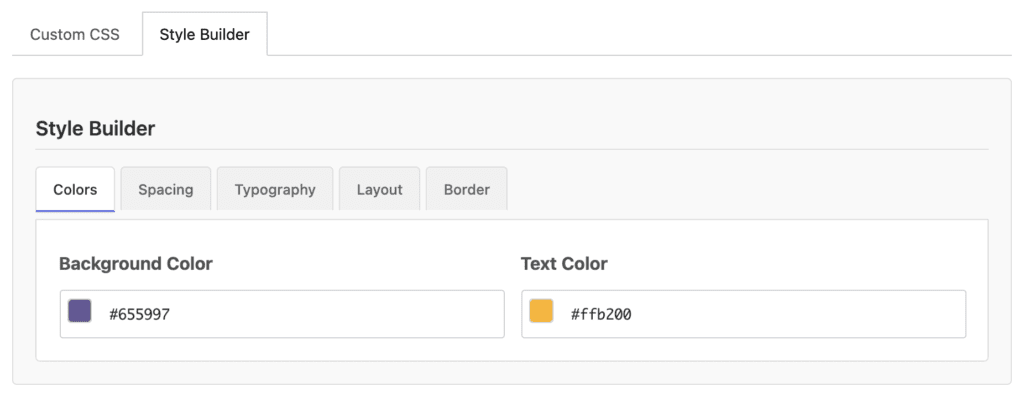
We’ve added a Style Builder that allows you to create styles without any coding knowledge.
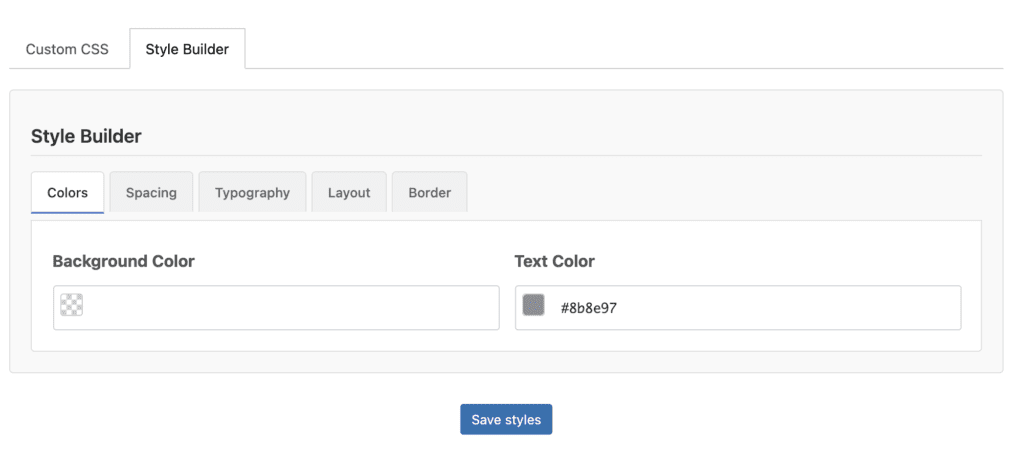
Let’s see an example of how this Style Builder works. Imagine that we’re going to create a block style that uses the PublishPress brand colors.
- Click “Copy” next to the “Blue message” option.
- Enter a new “Style title” and “Class name”.
- Choose an “Identification color”.
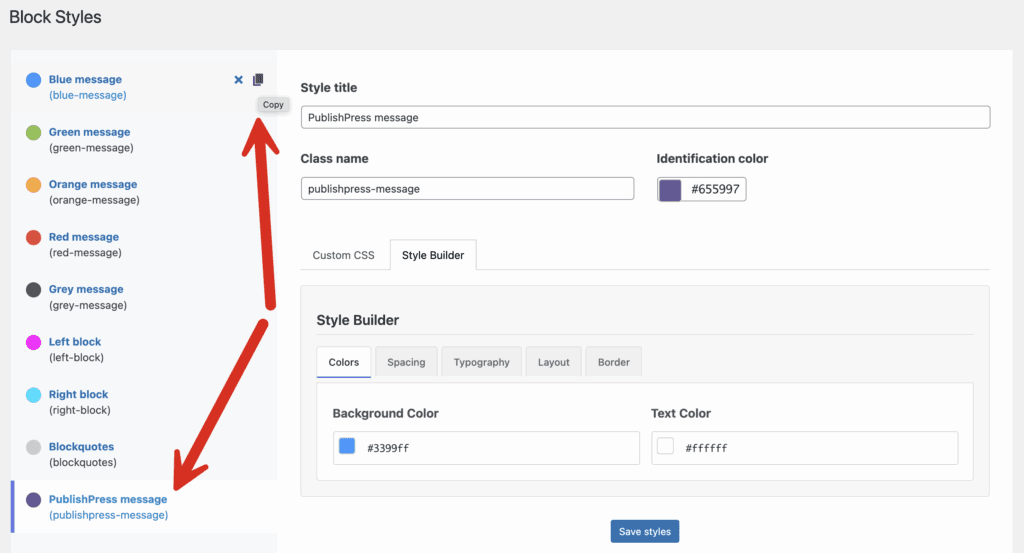
- Enter the background and text colors to use for the block, as in this next screenshot:
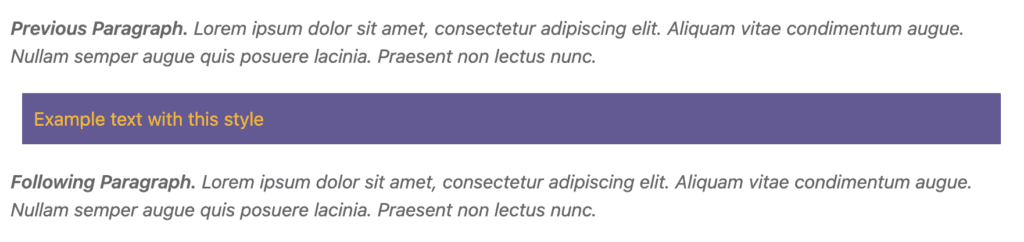
You can click on the “Spacing”, “Typography”, “Layout”, and “Border” tabs to add more customizations. In the screenshot below, I’ve entered a “Padding” option of 10px. This is now a block style that I can apply to any block on this WordPress site.
Auto Insert Blocks
The Auto Insert Blocks feature allows you to automatically insert reusable blocks into posts. You can choose to insert your blocks according to position, categories, tags, and other criteria.
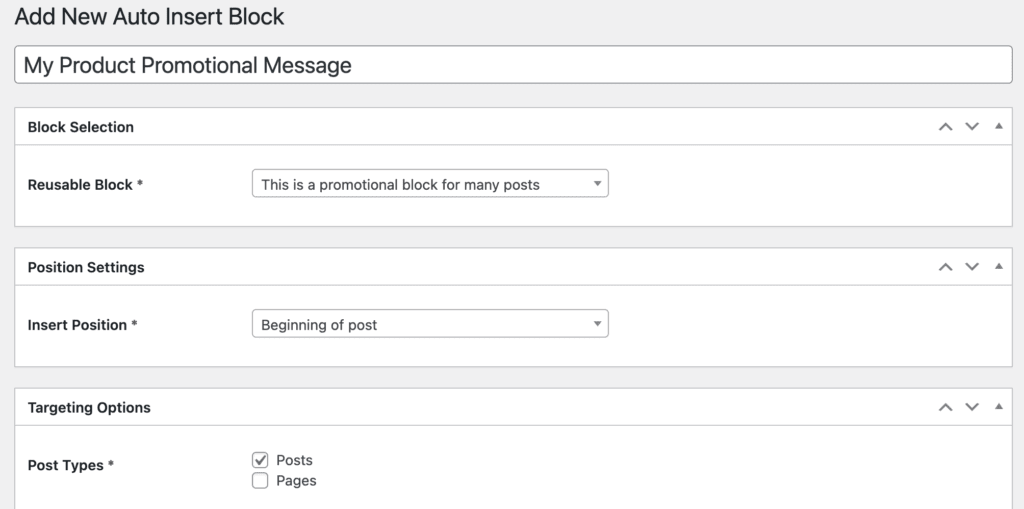
In the screenshot below, there are three key choices:
- Reusable Block: The block inserted is called “This is a promotional block for many posts”.
- Insert Position: Beginning of the post
- Post Types: Posts
So, in this example, the block called “This is a promotional block for many posts” will be added before the start of all the Posts on this site.
Block Usage
The Block Usage screen allows you to search for and find any usage of blocks on your site.
In the screenshot below, this feature has found 245 instances of the “Paragraph” block used across 24 posts and pages. There are also 25 Heading blocks, 2 List blocks, 2 Quote blocks, and 27 Image blocks.

You can use this feature to scan as many post types as you want.

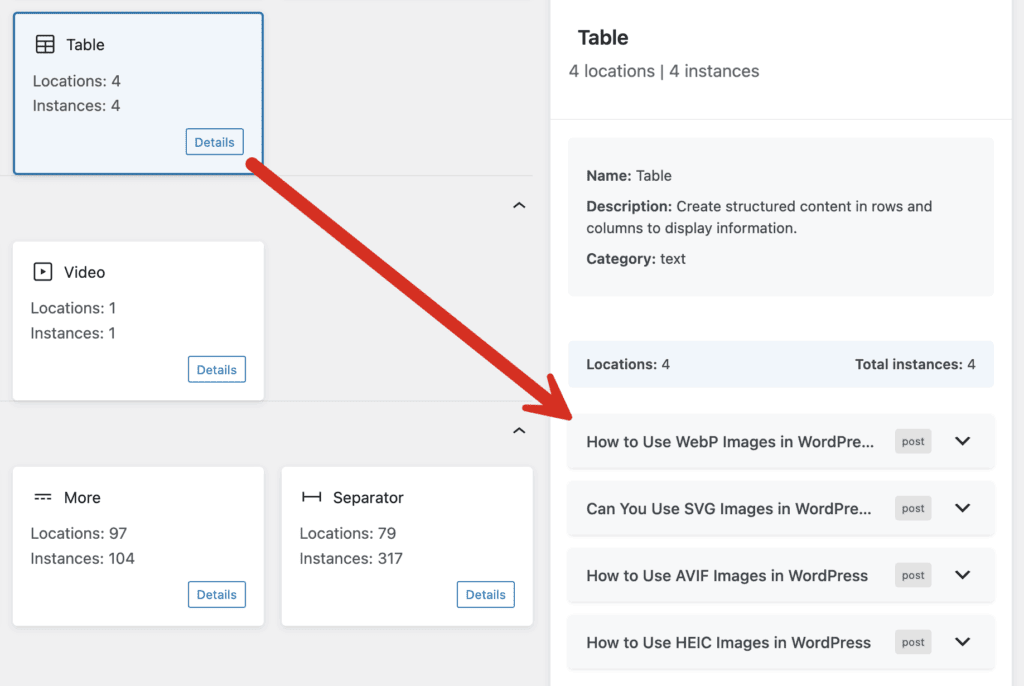
In the sidebar of the “Block Usage” screen, you will be able to drill down and see more details on each location. In this next screenshot, I found all the uses of a “Table” block on my site. With one click, I’m able to see all the posts that contain this block.
There’s More to Come
Over the next couple of months, we’re going to keep improving all these features. You will find more Block Controls, improved Block Styles, and more settings for both Auto Insert Blocks and Block Usage.
If you use the block editor for your WordPress sites, give the PublishPress Blocks plugins a try. This is now a complete set of management tools for your blocks.

The complete toolkit for the WordPress block editor
PublishPress Blocks is the plugin that gives you more control over the WordPress block editor. You get a complete set of management tools for your blocks.
