
Keep WordPress Safe When Using Application Passwords and AI Tools
Have you started using AI tools to update or manage your WordPress site? I’ve spoken to lots of PublishPress customers who are using AI tools to create posts, generate images, audit existing content, and much more.
Most AI tools use Application Passwords, and they’re super easy to set up.
But here’s the catch: if you’re an Administrator, these passwords grant full administrator access. That means that your AI tools can delete posts, plugins, themes, and users. Your entire site is in their hands.
We decided to fix that.
In the newest release of PublishPress Capabilities, we’re treating Application Passwords like user roles, so you can actually lock them down.
- Want your AI tool to edit posts, but nothing else? Done.
- Want it to create new posts, but not touch existing ones? Easy.
- Just managing Tags and Categories? No problem.
You stay in control of your site. Your AI tool only gets access to what it actually needs.
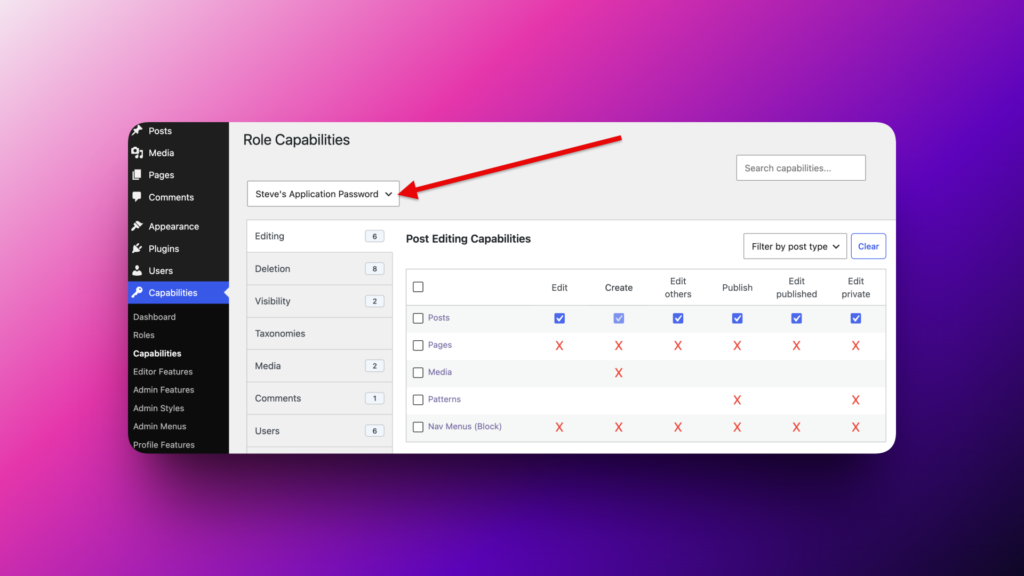
Table of Contents
What are Application Passwords?
Application Passwords are special passwords you create for a specific integration. This is safer than sharing your main WordPress login password. Here’s the official WordPress guide.
Application Passwords authenticate as the user who created them. So, if an Administrator creates the password, the AI tool has Administrator-level capabilities. If an Editor creates the password, the AI only has Editor permissions.
Application Passwords are used for more than just AI. But nearly all AI tools use Application Passwords. Those tools will often prompt you to use an Application Password to connect to your site:
- ChatGPT
- Claude Desktop
- Cursor
The popular WordPress AI tools also allow you to connect with Application Passwords:
- The official WordPress MCP Adapter
- InstaWP’s WordPress MCP Server
- Gravity Kit’s Block MCP
How to Create Your Application Password
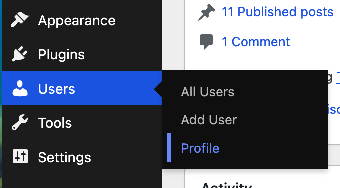
You create your own Application Password by going to Users > Profile in your WordPress site.
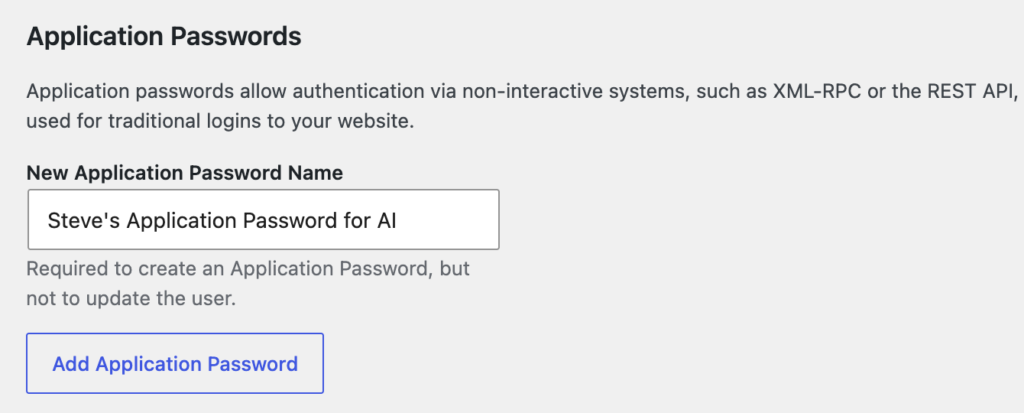
Scroll down to the “Application Passwords” area. Each password has its own name, so you can see what it is being used for. Enter a name and click “Add Application Password”. We recommend creating a new password for every integration.
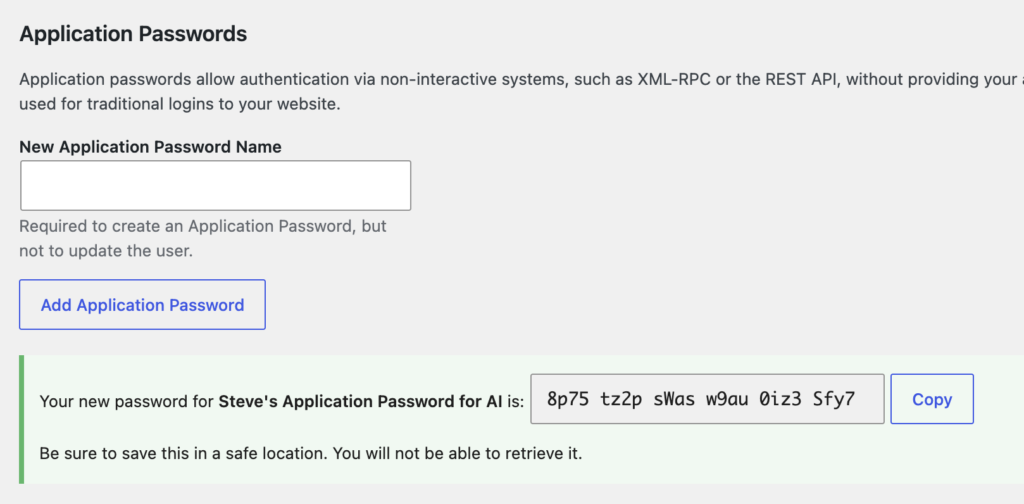
You’ll get a password that looks like this: 8p75 tz2p sWas w9au 0iz3 Sfy7. You can enter that into your AI tool and connect it with your WordPress site.
How to Control Access for Application Passwords
This feature is available in the PublishPress Capabilities plugin.
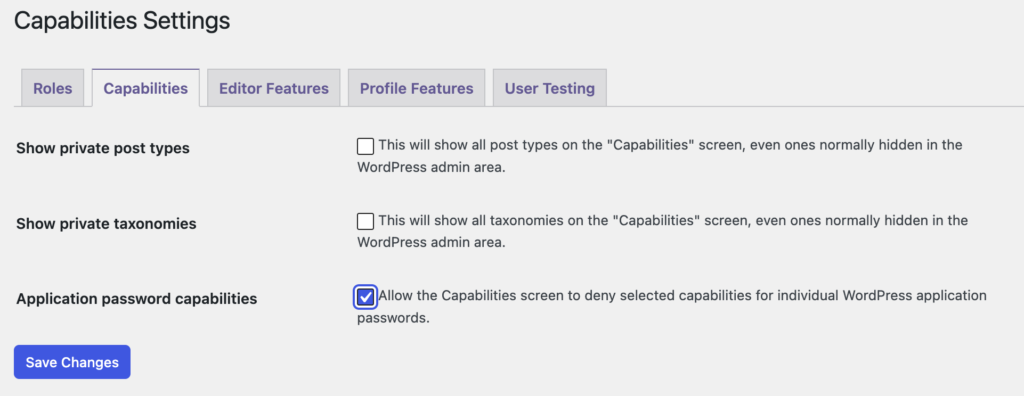
Go to Capabilities > Settings > Capabilities and enable “Application password capabilities”.
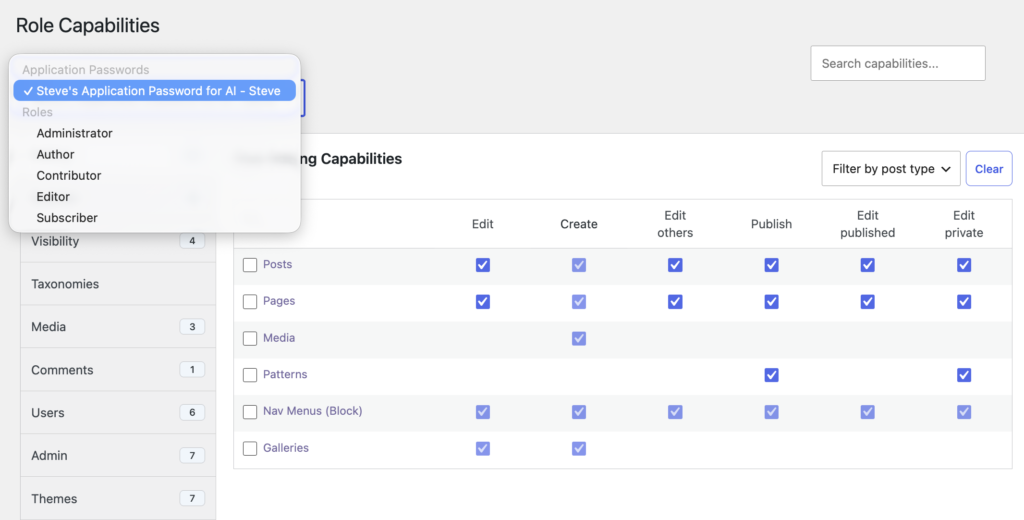
Now you can go to the Capabilities > Capabilities and control what your AI tools can do. In the main dropdown, select your Application Password.
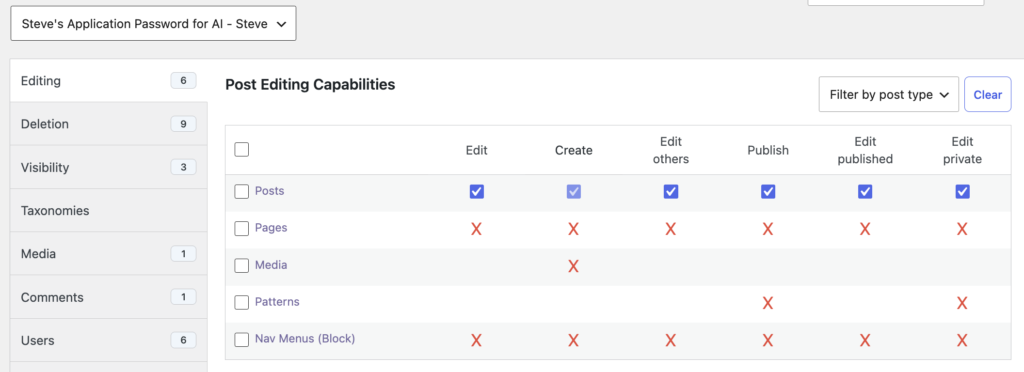
This screenshot below shows a common use-case. You can allow your AI tool to edit Posts, but not Pages or any other post type.
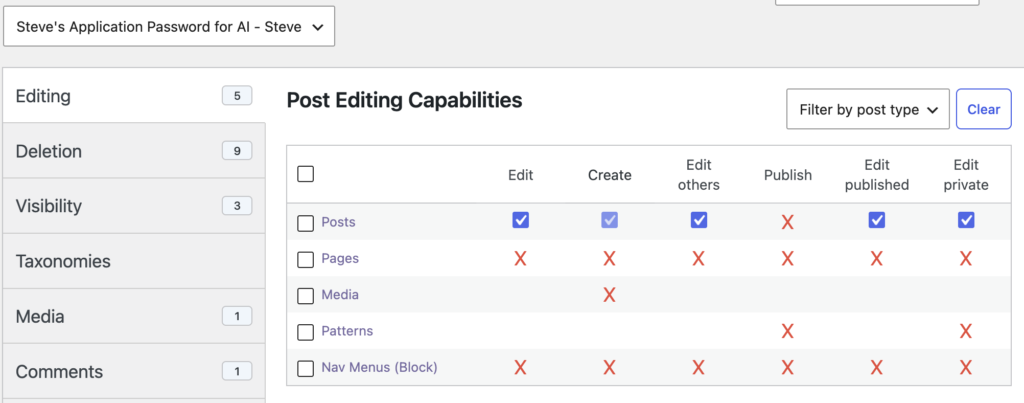
There’s a small modification you can make in this scenario. You could decide to also place an X in the “Publish” column. This allows your AI tool to edit posts and create new “Draft” posts, but it can not publish any new posts. This is a helpful step for safety and allows you to review AI content before it goes live.
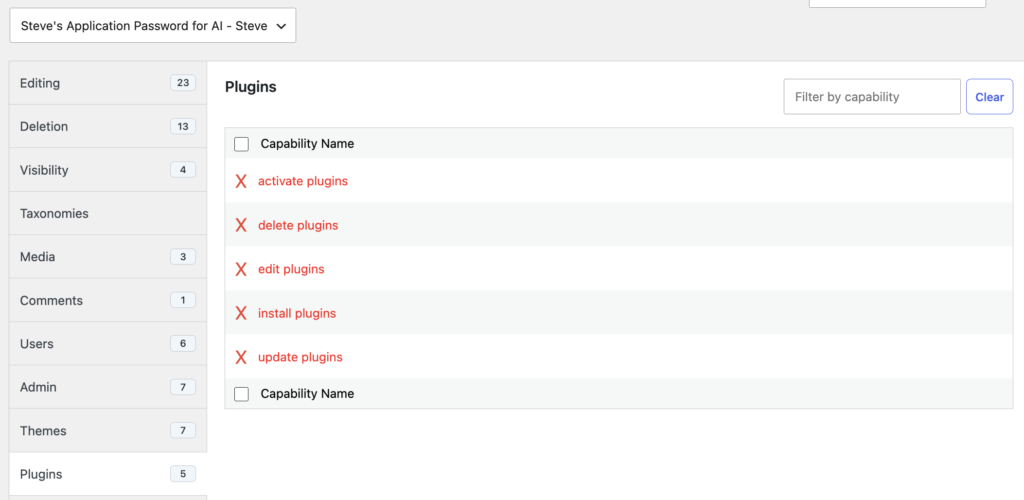
Here’s another common safety example. You can go to the “Plugins” tab and block your AI tool from making any changes to plugins.
What About the Connectors Screen?
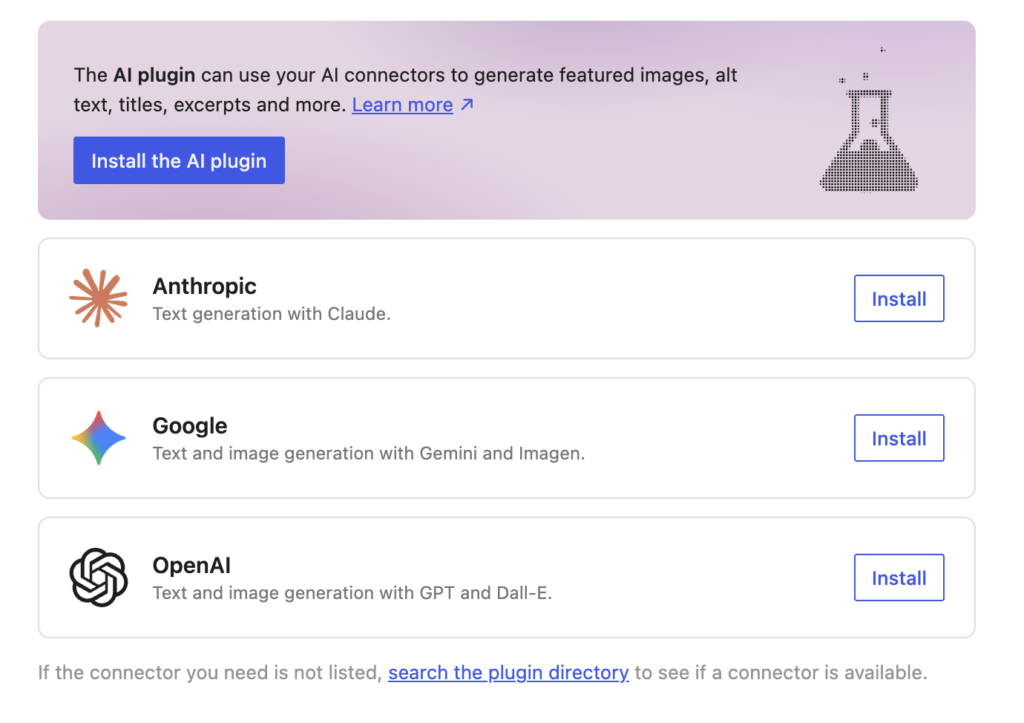
AI tools and WordPress are both moving very quickly. The “Connectors” screen arrived in WordPress 7.0. The feature is responsible for managing credentials from OpenAI, Anthropic, and Google. But currently it doesn’t have an authorization system for what those providers are allowed to do inside WordPress. That may change in the future. One thing is for sure: over the next few months, you’ll see many more changes in this area.
More on PublishPress Capabilities
AI tools can save hours of work, but they shouldn’t have unlimited access to your WordPress site. With PublishPress Capabilities 2.45, you can safely connect AI assistants, MCP tools, mobile apps, and other integrations using Application Passwords while restricting exactly what they’re allowed to do.
This feature is just one of many ways PublishPress Capabilities helps you secure and simplify your WordPress site. You can create and customize user roles, hide admin menus, clean up the block editor, modify the “Profile” screen, and much more. If you’d like to learn more, here are some helpful guides:
Control your WordPress users
PublishPress Capabilities enables you to customize what users see in every area of WordPress from editing posts and pages to admin menus, profile pages.
