
How to See Revisions for All Your WordPress Content
We spend a lot of time working on our content. We spend hours making sure our posts are as good as possible. We stress over the words, grammar,and punctuation.
So naturally we’re worried about losing all that hard work. What happens if my browser crashes? What happens if someone edits my post and makes a mistake?
Fortunately, WordPress has the solution: Revisions. This will save a copies of your posts. If you’ve haven’t used this WordPress feature before, check out this guide to Revisions. If something bad happens while you’re writing, you will love this Revisions feature, particularly as it will auto-save your changes.
However, one thing that people often encounter is that it can be difficult to find revisions in WordPress. Normally, the only way to access them is via a small link inside each individual post. You can see that link in this screenshot below:
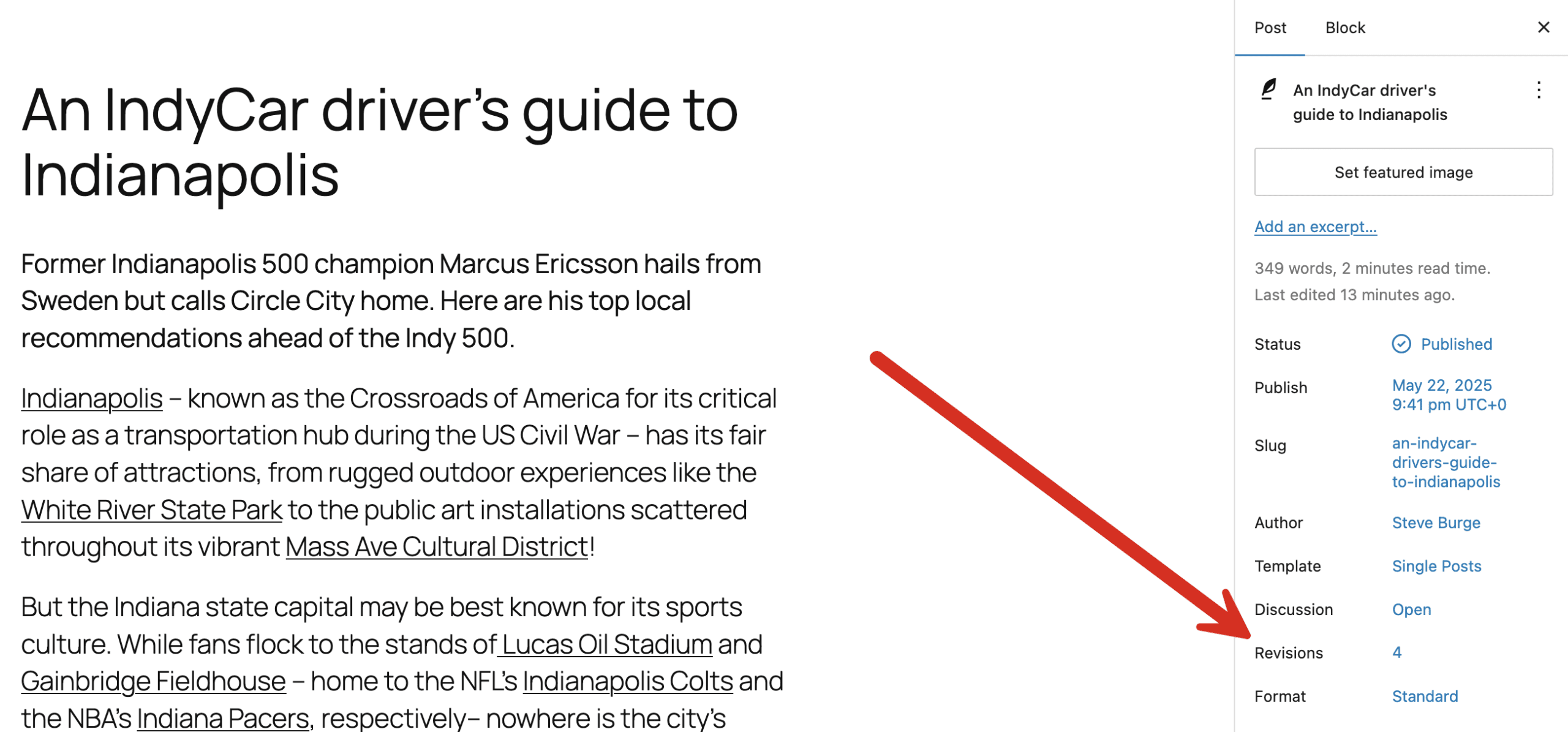
Table of Contents
Easily Find WordPress Revisions
The PublishPress Revisions plugin has a feature called “Revision Archive” that can make it easy to find revisions.
The “Revision Archive” screen one place to find all the revisions for content on your site. This screen displays all your content revisions on one screen and allowing you search, filter, and manage them. In the screenshot below, you can see the “Revision Archive” feature. The most recently created revision in on the top of this list.
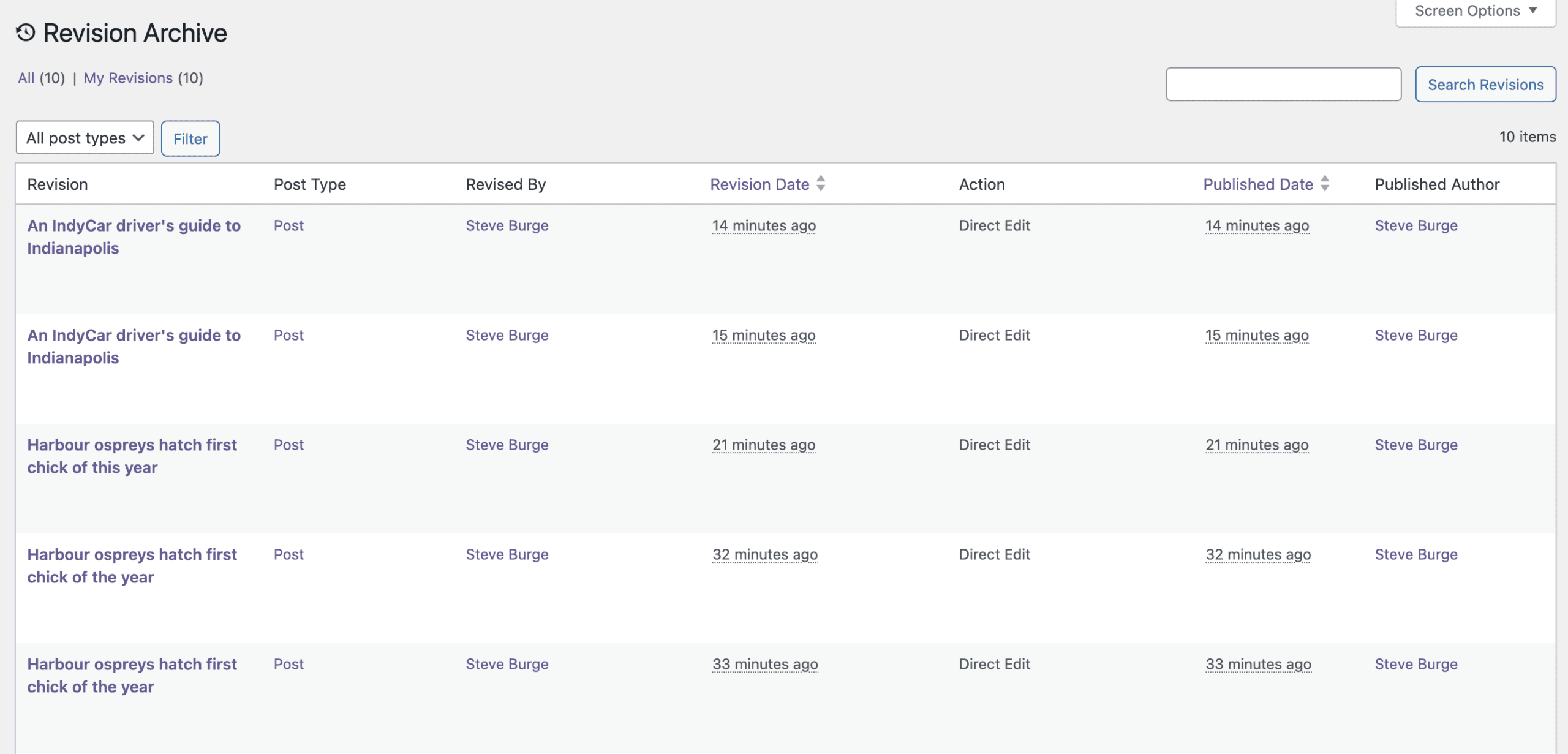
On the “Revision Archive”, you’ll be able to see lots of information about each revision including this data:
- Revision: The title of the post.
- Post Type: The post type for the post that has the revision.
- Revised By: Who created the revision.
- Revision Date: When the revision was created.
- Action: Was this a normal revision, or did it use the PublishPress Revisions feature that allows you to approve or schedule revisions.
- Published Date: The publication date shown on the post.
- Published Authors: The author shown on the post.
Actions on the Revision Archive Screen
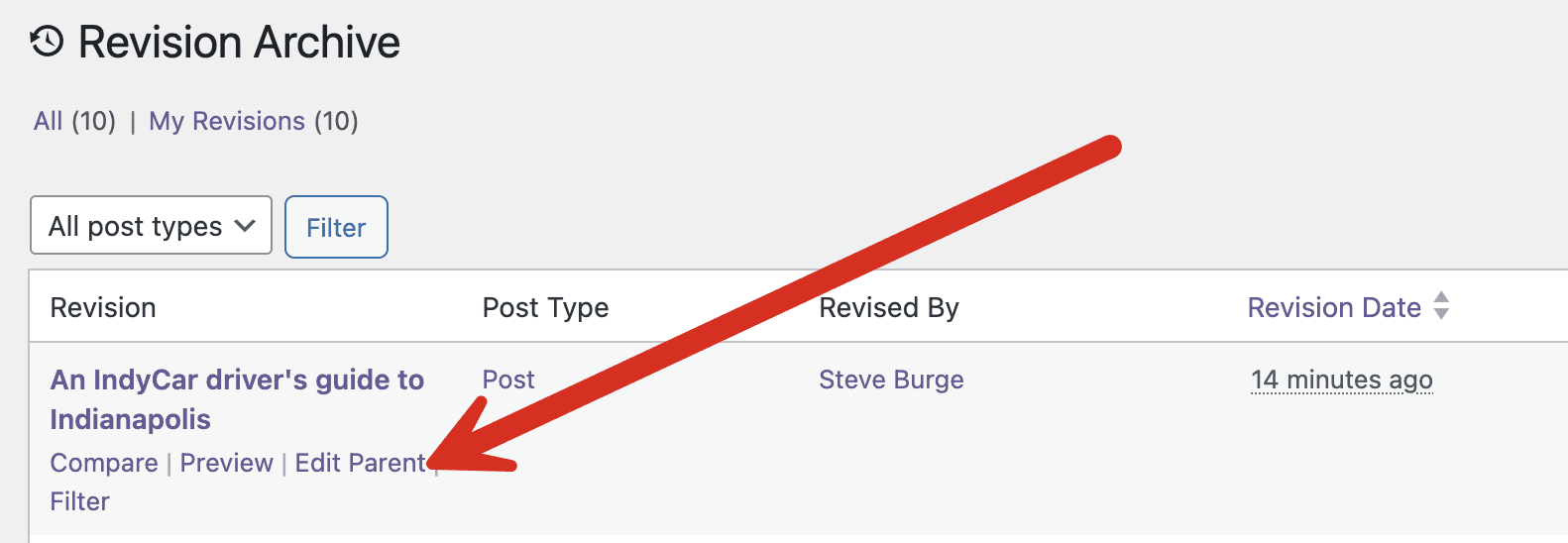
There are several different actions you can take on the Revision Archive screen. Underneath each post title, you’ll see these actions:
- Compare
- Preview
- Edit Parent
- Filter
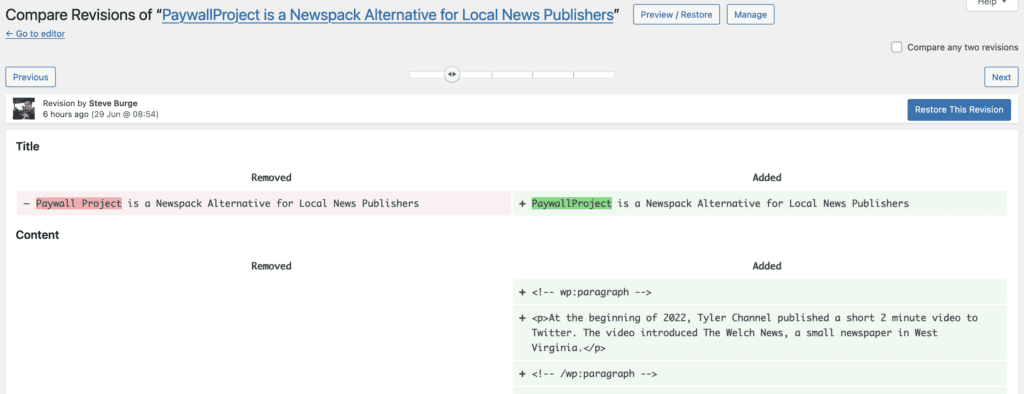
- Click on the “Compare” link and you’ll be able to see the normal WordPress revisions screen for this post. You can see the old content marked in red and the new content highlighted in green.
- Click on the “Preview” link and you’ll be taken to the frontend of the site. There will be a bar across the top of the site and this allows you to take actions on this revision. However, if you are using the PublishPress Revisions feature that allows you to approve or schedule revisions, you may see other colors in this toolbar.

- Click “Filter”, you will remain on the “Revisions Archive” screen but you’ll only see the revisions for that one post.
Video Guide to the Revisions Archive

Approve and schedule changes to your posts
PublishPress Revisions is the ultimate tool for making content changes in WordPress. This plugin offers a safe space for users to work on content updates.

Plan and manage your WordPress content
PublishPress Planner has all the tools you need to plan and schedule WordPress content, including a scheduling calendar, Kanban Board, editorial notifications and more.
