
Safely Make Changes to Published Posts With Elementor
PublishPress Revisions is the ultimate tool for making content changes. Users get a safe space to work on content updates.
The Pro version of PublishPress Revisions has support for the popular Elementor page-builder plugin. This means that you can safely create copies of posts built with Elementor, make changes to those posts, and then publish your changes whenever you’re ready.
This guide shows to use PublishPress Revisions and Elementor together.
Table of Contents
Video Guide to Safely Updating Elementor Posts
Create a Revision for Elementor Posts
There are two ways to create a new revision of an existing post that uses Elementor. The first option you can use is via the WordPress admin area.
- Find a published post or page that was created with Elementor.
- Click the “New Revision” link in the “Quick Edit” area. That’s shown in this screenshot below.
- On the next screen, you can click the “Edit with Elementor” button to make changes.

The second option is available on the frontend of your site.
- Visit the post or page that you want to modify.
- Click “New Revision” in the admin bar, as in this next screenshot:

The Pro version of PublishPress Revisions will also integrate Elementor with the “Compare” feature. You will be able compare the previous and new version of posts created with Elementor.
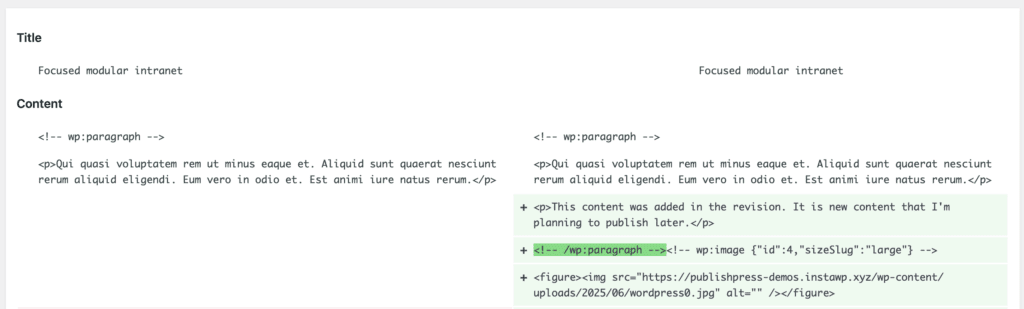
- If you have created the revision, you will have the Elementor editor opened. You can make changes on this screen.
- After you make some changes, you can click “Submit” button in the top right corner, as in this next screenshot.
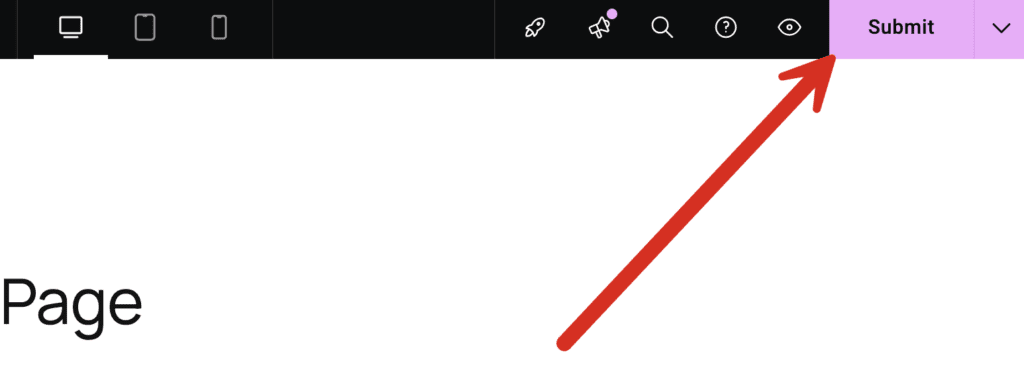
- You now will be redirected to preview the revision.
- In the WordPress admin area, anyone in the “Administrator” role can go to visit the “Revision Queue” screen and you see the submitted revisions for Elementor posts.
It’s worth noting that this guide is written from the viewpoint of a user in the Administrator role. You can configure this process to control who can submit revisions and who can approve them. This guide has details on how to configure permissions for the Revisions plugin.

Schedule Revisions for Elementor Posts
It is also possible to schedule content updates to Elementor posts.
- While editing the post or page, click the date in the right sidebar.
- Choose the new date for these changes to go live after the revisions are approved.
- Make sure to “Save Draft” first, so the new date is saved.
- Then you can start making changes by click “Edit with Elementor” button

Elementor and PublishPress Summary
We hope this guide helped you. Elementor is growing quickly, but the plugin does need extending for people who want close control over content editing. Te PublishPress plugins can make it easier, whether you want to control access to specific posts, or to Elementor’s Templates Screen. For more control over Elementor, check out this guide on managing access to Elementor admin screens. If you take quality control seriously, we also explain how to safely make changes to published posts with Elementor.

Approve and schedule changes to your posts
PublishPress Revisions is the ultimate tool for making content changes in WordPress. This plugin offers a safe space for users to work on content updates.
