
PublishPress Shortlinks Has New Features and a Pro Version
Here at PublishPress we believe that WordPress is the best publishing platform. Our goal is to help make it even better for you.
To reach that goal, we’re going add several new plugins to PublishPress in 2026. You will get access to more small, medium, and large plugins this year.
PublishPress Shortlinks is the first new plugin. This plugin is the complete link manager for WordPress!
With PublishPress Shortlinks, you can take any link on your website and perform useful actions like these:
- Track who clicks on your links with detailed analytics.
- Safely share your unpublished posts.
- Control who can visit your links with passwords, expiry dates, etc
- Create short and memorable URLs for your links.
We’ve just released an update to PublishPress Shortlinks, and this version has a great new feature. You can automatically link keywords in your posts to the URL you choose. For example, every time “WordPress” appears in your posts, you can link it to WordPress.org.
Also, the Pro version of PublishPress Shortlinks is available now for PublishPress members!
Table of Contents
Automatically add links to keywords
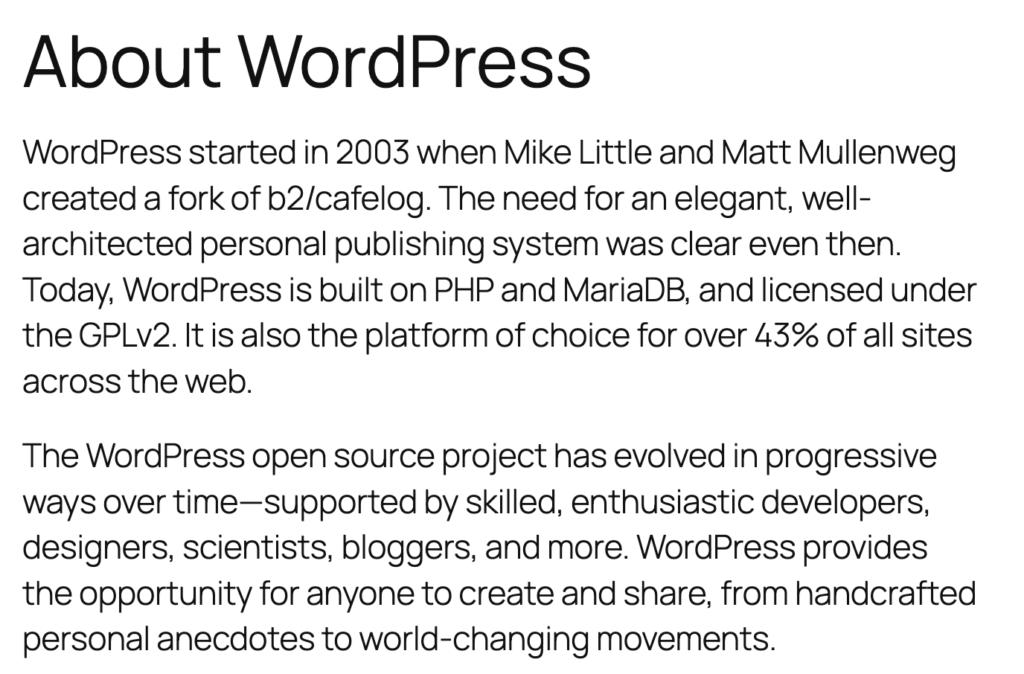
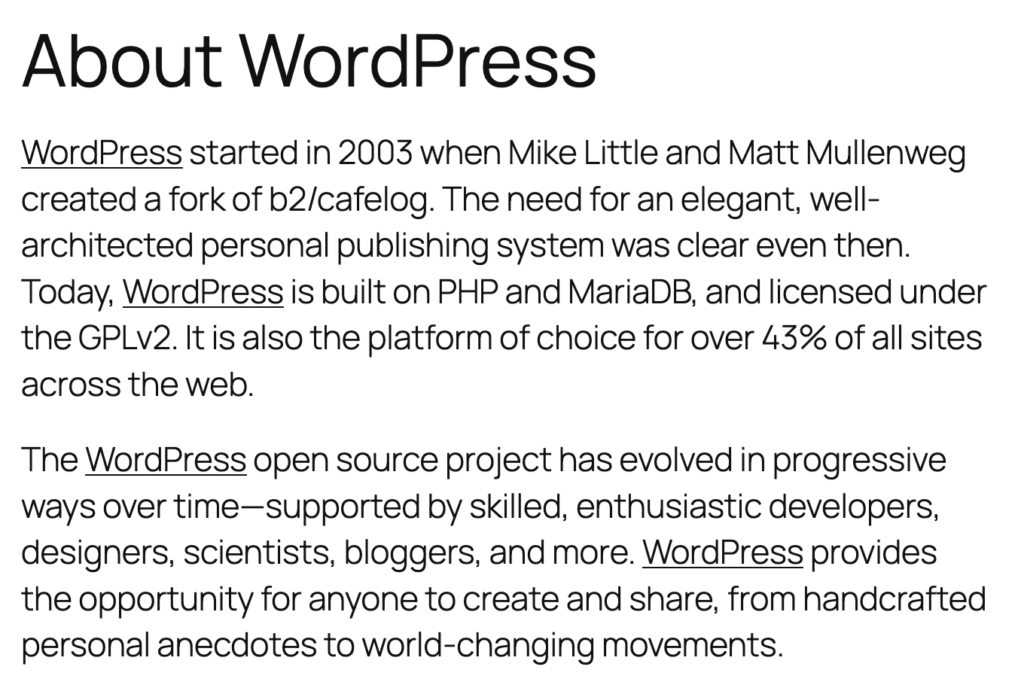
This is the newest feature in PublishPress Shortlinks. You can now automatically add links to keywords in your content. To see how this feature works, we’ll use the example of an “About WordPress” post that you can see in the screenshot below.
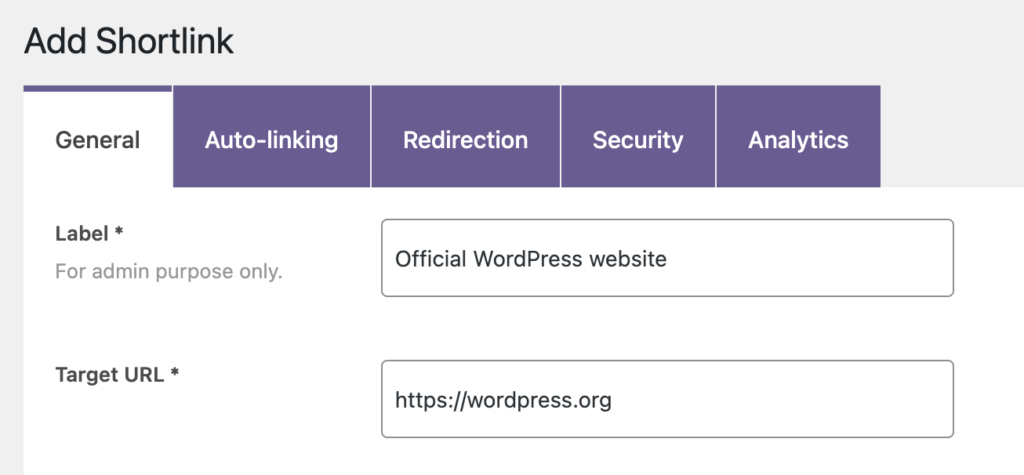
First, create a Shortlink and add the URL that you want to use for the automatic links. In the screenshot below, we’re linking to the official WordPress website.
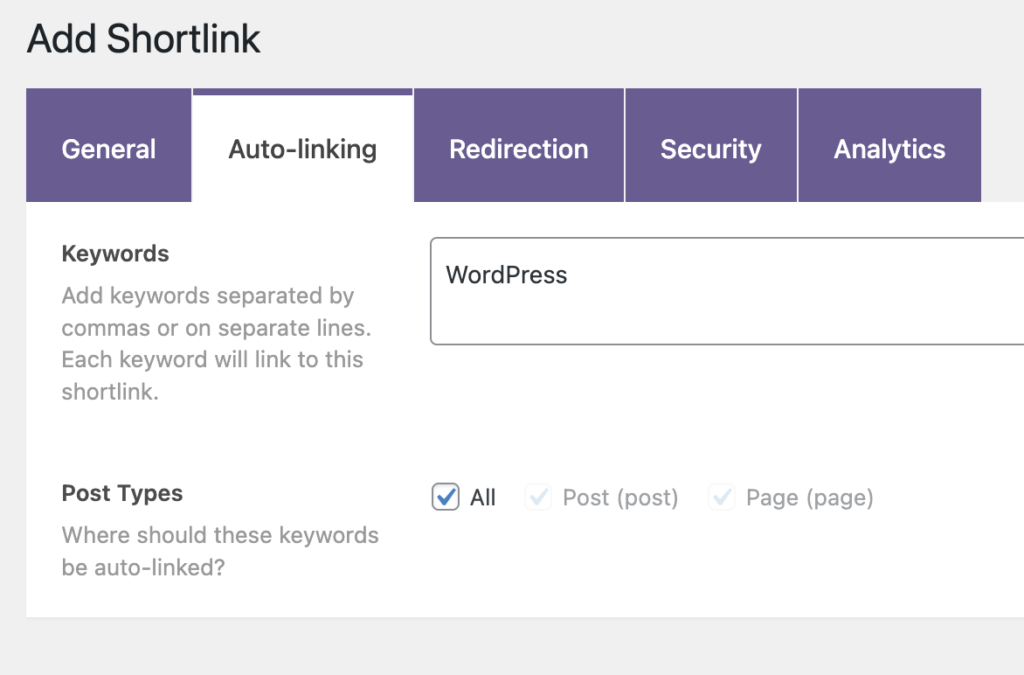
Under the “Auto-linking” tab, enter the keywords that you want to add this link to. We’re going to automatically add our new shortlink every time the word “WordPress” appears in a post.
Now, when you go back to your original post, you’ll see that the word “WordPress” is automatically linked to the Shortlink you created.
Manage links for your posts
With PublishPress Shortlinks, you can create custom links for your posts. These links can be branded and tracked.
Imagine you’re hosting a big event and have a page on your website with all the details. PublishPress Shortlinks allows you to create a short, memorable link for the event, for example: https://publishpress.com/go/cool-party. With PublishPress Shortlinks, you can track how many people click the link. You can also set the link to expire after the event finishes. You can even download a QR code to share on brochures. Oh, because of the next feature, you can do all of this even if you’re selling event tickets on another website.
PublishPress Shortlinks will automatically generate links for all your posts and pages. These shortlinks are available from the Posts screen, as you see in this screenshot below. These links will also be available via the Post Edit screen.
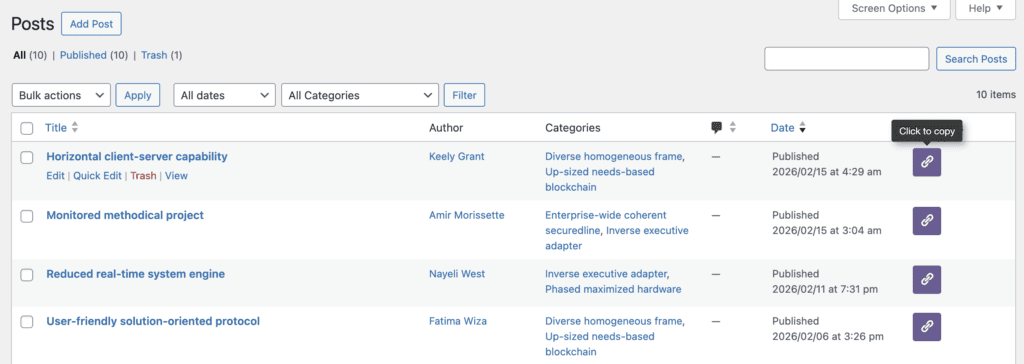
Every post has its own URL. By default, the final part of the URL will be a unique combination of five characters, so your shortlink will look like this: https://example.com/go/8vi3n.
However, with PublishPress Shortlinks, you can customize the slugs so they have human-readable URL looks, like this: https://example.com/go/shortlinks.
PublishPress Shortlinks also allows you to share posts before you make them public.
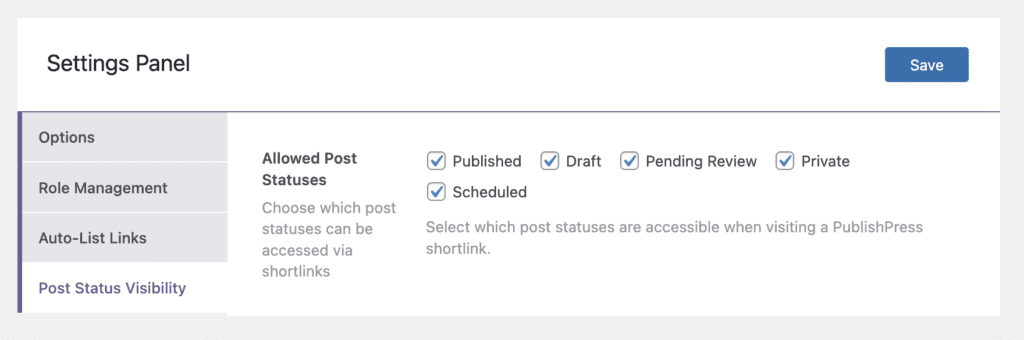
In your admin menu, go to Shortlinks > Settings > Post Status Visibility. Here you can choose which post statuses will be accessible via shortlinks. The options are shown in the screenshot below.
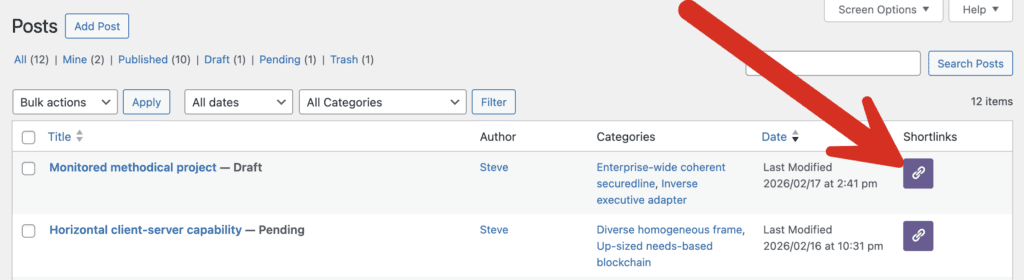
In the screenshot below, you can see one post in the “Draft” status and another post in the “Pending Review” status. You can share these links and people will not need access to your WordPress site to preview the post.
It’s also possible to protect your shortlinks with passwords and expiry dates. So if you are sharing previews of unpublished content, you can be reassured that only the people you choose can access the post.
Track all the clicks on your shortlinks
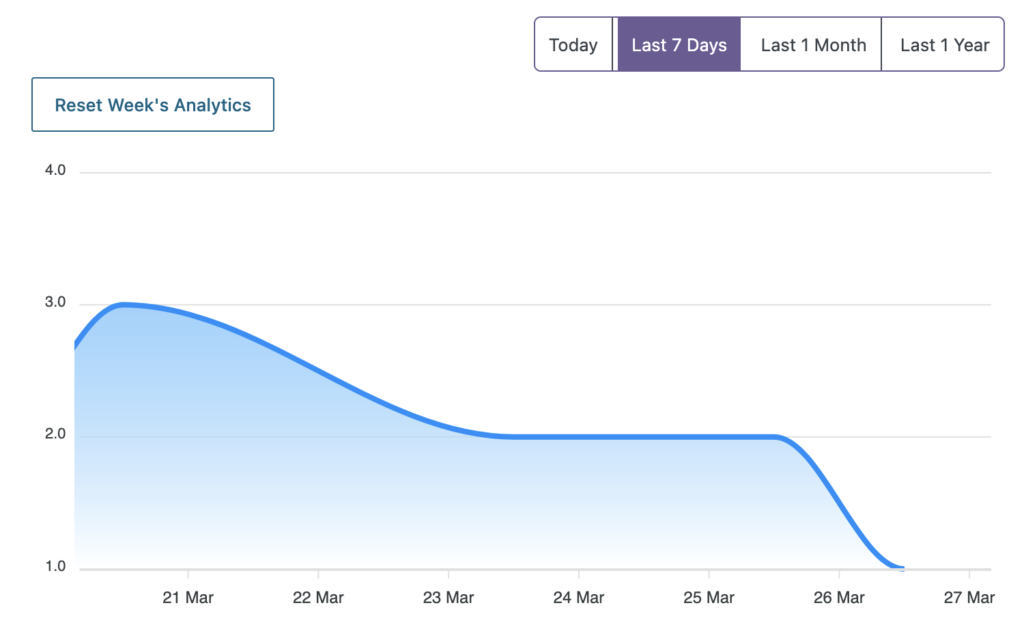
With PublishPress Shortlinks, you can also track how many people click on your links.
Imagine you run a website with toy reviews. You join affiliate programs and make money when people click on your links and buy toys. PublishPress Shortlinks allows you to create a short, memorable link for each toy, for example: https://publishpress.com/go/cool-toy. You can record how many people click the link and get a full analytics report on those clicks.
PublishPress Shortlinks also has a Logs feature that records everyone who clicks your links. These logs are available by going to Shortlinks > Logs.
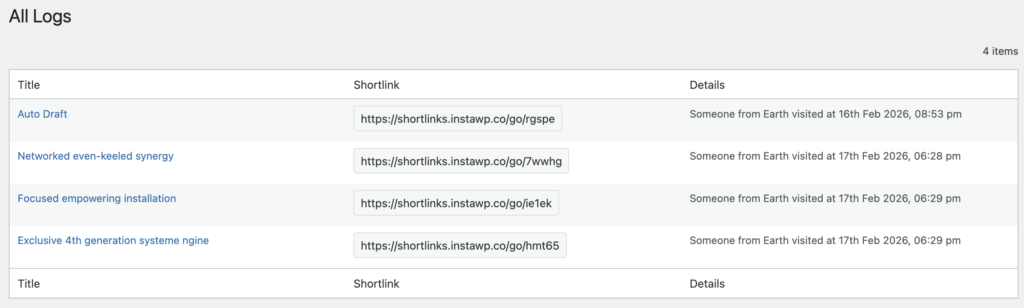
This data is collected and then displayed individually for each link. To find this information, go to Shortlinks > All Shortlinks in your WordPress admin menu. Choose a shortlink to edit and then click the “Analytics” tab, as in the screenshot below.
Free vs Pro versions
The Pro version of PublishPress Shortlinks is now available to download. This version allows you to control who can access key features of the plugin. There’s also an import / export feature. Also, you can customizes what users see after the expiry date for a link has passed.
Shortlinks Free | Shortlinks Pro |
|
| Custom, brandable URLs for your posts | ||
| Use your own website domain for shortlinks | ||
| Customize the slug for each shortlink | ||
| Share shortlinks for posts in any status | ||
| Automatically adds links to keywords in your contents | ||
| Add password protection to your shortlinks | ||
| Automatically export your shortlinks on a specific date | ||
| Choose from 301, 302, and 307 redirects | ||
| Track who is clicking your shortlinks with analytics | ||
| Generate a QR code for each shortlink | ||
| Cloak your affiliate links | ||
| Choose who can create and edit shortlinks | ||
| Choose who can access analytics and settings | ||
| Show a message when links have expired | ||
| Import and export shortlinks | ||
| Priority, personal support |

The link manager for WordPress
With PublishPress Shortlinks you can create custom links for your posts. These links are brandable, trackable, and can have custom view permissions.
