
What Do WordPress Users See in the Admin Toolbar?
WordPress sites display an admin toolbar for all logged-in users. This is visible on the frontend of your site and also in the WordPress admin area.
This toolbar contains shortcuts to key features in WordPress, but what the user sees will depend on their user role. A user in the “Subscriber” role will only see a few features. A user in the Administrator role may see a very busy toolbar.
In this blog post, we'll give you an introduction to what users in different roles may see in the admin toolbar. If you want to hide the admin toolbar for users, follow this guide.
Table of Contents
Administrators and the Admin Toolbar
On a default WordPress site, when they visit the frontend, users in the Administrator role will see three links under the site name: Dashboard, Plugins, and Themes. Administrators will also be able to see the “Edit Site” link and the “Comments” icon.

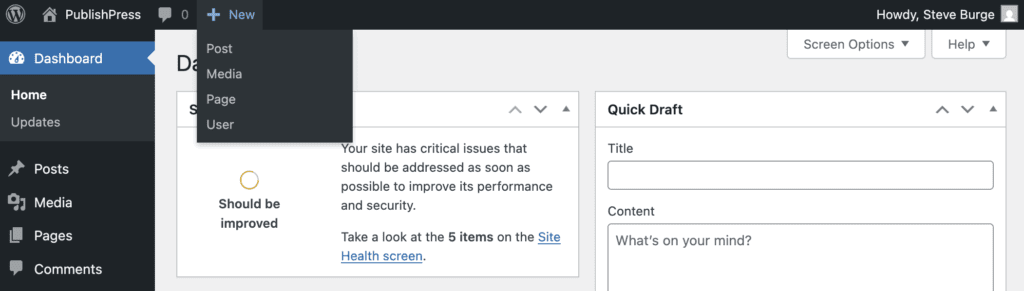
This next screenshot shows what administrator users will see in the WordPress admin area. Under the “New” button, they will be able to add content to any post type, plus media files and users.
Editors and the Admin Toolbar
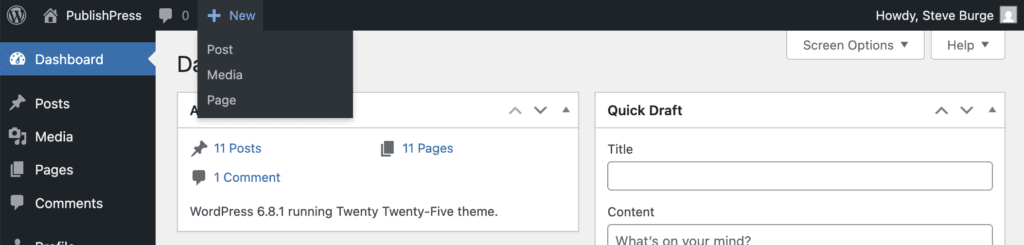
Users in the Editor role have much more restricted choices in the admin toolbar. They can see the comments icon, plus add new Posts, Media and Pages. They will not be able to add to any extra post types.
Authors and the Admin Toolbar
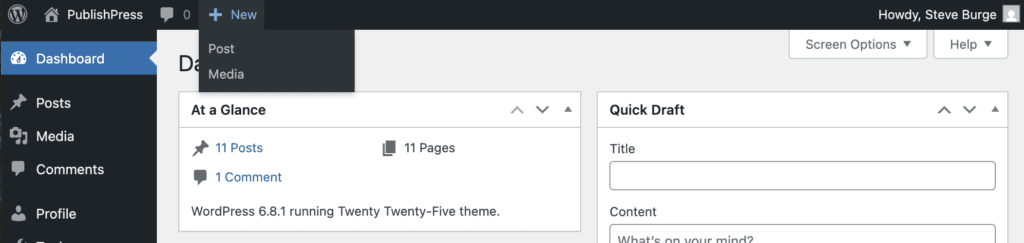
For users in the Author role, the options will look very similar to those for Editors. However, Authors will not be able to add new Pages.
Contributors and the Admin Toolbar
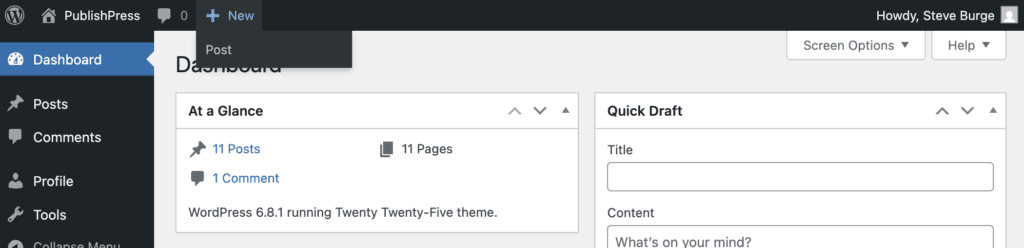
For users in the Contributor role, the options are restricted still further. Contributors can see comments and add new Posts.
Subscribers and the Admin Toolbar
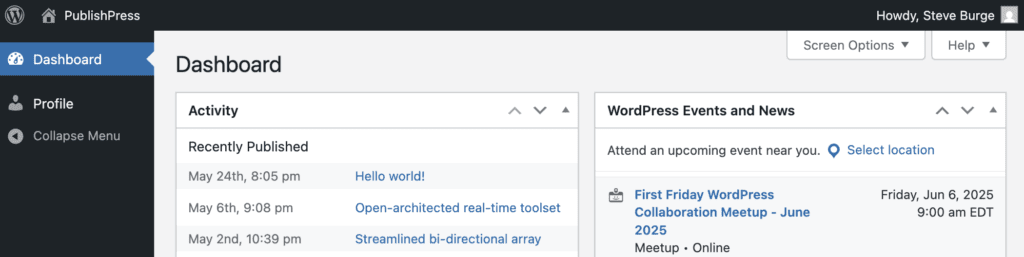
Finally, when you get down to the Subscriber role, there are no options at all except for visiting the admin dashboard.
More notes on the Admin Toolbar
The images above show the admin toolbar on a default WordPress site:
- Many plugins add to the admin toolbar, so this area will become more crowded on a live site.
- With the PublishPress Capabilities plugin, you can add and remove capabilities from users. So a modified version of any user role will see something different from the images above. For example, if you give the upload_files capability to Contributors, they will see the “Media” button.
- Some plugins will hide the toolbar. For example, WooCommerce hides the Admin Toolbar for several user roles.
The best way to control access to the Admin Toolbar is with the PublishPress Capabilities plugin. The “Admin Features” option allows you to block items in the Admin Toolbar for each user role.

The Best Plugin to Control Your WordPress Users
PublishPress Capabilities enables you to customize what users see in every area of WordPress from editing posts and pages to admin menus, profile pages.

Is there a way to undo or modify these settings once configured
Hi Fred. Yes, these are just checkboxes inside PublishPress Capabilities. Just uncheck the boxes to undo the settings.