
Control the Size of Featured Images with PublishPress Checklists
When you use the PublishPress Checklists plugin, you can define tasks that content creators must complete before their posts are published.
For example, you can make sure your posts have a minimum or maximum number of words. Or you can require that all the images in the post have ALT text.
One of the most popular options allows you to force all posts to have a featured image. The Pro version of the PublishPress Checklists plugin takes this one step further: you can require a specific height and width for all your featured images. This feature is useful because many themes only look good if your featured images are the correct size.
Table of Contents
Video guide to Featured Image size
Featured Image width and height
Here's how to use this new feature:
- Go to “Checklists” in your WordPress admin menu.
- Click the “Featured Image” tab. The image below shows the “Featured image width” and “Feature image height” options.
- Enter your “Min” and “Max” choices in pixels.
- You can choose from “Disabled, Recommended, or Required” options.
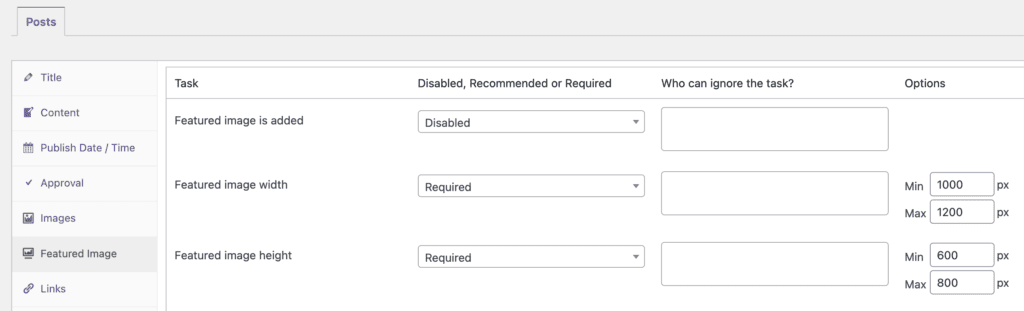
If you enable these Featured image options, they will be visible when you edit content. When your Featured image is the wrong size, these tasks will be marked in red in the sidebar:

When your Featured image is the correct size, this task will be marked in green in the sidebar:
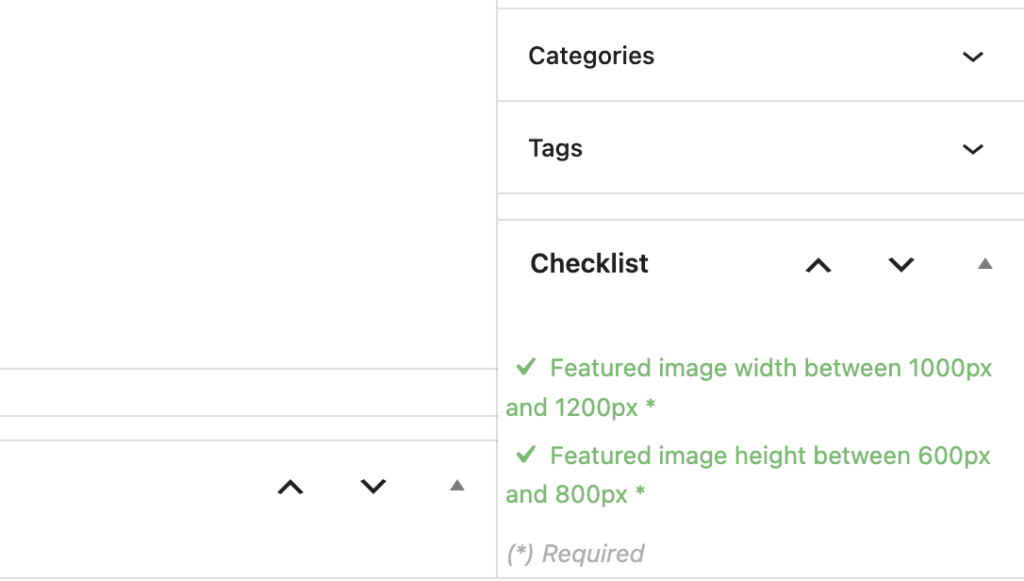
You can also use PublishPress plugins to control Featured Image permissions and force WordPress Posts to have Featured Images.

Publish Consistently Excellent Content in WordPress
When you use PublishPress Checklists, you can define tasks that authors must complete before content is published. You can ensure that all your WordPress posts meet your high standards.

Hello,
Sounds good! One question, the link validator, does it only check if the link format is valid, or does it validate the link itself? (404 errors).
Thanks
Hi Andi. It only checks the link itself.