
It’s Easy to Remove Unwanted Admin Notices in WordPress
Finally, you can get peace and quiet from all the noisy messages and advertisements in your WordPress admin area.
You know the problem. Many WordPress plugins post messages asking you to upgrade, leave a review, enjoy a free gift, sign up for data tracking, and much more. This screenshot is typical of what happens. How many times have you logged into a WordPress site and seen a messy layout like this?

The solution is the new “Admin Notices” feature in the PublishPress Capabilities plugin. This will organize all these admin notices into a new area in the top-right corner of your screen.
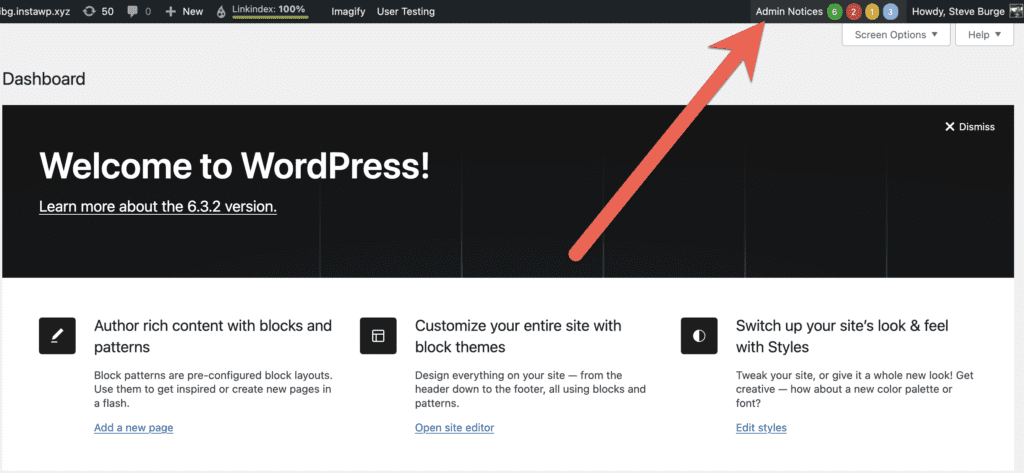
This “Admin Notices” area will show all the notices in a clean, organized area. Nothing is changed about the notices, so you can deal with them as normal. The only difference is that you won’t be pestered by these notices on your main admin dashboard.

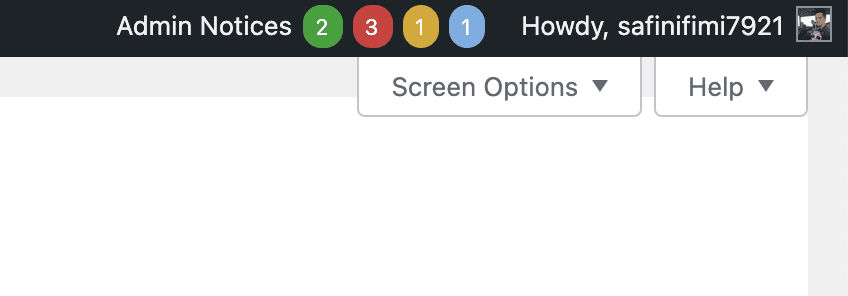
Every time there’s a new notice, you’ll get a notification icon in the toolbar. This screenshot shows that you have 7 new notifications. WordPress provides four different types of admin notice:
- Success (green): This means the user triggered an operation which was successful.
- Error (red): This means the the user triggered an operation which was unsuccessful.
- Warning (yellow): There may be some issues with the currently selected settings.
- Info (blue): The user needs to be aware of a special message.
If you see a notice that isn’t useful, you can hide it by clicking “Remove this notice”. This will move the notice to the “Removed Notices” tab. You won’t get any notifications if this message appears again, but you will be able to view them under “Removed Notices” if you want access to them.

It’s possible to customize this feature in multiple ways. In the “Admin Notices” area of the plugin’s settings, you can customize what each user role sees. For example, in the screenshot below, you can choose which notifications are visible to users in the Administrator role. You can decide which admin notices appear in the “Admin Notices” area, and which notifications appear on the main dashboard.

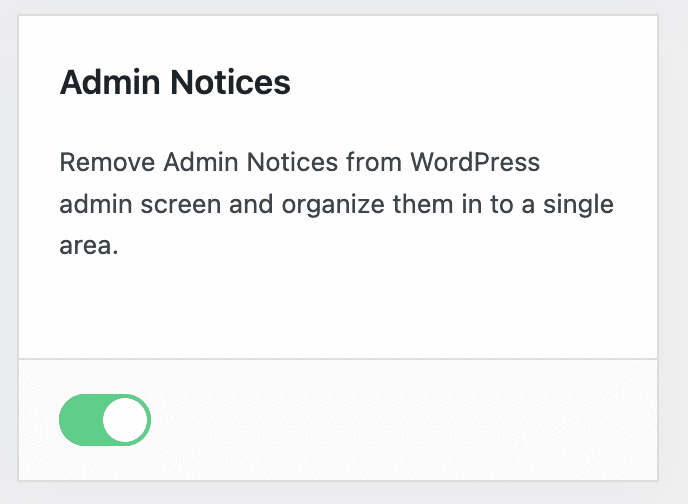
Finally, if you do want to disable this feature, go to the “Dashboard” area of PublishPress Capabilities. You can quickly go back to the default displaying for admin notices.
Control your WordPress users
PublishPress Capabilities enables you to customize what users see in every area of WordPress from editing posts and pages to admin menus, profile pages.
