
How to Approve Changes to Published WordPress Posts
Normally, on a WordPress site, users can edit unpublished and published content in the same way.
However, as a publisher, you know that there’s a big difference between editing unpublished and published content! It’s often important to approve changes to anything that is live on your website.
If you want to approve changes to published content, then PublishPress Revisions is the right tool for you.
In this guide, I’m going to introduce you to the main features available in PublishPress Revisions.
Table of Contents
Feature #1. Submit content updates for approval
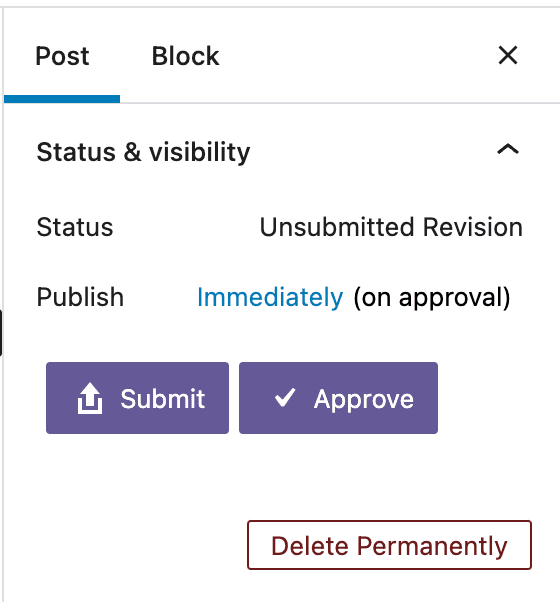
PublishPress Revisions gives your writer a safe space to work on content updates. After the content updates are done, they can submit their changes for review. This means that their changes will not be published automatically. Instead, the changes are stored in a “Revision Queue”. Once in the revision queue, the changes can be approved or rejected. This image below shows the “Submit” and “Approve” buttons available in PublishPress Revisions:
Feature #2. Schedule content updates
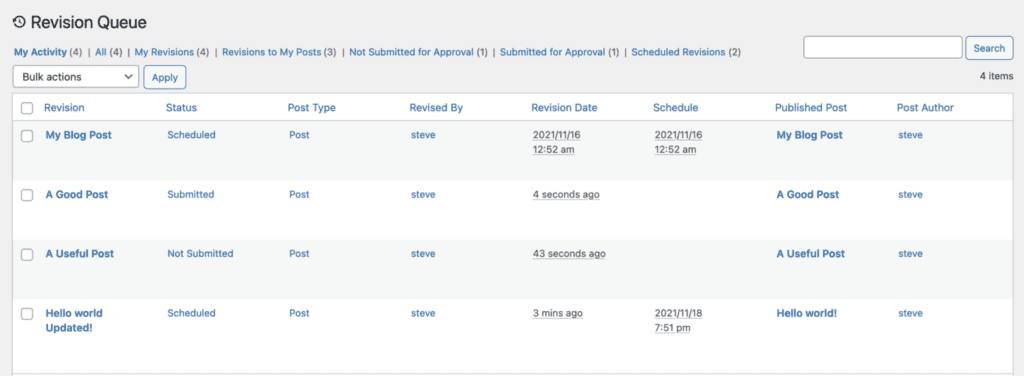
PublishPress Revisions can also schedule the content updates for the future. All you need to do is select a future date and click “Submit”. If the revision is approved, your changes will be published at the specified time. This image below shows several posts with the “Scheduled” status. Read more on scheduling content updates.
Feature #3. Revision management
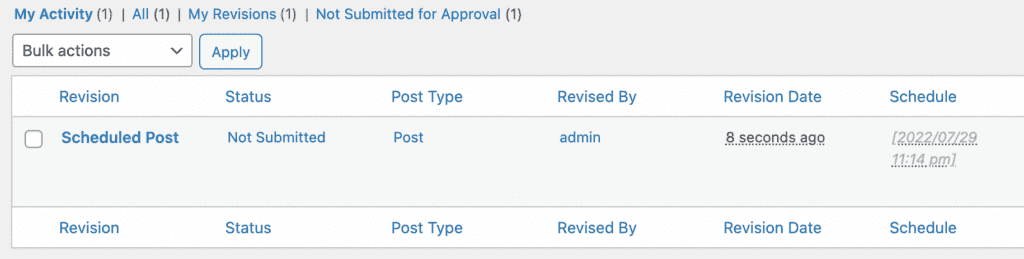
PublishPress Revisions will give you a dedicated menu for revisions called “Revisions Queue”, which gives you a global view of what happened with the content of your website. In this menu, you can either edit, delete, preview, or compare the changes. Read more about the Revision Queue.
Feature #4. Compare current content and the new update
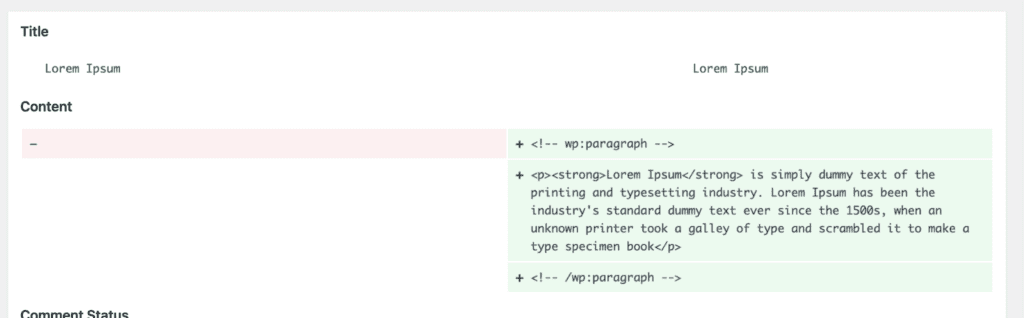
If you click the “Compare” link in PublishPress Revisions, you will be redirected to the comparison screen. This gives you details about the content that changed. The left side is the old version, and the right side is the new one. The green means that new content changes are being added to the new revision. Read more about comparing revisions.
Feature #5. Frontend view of content updates
If you click “Preview”, you will be redirected to the front-end view of what your content will look like. Here you will see a toolbar with many options that you can choose what to do with the revision. Read more about the frontend preview.

Feature #6. Email notification about the content updates
PublishPress Revisions will automatically send email notifications to users in the Editor and Administrator roles whenever there is a revision submitted. There are quite a few settings provided with the PublishPress Revisions plugin, such as:
- Email the original Author when a Submitted Revision is approved.
- Email the Revisor when a Scheduled Revision is published.
Read more about revisions notifications here.
Find out more about PublishPress Revisions
PublishPress Revisions is a powerful plugin to control content changes or content updates in WordPress. It’s a useful plugin for website owners who have many writers and editors. You can monitor every change while not compromising the quality of your content.
If you use page builders such as Elementor, Divi, or Beaver Builder, the Revisions Pro version has an integration for each of those plugins. So make sure to check the Pro version here.
You can make this plugin more powerful by combining it with other PublishPress plugins, such as PublishPress Permissions or PublishPress Capabilities. Make sure to check all of the PublishPress plugins here, all of which are specifically created to improve the content creation workflow on your WordPress site.

Approve and schedule changes to your posts
PublishPress Revisions is the ultimate tool for making content changes in WordPress. This plugin offers a safe space for users to work on content updates.

Plan and manage your WordPress content
PublishPress Planner has all the tools you need to plan and schedule WordPress content, including a scheduling calendar, Kanban Board, editorial notifications and more.

Control access to your content
PublishPress Permissions allows you to enable or deny access to posts, pages, categories, tags and more. You can control who can view and edit your WordPress content.

Control your WordPress users
PublishPress Capabilities enables you to customize what users see in every area of WordPress from editing posts and pages to admin menus, profile pages.
