
Add Categories or Tags to WordPress Posts After a Delay
Have you ever been in the situation where you need to add Categories or Tags to a WordPress post after a certain length of time.
We've talked with several PublishPress users in this situation. Here are some common requests:
- Add the tag “Archive” to a post after 90 days.
- Add the category “Needs Review” to a page after 1 year.
- Add an Event Category called “Ended” to an event when it has finished.
The PublishPress Future plugin is the solution you need for all these changes. With this plugin you can create automatic actions to add tags or categories to posts after a delay.
In this guide, I'll show you two ways to do this:
- Future Actions: Schedule new tags or categories to be added after a specific length of time.
- Action Workflows: Schedule new tags or categories to be added, plus also add other steps such as changing the post status or sending an email when the changes happen.
Table of Contents
Video guide to adding Tags and Categories
1. Adding Tags and Categories with Future Actions
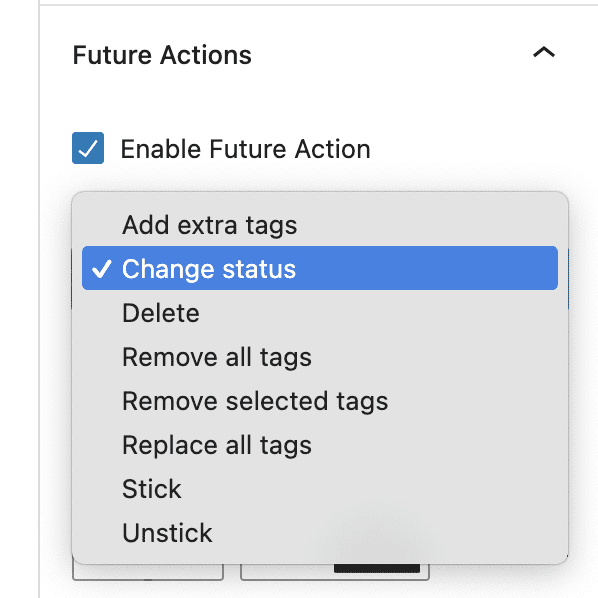
The PublishPress Future plugin has a feature called “Future Actions“. This offers several actions that you can use to schedule changes to your WordPress content. You can find the Future Actions options in the sidebar area of WordPress posts, as in this screenshot below. For this guide, we're going to use the “Add extra tags” option.
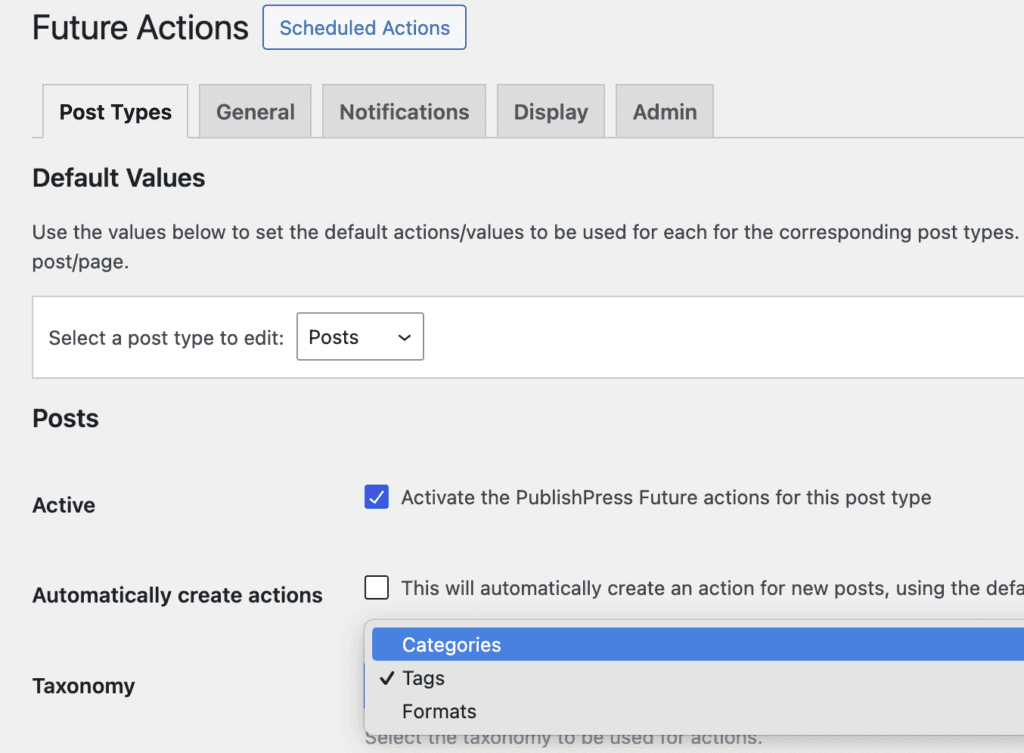
Here's how to enable Future Actions for any post type:
- Go to the “Future Actions” area of the plugin.
- Choose the post type from the “Select a post type to edit” dropdown.
- Check the “Active” box.
- In the “Taxonomy” area, you can choose whether you want to add Categories, Tags, or another taxonomy.
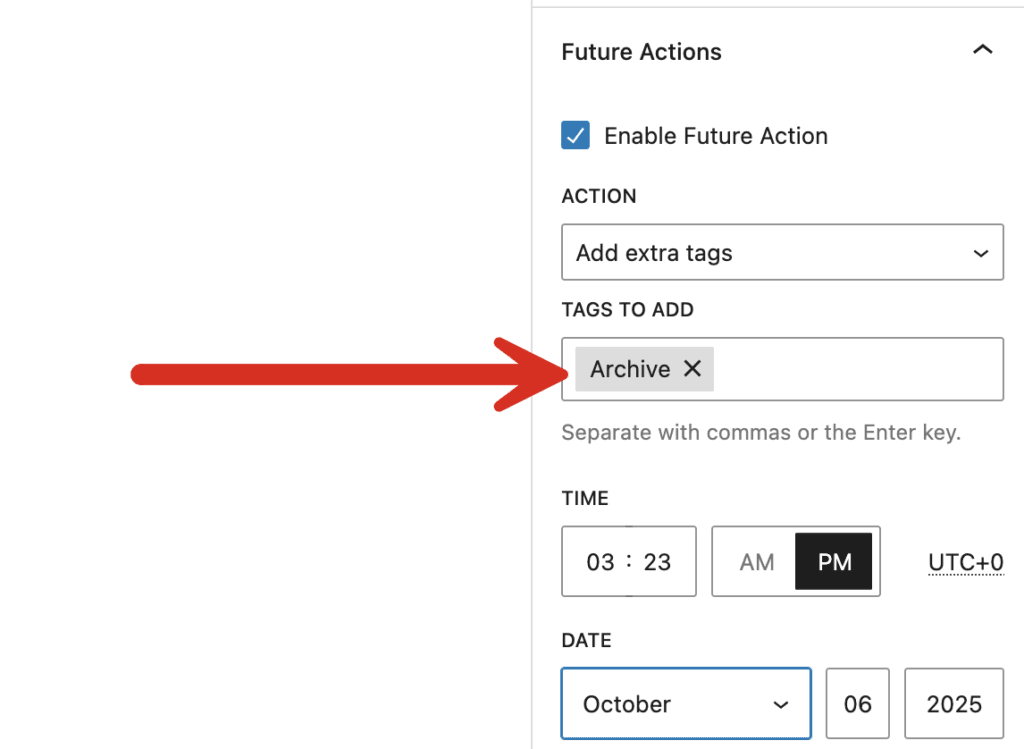
Now when you go to edit a WordPress post you'll see the Future Action box in the sidebar.
- Action: Choose “Add extra tags”.
- Tags to Add: Choose the tag you want to add to your post.
- Time and Date: Choose when you want to this action to happen.
After you create the Future Action, you will see it on the Posts screen. In this screenshot below, you see the action, the tags to add, and the time and date.

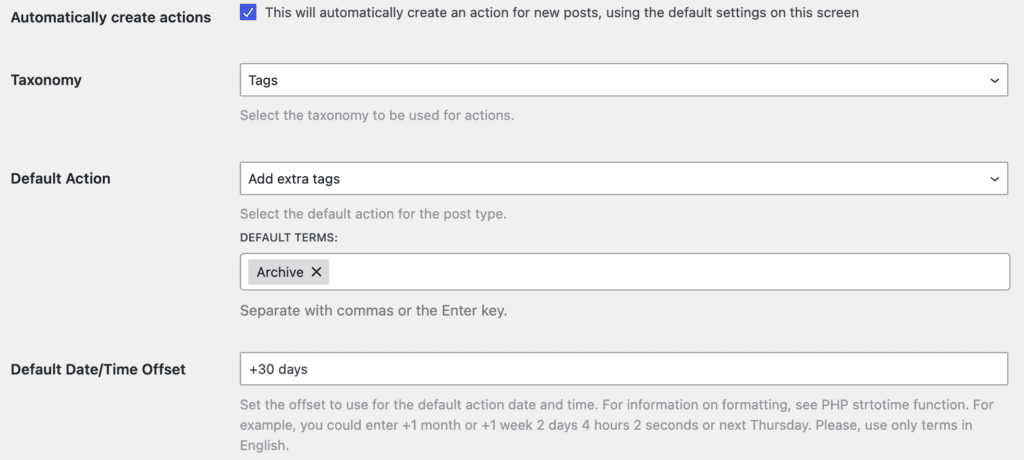
The Future Actions feature also an option to create a default action for new posts. For example, you can choose to create a new Future Action that will add the “Archive” tag to post after 30 days. This feature is available in the “Future Action” settings area.
- Automatically create actions: Check this box
- Taxonomy: Tags
- Default Action: Add extra tags
- Default Date/Time Offset: Set the offset to use for the default action date and time
It's worth noting that are other approaches here. You don't have to simply add a new term. Here are actions that allow you to change the taxonomies on a post.
- Add extra terms: keep all existing taxonomy terms, and also add new terms.
- Remove all terms: remove all existing taxonomy terms.
- Remove selected terms: keep all existing taxonomy terms, except for those specified in this change.
- Replace all terms: keep all existing taxonomy terms, except for those specified in this change.
2. Adding Tags and Categories with Action Workflows
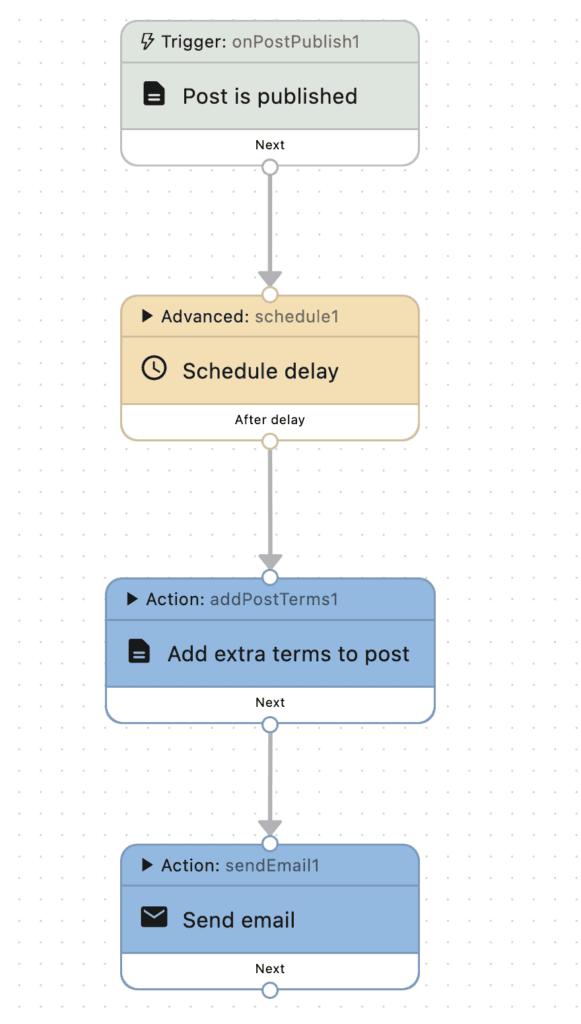
PublishPress Future has another option called “Action Workflows“. This allows to chain together several Future Actions into a workflow. So in the previous example, we add a tag called “Archive” to the post. With the Action Workflows feature we can add that tag and also send an email when that change happens. This screenshot below shows that workflow.
- Post is published: This means the workflow will start when the post is published.
- Schedule delay: You can choose how long to wait after the post is published.
- Add extra terms to post: You can select the terms to add to the post.
- Send email: You can send a email with a custom message to any recipients you choose.
The workflows feature is incredibly flexible so there are many variations you could add to this workflow. For example, you can get in-site notifications when the terms are added. You can use the User interaction action to get approval from users before the terms are added. Or you could use the Conditional action so that this workflow only applies to specific posts, rather than all of them.

The Best Plugin to Schedule Changes to Your WordPress Content
The PublishPress Future plugin allows you to schedule automatic changes to posts. You can update your content using custom workflows involving multiple steps.
