
Hide Toolbar Links inside the WordPress Block Editor
Over the last couple of years, more and more WordPress users have adopted the Gutenberg block editor. We use it for all the PublishPress sites, and an increasing number of support tickets are about Gutenberg.
We had an interesting support ticket recently: a customer wanted to hide links in the menu that is attached to each block. You can see a screenshot of this menu below.

In this guide, I’ll show you how to remove items from this toolbar. We’ll be hiding items for specific user roles. In this example, we’ll start by hiding the “Create pattern” link and icon in the Gutenberg toolbar menu.
This guide uses the Editor Features option in the PublishPress Capabilities Pro plugin.
Table of Contents
How to hide “Create pattern”
- Go to “Capabilities”, then “Editor Features”.
- In the top left corner, choose the user role you want to hide the link for. You can choose “Editor”, “Author”, or any other WordPress role.
- Scroll down to the “Custom Gutenberg Restrictions” area at the bottom of the screen.
- Enter the following code into the “Element IDs or Classes” box.
.components-popover.components-dropdown__content.block-editor-block-settings-menu__popover.components-dropdown-menu__popover .components-popover__content .components-dropdown-menu__menu div.components-menu-group:nth-child(3) div .components-button.components-menu-item__button:nth-child(4)
- Click “Add New”.
- Click “Save Post Restrictions”.
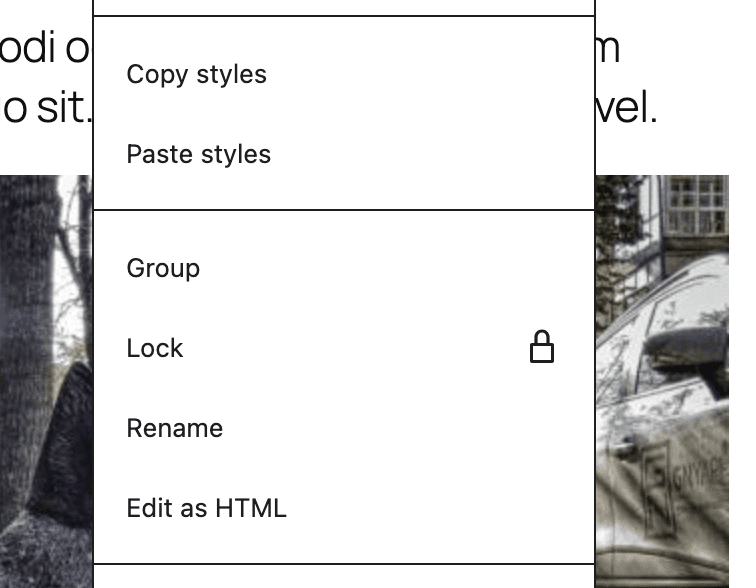
- Now when you visit a post, the “Create pattern” link will be missing, as in this screenshot:
How this code works
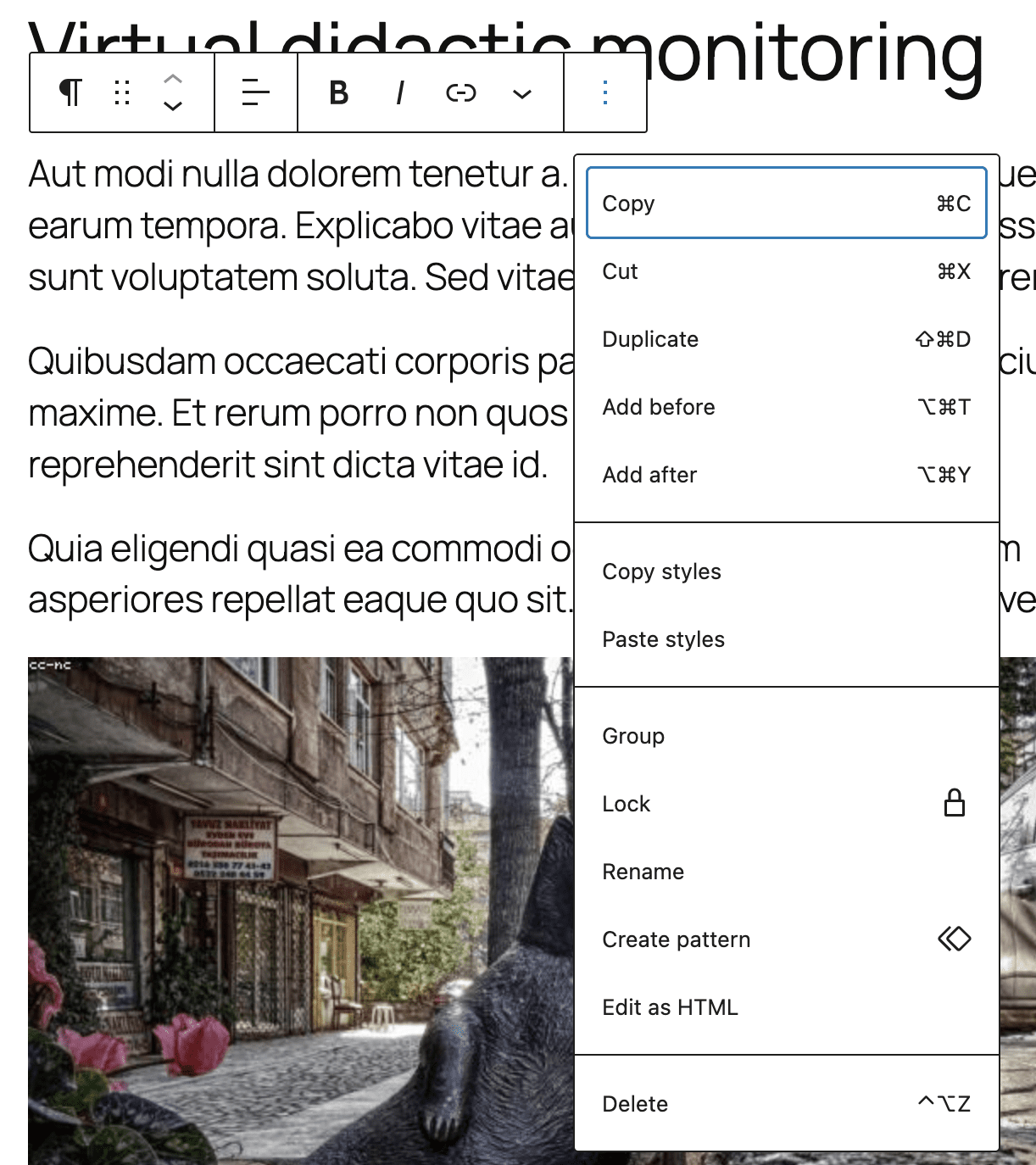
This code works using the ID numbers of the menu. There are two numbers involved here. The first number refers to the grouping. There are four groups in this dropdown menu.
- Copy / Cut / Duplicate / Add before / Add after
- Copy styles / Paste styles
- Group / Local / Rename / Create pattern / Edit as HTML
- Delete
And then there are numbers inside each group. For example, there are the numbers inside the third group:
- Group
- Lock
- Rename
- Create pattern
- Edit as HTML
So this is why use “3” and “4” to target the “Create pattern” link. It is in the third group and is the fourth link.
Let’s see the code for these menu links
- Group >
.components-button.components-menu-item__button:nth-child(1) - Lock >
.components-button.components-menu-item__button:nth-child(2) - Rename >
.components-button.components-menu-item__button:nth-child(3) - Create pattern >
.components-button.components-menu-item__button:nth-child(4) - Edit as HTML >
.components-button.components-menu-item__button:nth-child(5)
You can adjust this code to remove other items in the screenshot. This code uses the numbers to target different elements.
For example, change both numbers to “1” and you’ll be able to hide the “Copy” link:
.components-popover.components-dropdown__content.block-editor-block-settings-menu__popover.components-dropdown-menu__popover .components-popover__content .components-dropdown-menu__menu div.components-menu-group:nth-child(1) div .components-button.components-menu-item__button:nth-child(1)Here’s another example: change both numbers to “2” and you’ll be able to hide the “Paste styles” link:
.components-popover.components-dropdown__content.block-editor-block-settings-menu__popover.components-dropdown-menu__popover .components-popover__content .components-dropdown-menu__menu div.components-menu-group:nth-child(2) div .components-button.components-menu-item__button:nth-child(2)And one file example: change the first number to “4” and the second number to “1”. This will hide the “Delete” link:
.components-popover.components-dropdown__content.block-editor-block-settings-menu__popover.components-dropdown-menu__popover .components-popover__content .components-dropdown-menu__menu div.components-menu-group:nth-child(4) div .components-button.components-menu-item__button:nth-child(1)More about Controlling Access to Gutenberg
The PublishPress plugins offer a wide variety of ways to control the Gutenberg editor. For example, there are ways to disable the Gutenberg editor for specific roles. You can also hide specific blocks, or hide metaboxes from 3rd party plugins.

Control your WordPress users
PublishPress Capabilities enables you to customize what users see in every area of WordPress from editing posts and pages to admin menus, profile pages.
