
How to Hide Gutenberg Blocks for Some Users
In this guide, I'm going to show you to hide Gutenberg blocks that you don't want some WordPress users to access. As more plugin developers support Gutenberg, you may end up with a very long list of blocks. Or you may simply not want to give some users access to some functionality.
Table of Contents
Option #1. Hide Gutenberg blocks from yourself
The easiest way to hide blocks is by customizing your own personal settings.
- When you're writing a post, click the three vertical dots in the top-right corner.
- Click the “Preferences” link.
- Click the “Blocks” option.
- In this modal window, you can uncheck any blocks that you don't want to see.

I'll note several things about this method of hiding blocks:
- This change won't impact any other users.
- This will hide but not disable any blocks, so nothing will break if they are being used on your site.
- You can undo this change at any time.
Option #2. Stop users from adding specific blocks
It is also possible to completely hide blocks from some users and user roles.
Using the PublishPress Blocks plugin, you can create custom profiles for different users and user roles.
These profiles allow you to control which users can add which Gutenberg blocks. For example, if you want to prevent some users from adding “Table” blocks, you can block them from doing that with this profiles feature.
To get started, install the PublishPress Blocks plugin.
- Go to “PublishPress Blocks” in your WordPress admin menu.
- Click “Block Permissions”.
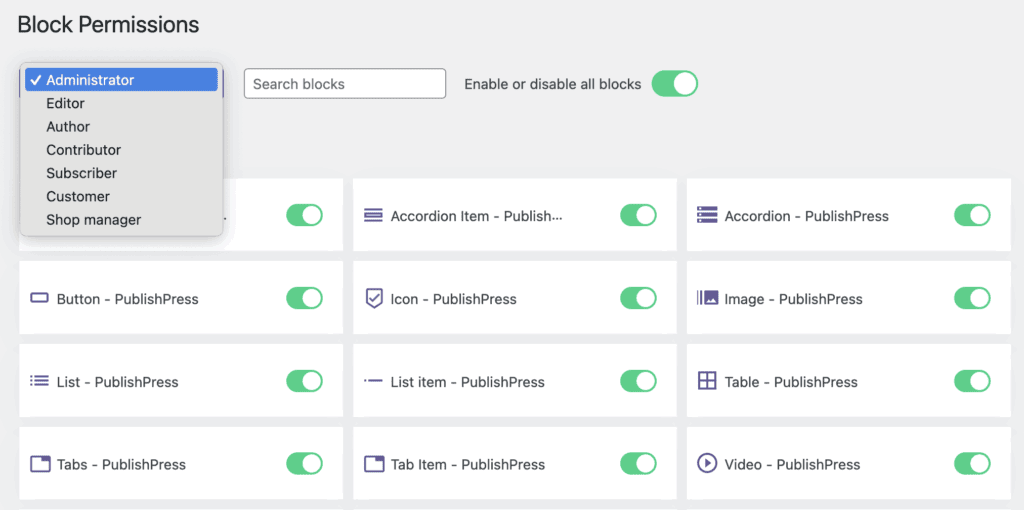
- You can choose a user role form the dropdown menu in the top-left corner.
- If you disable a block here, it will be disable for all the users in this role.
For example, if you don't want users in a specific role to add any media to your posts, you can disable all the Media blocks for that role. This process is shown in the next screenshot:
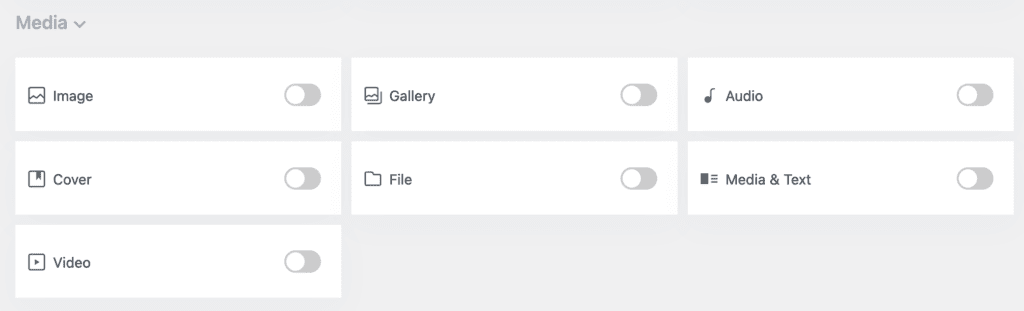
You have now created a custom Gutenberg experience for these users. Those users will not be able to enable these blocks again. As with our first method in this tutorial, this second method will hide but not disable any blocks, so nothing will break if they are being used on your site.
Option #3. Stop users from adding any blocks
The PublishPress Blocks plugin also allows you to completely prevent users in a role from adding any blocks at all to your posts.
- Go to “Settings”, then “Block Features”.
- Choose the user role you want to restrict from the “Select role” dropdown.
- Check the “Disable all block adding” box.

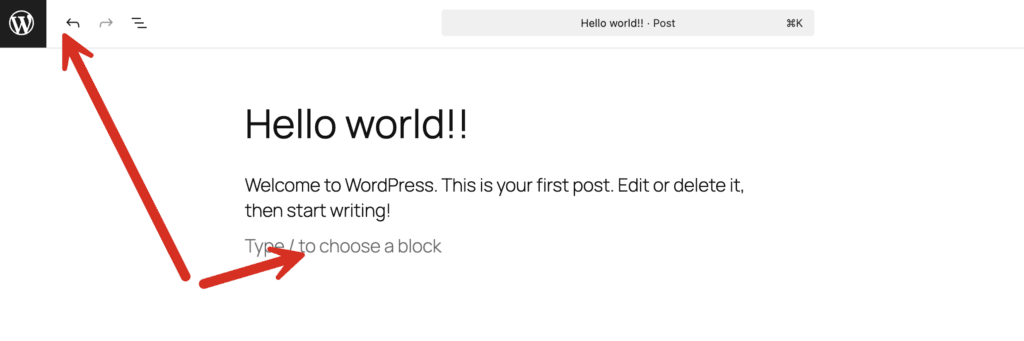
Once that box has been checked, users in your selected role will be able to edit posts but not add any blocks. In the screenshot below, you can see that the “Add block” icons are completely missing.
More Gutenberg advice
We’ve written a lot about Gutenberg including on how to add GIF images and show code in Gutenberg, plus how to hide image captions or rearrange metaboxes.

Your Complete Toolkit for the WordPress Block Editor
PublishPress Blocks is the plugin that gives you more control over the WordPress block editor. You get a complete set of management tools for your blocks.
