
Automatically Unpublish Variable Products in WooCommerce
We had a question from PublishPress Future user: “Can I set an expiration date for my variable products in WooCommerce?”
This answer was “Yes, that's possible with PublishPress Future”.
There are several other kinds of product available in WooCommerce, including “Simple product”, “Grouped product”, and “External/Affiliate product”. This guide should work for any of them, although we're focusing on “Variable product”.
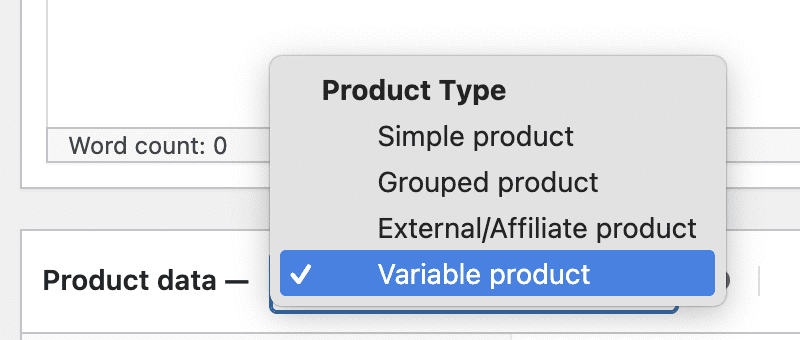
In this tutorial, I'll show how this is done. This feature is very useful for scheduling product expirations, ensuring that your store remains up-to-date without manual intervention. By the end of this guide, you'll be able to create a workflow that will automatically unpublish your variable products on a date you choose.
Table of Contents
Video Guide to Expiring Variable Products
Check Your Variable Products
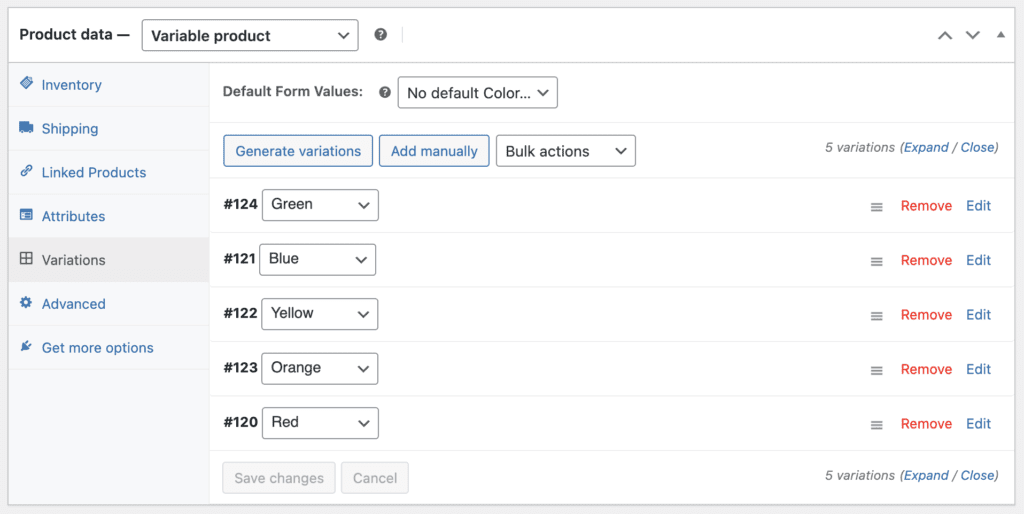
To follow this guide, you'll need to have created a Variable Product in WooCommerce. These will appear under the “Variations” tab inside a WooCommerce product.
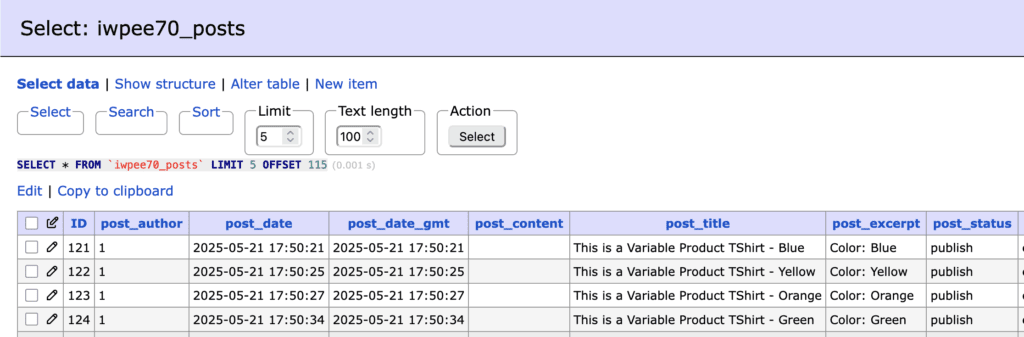
One thing to know about these variable products is that they are stored in the WordPress database as “posts”. You will find them in the _posts table alongside Posts, Pages, Products, and other post types.
Next, we're going to use the Pro version of PublishPress Future to create the workflow.
- Go to “Future” then “Action Workflows”.
- Create a new workflow by clicking Add New.
- First, create a “Trigger” using the “Post is published” option.
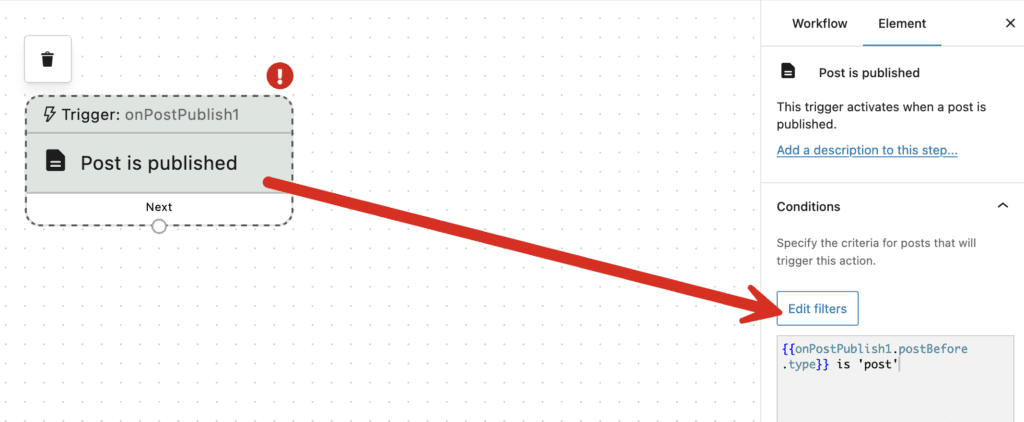
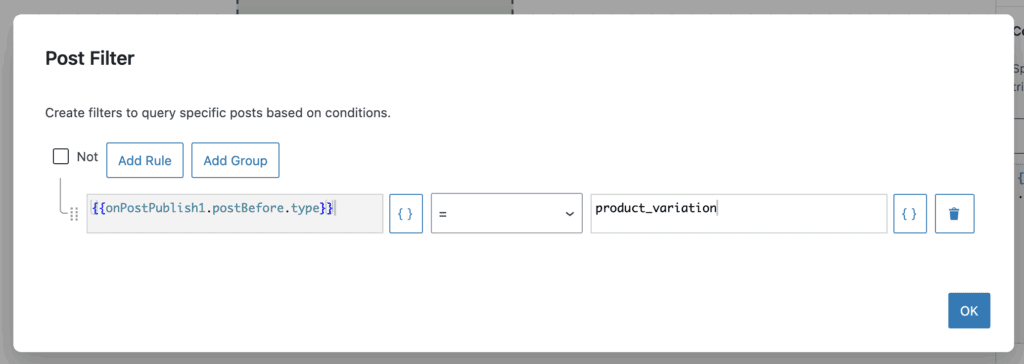
- Click the “Edit filters” button in the sidebar.
- Choose “product_variation” in the box, as in this screenshot below:
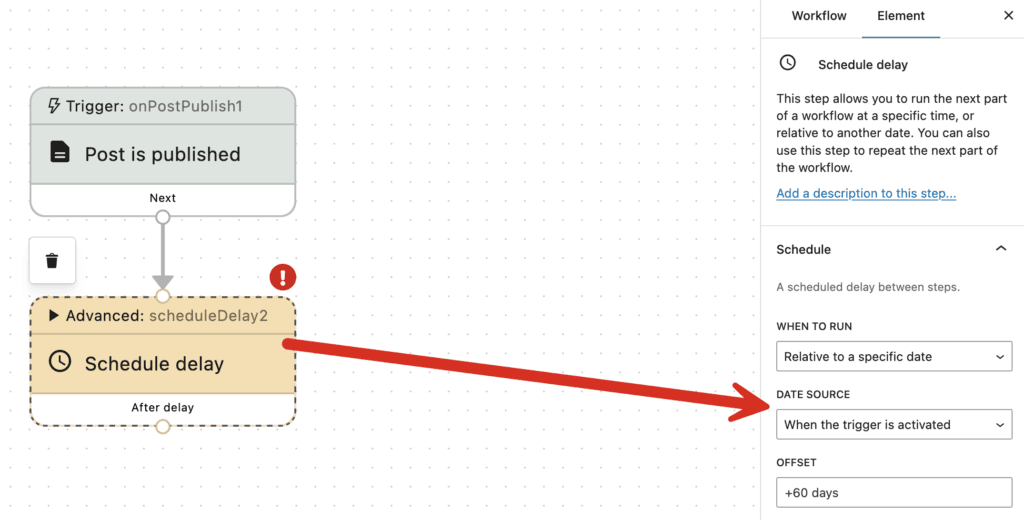
- Add a “Schedule delay” step.
- In the right sidebar, choose these options:
- When to Run: Relative to a specific date.
- Date Source: When the trigger is activated.
- Offset: 60 days, or however long you want to wait before expiring products.
- Add the final step, “Move post to status”.
- In the right sidebar, choose “Draft” for the “New Status” option.
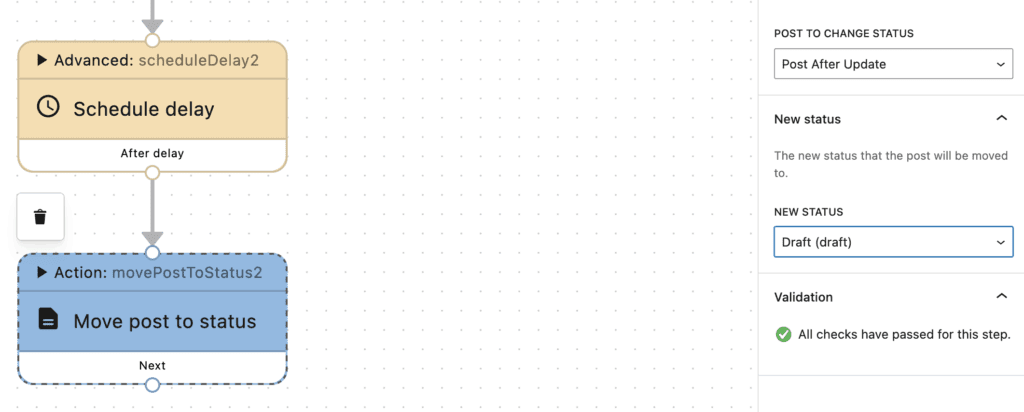
Save the workflow and you're ready to have your variable products unpublished automatically. The YouTube video above has an explanation of how you can test this workflow before making it live on your products.
WooCommerce and PublishPress Future
The PublishPress Future plugin allows you to schedule changes to posts, pages and other content types, including WooCommerce products. This plugin has the potential to save you a lot of time when managing your WooCommerce store. In addition to these workflows, there a ton of simple options including the ability to individually schedule changes to WooCommerce products. You might also want to check out this longer video on using the two plugins together:

The Best Plugin to Schedule Changes to Your WordPress Content
The PublishPress Future plugin allows you to schedule automatic changes to posts. You can update your content using custom workflows involving multiple steps.
