
How to Show “Reviewed By” on WordPress Posts
Have you heard of Google's E-E-A-T guidelines? This acronym stands for Expertise, Experience, Authoritativeness, and Trustworthiness.
If you have a WordPress website, E-E-A-T is going to have some influence on where you appear in Google's search results. Google wants to see that your posts can be trusted, so you need to show that posts are trustworthy. One of the best ways to do this is by adding a “Reviewed by” section to your blog posts.
In this guide, I'll introduce the “Reviewed by” feature and show you how to add this to WordPress posts.
Table of Contents
Introducing the “Reviewed by” feature
In this image below you can see the main author, plus a reviewer. This screenshot was created with the PublishPress Authors plugin.

This “Reviewed by” feature is increasingly common, particularly with important information such as medical advice, financial tips, and product reviews. In this image below you can see that the post was reviewed by a doctor. That's an excellent way to increase trust in your article.

This next screenshot is from a medical publisher. The article is written by a content producer but again the information is reviewed by a doctor. The post is “Written” by one person, but “Medically Reviewed” by another person.

Video Introduction to “Reviewed By”
How to Show “Reviewed By” in WordPress
The PublishPress Authors plugin allows you to create, manage and display authors for all your WordPress content.
This plugin has a feature called “Author Categories” that allows you to give different credit to each author. You can assign each author as an “Editor”, a “Photographer” or a “Reviewer”.
The “Author Categories” feature is available in both the Free and Pro versions of PublishPress Authors. You'll find an “Author Categories” screen where you can add, remove, enable, and disable the different categories. There are four default categories:
- Author
- Coauthor
- Reviewer
- Editor
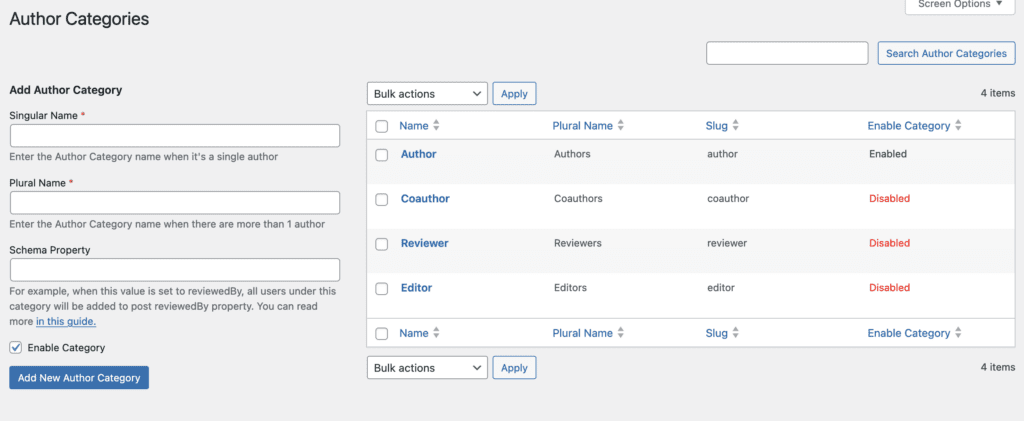
Your first step is to enable the “Reviewer” category.
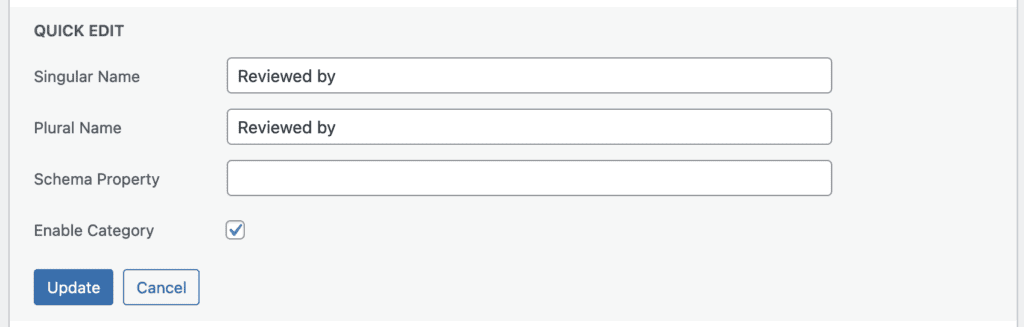
- Click “Quick Edit” and you can check the “Enable Category” box.
- You may also want to change “Reviewer” to “Reviewed by”.
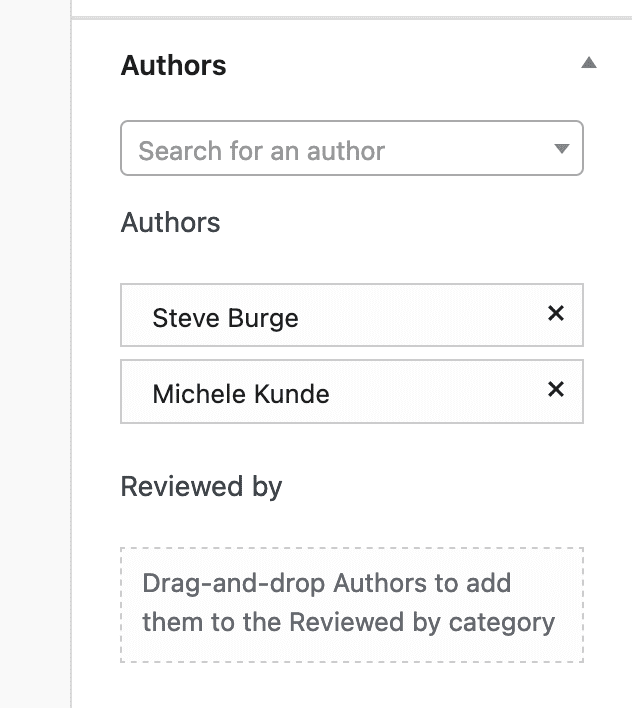
You can now add authors to this “Reviewed by” category. The “Authors” metabox on the post editing screen now looks like this screenshot below. You can drag-and-drop authors into the “Reviewed by” section.
The final step is to choose how your “Reviewed by” authors show on the front of your website. We'll cover that in the next part of this tutorial.
How to Display the “Reviewed by” Category
In PublishPress Authors, the Author Category will not show by default and must be added to your Author Boxes.
In the Free version of PublishPress Authors, you can show the category next to fields on the Author's profile. Follow these steps to display the “Reviewed by” category.
- Go to the “Author Boxes” screen and edit the box that is marked as “Default”. I'm going to use the “Boxed” example.
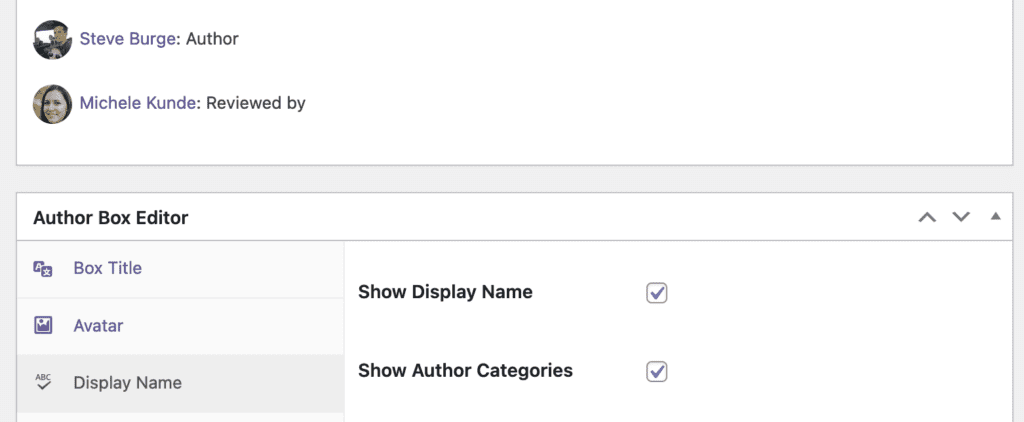
- Click the “Display Name” option and check the box next to “Show Author Categories”. In this screenshot below, we've now added the category next to the “Display Name”.
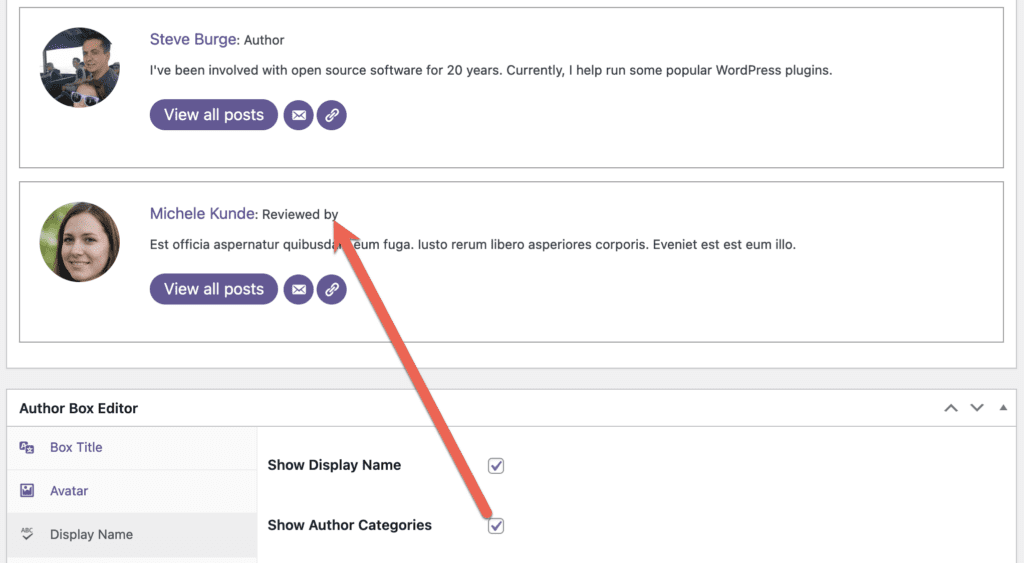
The screenshot below has another, similar example. This time we're using the “Inline with Avatars” layout.
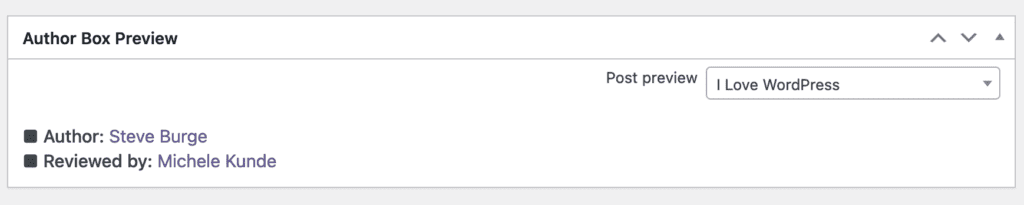
PublishPress Authors Pro has a feature that allows you to do more with Author Categories. It provides an “Author Categories Box” feature. This is a display format for your users that is specifically designed to group authors together in their categories.
This screenshot below shows the “List Authors Block (Categories)” display option:
This next screenshot shows the “Boxed (Categories)” layout:
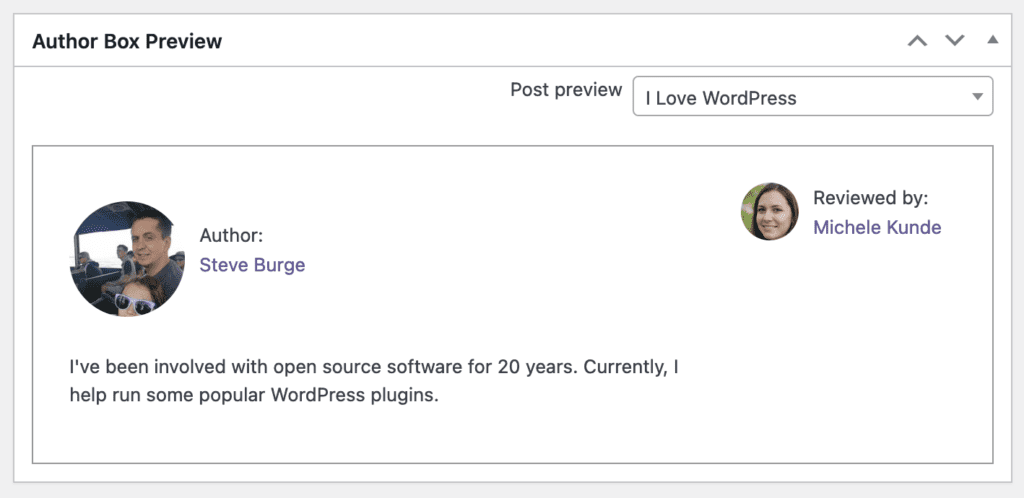
It's possible to completely customize the displays you see in these screenshots. The Author Boxes come with many display options that cover font, font size, colors, layouts, and more. And if you prefer to use your own code, you can also create your own Author Display templates.
More About Showing “Reviewed By”
It's not possible to show “Reviewed by” on a default WordPress site. One key limitation is that WordPress normally only allows one author per post.
However, with a plugin like PublishPress Authors, you can add multiple authors. And if you use the “Author Categories” feature, you can also create a “Reviewed by” category and use it to display your authors correctly. This is a very useful step towards making your site more trustworthy, and that's a good thing for your visitors and your search engine rankings too.

The Best Author Profile Plugin for WordPress
The PublishPress Authors plugin allows you to create beautiful profiles for your site's authors. You can add social media links, recent posts, custom layouts and much more.
