
WordPress Now Has Much Better Visual Revisions
WordPress automatically saves revisions as you update posts and pages, allowing you to review previous versions and restore earlier content when needed.
In previous versions of WordPress, these Revisions were difficult to read. It was not simple to see the details of what changed in your post.
However, WordPress 7.0 introduced visual Revisions, which make it much easier now to see what has changed with your posts.
We’re delighted with these changes. They make WordPress better for authors, and they’ll help improve our PublishPress Revisions plugin. While WordPress Revisions focus on tracking content changes, PublishPress Revisions add editorial workflows for reviewing, approving, moderating, and scheduling those changes.
Here’s a guide to what’s changing with Revisions.
Table of Contents
Video guide to the new revisions
Revisions now look much better
Before WordPress 7.0, the old Revisions feature looked like this screenshot below. There were two columns, one showing the previous version of the post and one showing the current post. Changes were marked in red for deleted content and green for new content. However, as you can see below, the posts are in HTML. This made the feature difficult to use. What you saw on this screen didn’t match what you saw when editing the post.
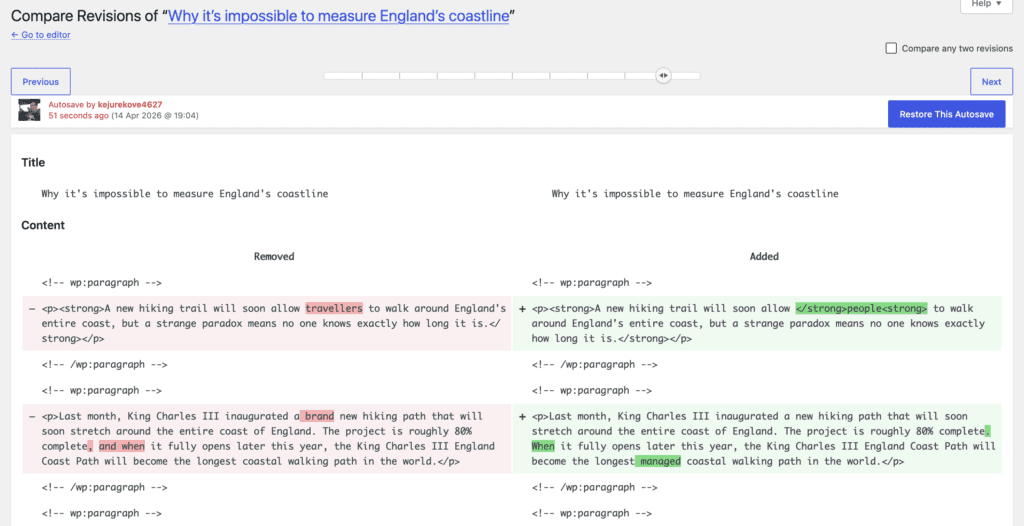
The new Revisions feature looks like this screenshot below. Now what you see on the Revisions screen matches what you see when editing a post. Instead of the old 2-column view, there’s now a stylish 1-column view.
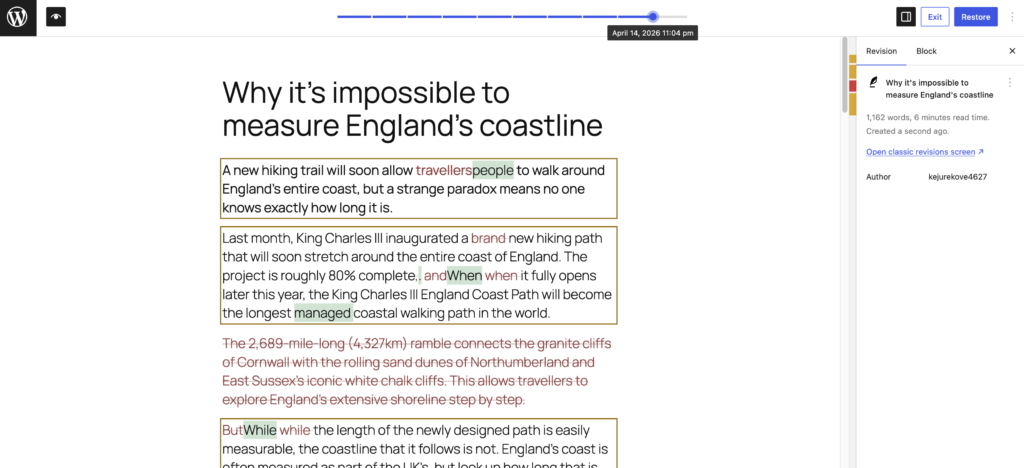
You’ll notice now that the changes are still color-coded, but they are now more sophisticated. There are three types of changes:
- Yellow: content changed
- Red: content deleted.
- Green: content
Those color-coded changes are shown in the main content area. You can also use the sidebar to navigate quickly between each change, as in this next screenshot.
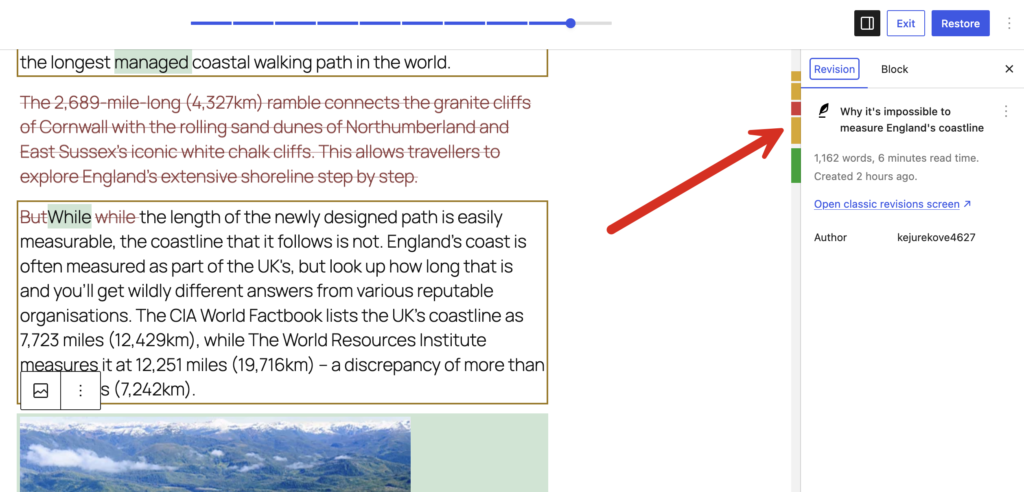
If you do miss the old-fashioned display, you can always click the “Open classic revisions screen” link.
But in our opinion, visual Revisions are really useful, especially on websites with multiple contributors. Editors can quickly see exactly what changed before approving updates, reducing the risk of publishing unwanted edits or missing important modifications.
Changes to block settings are now saved
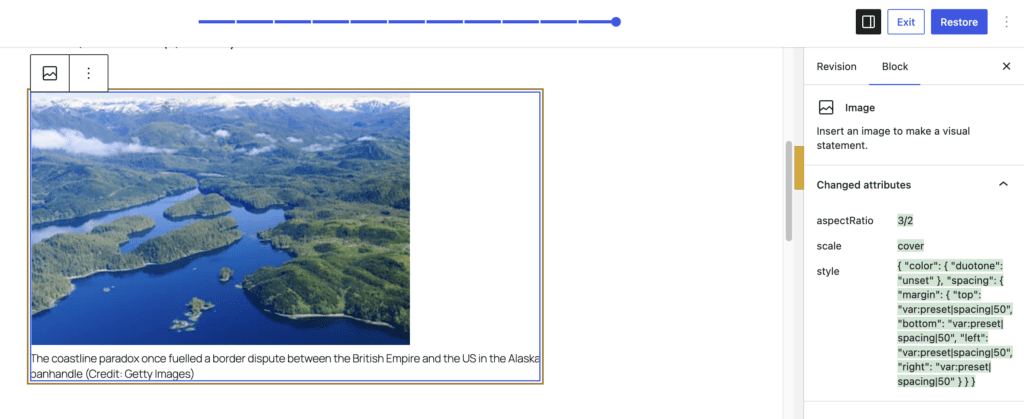
One other important change is that Revisions will now track changes to your block settings. In this next screenshot, you can see the “Changed attributes” area in the right sidebar. This shows that both the background color and the font size have changed.
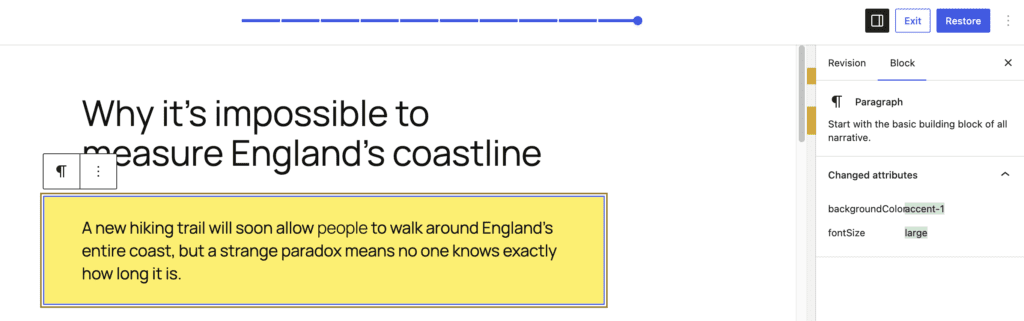
This next screenshot shows a more complex example where a lot of changes were made to an Image block.
Troubleshooting: You can’t see the new versions
If you update to WordPress 7.0 and still only see the old revisions system, check the plugins that are loading when you edit a post. It’s possible that plugins that are loading a metabox under your post are disabling the new system.
Revisions or Autosaves
Revisions are saved versions of your content that remain available for comparison and restoration. Autosaves are temporary backups designed to prevent data loss while you’re editing. WordPress 7.0 improves the revision comparison experience, making it easier to understand changes between saved versions.
More improvements are coming
The changes I’ve outlined are just the starting point. More good things are planned for the Revisions feature.
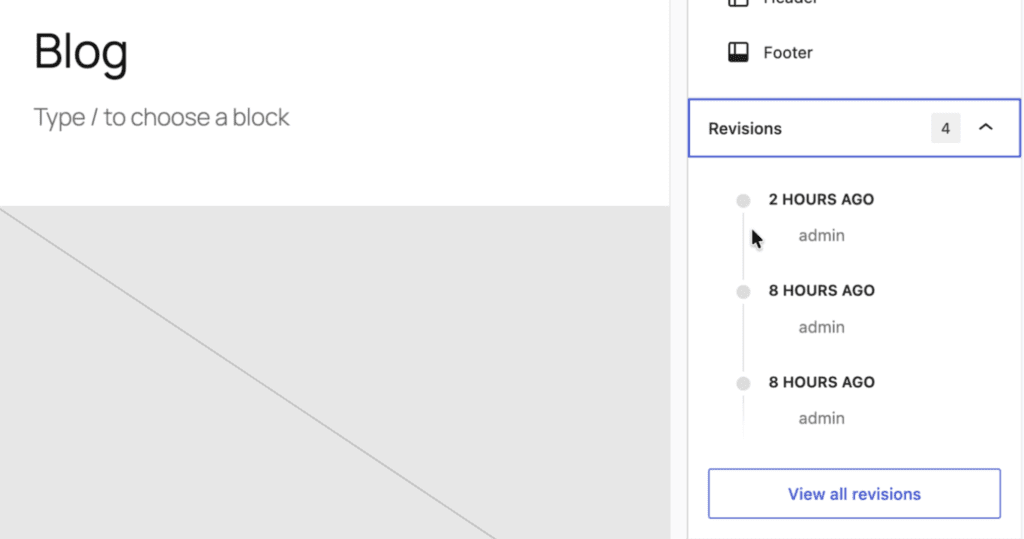
Nik Tsekouras on the WordPress team shared plans for a new sidebar view. This would allow you to see a visual timeline of the changes to a post. If you look at this image closely, you’ll notice that it’s taken from inside the Site Editor. The WordPress developers are planning to add Revisions support to templates, template parts, and patterns.
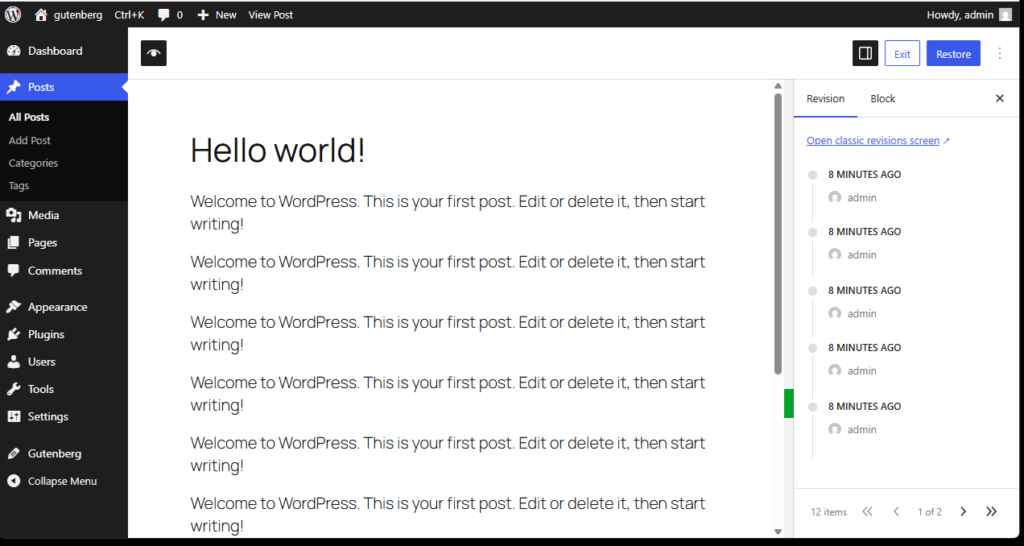
Aki Hamano shared this image that would build on that timeline improvement. The timeline would also be available when you’re looking at a revision.
WordPress 7.0 dramatically improves the display of revisions, but it still doesn’t provide editorial approval workflows, scheduled revisions, revision permissions, or moderation queues. Those features remain important for teams managing content at scale and can be solved with the PublishPress Revisions plugin.
Do More with WordPress Revisions
WordPress 7.0’s new visual revision system is a major improvement for anyone who creates or manages content. Instead of comparing raw HTML and trying to identify changes manually, authors and editors can now review revisions in a much more intuitive visual interface. These updates make WordPress revisions easier to understand and more useful for everyday publishing workflows.
If you’re interested in improving your editorial workflow even further, PublishPress offers several tools and guides that build on WordPress’s revision system. Learn how to schedule revisions for future publication, discover the benefits of WordPress autosaves, and explore the full range of PublishPress Revisions tutorials. You may also be interested in our guides on WordPress user role levels, allowing users to manage lower-level accounts, and granting permissions to a single user. Together, these tools help create a more secure, collaborative, and efficient publishing process for WordPress teams.

Approve and schedule changes to your posts
PublishPress Revisions is the ultimate tool for making content changes in WordPress. This plugin offers a safe space for users to work on content updates.
