
You Can Now Edit Admin Menus With PublishPress Capabilities
In the latest version of PublishPress Capabilities Pro, you can now rename, redesign and rearrange your WordPress admin menus.
Previously, it was possible to control who could access each admin menu. Now you can change the name and icon for each menu link. You can also re-arrange the order of the links.
This screenshot below shows the new “Admin Menus” screen. On the right side are new icons that allow you to modify the links.
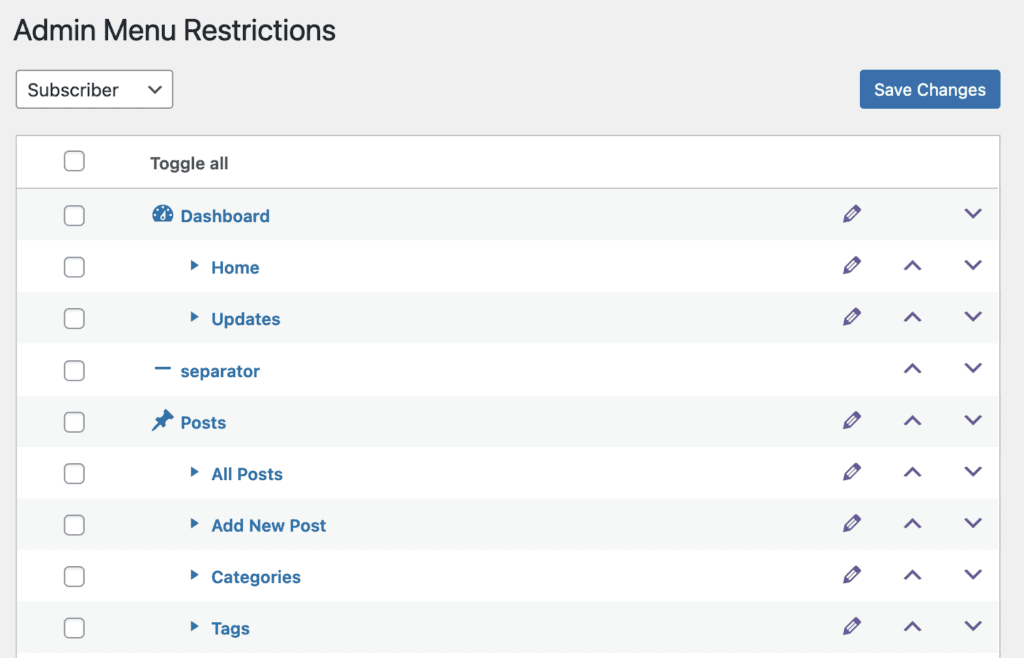
Table of Contents
How to Change the Name and Icon
If you click on the pencil icon, you will be able to change the name of the admin menu link. In the screenshot below, I’m changing “Dashboard” to “Your Dashboard”.

If you click on the “Change Icon”, you can also change the icon for this menu link.

Every time you make one of these changes, you can decide whether to do it for one user role, or all users on your site.

In this next screenshot, you can see that “Dashboard” is now called “Your Dashboard” and has a new icon.

How to Reorder Admin Menu Links
It’s also possible to re-arrange the admin menu links. In this image below, I’m clicking on the “Move up” arrow next to the “Posts” link.
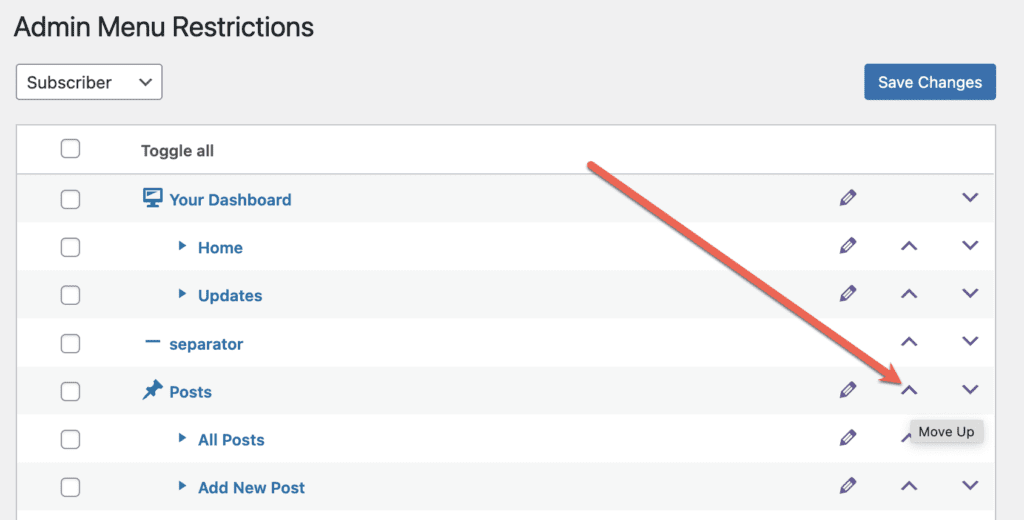
You can see the result in this next screenshot. The “Posts” link in the admin menu is now above the “Your Dashboard” link.

More about PublishPress Capabilities
We’re working to make PublishPress Capabilities the best plugin to control the user experience in your WordPress website.
Our goal with Capabilities is to allow you to create completely different experiences for different users on your site.
You can customize what users see in every area of WordPress, from editing posts to admin menus and profile pages. You can even control what users see on your site’s frontend.

Control your WordPress users
PublishPress Capabilities enables you to customize what users see in every area of WordPress from editing posts and pages to admin menus, profile pages.
