
How to Export and Import WordPress User Capabilities
This week, a PublishPress user asked us the following question:
“Can we copy-and-paste roles and permissions over from one website to another website, so that we don’t have to set up the permissions for each website we have to make?”
The answer to that question is “Yes”, thanks to the PublishPress Capabilities plugin.
This tutorial should be effective for any permissions that are created using the normal WordPress permissions system.
Table of Contents
Exporting and Importing with a Plugin
After installing PublishPress Capabilities, you can check that your permissions are exportable by going to “Capabilities” in your WordPress admin area. If you see the permissions on this screen, they can be exported. If you can not see your permissions, you’ll need to talk with the developers of the plugin that creates those permissions.
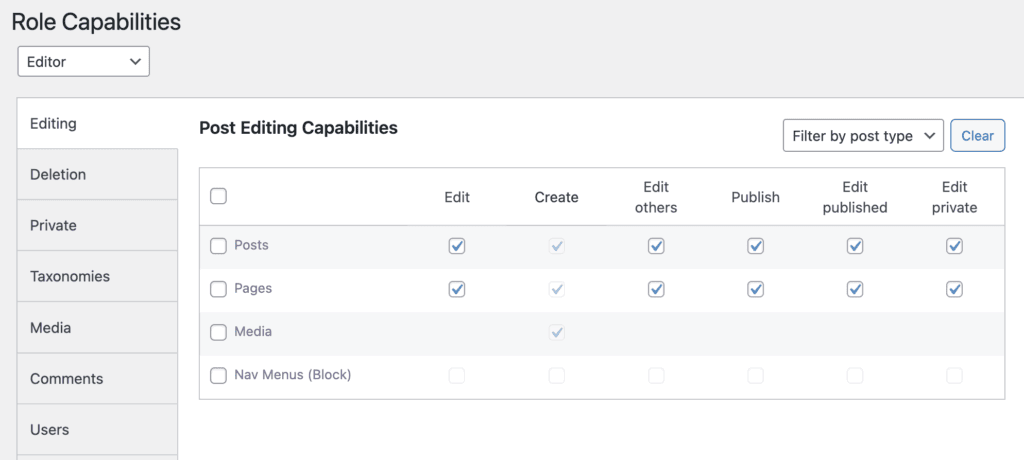
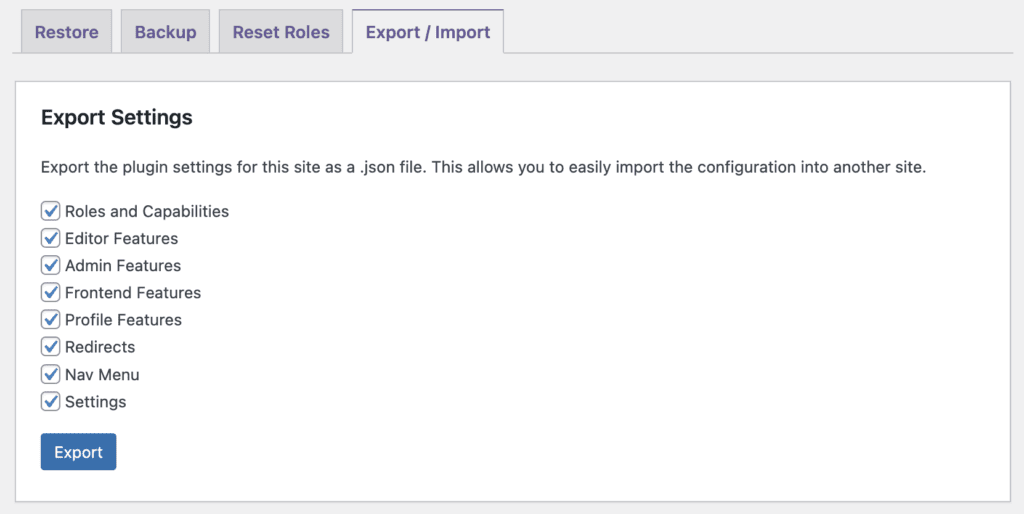
In PublishPress Capabilities, you’ll find a “Export / Import” tab by going to the “Backup” link.
This feature allows you to download all the roles and capabilities from one site and import them into another site. This export will include not just the basic capabilities, but also extra features such as “Editor Features”, “Admin Features”, “Admin Menus”, and “Nav Menus”.
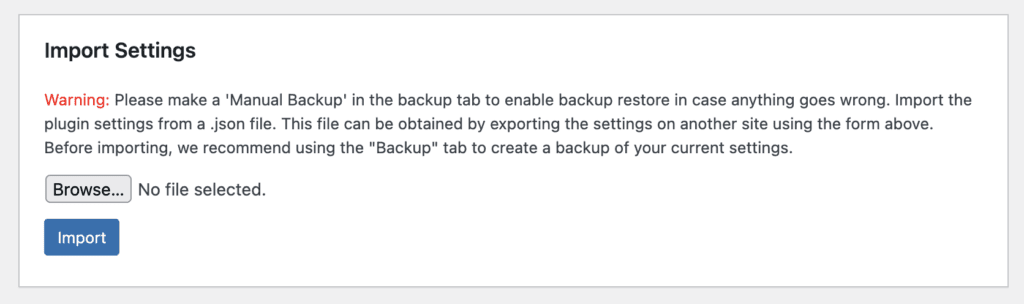
Once you’ve exported the settings, you can now use the “Import Settings” tool to import the settings to a new site. You will need to also have the PublishPress Capabilities plugin installed on that site.
Backup Data in Your Database
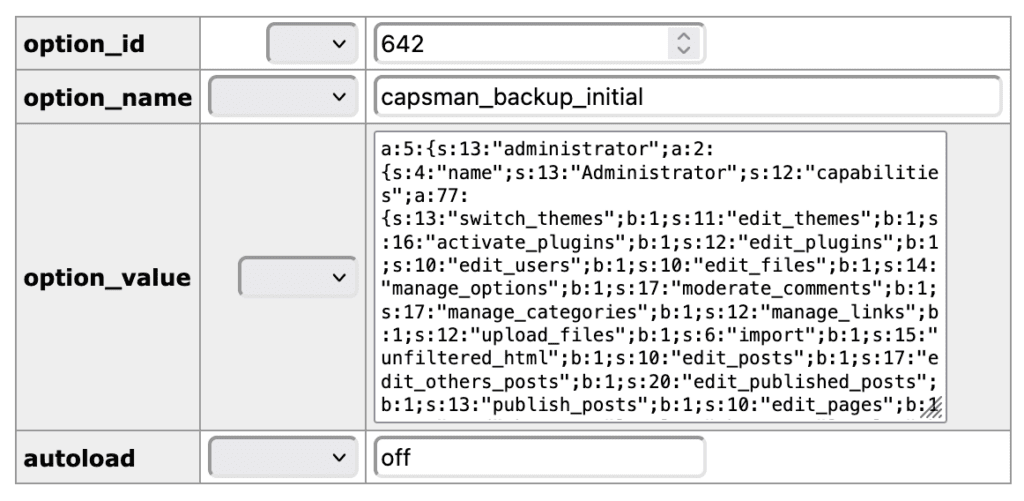
The PublishPress Capabilities backups are stored in your site’s database. You can access them via phpMyAdmin or a similar database tool.
- Find your WordPress database.
- Find the
wp_optionstable. Note that the actual table name will have the database prefix which was defined for your site. - Find the row with option_name
capsman_backuporcapsman_backup_initial.

Export this capsman_backup row. You can either export it using your database tool, or you can edit the row and copy-paste the content:
If you want more on this, check out our complete guide to WordPress user permissions in the database.
Now you can go to your other WordPress site.
- Find the
wp_optionstable (with your database prefix) - Find the row with option_name
capsman_last_backuporcapsman_backup_initial. - Replace this row’s
option_valuewith theoption_valuedata from the other site.
PublishPress Summary
Whichever method you choose, take the time to test afterwards. Check your new site and make sure the permissions have imported correctly. You can use the “User Testing” feature in PublishPress Capabilities to check each role.
If test and find something is wrong, you can visit the “Capabilities” screen and make adjustments to the user access.
Join PublishPress today and you’ll get powerful publishing and permissions plugins to improve your WordPress site.

Control your WordPress users
PublishPress Capabilities enables you to customize what users see in every area of WordPress from editing posts and pages to admin menus, profile pages.
