
How to Display the Categories, Tags for a WordPress Post
Here at PublishPress Taxonomies, we help you organize your content using WordPress Tags and Categories. Once you’ve added these taxonomy terms to your posts, the next step is to display them for visitors to find.
In this guide, we’ll give you multiple ways to show the Categories and Tags that are linked to a single post. We’ll explain how to use themes, Gutenberg blocks, shortcodes, and the PublishPress Taxonomies plugin.
This guide will focus only on helping you to display the terms connected to the post being viewed. If you want to display a wide range of terms, we recommend the Tag Groups plugin.
Table of Contents
Option #1. The Default Theme Display
The first and easiest way to show Tags and Categories connected to your post is to use your theme.
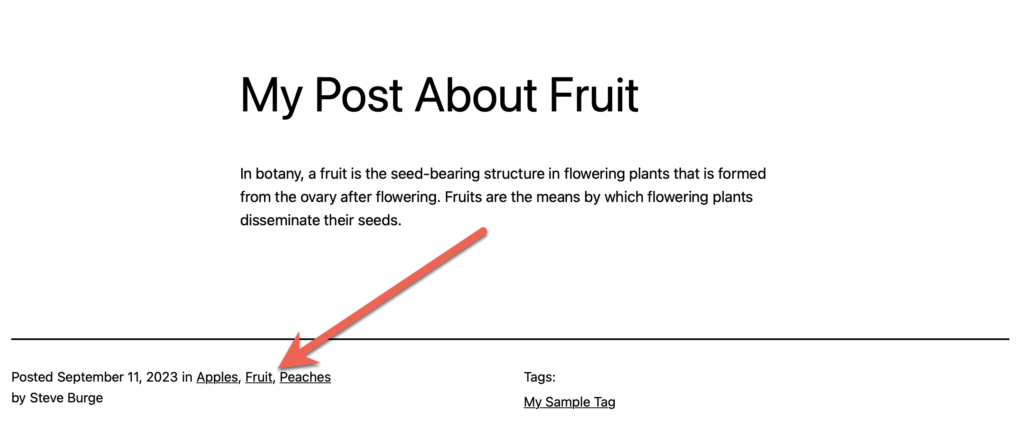
On most WordPress themes, the Categories and Tags will be immediately visible on your posts. However, the location of the terms will change depending on your theme. The screenshot below shows where Categories appear in the “Twenty Twenty-Three” theme. You can also see the Tags on the right side of the screenshot.
This next screenshot shows how Categories appear in the “Twenty Twenty-One” theme. In this example, the Categories are now on the right side of the post and the “Categorized as” text is added before the terms. The Tags are now under the Categories and have the text “Tagged”.
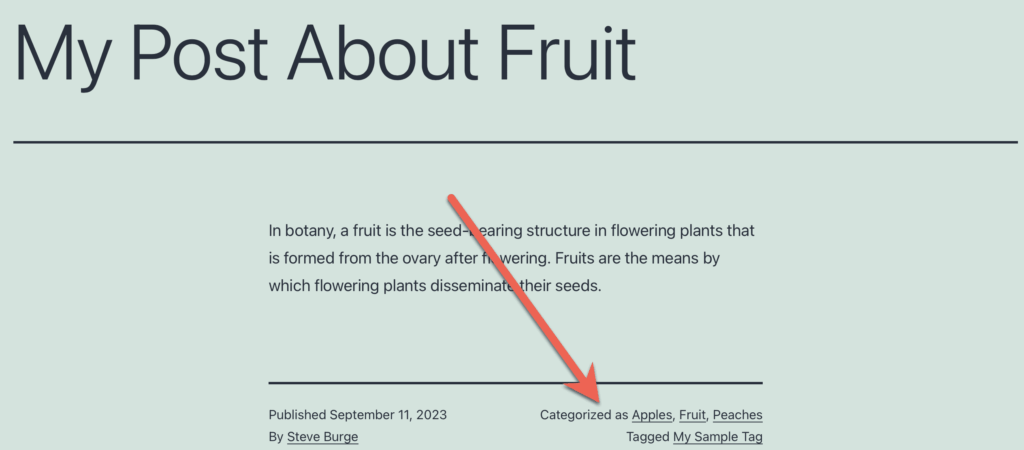
If you use the default display in your theme, you will probably not have the option to modify the output. Your theme will probably allow you to enable or disable the term display, but there are unlikely to be more options.
Option #2. Gutenberg Block Displays
The WordPress block editor provides options for displaying Tags and Categories.
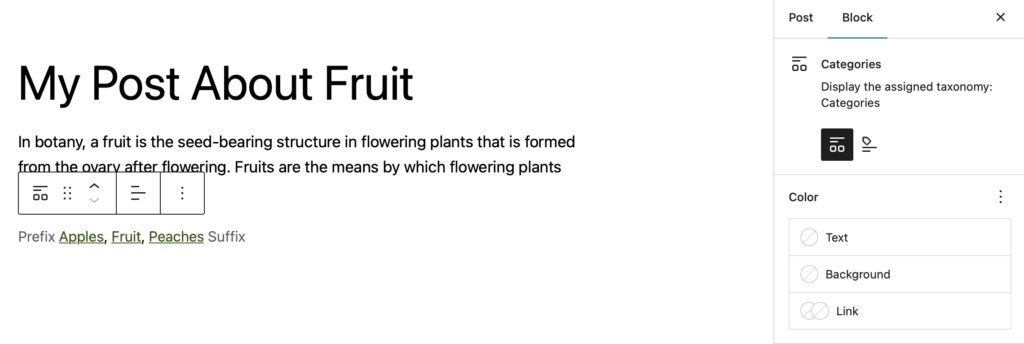
There is the “Categories List” block that can show an overview of all your site’s Categories. However, that doesn’t meet our purposes in this guide. The other available block is the “Categories” block. This shows all the Categories for the current post.
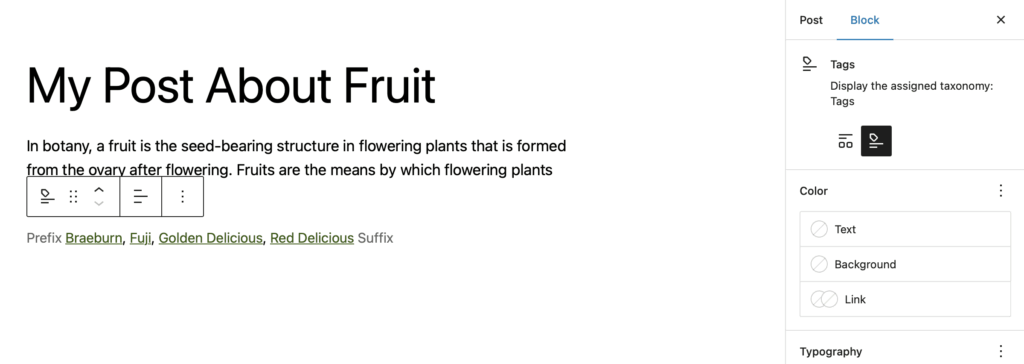
For Tags, there is the “Tag Cloud” block that can show an overview of your site’s Tags, but again that’s not needed for this guide. The other available block is the “Tags” block. This shows all the Tags for the current post.
Option #3. PublishPress Taxonomies Terms for Current Post
You can display Categories and Tags using the “Terms for Current Post” option in PublishPress Taxonomies. This feature is particularly useful if you are adding a taxonomy to a new post type. For example, this guide shows how to use the feature when adding Categories to Posts. We’ll use that example here and show you how to display Categories on Pages.
- Go to “PublishPress Taxonomies” and then “Taxonomies”.
- Edit the “Categories” taxonomy and make sure it is attached to Pages.
- Go to “PublishPress Taxonomies” and then “Terms for Current Post”.
- Go to the “Display” tab.
- Check the box for “Pages”.
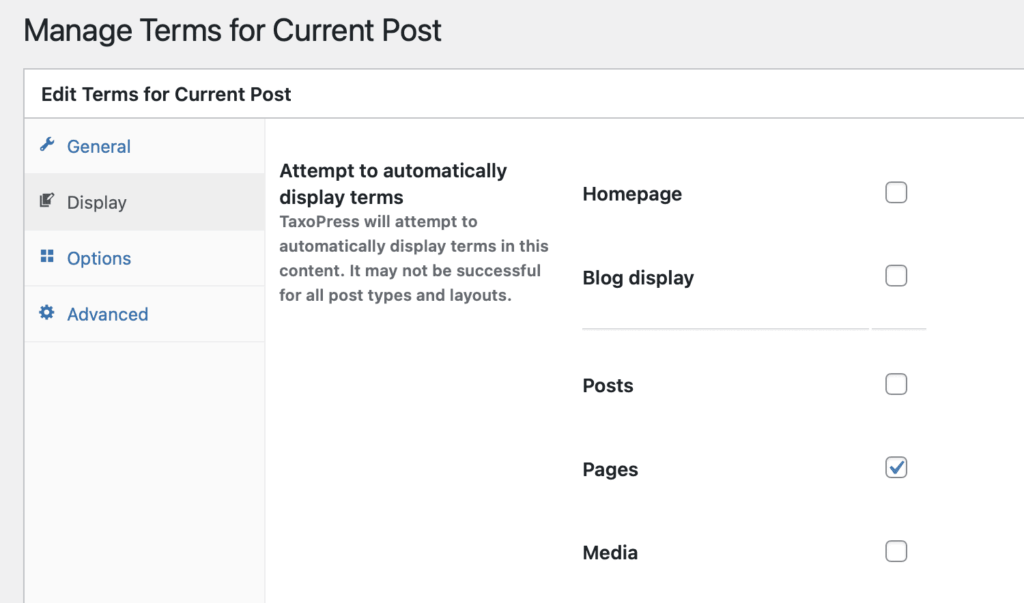
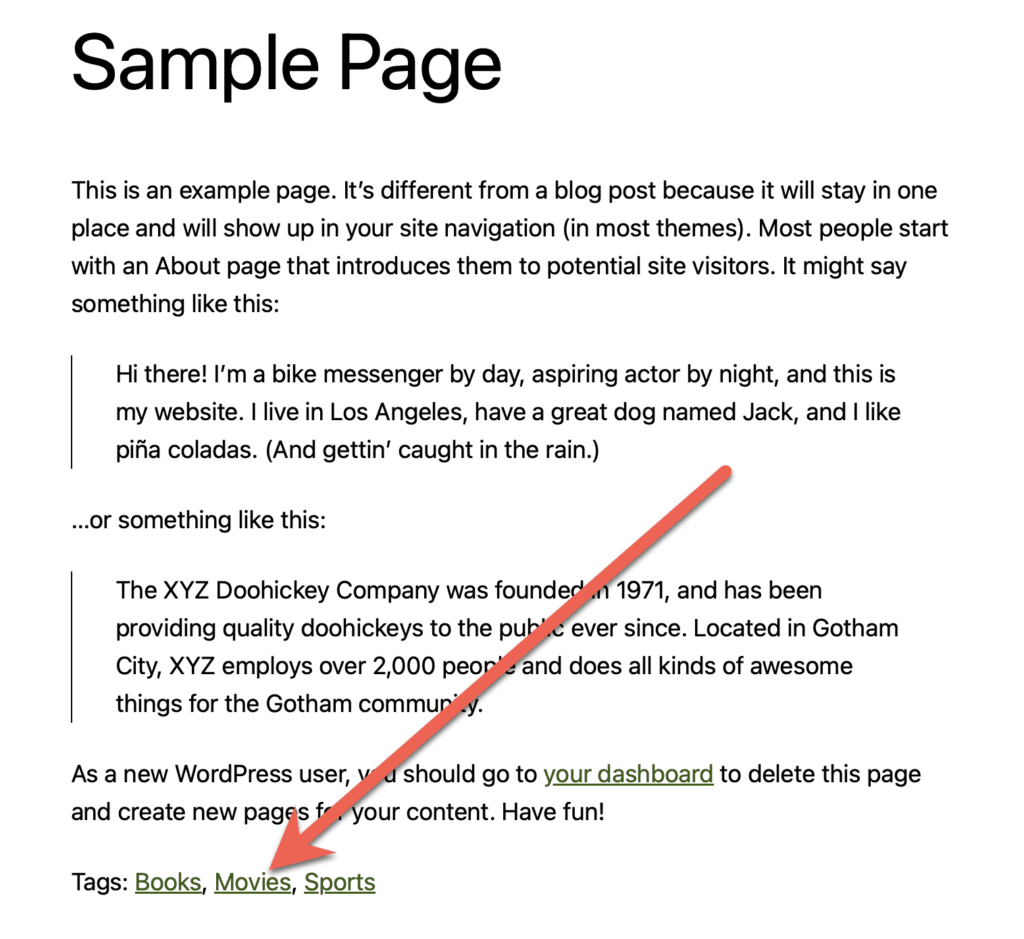
Once you’ve done this, PublishPress Taxonomies will attempt to automatically display terms in this content. It may not be successful for all post types and layouts. This screenshot below shows the result when using the default Twenty Twenty Three theme.
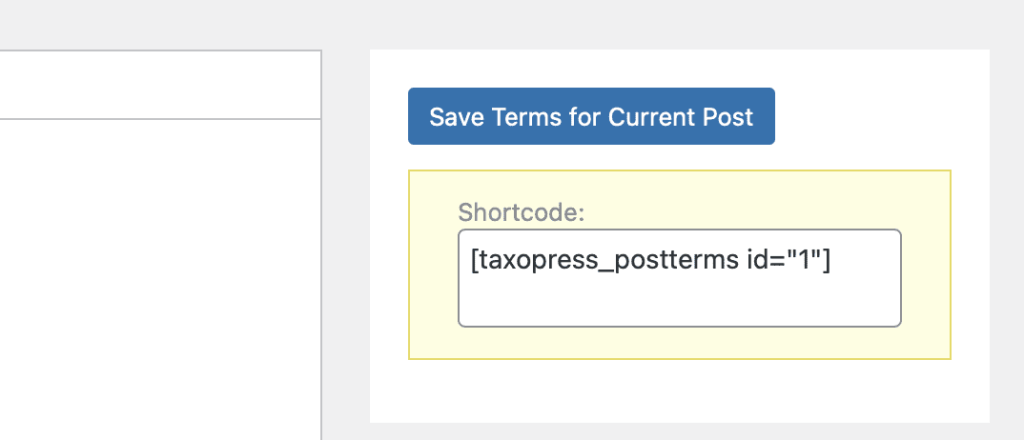
If your site won’t allow PublishPress Taxonomies to insert terms automatically, you can use the shortcode for “Terms for Current Post”. When editing the settings, you’ll find a shortcode available in the right sidebar, as in this screenshot below.

Organize your WordPress content
PublishPress Taxonomies allows you to create and manage Tags, Categories, and all your WordPress taxonomy terms.
